
How to Turn Off AI in Bing and Microsoft Edge


 3 min. read
  EEST
EEST
AI features like Copilot and Bing Chat are integrated into Bing and Microsoft Edge. If you prefer classic search without AI prompts, you can reduce or disable them using a few settings.
Table of contents
How to Turn Off AI in Bing?
1. Hide Copilot in the Sidebar
Follow these steps to remove the Copilot button from Edge:
- Open Microsoft Edge.
- Click the three dots (…) > Settings.
- Go to Sidebar > Copilot.
- Toggle off Show Copilot button.

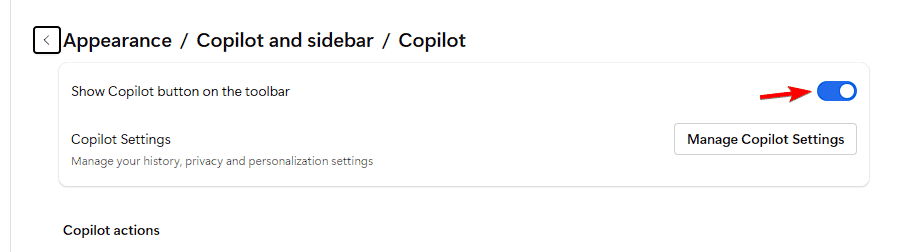
This removes the Copilot icon and sidebar from Edge.
2. Change the Default Search Engine
Switching the search engine ensures your searches bypass Bing’s AI results:
- In Edge, go to Settings > Privacy, search, and services > Address bar and search.
- Under Search engine used in the address bar, pick Google, DuckDuckGo, or another provider.

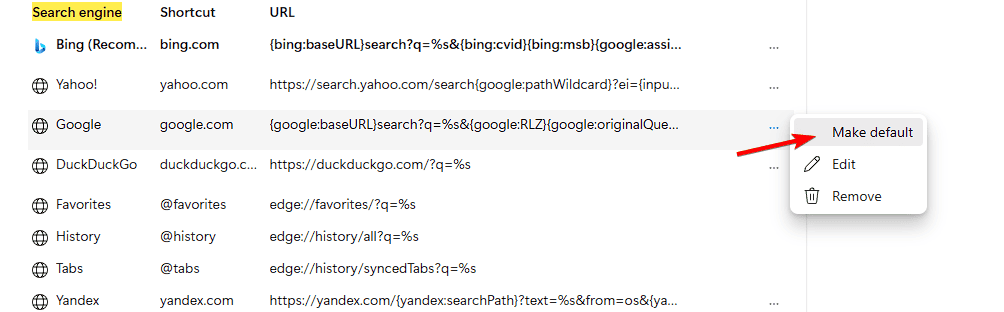
If you want Bing results to stay consistent across your devices, you can also enable Bing Sync for search data and preferences.
3. Avoid Bing Chat
To prevent AI answers from appearing:
- Search on Bing.com.
- Stay on the Web tab.
- Do not click the Chat tab, since it triggers AI responses.
4. Adjust Bing Search Settings
To reduce AI-driven suggestions:
- On Bing.com, open Settings > Search.
- Turn off personalization.
- Clear search history.
While adjusting your preferences, you may also find it useful to learn how to shop on Bing and use its built-in features more effectively.
For cleaner, more targeted results, see our guide on how to exclude terms in Bing.
5. Use Bing Without AI on Mobile
On mobile, you can either limit AI features in the Bing app or use a browser instead.
- Open the Bing app on iOS or Android.
- Go to Profile > Settings.
- Turn off features like Chat or Personalized feed, if available.
- Use Bing in a browser to fully avoid AI features.
FAQs
No, but you can hide Copilot and avoid AI chat for a traditional search experience.
No. Group Policy and Registry only affect Windows Copilot, not Bing in Edge or Bing.com.
Hide Copilot in Edge, avoid the Chat tab, and use the Web tab only.
Yes. You can change the default search engine to Google or DuckDuckGo.
Conclusion
You cannot fully disable AI in Bing, but you can limit its presence. By hiding Copilot in Edge, avoiding the Chat tab, and tweaking search settings, you keep the browsing experience closer to classic search. On mobile, disabling chat features or using a browser gives you even more control. For more precise queries, it also helps to know how to search for an exact phrase in Bing.

Read our disclosure page to find out how can you help Windows Report sustain the editorial team. Read more



Improve this guide


User forum
0 messages