
Chrome Is Quietly Turning AI Mode Into a Native Browser Feature
Chrome Canary now loads AI Mode through a native Contextual Tasks page that can answer questions, read tabs, process files, and work with images.


 4 min. read
  EEST
EEST
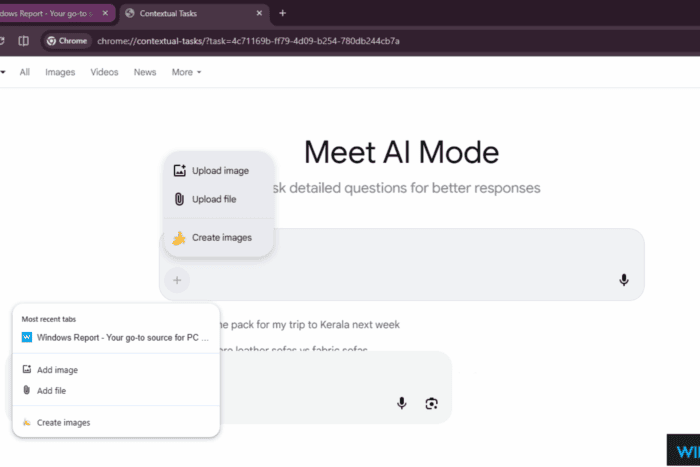
Google is testing a new version of AI Mode in Chrome Canary, and it works very differently from the version most users see today. The feature no longer sends you to a Google Search page. It now opens a built-in AI interface inside Chrome that handles questions, files, images, and follow-up tasks in one place.
When this version loads, Chrome opens a new internal page to run the experience. The interface appears through chrome://contextual-tasks, which confirms the AI system now runs inside the browser instead of a regular webpage.
The same interface also appears when clicking the “AI Mode” button in the search box on the New Tab Page. Instead of opening Google Search, Chrome now sends that request to the Contextual Tasks page.
The page shows a “Meet AI Mode” heading, a chat box for questions, a button to start a new thread, and a panel to upload an image, upload a file, or create images. Several parts still use unfinished labels such as [i18n] Ask Google…, which shows the feature is early in development.

AI Mode responds inside the browser
Questions now receive answers inside this internal page. For example, asking “what is date today” returns the correct date. At the end of the answer, Chrome adds a follow-up question on its own. In this case, it asked if we wanted to know about holidays or special events.

Typing “yes” in the unfinished box triggered a second answer that listed international observances for the day. This confirms the tool can continue the conversation without treating each question as separate.

Reads your open tabs
We selected the Windows Report homepage tab and asked “what is this site about.” Chrome returned a clear summary of the website. This shows it can read the page directly without loading another webpage.

Works with files
In the same session, we added a PDF invoice through the + menu and asked “summarize invoice.” Chrome ignored the website tab and focused on the PDF. It extracted the vendor name, customer name, invoice number, subtotal, and tax. This confirms the tool can work with different types of context and choose the correct one for the task.

Creates images and understands them
The interface can also create images. We selected “Create images” and asked for a slice of pizza. Chrome generated the image instantly. After that, we typed “what this pizza ingredients.” The tool examined the generated image and listed the common ingredients of pepperoni pizza.

This entire flow, creating an image, viewing it, and then asking about it, stayed inside the same internal interface with no page switches.

AI Mode keeps everything in one place
Across all tests, Chrome kept everything inside one conversation. It remembered earlier questions, handled text, files, and images, and accepted extra context through the same box. This is a clear change from the current AI Mode, which only opens a webpage and cannot work with browser tabs, files, or generated images.
The version in Chrome Canary is still unfinished, with rough edges and placeholder text. But the tests show that AI Mode is turning into an internal tool built into Chrome that works directly with your tabs, your files, and the images you create.
Google has not shared when this will reach regular users. Chrome Canary shows the interface is working, but the design is still changing and parts of the feature are still being added. More changes are expected over the next few weeks as Google continues its work.
We earlier reported that Chrome’s New Tab Page is turning into an AI starter screen and that Google is working on new versions of both the New Tab Page and the Chrome search box. Those changes now appear to be taking shape. The new Contextual Tasks page and the early signs of contextual search in Chrome Canary show how Google is bringing all of this together.


Read our disclosure page to find out how can you help Windows Report sustain the editorial team. Read more



Improve this guide



User forum
0 messages