
Pokemon TCG Not Scanning Cards? 5 Easy Fixes


 3 min. read
  EEST
EEST
If the Pokémon TCG app is not scanning your cards, it usually means the QR code is not being recognized properly. Players often face this problem due to camera, lighting, or app-related issues. This guide walks you through the best fixes so you can scan your cards smoothly again.
Table of contents
What can I do if Pokemon TCG is not scanning?
1. Clean Your Camera Lens
A dirty or smudged lens can prevent the camera from recognizing QR codes properly.
- Wipe your phone’s camera lens with a microfiber cloth.
- Avoid using tissue or rough fabrics that can scratch the lens.
- Check again if the QR code scans correctly.
2. Improve Lighting Conditions
Poor lighting can interfere with how the camera reads codes. Bright, even light is best for scanning.
- Move to a well-lit area or use natural daylight.
- Avoid shadows or glare falling on the QR code.
- Hold the card at a slight angle if light reflects off it.
3. Adjust Camera Position
If the card is too close or too far, the scanner may not pick it up.
- Hold the card steady in front of the camera.
- Adjust the distance slowly until the QR code comes into focus.
- Keep the code centered on your screen when scanning.
Connection issues can sometimes worsen scanning failures, as seen in broader cases of Pokémon TCG not working. If you play via an Android emulator, this guide on Pokémon TCG not working on BlueStacks covers emulator camera and permission fixes that can restore QR scanning.
4. Update the Pokémon TCG App
Outdated app versions can cause scanning problems due to bugs or compatibility issues.
- Open the App Store or Google Play Store.
- Search for Pokémon TCG Live and check for updates.
- Install the latest version and restart the app.


Many players struggling with scanning errors also report Pokémon TCG not updating, so keeping the app current is essential.
5. Reinstall the App
If none of the above work, reinstalling may clear corrupted files causing the scanner issue.
- Uninstall Pokémon TCG from your device.

- Restart your phone.
- Reinstall the app from the official store.
- Log back into your account and test the scanner.
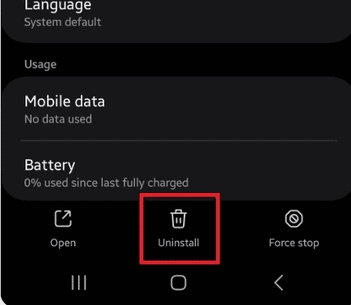
Reinstallation can also resolve login-related problems such as Pokémon TCG not sending verification code.
Conclusion
Fixing the Pokémon TCG scanner not working issue usually comes down to simple steps like cleaning the lens, improving lighting, and keeping the app updated. If you also notice gameplay interruptions after scanning, it could be connected to other issues like Pokémon TCG not enough energy.
FAQs
It could be due to poor lighting, dirty lenses, or an outdated app.
Yes, reinstalling can remove corrupted files that block proper scanning.
Yes, you can type the code printed under the QR code directly into the app.
Performance varies. Older devices may have weaker cameras that struggle with scanning.
It usually happens if the card is too close or the camera is out of focus.

Read our disclosure page to find out how can you help Windows Report sustain the editorial team. Read more



Improve this guide


User forum
0 messages