
How to Unsync a Folder in SharePoint (Step-by-Step)


 4 min. read
  EEST
EEST
When you sync SharePoint folders with OneDrive, they appear locally on your PC for faster access. However, you might want to unsync a folder to free up space or stop sharing updates. Here’s how to unsync a SharePoint folder properly without deleting your files from the cloud.
Table of contents
How to Unsync a Folder in SharePoint?
1. Open the OneDrive App
To start, you need to open OneDrive from your system tray.
- Click the OneDrive cloud icon in the Windows taskbar.
- Select the Settings gear icon.
- Choose Settings again from the menu.

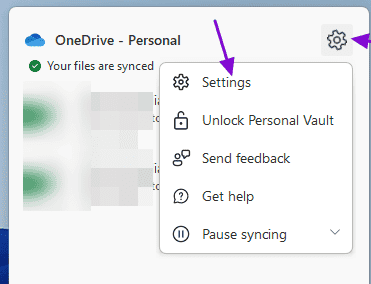
Once inside the OneDrive settings panel, you can manage all connected SharePoint libraries.
For more tips on getting started, see this complete guide on how to use SharePoint.
2. Access the Account Tab
Next, locate the connected SharePoint site and folder you want to remove.
- Click the Account tab in the Settings window.

- You will see a list of libraries synced to your device.
- Find the SharePoint site or folder you want to stop syncing.
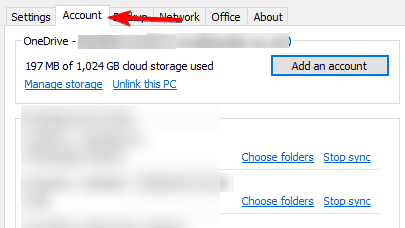
This list includes both personal OneDrive and SharePoint folders.
If you are managing multiple team spaces, you might also want to learn how to create a SharePoint site to organize your work better.
3. Stop Syncing the Folder
Once you have found the correct folder, you can unsync it safely.
- Select the Stop sync option next to the SharePoint folder.

- Confirm your choice in the pop up prompt.
- The folder will be removed from your File Explorer, but it remains online.
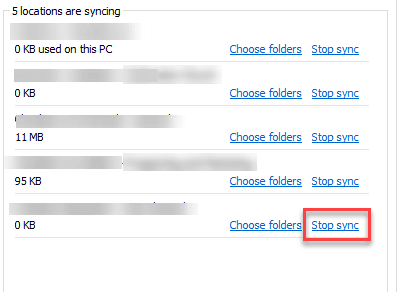
This process only disconnects the local sync. All files remain accessible through your SharePoint site.
If you are clearing unused folders, it may also help to know how to delete a SharePoint site.
4. Verify Folder Removal
To ensure everything worked properly, check your File Explorer.
- Open File Explorer.
- Confirm that the SharePoint folder is no longer visible.
- Visit your SharePoint Online site to verify that files are still available in the cloud.
If the folder still appears locally, restart OneDrive and check again.
Why You Might Want to Unsync a Folder
Unsyncing helps when:
- You want to free up local storage.
- You no longer collaborate on a project.
- You experience sync errors or duplicated files.
It is a clean way to remove clutter without losing access to SharePoint data. When collaboration ends or you need to tighten permissions, learn how to remove access to someone in SharePoint to stop sharing while keeping files online.
After cleaning up your synced folders, you can still keep important sites within reach by adding them to favourites in SharePoint for faster cloud access without syncing.
To organize information without syncing large libraries, consider creating a lightweight SharePoint list; follow this guide on how to create a list in SharePoint.
FAQs
No. Unsyncing only removes the local copy. The files remain online in SharePoint.
Yes. You can go back to the SharePoint library and click Sync again anytime.
Once unsynced, local deletions no longer affect SharePoint files stored in the cloud.
No. When you stop syncing a SharePoint library, it disconnects the entire library. To manage specific folders, use selective sync instead.
Conclusion
Unsyncing a SharePoint folder from OneDrive is simple and safe. It helps you free up disk space and stop automatic updates without affecting your online data. If you ever need access again, you can easily resync the folder from your SharePoint library with just a few clicks.

Read our disclosure page to find out how can you help Windows Report sustain the editorial team. Read more



Improve this guide


User forum
0 messages