
Fix Windows 7 Not Updating with 6 Quick Methods


 4 min. read
  EEST
EEST
Windows 7 may stop updating because of corrupted files, stopped services, or network errors. If you see messages like “Windows Update failed” or it’s stuck checking for updates, follow these steps to fix the problem quickly.
Table of contents
How to Fix Windows 7 Not Updating?
1. Check Your Internet Connection
Make sure your PC is online before troubleshooting Windows Update.
- Click the Start menu and open Control Panel.

- Go to Network and Sharing Center.

- Check your connection status.
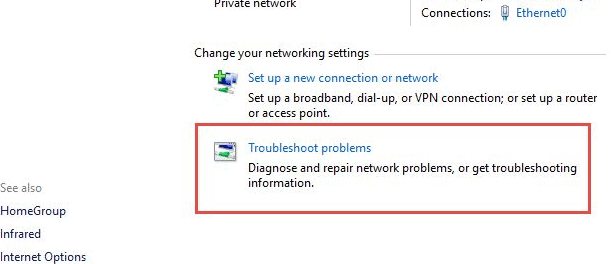
- If you are disconnected, click Troubleshoot problems and follow the prompts.


If the connection keeps failing, your system might not start properly. You can use this Windows 7 startup repair guide to ensure your PC runs smoothly before checking for updates again.
2. Restart Windows Update Services
Restarting the key update services often resolves stuck updates.
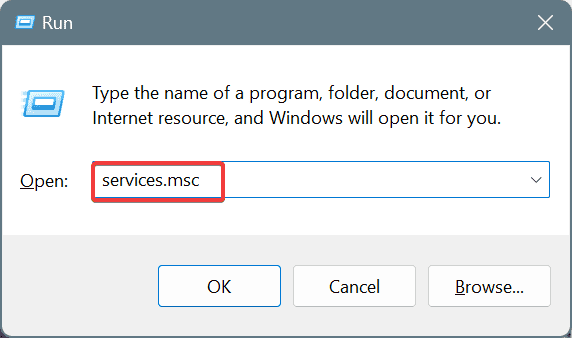
- Click Start, type services.msc, and press Enter.

- Locate Windows Update, Background Intelligent Transfer Service (BITS), and Cryptographic Services.
- Right click each one, select Stop, wait a few seconds, then select Start.
- Restart your computer.
3. Clear the Windows Update Cache
A damaged cache can prevent updates from downloading or installing.
- Press Windows + R, type the following and press Enter
C:\Windows\SoftwareDistribution - Delete all files and folders inside the SoftwareDistribution folder.
- Open Services again and restart Windows Update.
Clearing the cache forces Windows to rebuild fresh update data. For a detailed walkthrough, see how to fix Windows 7 update stuck checking for updates.
4. Run the Windows Update Troubleshooter
Microsoft provides a tool that automatically detects and fixes common update problems.
- Download the Windows Update Troubleshooter from Microsoft’s official site.
- Open the tool and choose Windows Update.
- Click Next to begin scanning.
- Apply all suggested fixes and restart your computer.
5. Install Updates Manually
If automatic updates keep failing, you can manually install them.
- Visit the Microsoft Update Catalog website.

- Search for the update code, for example KB3172605.
- Download the correct version for your system (x86 or x64).
- Double click the file to install it and restart your PC.

Seeing “Not a Valid Win32 Application” when opening a standalone update package? Fix it with this step-by-step guide.
6. Reset Windows Update Components (Advanced)
If updates still will not install, reset the Windows Update components manually.
- Open the Start menu, type cmd, right click, and choose Run as administrator.
- Type these commands one by one, pressing Enter after each:
net stop wuauserv
net stop cryptSvc
net stop bits
net stop msiserver
ren C:\Windows\SoftwareDistribution SoftwareDistribution.old
ren C:\Windows\System32\catroot2 catroot2.old
net start wuauserv
net start cryptSvc
net start bits
net start msiserver
If you need to run these steps in Safe Mode, follow this guide to boot into Safe Mode on Windows 7.
Why Windows 7 Updates Fail
- Outdated or missing service packs
- Corrupted SoftwareDistribution folder
- Disabled Windows Update services
- Damaged Windows Update Agent
- Interference from third party antivirus software
If you suspect antivirus interference, disable it temporarily before installing updates.
FAQs
It is often caused by a corrupted update cache or too many pending updates. You can fix this by clearing the SoftwareDistribution folder.
Yes, but only if you have Service Pack 1 (SP1) and the Convenience Rollup Update (KB3125574) installed.
Download and install the Windows Update Agent manually from Microsoft’s website, then restart your computer.
Not necessarily. You can manually install drivers from your manufacturer’s site, but Windows Update helps keep them compatible and secure.
Conclusion
If Windows 7 is not updating, the most effective solutions include restarting update services, clearing the cache, and running the Windows Update Troubleshooter. For stubborn cases, you can reset update components or manually install patches. Following these steps will restore your system’s ability to update and keep it secure.

Read our disclosure page to find out how can you help Windows Report sustain the editorial team. Read more



Improve this guide
User forum
0 messages