
How to configure pen pressure sensitivity on the Surface Book or Surface Pro 4


 1 min. read
 Published on


World-class 24/7 support with 82% for a 2 years plan and 2 months free
70% of our readers choose Private Internet Access
70% of our readers choose Private Internet Access

Amazing connection speed with 61% off and 4 months free for the 2-years plan.

Best security protocols with 83% off and 2 months free for a 2-year plan.
If you purchased a brand new Surface Book or Surface Pro 4, you were also treated to a brand new Surface Pen which comes in the box. For those that did not know, the updated Surface Pen offers the ultimate writing experience with 1,024 levels of pressure sensitivity and reduced latency. So it’s already designed to offer a great experience.
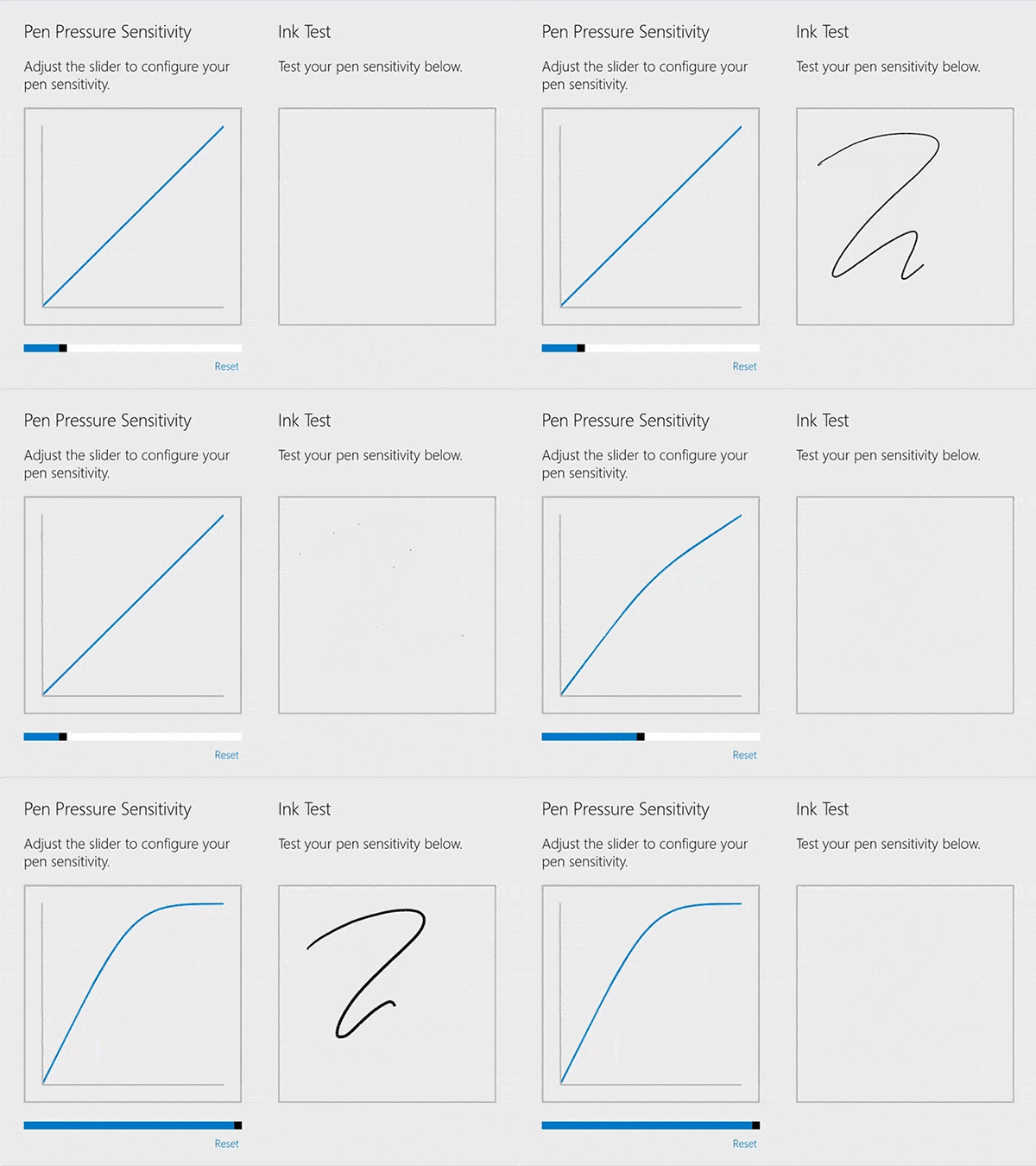
But you can improve that experience a tad bit more thanks to the Surface app that comes with your Surface Book and Surface Pro 4. All you have to do is fire open the Surface app (it’s pinned to your Start menu) and tap the Pen category on the left side of the app. Under Pen Pressure Sensitivity, simply adjust the slider to change your pen’s settings.
You can use the Ink Test area to test your new pen sensitivity by drawing or writing (make sure you try it with varying levels of pressure). The app will automatically save your settings.

Read our disclosure page to find out how can you help Windows Report sustain the editorial team. Read more


Improve this guide




User forum
0 messages