
How to disable inactive window scrolling in Windows 10


 2 min. read
 Published on


World-class 24/7 support with 82% for a 2 years plan and 2 months free
70% of our readers choose Private Internet Access
70% of our readers choose Private Internet Access

Amazing connection speed with 61% off and 4 months free for the 2-years plan.

Best security protocols with 83% off and 2 months free for a 2-year plan.
Windows 10 added a new convenience feature to make it easier to interact with background windows. Named Inactive Window Scrolling, it enables you to scroll the contents of inactive windows by hovering your cursor and using the scroll wheel.
Inactive window scrolling simplifies the Windows desktop experience and addresses a longstanding usability complaint. Previously, scrolling a background window required you to switch to it, perform the scroll, and switch back again, adding two cumbersome steps to your workflow.
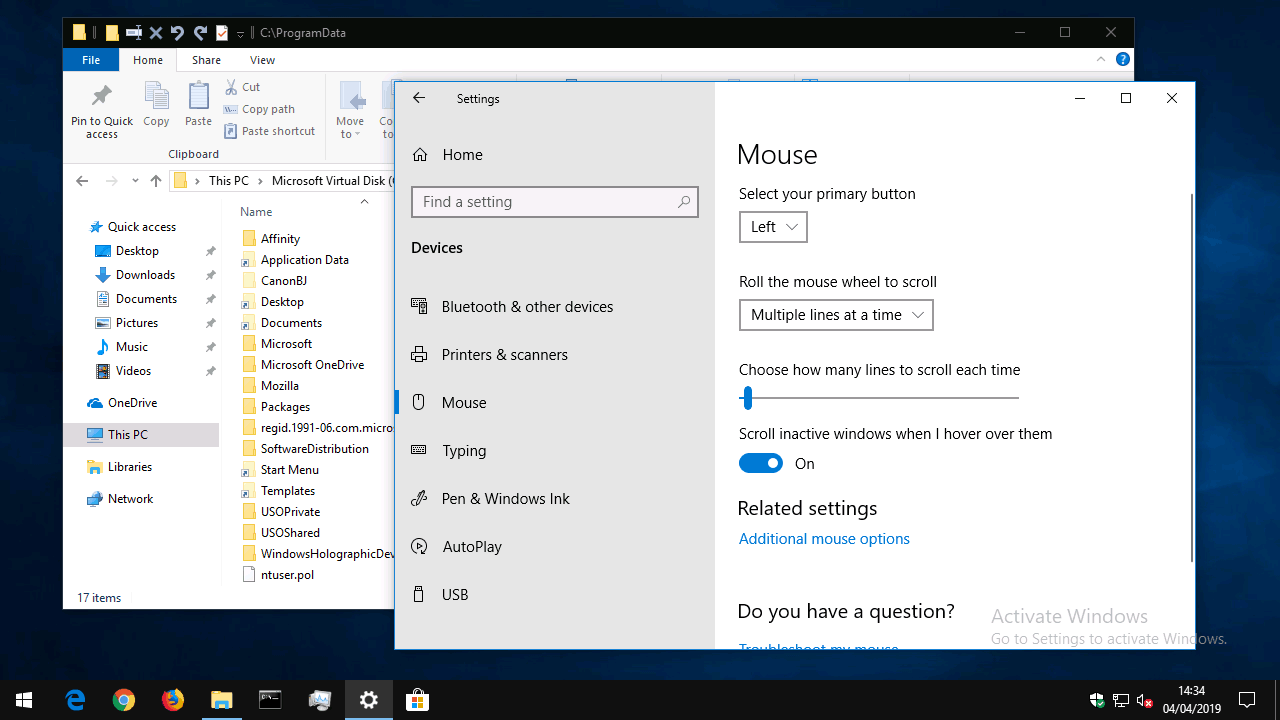
Inactive window scrolling resolves this issue but isn’t necessarily for everyone – some users may find it confusing if they have difficulty tracking onscreen content or using a mouse precisely. Turning it off – or on, if it’s disabled and you want to use it – is a simple button click.
Open the Settings app (Win+I keyboard shortcut) and click the “Devices” category on the homepage. From the sidebar on the left, click or tap the “Mouse” page to view mouse settings.
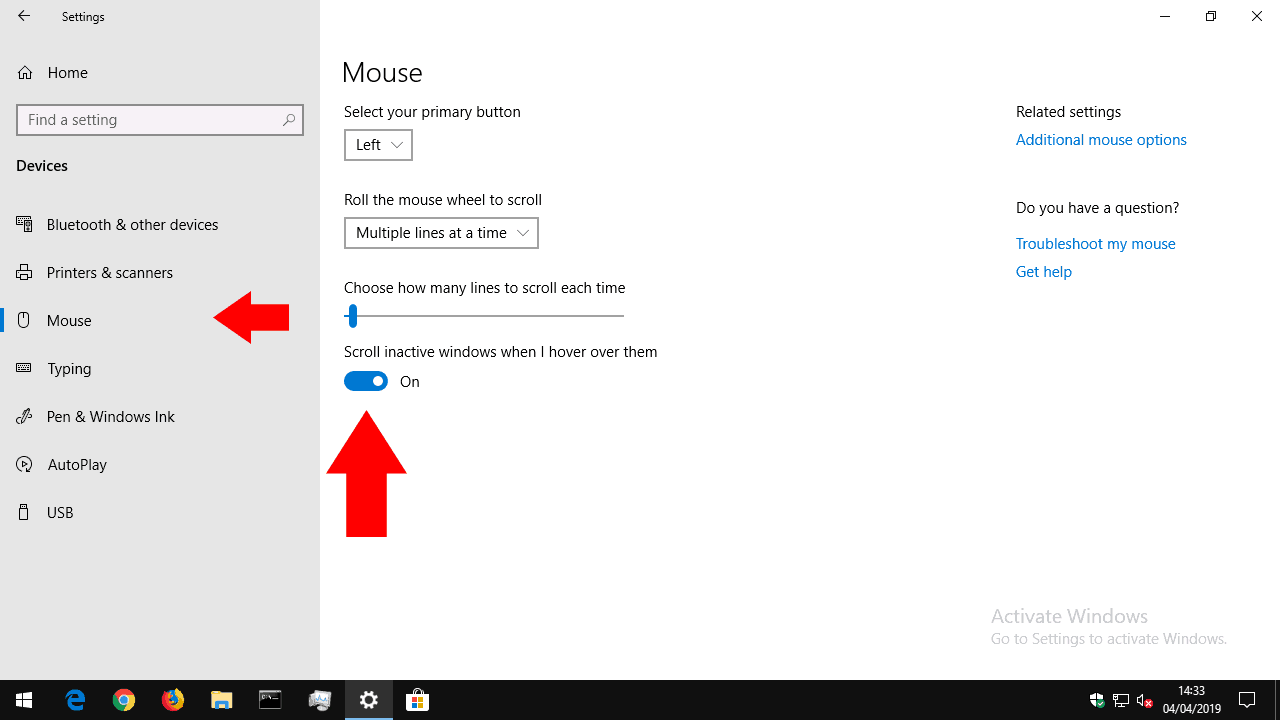
At the bottom of the page, toggle the “Scroll inactive windows when I hover over them” option to “off” to disable the feature. Alternatively, turn it on to use inactive window scrolling.
If you turned the feature off, you’ll find background windows no longer respond to mouse wheel scroling – just like in Windows 8.1 and before. Conversely, if you enabled inactive window scrolling, you can now hover your mouse over a background window and use the mouse wheel to scroll its contents.

Read our disclosure page to find out how can you help Windows Report sustain the editorial team. Read more


Improve this guide




User forum
0 messages