
New Windows 11 Experimental Build Adds Remote Lock, Advanced Passkey Controls and Major Magnifier Upgrades


 3 min. read
 Published on
Microsoft has released Windows 11 Experimental Build 26340.10013, which adds Remote Lock for managed devices, advanced security key management, and new Magnifier gestures. Microsoft is also improving BitLocker controls and taskbar window previews.
Windows 11 gets Remote Lock and advanced security controls
As far as security is concerned, Microsoft has rolled out advanced management for FIDO2 security keys. Users can now view passkeys stored on a physical security key and remove individual entries. Previously, removing a passkey could require resetting the entire key.
Administrators also get enterprise controls for minimum PIN length, mandatory user verification, and enterprise attestation.
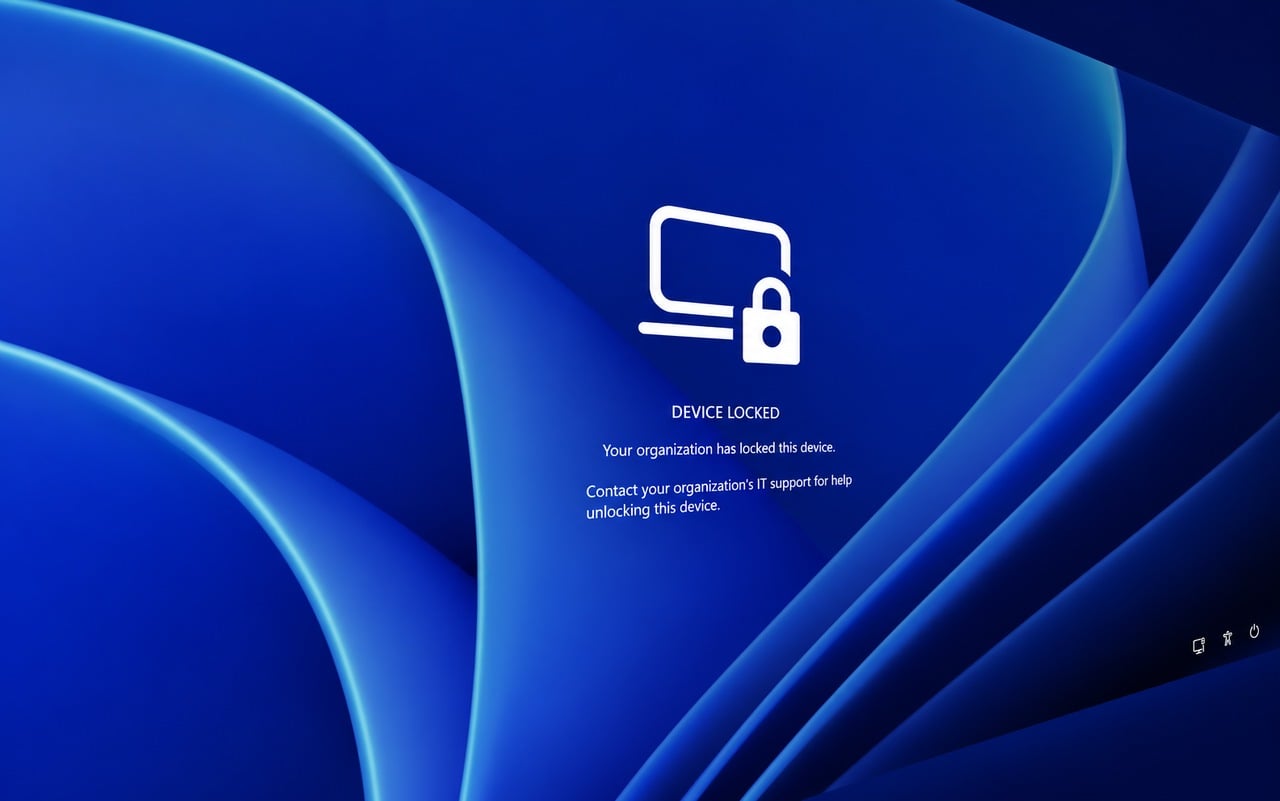
Another major addition is Remote Lock. IT administrators can remotely lock lost, stolen, or compromised Windows devices through Microsoft Intune. The feature signs out active sessions, hides sign-in options, and displays a Device Locked screen.
More importantly, Remote Lock does not erase anything. BitLocker remains enabled, user data stays intact, and the device remains enrolled. Only an administrator can remotely unlock it, allowing users to resume their previous sessions.
Microsoft is also introducing a preview of its Pluton Cryptographic Provider. Developers on supported devices can use the Pluton security processor for hardware-protected key storage and cryptographic operations through standard Windows CNG APIs.
Taskbar, BitLocker and Magnifier receive useful upgrades
The taskbar now lets users switch between window previews and a simple list view. When enabled, hovering over an application displays its open windows by title. You can enable this under Settings > Personalization > Taskbar.
BitLocker is receiving the standard-user preboot PIN capability. Users without administrator privileges on supported managed devices can now configure TPM+PIN protection themselves. Administrators must configure the required Intune policies before enabling this capability.
Microsoft also adds a useful security safeguard when switching from a Microsoft account to a local account. Windows will now prompt users to back up their BitLocker recovery key with updated instructions. This should help prevent accidental data loss.
Magnifier gets touchpad and touchscreen gestures
Magnifier is receiving a substantial accessibility upgrade. Users can now zoom and navigate using touchpad and touchscreen gestures.
On touchpads, three-finger swipes control zoom, while three-finger taps switch between 100% and the previous zoom level. Touchscreen users can pan with three fingers and use similar gestures to control magnification.
Microsoft has also added a help button to the Magnifier toolbar. It provides access to support articles, new feature information, and Feedback Hub.
Microsoft removes Offline Maps and fixes several bugs
Windows 11 is also losing Offline Maps and its related settings. Microsoft is removing the feature following its earlier deprecation announcement for Windows UWP Map controls and Maps platform APIs.
The removal affects Settings > Apps > Offline Maps and the Maps storage section under Settings > Storage > Local Disk. The feature will no longer function once the underlying platform support disappears.
Meanwhile, Microsoft has fixed a Remote Desktop issue involving certificate mismatches. Another fix addresses the broken Explore Background option in Windows Spotlight. The company has also addressed an issue causing invisible mouse cursors in certain scenarios. That’s not all; Voice typing settings should now be more reliable as well.
Futhermore,Microsoft has confirmed that it is investigating reports of Task Manager no longer updating CPU speed after recent Insider builds. The company has not provided a fix or workaround yet.

Read our disclosure page to find out how can you help Windows Report sustain the editorial team. Read more


Improve this guide


User forum
0 messages