
How to Fix Windows 11 Update Error 0x800f0993


 6 min. read
 Published on
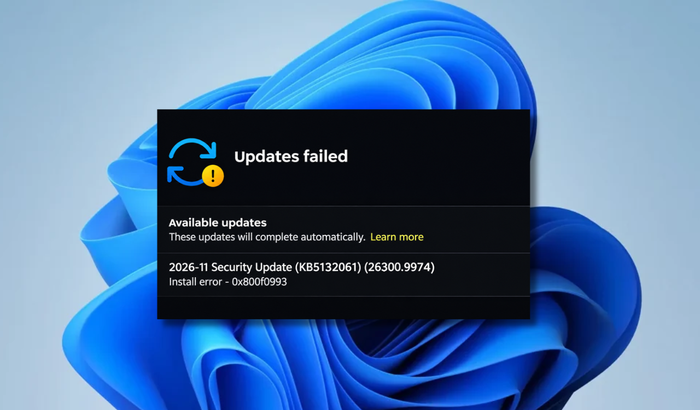
Multiple reports started appearing shortly after Microsoft released its November 2026 Patch Tuesday updates, with Windows 11 users complaining that the update repeatedly fails to install with error code 0x800f0993. Some users also encountered 0x800f0989 and 0x80070306 errors while trying to download and install the security update. The problem appears to affect a limited number of devices, especially those that previously installed the October 2026 Preview Update (KB5127936). Microsoft has acknowledged the installation issue and has already rolled out an automatic fix. However, if Windows Update is still throwing the 0x800f0993 error on your PC, there are a few things worth trying before attempting more advanced repairs.
Getting 0x800f0993 Windows Update Error? Here’s How to Fix It
Before jumping into the troubleshooting methods, there’s something important you should know. Microsoft has confirmed that this isn’t necessarily a problem with your Windows installation. The November update encountered a component servicing issue on certain devices, preventing Windows from reconstructing files needed to complete the installation.
In other words, repeatedly downloading the same update or restarting your PC might not resolve the problem. Here’s what you should try.
1. Check for Microsoft’s automatic repair
This is the first thing you should do because Microsoft has already addressed the November 2026 installation issue. According to its updated support documentation, the automatic repair was delivered to affected devices through Windows Update. Microsoft marked the known issue as resolved on November 16, 2026. Here’s what you should do first:
- Press Windows + I to open Settings.
- Select Windows Update.
- Make sure your PC is connected to the internet.
- Click Check for updates.
- Allow Windows to download and install available updates.
- Restart your PC if prompted.
If your device received Microsoft’s repair, Windows Update should be able to download and install KB5132061 normally.
2. Run the Windows Update troubleshooter
If you’re still experiencing the 0x800f0993 error, try running the built-in Windows Update troubleshooter. It can identify common problems with Windows Update components and apply available repairs.
- Open Settings.
- Go to System > Troubleshoot.
- Select Other troubleshooters.
- Find Windows Update.
- Click Run and follow the on-screen instructions.
- Restart your PC and check for updates again.
3. Run DISM and SFC scans
Several Windows 11 users reported that running both DISM and SFC helped them before installing the KB5132061 update manually.
- Open Start and search for Command Prompt.
- Right-click it and select Run as administrator.
- Enter the following command and press Enter.
DISM /Online /Cleanup-Image /RestoreHealth- Allow the scan to finish. This can take several minutes.
- Next, enter the following command:
sfc /scannow- Wait until the scan completes.
- Restart your PC and try installing the update again.
DISM repairs the Windows component store, while SFC checks protected system files and replaces damaged versions when possible.
4. Download KB5132061 manually
If Windows Update continues to fail, you can try installing the November security update through Microsoft’s Update Catalog.
- Visit the Microsoft Update Catalog.
- Search for KB5132061.
- Find the package matching your Windows version and system architecture.
- Download the appropriate update files.
- Open the downloaded MSU file to start installation.
- Follow the instructions and restart your PC.
Note: Microsoft lists a required checkpoint cumulative update for this release. On supported systems, install the required KB5043080 package before KB5132061 if it isn’t already installed. Make sure you select the correct x64 or ARM64 package for your device. Microsoft Support
5. Repair Windows using an in-place reinstall
If none of the above methods works and other Windows updates are also failing, consider repairing your existing Windows installation. Microsoft provides a recovery option called Fix problems using Windows Update. It reinstalls the current Windows version while preserving your apps, files, and settings.
- Open Settings.
- Select System > Recovery.
- Look for Fix problems using Windows Update.
- Click Reinstall now.
- Follow the on-screen instructions.
Keep your PC connected to power and the internet throughout the process. Backing up important files beforehand is still recommended.
Why the 0x800f0993 Windows Update error might be occurring
The November 2026 installation problem wasn’t caused by an outdated Windows installation. Microsoft identified a problem affecting a limited number of devices that had installed the October 2026 Preview Update (KB5127936). The error is associated with a component hydration failure. In simple terms, Windows couldn’t reconstruct certain system files using the available component data, preventing the cumulative update from completing its installation.
Some of the reported error codes include:
- 0x800f0993: Component hydration failure during update installation.
- 0x800f0989: Another installation failure reported alongside the November update.
- 0x80070306: An additional error affecting some devices attempting to install KB5132061.
Is the 0x800f0993 Windows Update error fixed?
Yes. The November 2026 security update installation issue should be resolved by now. The company had previously announced an automatic repair for affected devices, with the rollout expected to take 24 to 48 hours starting November 11. Many users subsequently confirmed that KB5132061 was installing successfully after receiving the repair. However, some individual reports continued to describe installation failures, so the fix doesn’t guarantee that every Windows Update problem is resolved.
If you’re still getting the 0x800f0993 error, make sure your PC is online, check Windows Update again, and try the DISM and SFC scans before attempting a manual installation.
Summing Up
The 0x800f0993 error was linked to Microsoft’s November 2026 Patch Tuesday update and affected a limited number of Windows 11 devices. Fortunately, Microsoft has acknowledged the problem and released an automatic repair. Start by checking Windows Update and allowing the repair to reach your device. If the error persists, try the built-in troubleshooter, DISM and SFC scans, or manually install KB5132061 through the Update Catalog.
FAQs related to Windows Update error 0x800f0993
1. What does error code 0x800f0993 mean in Windows 11?
It is associated with a component hydration failure that can prevent Windows from reconstructing the files required to install an update.
2. Why is KB5132061 failing to install?
The November 2026 security update encountered a servicing issue on certain devices that had previously installed the October Preview Update KB5127936.
3. Has Microsoft fixed the 0x800f0993 error?
Yes. Microsoft marked the issue as resolved on November 16, 2026, following an automatic repair rollout to affected devices.
4. Can DISM and SFC fix the 0x800f0993 update error?
They may help if damaged system files or component-store problems are contributing to the installation failure. However, they aren’t a guaranteed fix for the original Microsoft update issue.
5. Can I manually install Windows 11 update KB5132061?
Yes. You can download it through the Microsoft Update Catalog. Make sure you install any required checkpoint update first and select the correct package for your system architecture.

Read our disclosure page to find out how can you help Windows Report sustain the editorial team. Read more


Improve this guide
User forum
0 messages