
How to Fix PC Manager Deep Cleanup Unable to Proceed on Windows 11


 5 min. read
 Published on
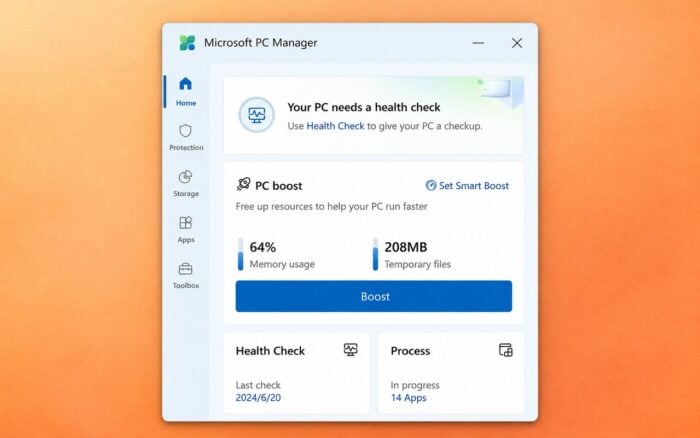
If Microsoft PC Manager Deep Cleanup shows “Unable to proceed. Please go back and retry,” the app may have a problem with its background service, cached data, or cleanup components.
Try these fixes to restore Deep Cleanup on Windows 11 and Windows 10.
What can I do if PC Manager Deep Cleanup Unable to Proceed?
1. Restart the Microsoft PC Manager service
Microsoft PC Manager relies on a background service to perform cleanup operations. Restarting it can resolve the error.
- Press Windows + R, type services.msc, and press Enter.

- Locate PCManager Service (Store) in the list.
- Right-click the service and select Restart.

- If the service isn’t running, select Start instead.
- Open Microsoft PC Manager and try Deep Cleanup again.
If you cannot find the service, proceed to the next solution.
2. Repair Microsoft PC Manager
Repairing the app can fix damaged components without deleting its settings. Microsoft also recommends this solution for the same error.
- Press Windows + I to open Settings.
- Navigate to Apps > Installed apps.
- Find Microsoft PC Manager and click the three-dot menu.
- Select Advanced options.

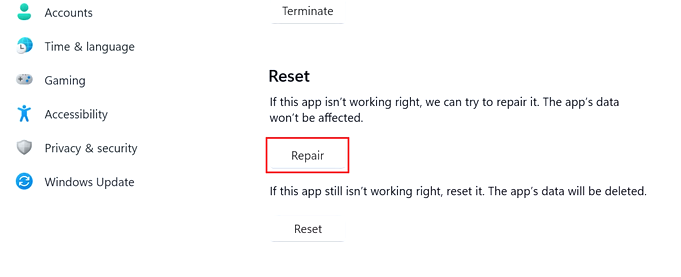
- Scroll down and click Repair.
- Restart Microsoft PC Manager and run Deep Cleanup.
If repairing doesn’t help, return to Advanced options and click Reset. This removes the app’s data and restores its default settings.
3. Run Microsoft PC Manager as administrator
PC Manager may encounter permission problems when accessing certain system files or temporary folders.
- Close Microsoft PC Manager completely.
- Open the Start menu and search for Microsoft PC Manager.
- Right-click the application and select Run as administrator, if available.
- Allow the User Account Control prompt.
- Open Cleanup > Deep Cleanup and check whether the scan works.
4. Update Microsoft PC Manager and Windows
An outdated PC Manager installation or pending Windows updates may interfere with cleanup operations.
- Open Microsoft Store.
- Go to Downloads and check for app updates.
- Update Microsoft PC Manager if a newer version is available.
- Open Settings > Windows Update.
- Click Check for updates and install available updates.
- Restart your computer and try Deep Cleanup again.
5. Close background applications
Some running applications may prevent PC Manager from accessing their temporary files or cache.
- Save your work and close all open browsers.
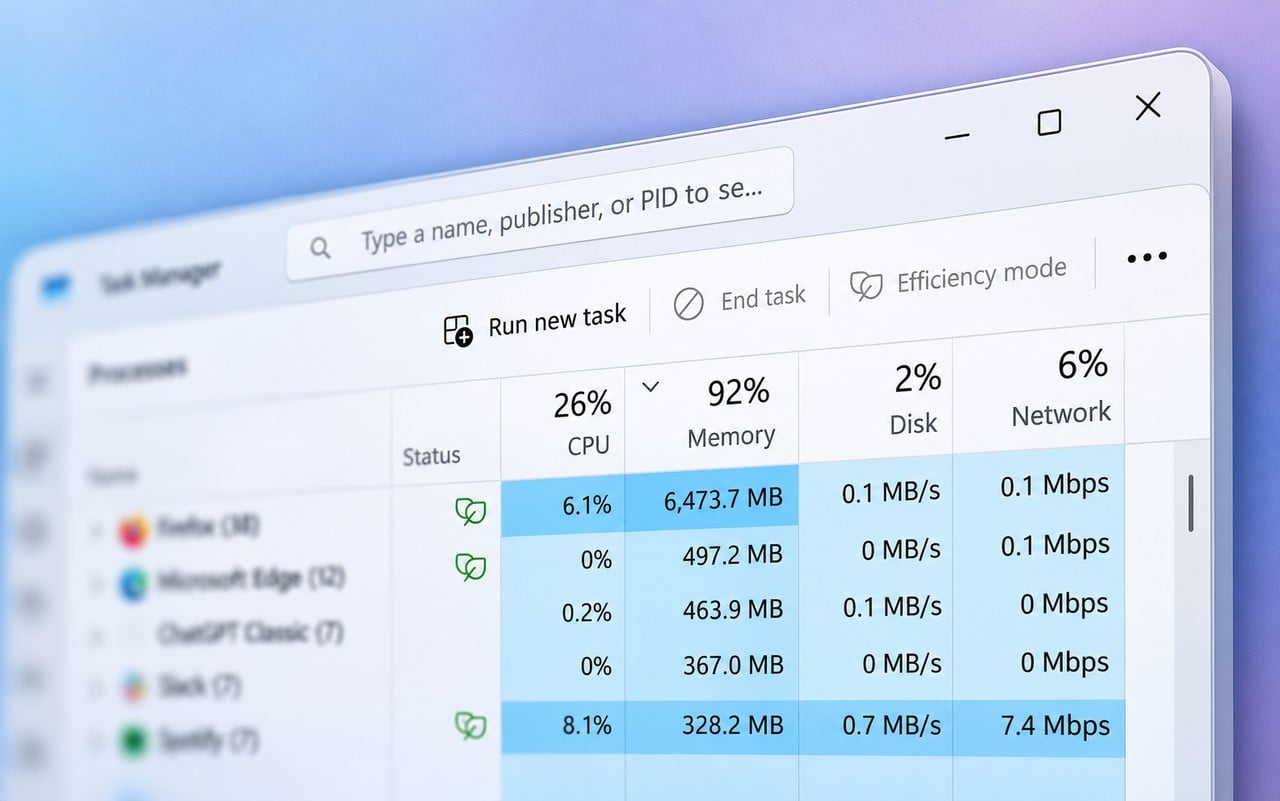
- Press Ctrl + Shift + Esc to open Task Manager.
- Select Processes.
- Close unnecessary applications using End task.

- Relaunch PC Manager and run Deep Cleanup.
Avoid ending Windows system processes or services.
6. Reinstall Microsoft PC Manager
If the error persists, reinstalling the app can replace damaged or missing components.
- Open Settings > Apps > Installed apps.
- Find Microsoft PC Manager.
- Click the three-dot menu and select Uninstall.
- Restart your computer.
- Open Microsoft Store and reinstall Microsoft PC Manager.
- Launch the app and try Deep Cleanup.
7. Use Windows Storage Sense instead
If PC Manager still displays the error, Windows provides built-in tools to remove temporary files without the app.
- Press Windows + I to open Settings.
- Navigate to System > Storage.

- Click Temporary files.
- Select the categories you want to clean.
- Click Remove files.
- Return to Storage and open Storage Sense.
- Review its cleanup settings and select Run Storage Sense now.
Check the selected categories before removing files, especially Downloads and Recycle Bin.
If Microsoft PC Manager Deep Cleanup still cannot proceed after restarting its service, repairing the app, and reinstalling it, use Windows Storage Sense as an alternative for removing temporary files. You can also review our guide on fixing PC Manager installation problems if the application fails during setup or becomes stuck while installing.
For more control over automatic cleanup, see how to enable or disable Storage Sense on Windows 11. If Windows cleanup itself becomes unresponsive, try these solutions for Windows Free Up Space getting stuck.
FAQ
Why does Microsoft PC Manager say “Unable to proceed”?
The error usually means PC Manager cannot complete the Deep Cleanup operation. Common causes include a malfunctioning background service, damaged app data, outdated components, or conflicts with running applications.
Will repairing Microsoft PC Manager delete my files?
No. The Repair option fixes app components without removing your personal files or resetting the app’s settings. Use Reset only if repairing does not work, because it removes the app’s data and restores its default settings.
What should I try first when Deep Cleanup does not work?
Restart PCManager Service (Store) from the Windows Services app, then reopen Microsoft PC Manager and try Deep Cleanup again. If the problem continues, repair the app from Settings > Apps > Installed apps > Microsoft PC Manager > Advanced options.
Can I use PC Manager if Deep Cleanup still fails?
Yes. You can continue using other PC Manager features, or use Windows Storage Sense to remove temporary files. Open Settings > System > Storage > Temporary files to clean unnecessary data.
Is it safe to use Windows Storage Sense instead?
Yes. Storage Sense is a built-in Windows feature for removing temporary files and other unnecessary data. Review the selected categories before confirming, especially Downloads and Recycle Bin, because removing those files may be permanent.

Read our disclosure page to find out how can you help Windows Report sustain the editorial team. Read more


Improve this guide


User forum
0 messages