
How to Enable Windows 11's New Search Experience Right Away


 3 min. read
 Published on
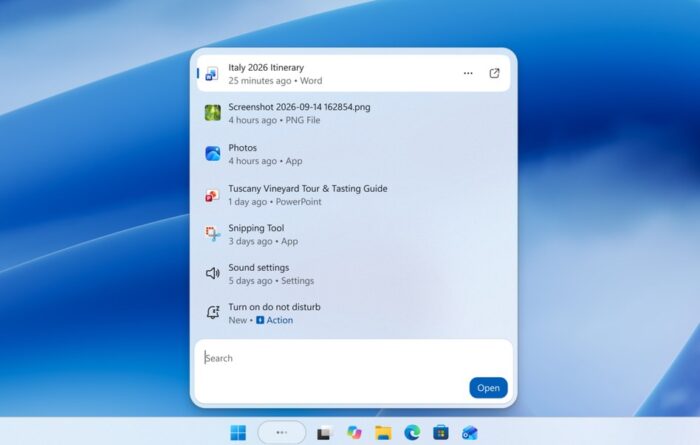
Windows 11’s redesigned Search experience is now rolling out, but you don’t have to wait for Microsoft to enable it on your PC. If you’ve installed the latest update and still see the older Search interface, ViVeTool can help unlock the new experience manually.
The new Search brings a cleaner interface and updated functionality, making it easier to find things without the clutter.
Table of contents
How to enable the new Search experience in Windows 11
Before proceeding, make sure your PC has the latest Windows 11 optional update, KB5132057. The new Search experience is part of Microsoft’s gradual rollout, so installing the update alone may not make it appear immediately. Keep in mind that these IDs can change between Windows builds, and forcing experimental features may cause unexpected behavior. Here’s how to enable it using ViVeTool, along with the feature IDs you need.
1. Download and extract ViVeTool
- Visit the ViVeTool GitHub releases page.
- Download the latest available ViVeTool ZIP archive.
- Right-click the downloaded ZIP file and select Extract All.
- Extract the files to a simple location, such as C:\ViVeTool.
- Open the extracted folder and verify that ViVeTool.exe is available.
2. Open Command Prompt as administrator
- Open Start and search for Command Prompt.
- Right-click it and select Run as administrator.
- Click Yes when Windows asks for permission.
- Enter the following command and press Enter:
cd C:\ViVeTool
If you extracted ViVeTool somewhere else, replace the folder path accordingly.
3. Enable the new Windows Search experience
First, enable the November update feature bundle by running this command:
vivetool /enable /id:61161304
Now enable the redesigned Windows Search interface using the following command:
vivetool /enable /id:58381341
After each command, you should see a message confirming that the feature configuration was successfully set. These IDs are currently associated with the November 2026 update and redesigned Search.
4. Restart your PC
Once both commands have finished executing, restart your computer to apply the changes. After Windows boots, click the Search button on the taskbar or press Windows + S.
The redesigned Search interface should now appear. If it doesn’t, your Windows build might not support the feature IDs yet, or Microsoft may have changed the implementation.
How to disable the new Search experience
If the redesigned Search causes problems, you can undo the changes using Command Prompt as administrator.
vivetool /disable /id:58381341
You can also disable the November feature bundle using:
vivetool /disable /id:61161304
Restart your PC after disabling the features to return to the previous configuration. Do note that the redesigned Search is still evolving, and ViVeTool feature IDs aren’t guaranteed to work across every Windows 11 build. If the commands don’t work, avoid forcing additional IDs from unrelated builds.
via: Windows Latest

Read our disclosure page to find out how can you help Windows Report sustain the editorial team. Read more


Improve this guide



User forum
0 messages