
PS5 slim disc drive not working? Here's why & how to fix it


 4 min. read
 Published on
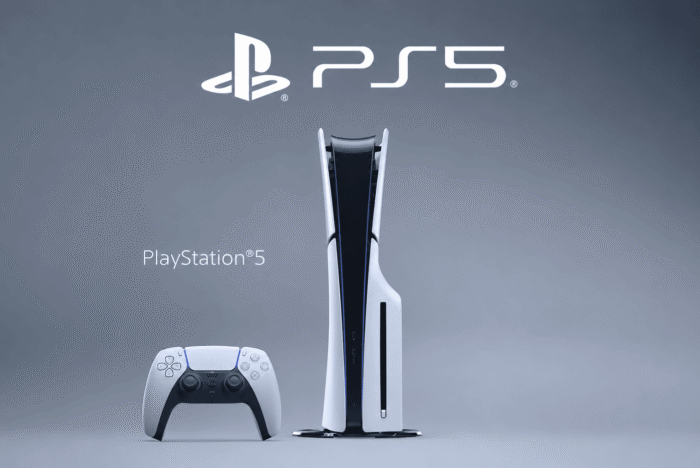
If your PS5 Slim disc drive isn’t working, the issue is most likely related to a faulty disc, a software bug, or an improperly attached drive. It may also fail to recognize the detachable drive after installation. If you are dealing with PS5 slim disc drive failure, make sure to work through the following fixes in order.
Table of contents
How to fix a PS5 Slim disc drive that isn’t working
1. Check the disc and insertion direction
A dirty disc or incorrect insertion direction can prevent the PS5 from reading games. Try another disc to determine whether the problem affects one disc or the entire drive.
- Eject the disc completely.
- Wipe it using a clean, soft cloth.
- Insert it again with the correct orientation.
- Test another PS5 game, Blu-ray, or DVD.
When your PS5 Slim is vertical, the disc label should face left.
2. Restart your PS5 Slim completely
A temporary system glitch may affect disc recognition or eject functionality. A complete shutdown can help clear the issue.
- Press the PS button on your controller.
- Open Power.
- Select Turn Off PS5, not Rest Mode.
- Unplug the power cable for 60 seconds.
- Reconnect everything and turn on the console.
3. Clear the system cache and rebuild the database
If your drive works intermittently or games fail to appear, try the PS5’s Safe Mode maintenance tools. These options don’t require immediately erasing your saved games.
- Turn off your PS5 completely.
- Press and hold the power button until you hear a second beep.
- Connect your controller using a USB cable.
- Select Clear Cache and Rebuild Database.
- Try reading your disc again after restarting.
Rebuilding the database can resolve certain system-related issues affecting disc behavior.
4. Reattach the detachable disc drive
If your PS5 Slim uses the detachable disc drive, a loose connection or incorrect fitting could explain why it isn’t recognized.
- Turn off the console and unplug every cable.
- Place the console on a soft, flat surface.
- Remove the disc-drive cover.
- Check the drive’s clips and alignment points.
- Reattach the drive firmly until it clicks into place.
- Reconnect the console and turn it on.
Avoid touching the electrical connectors. The detachable drive is compatible with supported PS5 Slim and PS5 Pro models.
5. Update your PS5 system software
Outdated system software or an incomplete update can cause unexpected hardware-related problems.
- Go to Settings > System > System Software.
- Select System Software Update and Settings.
- Select Update System Software.
- Install any available update and restart the console.
6. Reset your PS5 as a last resort
If none of the previous fixes work, consider resetting your console. Back up your saved data first, as resetting deletes data stored on the console.
- Open Settings > System > System Software.
- Select Reset Options.
- Choose Reset Your Console.
- Follow the on-screen instructions.
If the drive still doesn’t work afterward, the hardware may require repair.
Summing Up
We hope the aforementioned methods helped you fix PS5 slim disc drive when it isn’t working. Always start by checking discs, restarting the console, and rebuilding the database. If you use the detachable drive, reseat it carefully. Remember that resetting your PS5 should be your final troubleshooting step.
Frequently asked questions
1. Why does my PS5 Slim accept discs but not read them?
The disc could be dirty or damaged, or the drive’s laser or internal hardware may have a fault.
2. Why won’t my PS5 Slim eject a disc?
The eject mechanism may be experiencing a software or hardware problem. Avoid forcing the disc out.
3. Can a PS5 Slim detachable disc drive stop working after an update?
It can experience recognition issues, but an update alone doesn’t confirm the cause. Check the drive connection and system software first.

Read our disclosure page to find out how can you help Windows Report sustain the editorial team. Read more


Improve this guide


User forum
0 messages