
How to Play League of Legends on Your Second Monitor
If your mouse goes off screen, you should play LoL in full screen


 4 min. read
  Updated on

Learning how to put League of Legends on a second monitor can be a little tricky at first, especially if you’re running dual monitors on Windows 10 or 11.
The client and game don’t behave like your average windowed app, so dragging things around doesn’t always work the way you’d expect. But once you get the setup right, it’s smooth sailing, and you’ll get to enjoy cleaner multitasking and less clutter on your main screen.
How to play League of Legends on a second monitor
Table of contents
- How to play League of Legends on a second monitor
- 1. Change your secondary monitor to primary
- 2. Run LoL in Windowed mode
- 3, Use Display Settings + Keyboard Shortcuts
- 4. Use a Dedicated Cursor Tool (Like Dual Monitor Tools)
- 5. Nvidia or AMD Control Panel Monitor Tweaks
- 6. Shortcut-Based Launch (Experimental)
- 7. Use a Script or Macro Software
- How to fix User Account Control bugs when playing on dual monitors
1. Change your secondary monitor to primary
- Click on Start.
- Select Settings.

- Open Display.
- Click the Identify button to check which display is your primary (tagged 1) and secondary (tagged 2).
- Select your secondary monitor.
- Scroll down to Multiple Displays.
- Check Make this my main display option.

- Your monitors will switch now.
2. Run LoL in Windowed mode
- Launch the game.
- Press Esc to access the Menu.
- Go to Video.

- On the right, click the slider and select Window Mode.
Set it to Windowed or Borderless. - Now you can drag the Window and place it on the second monitor. You can go back to fullscreen once you’re happy with the placement.

3, Use Display Settings + Keyboard Shortcuts
Launch League of Legends in Windowed or Borderless mode, then press Windows + Shift + Left/Right Arrow to move the window to your second monitor. If you’re in Fullscreen mode, switch temporarily to Windowed, move it, then hit Alt + Enter to toggle Fullscreen back on.
4. Use a Dedicated Cursor Tool (Like Dual Monitor Tools)
If your mouse keeps drifting onto the wrong screen, download Dual Monitor Tools. It lets you lock your cursor to one monitor using a hotkey, great for avoiding mid-match distractions.
5. Nvidia or AMD Control Panel Monitor Tweaks
Open the Nvidia Control Panel or AMD Radeon Settings, and go to the display setup section. Arrange displays, set the refresh rate, and choose which monitor is the default for gaming. This helps force League (and other games) to launch where you want.
6. Shortcut-Based Launch (Experimental)
Right-click on your LeagueClient.exe shortcut, go to Properties, and in the Target field, try adding -display=2 at the end. This sometimes works with games built on Unity or DirectX, but it’s not officially supported by Riot—so mileage may vary.
7. Use a Script or Macro Software
For a more advanced option, use AutoHotKey to write a small script that moves League to your second monitor automatically.
Run, "C:\Path\to\LeagueClient.exe"
Sleep, 5000
WinMove, League of Legends, , 1920, 0
Only recommended if you’re comfortable with basic scripting.
How to fix User Account Control bugs when playing on dual monitors
 Tip
Tip
The first thing to try is modify the User Account Control settings:
- Click on Start.
- Type control and click on Control Panel.
- Go to Security and Maintenance.
- Click on Change User Account Control Settings.

- If the slider is set to Never Notify, move it a notch higher towards Always Notify.
- Click OK to save the changes.
The recommended setting is to set the slider to Notify me only when apps try to make to my computer option. Make sure to click OK to save the changes.
If the issue persists, run the Windows troubleshooter:
- Click on Start.
- Select Settings.
- Go to Update and Security.
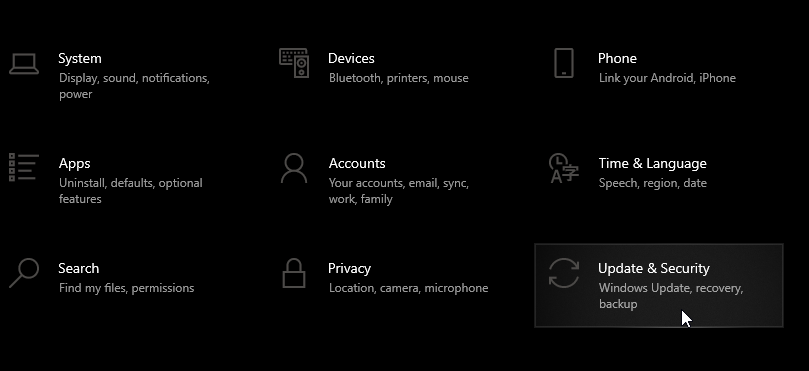
- Click on Troubleshoot.

- Scroll down to the end of the page.
- Click on Windows Store Apps.
- Click on Run the Troubleshooter.
- Windows Troubleshooter will scan the Windows Store apps for any issues and apply potential fixes.
To play League of Legends on the second monitor with full screen or borderless you can either use the second monitor as the primary monitor or enable the Windowed Mode feature in the game.
To fix the League of Legends cursor bug, enable User Account Control from the settings. If the issue persists, use the Dual Monitor Tool to lock the cursor on your preferred monitor.

Read our disclosure page to find out how can you help Windows Report sustain the editorial team. Read more



Improve this guide


User forum
0 messages