
Simple Steps to Fix Windows 11 Error 0x800704: Microsoft Store Is Blocked
Learn to enable the Microsoft Store


 6 min. read
  Updated on
Key notes
- Our users reported their Microsoft Store has been blocked for a while after installing Windows 11.
- A ban from your administrator or an issue with the app’s cache could be to blame for this.
- The dedicated troubleshooter can turn things back to normal in the blink of an eye.
If Microsoft Store is blocked in Windows 11, you won’t be able to download or update apps. You might see an error like 0x800704 or a message saying it’s blocked by your administrator.
This usually happens because of account restrictions, system settings, or broken files. If you’re using a work or school device, it could be set up that way on purpose. But even personal devices can run into this. Below are the most common reasons and how to fix them fast.
What can I do if my Microsoft Store is blocked in Windows 11?
Table of contents
1. Use the Windows Store Apps troubleshooter
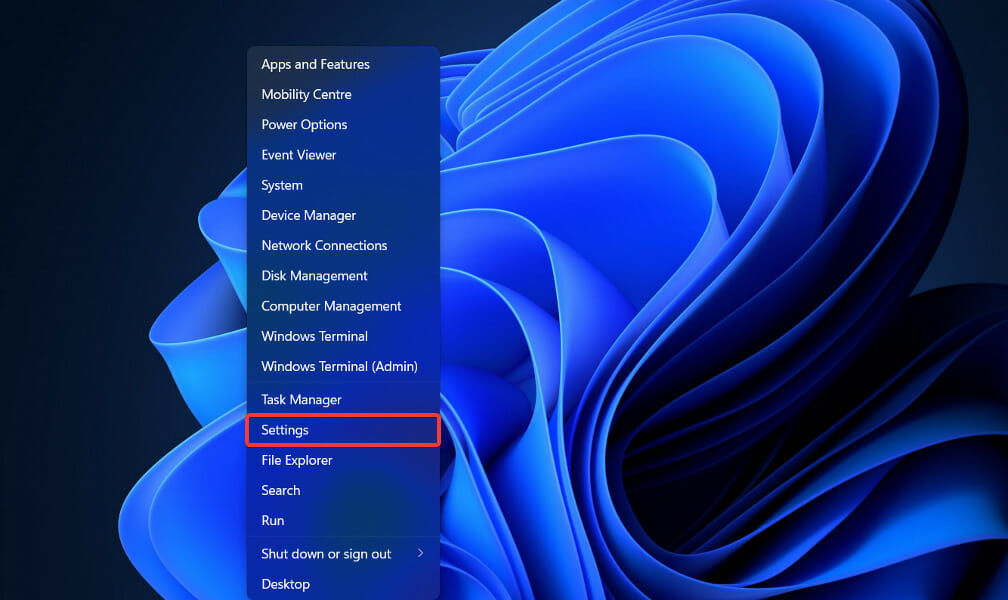
- Right-click on the Start icon in the Taskbar or press Windows + X to launch the Quick Access menu and select Settings.
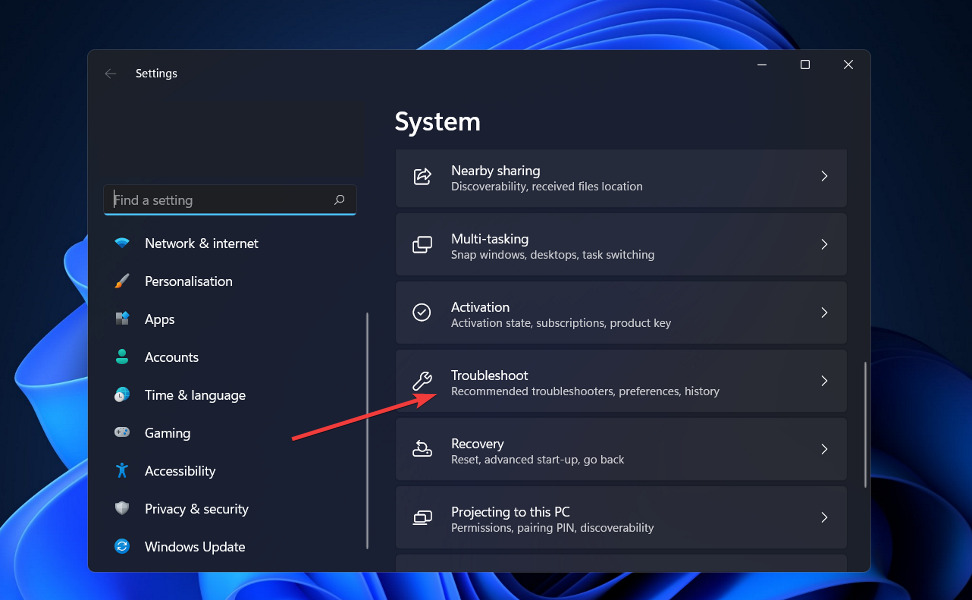
- The System tab will be open by default. Scroll down on the right side of the window and select Troubleshoot from the list of options.
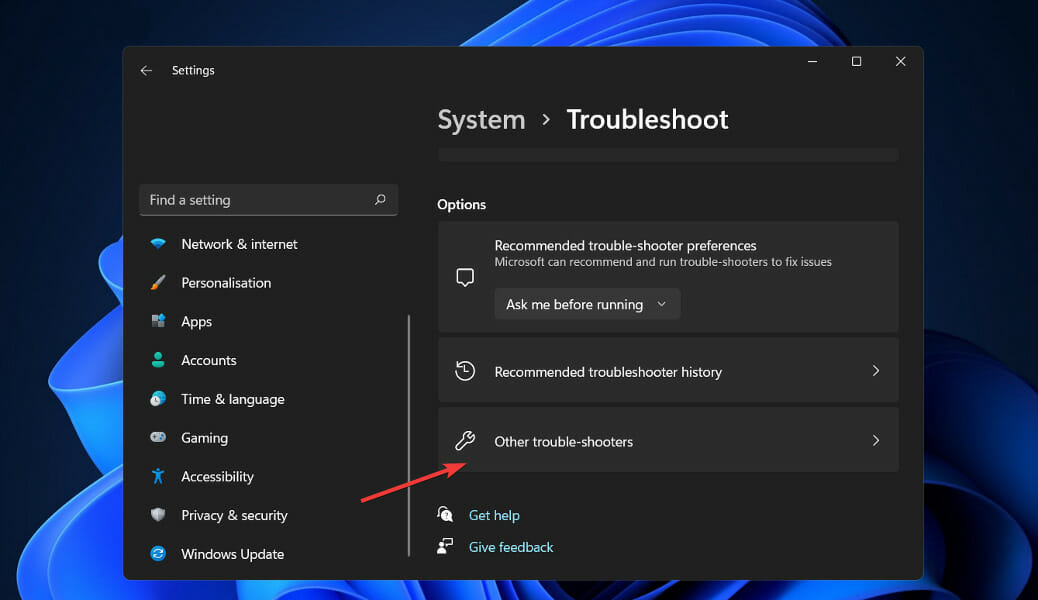
- Tap on Other troubleshooters.
- Locate the Windows Store Apps and click on Run next to it.
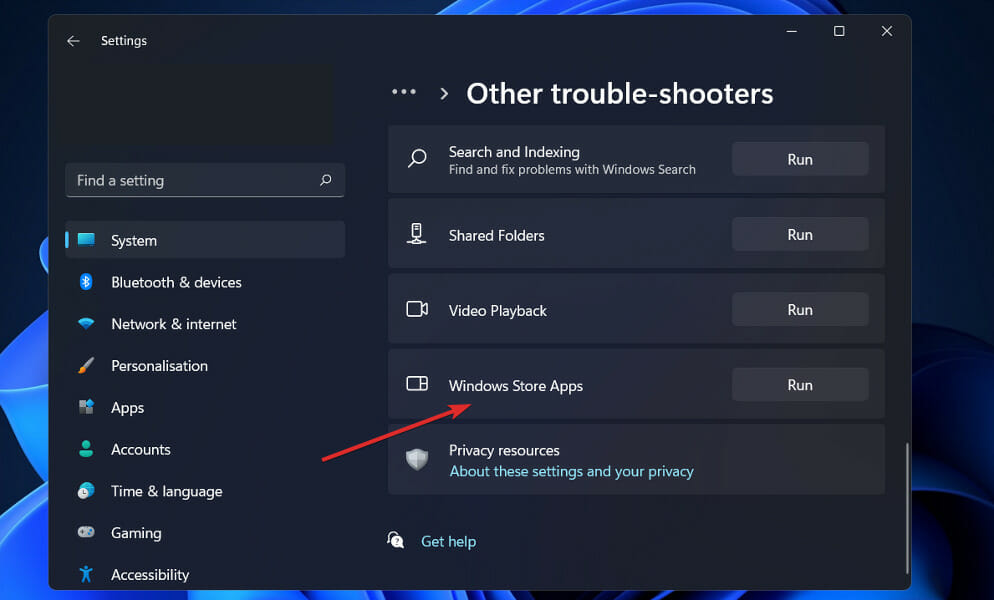
Windows will now discover and resolve any issues that may have arisen with the software or its configuration settings. Once the mistakes have been identified, instructions will be provided, so make sure to carefully follow these instructions.
2. Clear the cache
- Press the Windows key + R to start the Run app, then type or paste in wsreset.exe and press Enter or click OK.
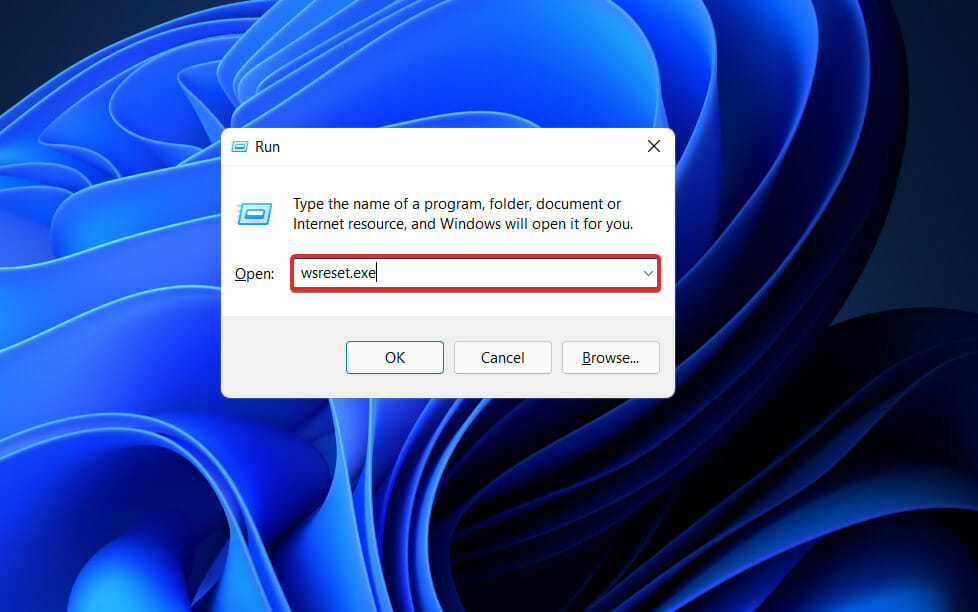
- The reset will take a few settings and then the Store will open again.
Clearing your cache just gets rid of the data your device has stored from the websites and apps you visit, it has no effect on your photos or the files you have put there.
3. Reset the app
- Press the Windows key + I to open the Settings app, then click on Apps in the right panel followed by Apps & features.
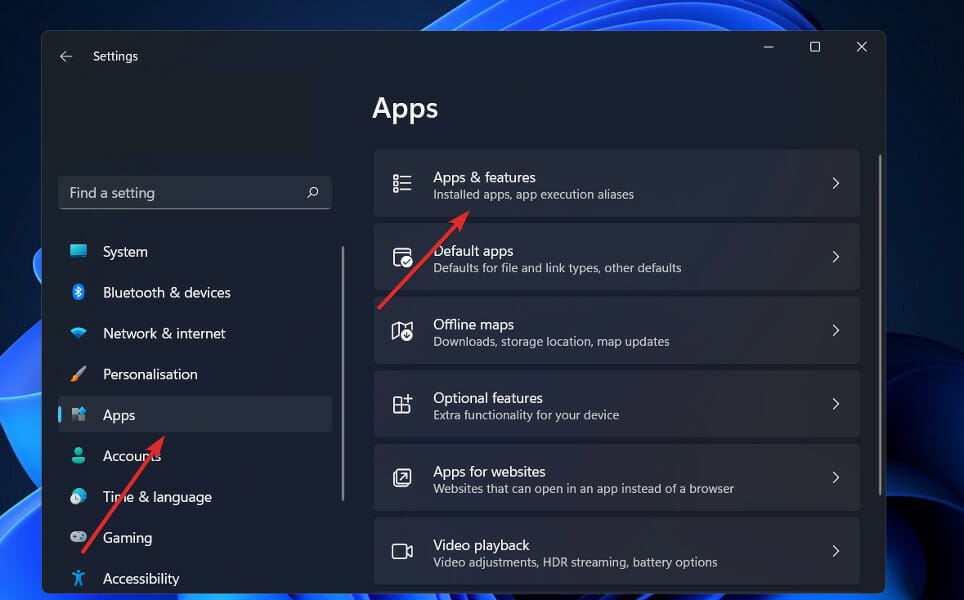
- Now search for Microsoft Store, click on the three dot menu, and choose Advanced options.
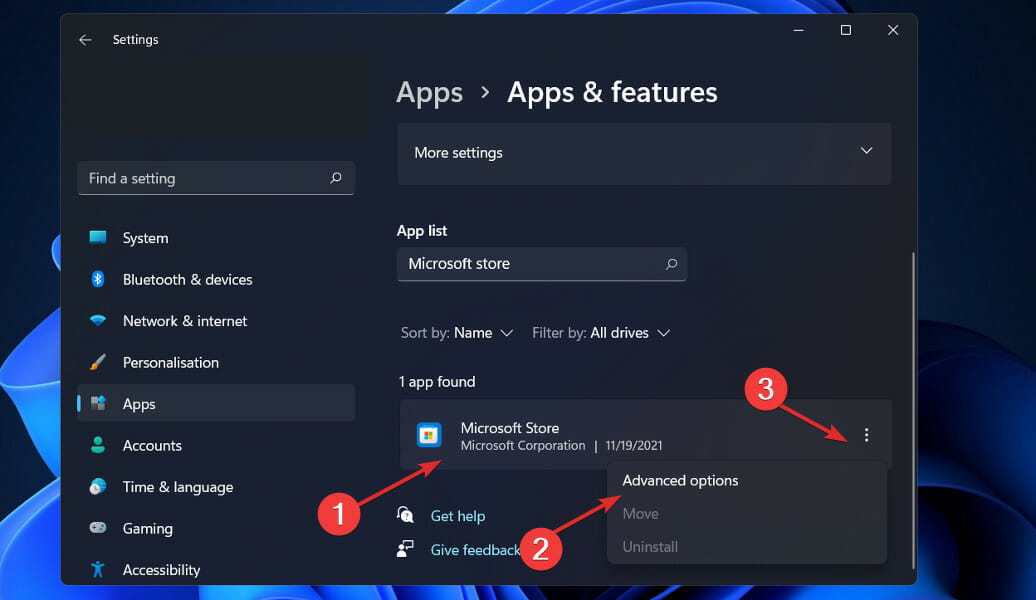
- Navigate to the Reset section and click on the Reset button.
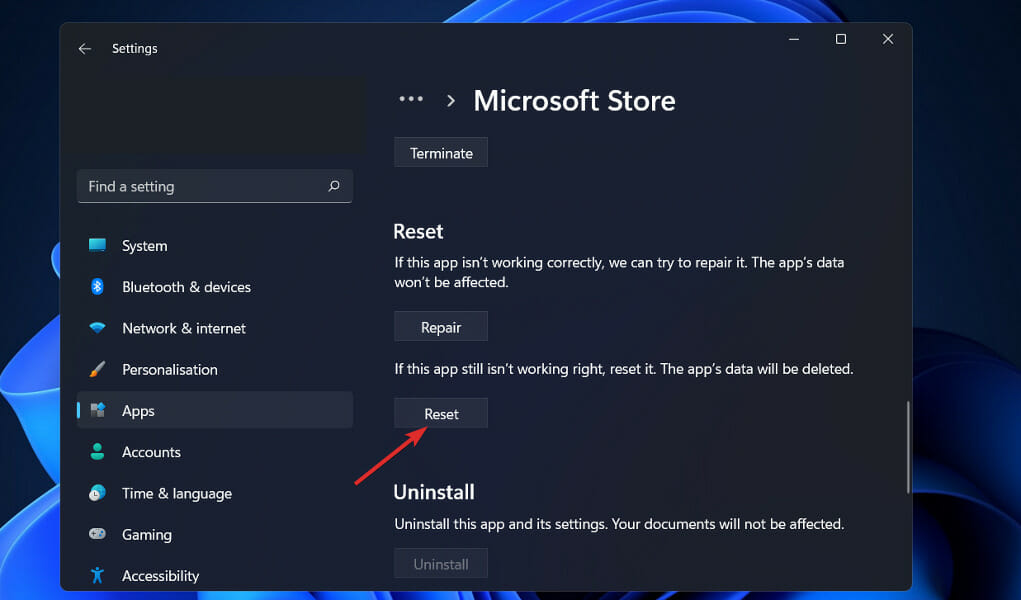
Any deactivated apps, notification restrictions, default apps, background data limits, and permissions restrictions will be erased from your device’s storage when you reset your app options. This is likely to help you when the Microsoft Store is blocked on Windows 11.
4. Enable Microsoft Store from the Group Policy Editor
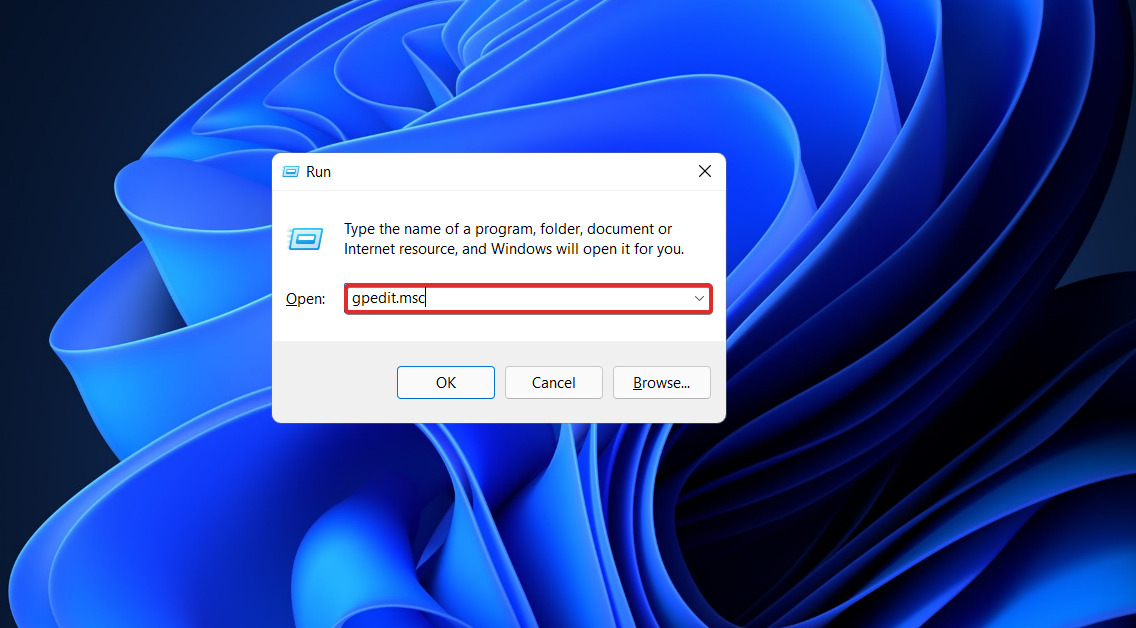
- Press the Windows key + R to start the Run app then type or paste in gpedit.msc and press Enter or click OK.
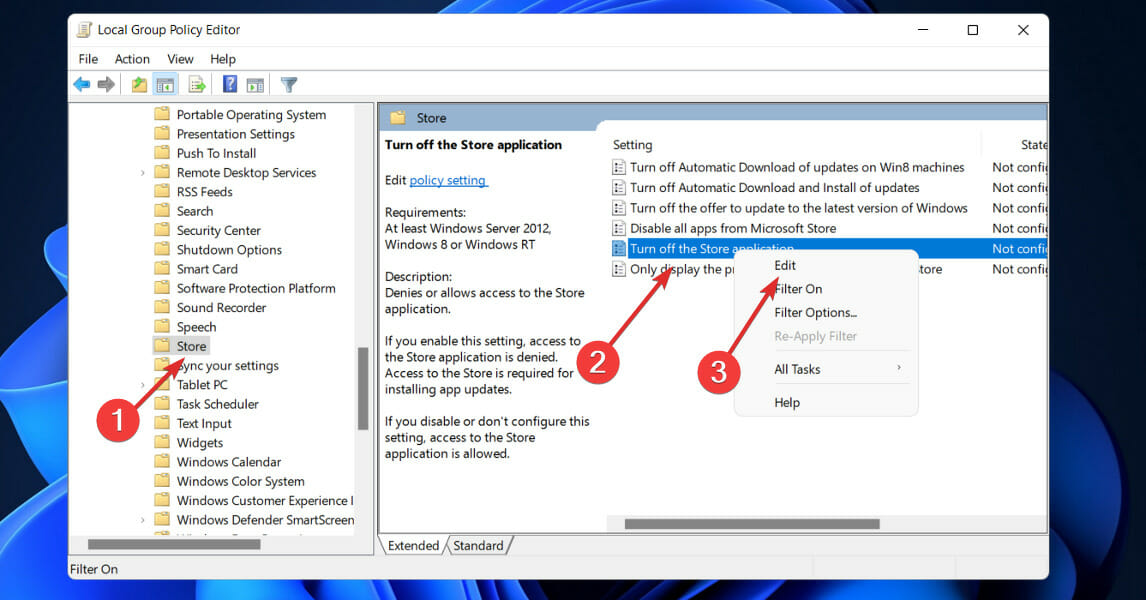
- Navigate to Administrative Templates under Computer Configuration, then choose the Windows Components subfolder and scroll down to Store.
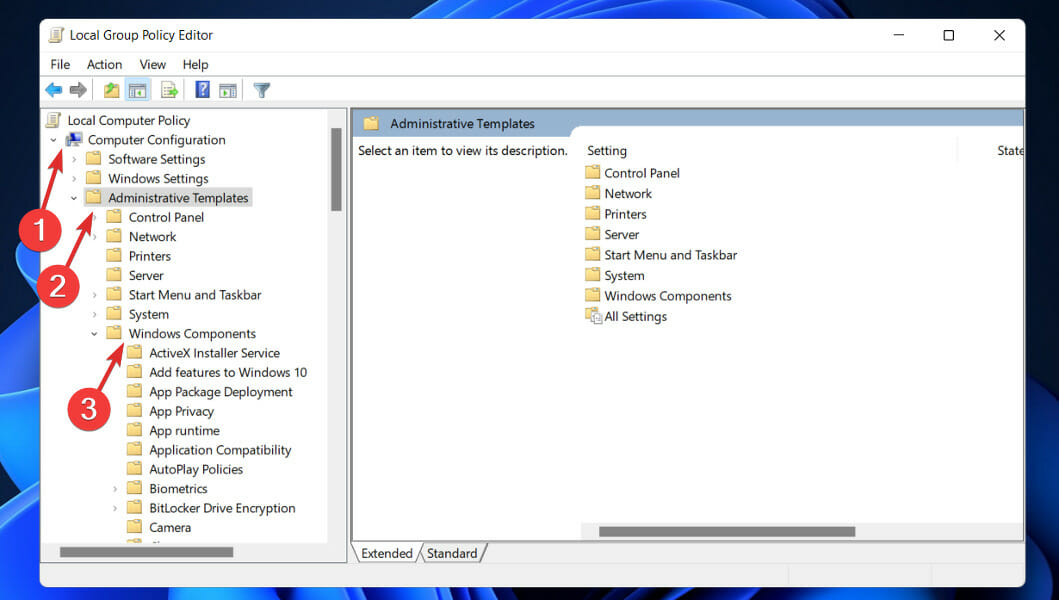
- In the right pane, locate the Turn off the Store application policy, then right-click on it and select Edit.
- If the setting is Enabled, then modify its feature to Not Configured or Disabled, then hit the Apply and OK buttons.
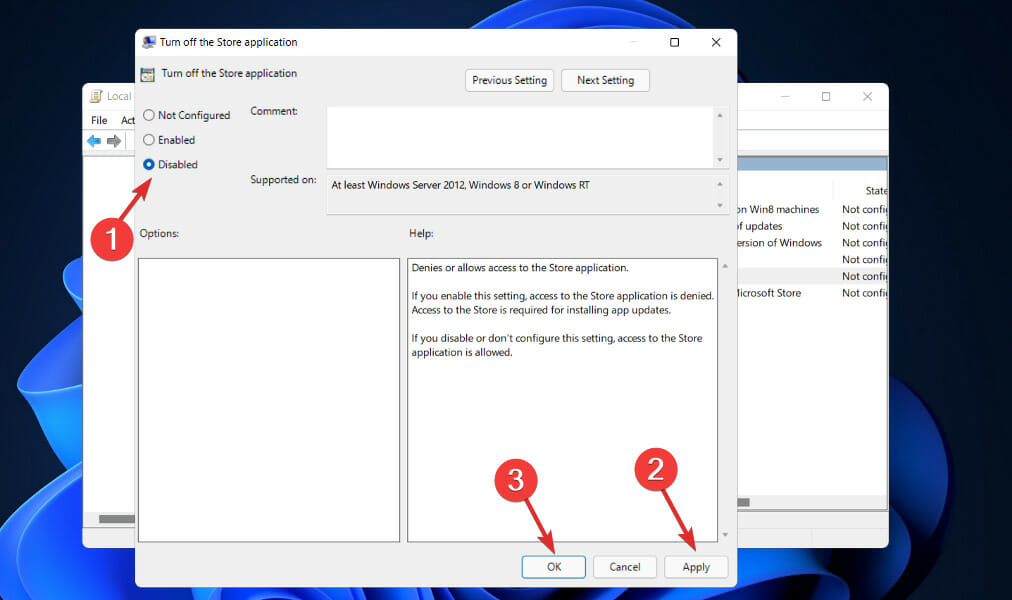
After you’re finished, restart your computer to ensure that the modifications take effect, and then reopen the Store application.
5. Update Windows
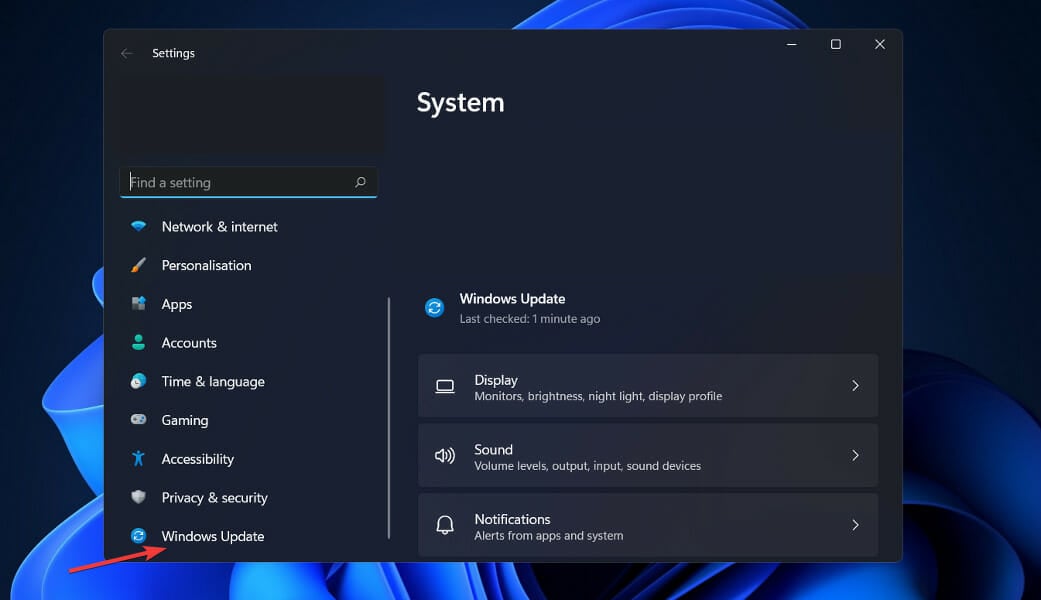
- Press the Windows + I buttons from your keyboard to open the Settings app and click on the Windows Update option in the left panel.
- If you have any new updates to download, click on the Install now button and do wait for the process to complete, otherwise click on the Check for updates option.
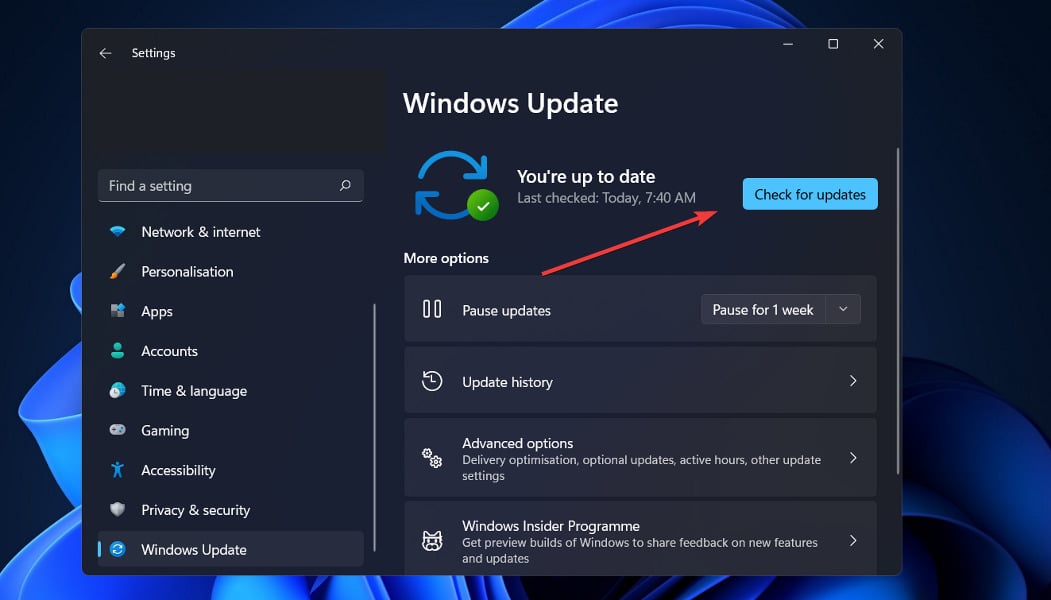
If you’re using an earlier version of Windows, it’s conceivable that this is causing the problem, which may be solved by updating the operating system. The bug will almost certainly be fixed in a future software version.
6. Turn off third-party antivirus software
Another possible cause of the Microsoft Store blocking problem could be the use of third-party antivirus software. Third-party antivirus utilities should be turned off to ensure this does not happen.
The antivirus utility icons are located in the system tray to the right of the Windows 10 taskbar, and users may right-click on them to access context menu options for the software that has been installed.
Those context menus typically feature a deactivate setting of some type, which users can pick in order to turn off the antiviral software in the background.
What happens if I remove the Microsoft Store app?
In the first place, Microsoft has said that the ability to uninstall the Microsoft Store application is not supported. 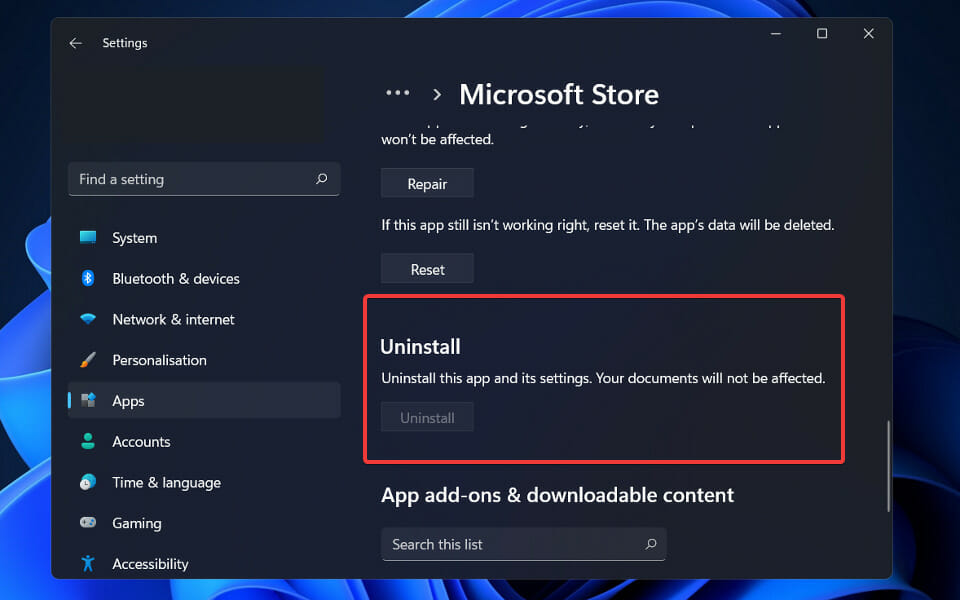
Given that a mechanism to uninstall the software was actually introduced in Windows 10, the phrase appears to be a little strange.
It is most probable that Microsoft meant that uninstalling the Microsoft Store app is not recommended rather than not supported.
Then, according to Microsoft, there is no other option than to reset or reinstall the operating system in order to reinstall the app.
To put it another way, if you uninstall the Microsoft Store app from your device and later decide that you want it back, the only option to get it back is to reinstall Windows 11 or reset your device.
The fact that the app has been deleted may be worrying to some users; however, a simple PowerShell script may be used to restore it.
To accomplish this, first start PowerShell with administrator privileges from the Windows + X menu, and then type or paste the following command and hit Enter:Get-AppXPackage *WindowsStore* -AllUsers | Foreach {Add-AppxPackage -DisableDevelopmentMode -Register “$($_.InstallLocation)\AppXManifest.xml”}
Wrap up
For further information about Microsoft Store and potential fixes, check out our article on how to prevent Microsoft Store from crashing in Windows 11.
As previously stated, the error we discussed today was not a new one, as it was also present in Windows 10. We’ve already published an article on how to unblock the Microsoft Store in Windows 10, so be sure to check it out.
And lastly, you might want to take a look at our post on the new Microsoft Store in Windows 11 for additional information on its features and changes.
If you’re also dealing with other Store issues, check out how to restore Microsoft Store if it’s missing after an update, download apps without using the Store, or reinstall Microsoft Store on Windows 11.
FAQ
Yes, if you want to download or update apps like Xbox, Photos, Calculator, or any tool that comes through the Windows Store. It’s also the easiest way to get official, safe apps without digging around online.
It’s usually blocked by admin settings, group policy, or parental controls. On work or school devices, IT might have disabled it on purpose.
This code shows up when Windows can’t open the Store due to permission issues, broken services, or missing system files.

Read our disclosure page to find out how can you help Windows Report sustain the editorial team. Read more



Improve this guide

User forum
1 messages