
How to order and manage your files or folders on Windows File Explorer


 4 min. read
  Updated on


World-class 24/7 support with 82% for a 2 years plan and 2 months free
70% of our readers choose Private Internet Access
70% of our readers choose ExpressVPN

Amazing connection speed with 61% off and 4 months free for the 2-years plan.

Best security protocols with 83% off and 2 months free for a 2-year plan.
The File Explorer, sometimes also known as Windows Explorer, is the Windows GUI that helps you access, edit, and manage your data, files, or other folders—all from a single place.
Interestingly, most users who have probably never looked it up formally, nevertheless have some vague idea of what it is and how it works. However, what most people are unaware of is how to make the most of the Explorer app. In this article, we’ve tried to tackle that. So, let’s get started.
1. Change the default home screen
When you launch File Explorer, you’ll quickly see that it’s set to Quick Access View by default. Although it’s just the perfect setting for some, everyone’s not a fan.
Luckily, you change this default look on your Windows 10 or 11 computer with only a few clicks, and set the default view to the Home Screen instead. Here’s how:
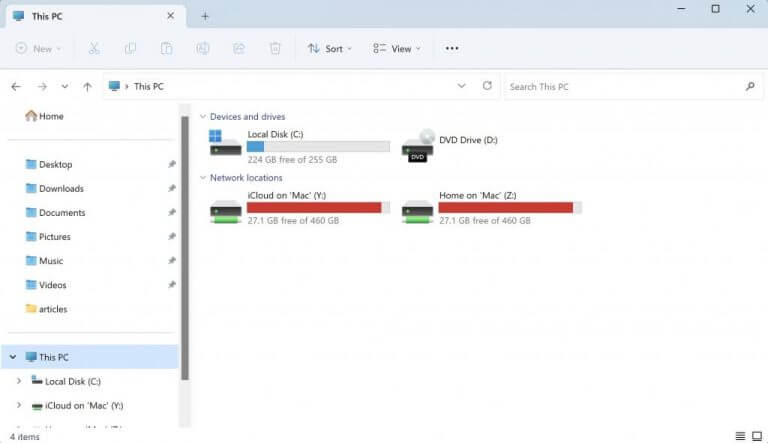
If you’re on Windows 11, click on the ellipses option from the top taskbar of your PC and select Options from there. From there, select the toggle option for Open File Explorer, and pick This PC. Finally, click on OK to save the settings.
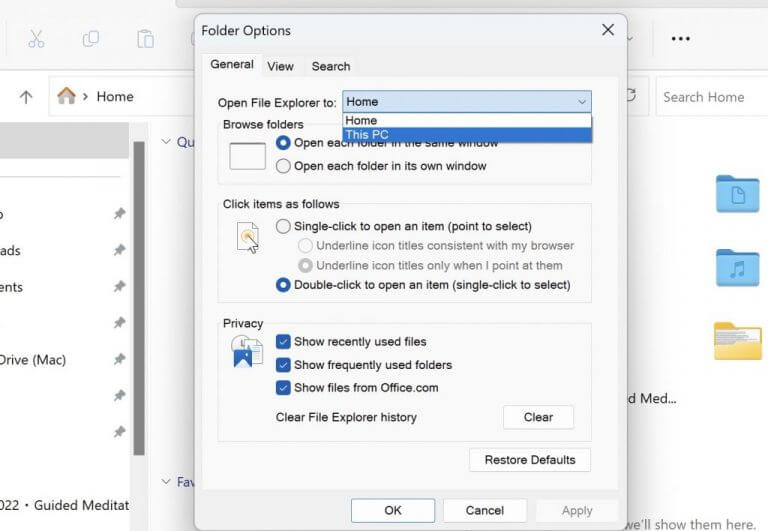
Restart the File Explorer and you’ll find that the default view has been changed.
2. Manage the View
By default, the File Explorer arranges your files and folders in the Details format. However, you can change this setting without much hassle.
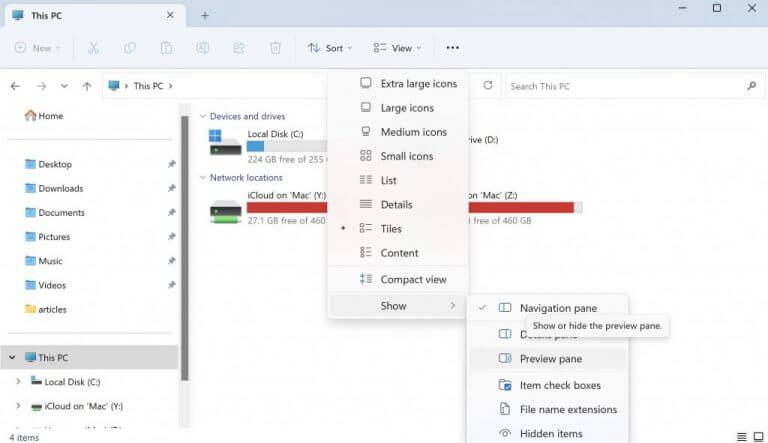
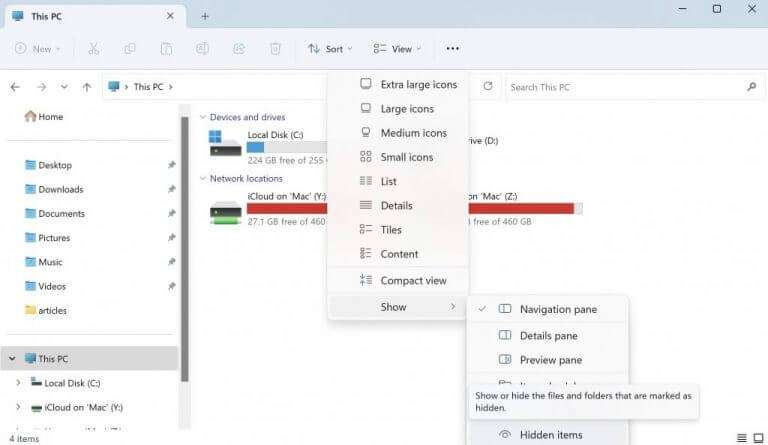
Just head to the View option from the top, and select the settings you’d like to use. You have a host of arrangements to pick from: Large icons, Small icons, List, Tiles, and so on. Moreover, if you click on the Show, you’ll also get to pick from different pane settings to select from.
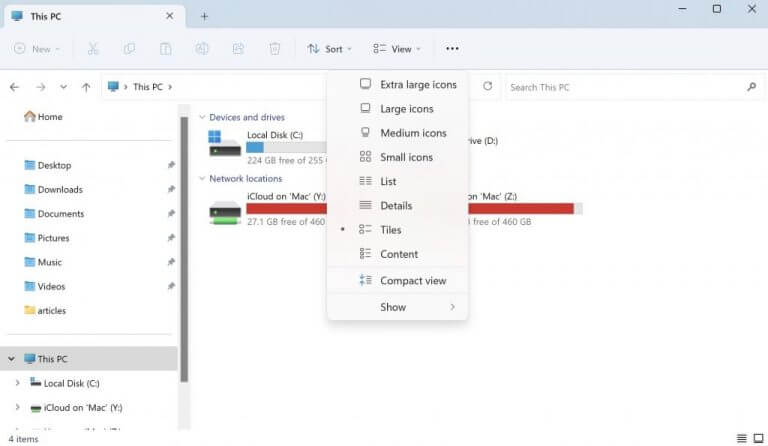
You have three primary options: Navigation pane, Details pane, and Preview pane. You can try them all out and select the setting that suits you best.
3. Checkboxes, extensions, and hidden items…
Let’s stick with the View option from above. Interestingly, apart from helping you fiddle with icons and the display in general, you’ll see that the app also gives you the feature to manage your extensions on your PC.
On the View tab, click on Show and select File name extensions. This way, you can choose if you’d like File Explorer to disable file extensions along with the files. Also, you can enable check boxes for every individual file, making it easier to copy, cut or delete your files and folders. And last but not least, you also have the option to make all hidden files available that you might have on your PC.
4. The Filter feature
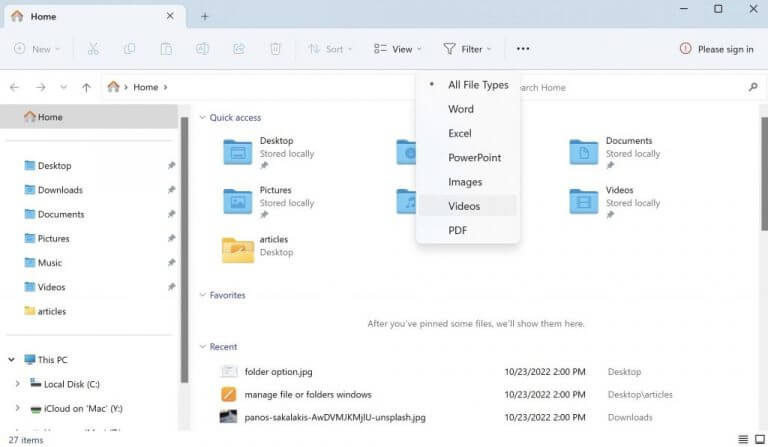
Wouldn’t it be better to remove specific files and deal only with the ones you currently want to? Luckily, with the Filter feature, you can.
To use this feature, click on the Filter icon at the top, and select the file you’d like to remove from your File Explorer. As you can see below, you have a wide variety of options to pick from: Word, Excel, PowerPoint, Images, Videos, and so on.
Pick one file format from above. As soon as you do, all the files of the specific format will be filtered out of Explorer.
Managing your files or folders on Windows
The Windows File Explorer makes ordering and managing your files and folders a cakewalk.
If you’re a Windows user who has been using Windows for a few years now, then most of these features won’t surprise you. However, for those still new to navigating the world of Windows, we’ve covered many guides before that can help you tweak your Windows settings with relative ease.

Read our disclosure page to find out how can you help Windows Report sustain the editorial team. Read more



Improve this guide

User forum
0 messages