
How to assign tasks when working remotely using Microsoft Planner


 2 min. read
  Published on

World-class 24/7 support with 82% for a 2 years plan and 2 months free
70% of our readers choose Private Internet Access
70% of our readers choose ExpressVPN

Amazing connection speed with 61% off and 4 months free for the 2-years plan.

Best security protocols with 83% off and 2 months free for a 2-year plan.
With whole offices now adapting to working remotely, it can be difficult to figure out an effective way to assign and delegate tasks. While there’s no direct alternative to the daily whiteboard session or team stand-up meeting, Microsoft Planner can help ensure everyone’s aware of what’s going on.
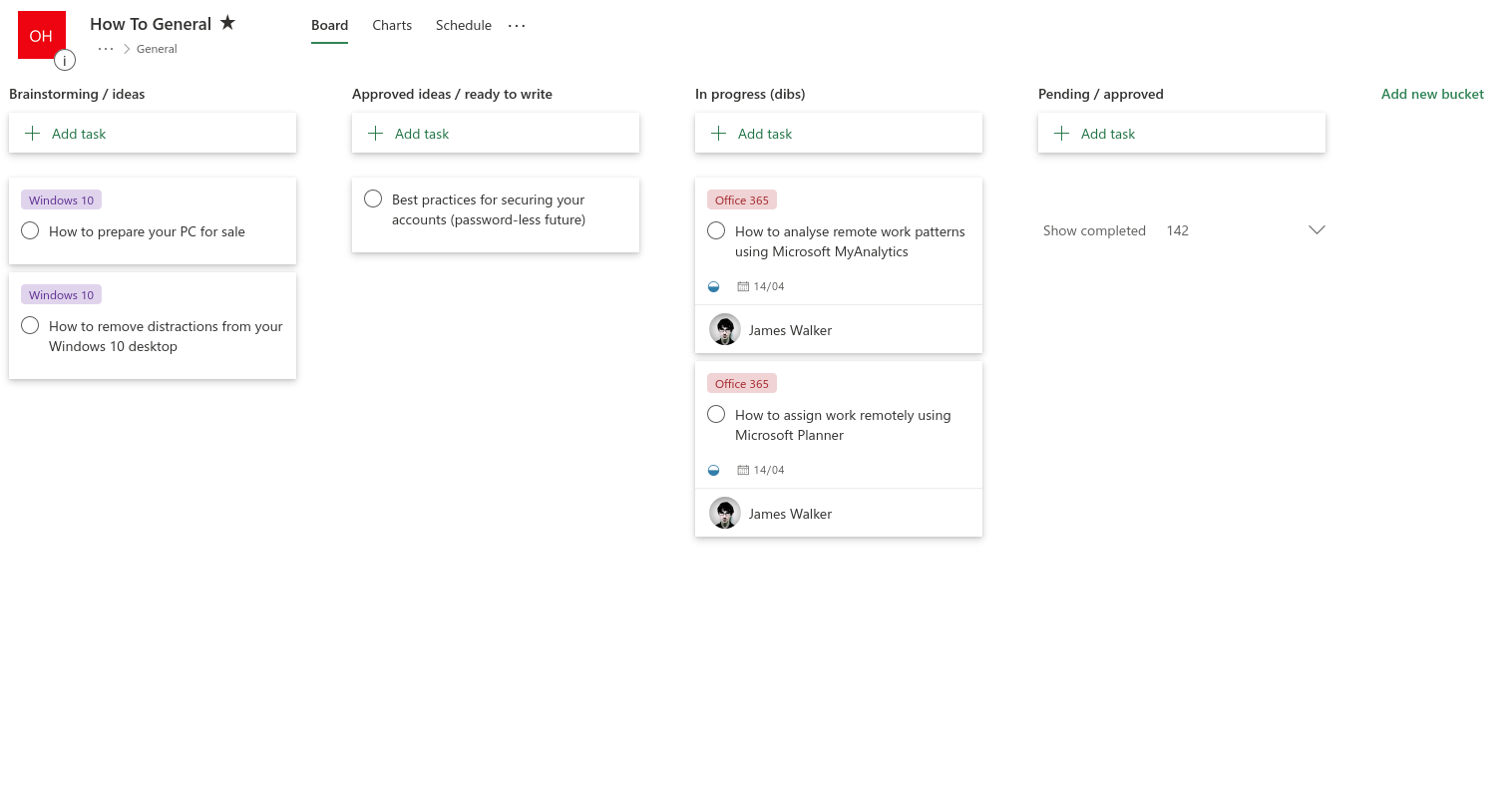
If you’re new to Planner, you might want to read our overview guide first before moving forwards. Planner gives you a Kanban-style task board, where tasks are arranged as vertical lists of cards in horizontal “buckets.” The buckets are used to group tasks by category or completion state.
Tasks can be “assigned” to Planner users. Click any task on the board and then click the “+ Assign” button beneath its title.
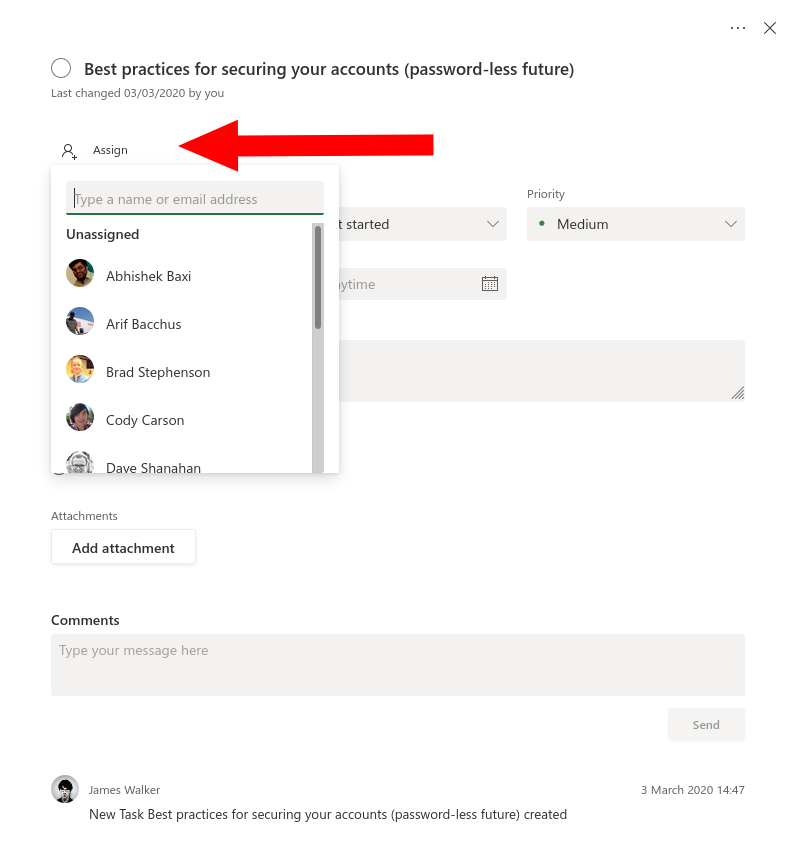
Use the dropdown menu which appears to select the user you’d like to assign the task to. Back on the board, the assignee will appear on the task’s card, letting everyone see that there’s now somebody tackling the problem.
To get the most from task assignments, users should enable Planner notifications. Click the Settings cog icon in the top-right corner, followed by “Notifications” under the first heading (“Planner”). (Note: Confusingly, there is a separate “Notifications” heading further down the settings pane, which lets you turn all Planner alerts on or off with a single click.)
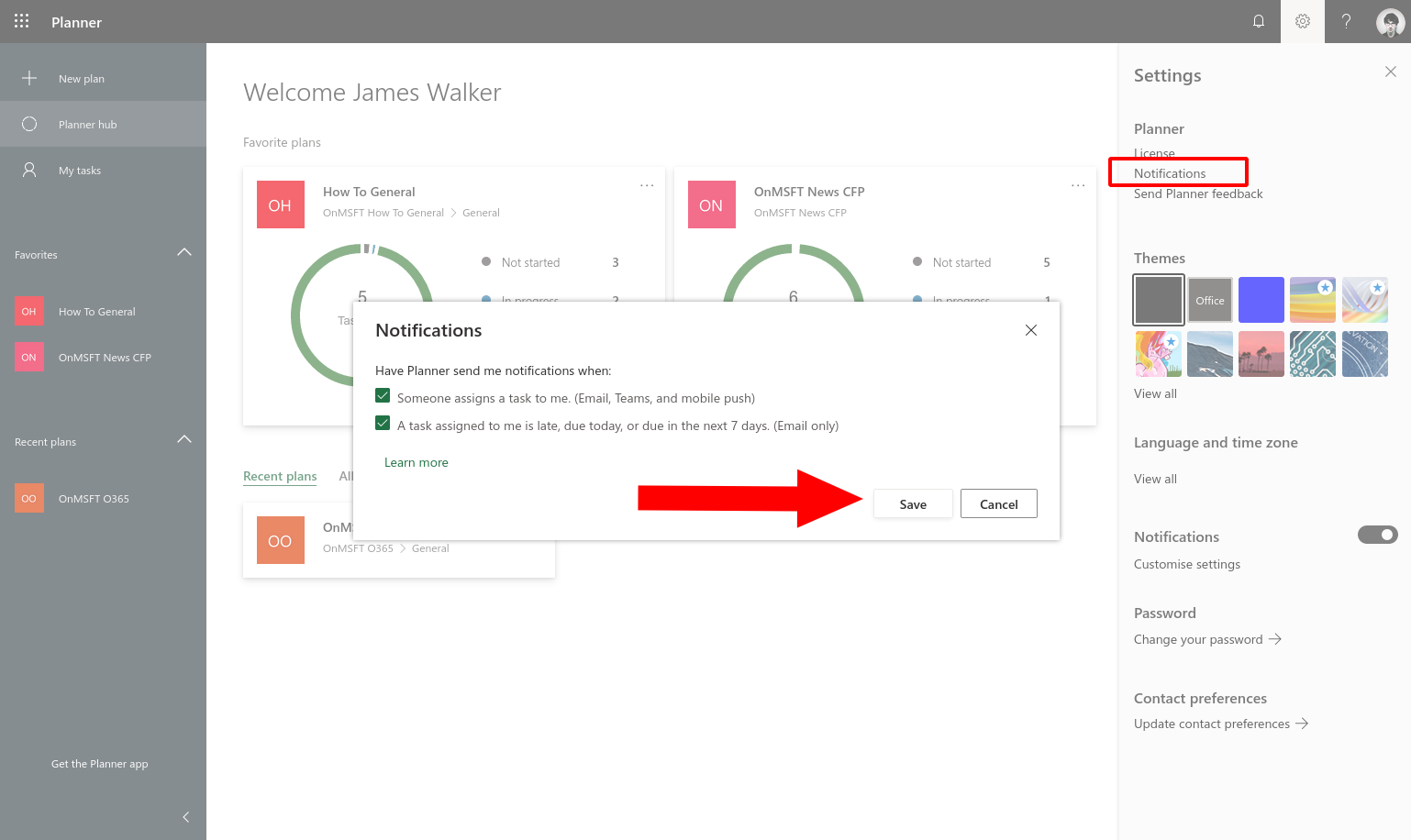
The Notifications popup dialog lets you choose how you should be notified when you’re assigned a new task. When enabled, you’ll get an email, push notification and Microsoft Teams alert whenever you become a task’s assignee. You can also choose to get email alerts when a task is approaching its deadline or has become overdue.
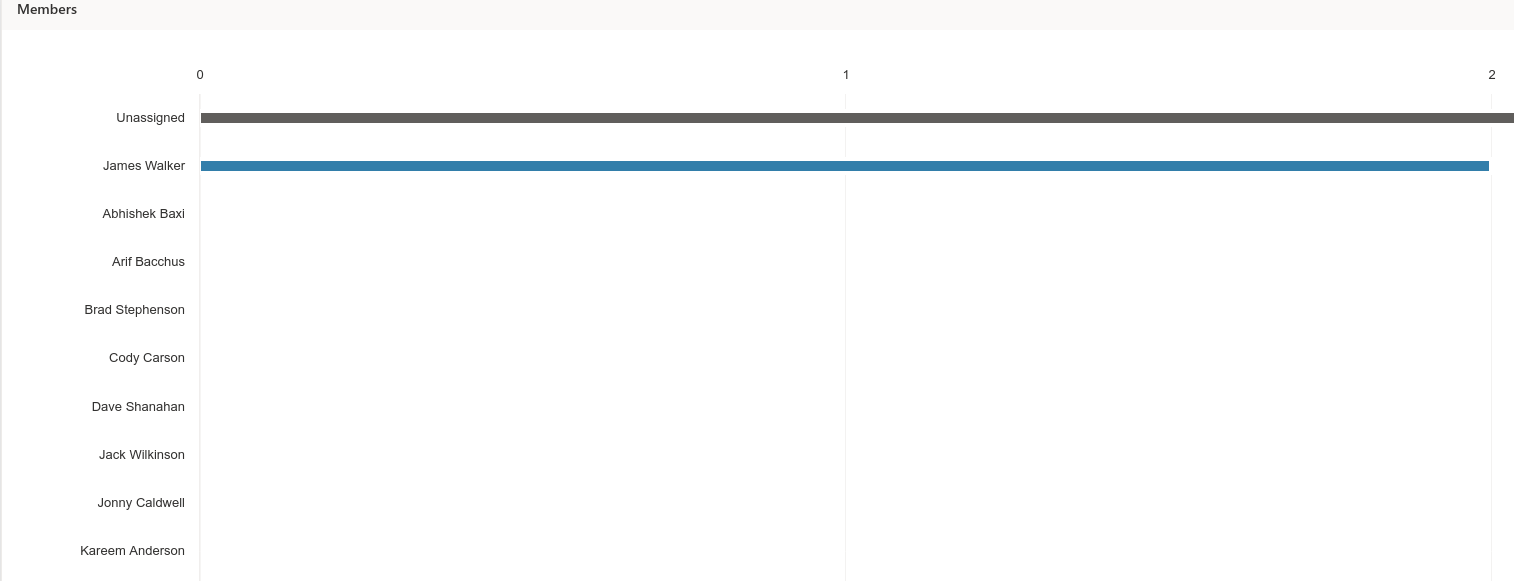
By assigning tasks to users, you get more visibility into what’s being worked on. You can also check in on the workload of individual team members. Click the “Charts” tab at the top of the Planner screen to see a breakdown of the tasks assigned to each user. If somebody’s got a lot of tasks outstanding, you might want to offer them a hand to help them through their day.

Read our disclosure page to find out how can you help Windows Report sustain the editorial team. Read more



Improve this guide




User forum
0 messages