
How to pin shortcuts to your taskbar on Windows


 4 min. read
  Updated on

World-class 24/7 support with 82% for a 2 years plan and 2 months free
70% of our readers choose Private Internet Access
70% of our readers choose ExpressVPN

Amazing connection speed with 61% off and 4 months free for the 2-years plan.

Best security protocols with 83% off and 2 months free for a 2-year plan.
The Windows taskbar is the central hub for all kinds of apps and files on your Windows desktop. It comes with a bunch of apps set up there by default. However, you don’t have to stick with preset apps or icons. Among a host of things that Windows lets you tweak about it—be it hiding your taskbar or even centering it in Windows 10—you can also pin new taskbar shortcuts within it.
In what follows, we’ll look at the different ways to pin new app shortcuts on your taskbar on Windows PC. Let’s get started.
How to pin shortcuts to your Windows taskbar
So, there’s no one way to go about this. But don’t panic, as we’ll cover all of the methods one by one. So let’s start with the desktop shortcuts first.
1. Pin shortcuts by dragging and dropping from desktop
When you’re on your PC’s desktop, you can simply drag the app icon you’d like to add to the taskbar and then drop it there. That’s it. Do this, and your taskbar will have a new shortcut.
2. Through the Start menu
Alternatively, if the app you’d like to add to the taskbar is not on the desktop, then using the Start menu is your best bet. Here’s how you can get started:
Press the Windows key and click on All apps to see a complete list of all the apps on your Windows. Then right-click on the app you’d like to add, select More, and click on Pin to taskbar.
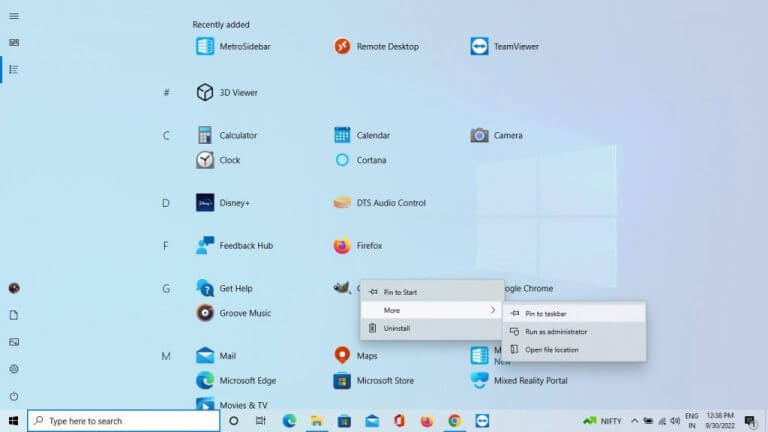
Your taskbar will get a new shortcut as soon as you do this.
3. Through File Explorer
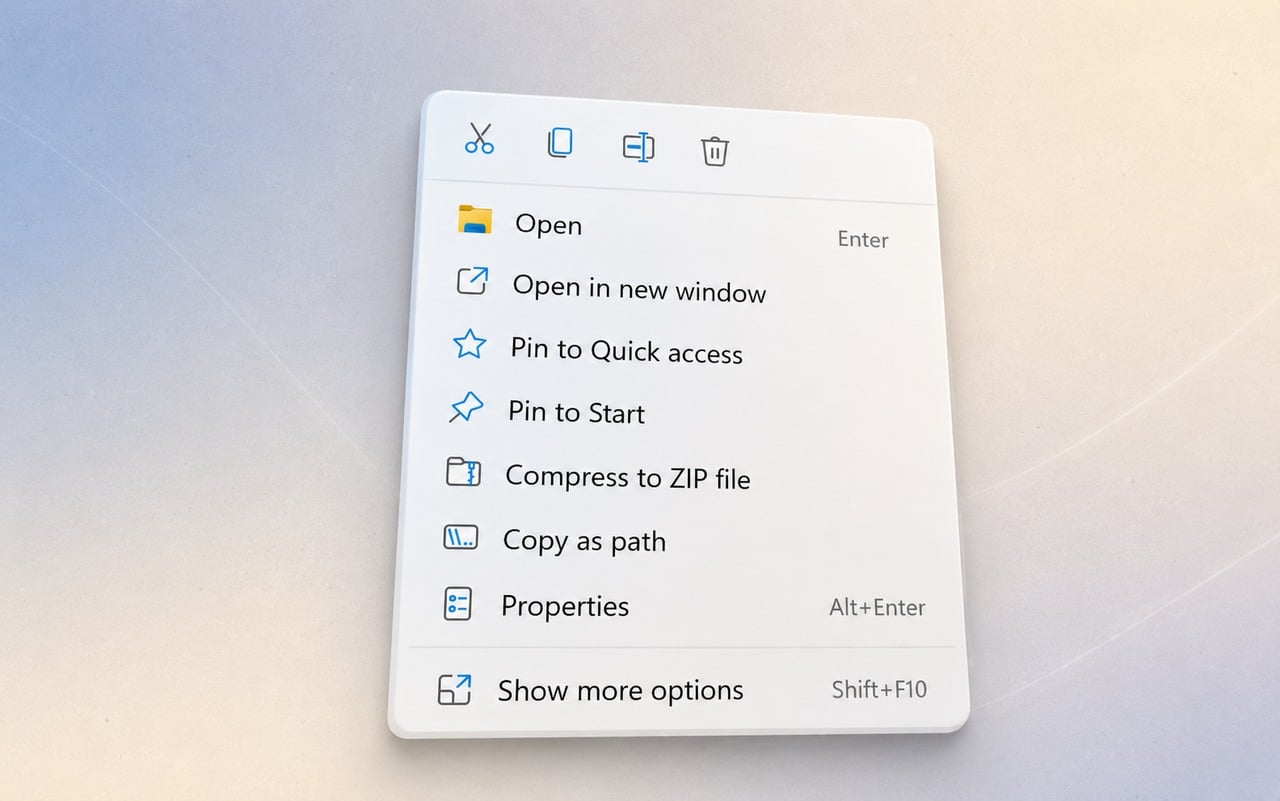
File Explorer is the default GUI application used for accessing and managing files on Windows. All you’ve to do is open the File Explorer, locate the file you’d like to pin to the taskbar, right-click on it and select Pin to taskbar.
That’s it — your app will be pinned to the taskbar.
4. How to pin programs that are running
In some cases, you might already be running the processes you’d like to pin in the background. In cases like that, it’ll be best to right-click on the app icon from the taskbar and select Pin to taskbar from the list of available options. The new shortcut will be pinned to the taskbar.
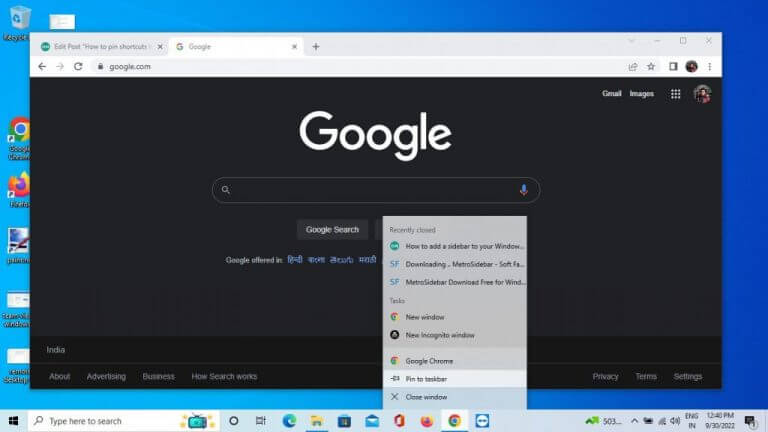
5. Pin websites to your taskbar
Apart from the methods discussed above, Windows also lets you add entire websites as a shortcut to your taskbar settings. While the specifics may be different for different browsers, the general structure and process of carrying out the tasks are pretty similar. Here’s an example of using Microsoft Edge:
Microsoft Edge
If you’re on Microsoft Edge, follow the steps below:
- Click on the Settings menu (three dots) from the top-right corner, and select Apps > Install this site as an app.
- Click on Install to confirm the installation.
- Then check the radio box for Pin to the taskbar, and click on Allow.
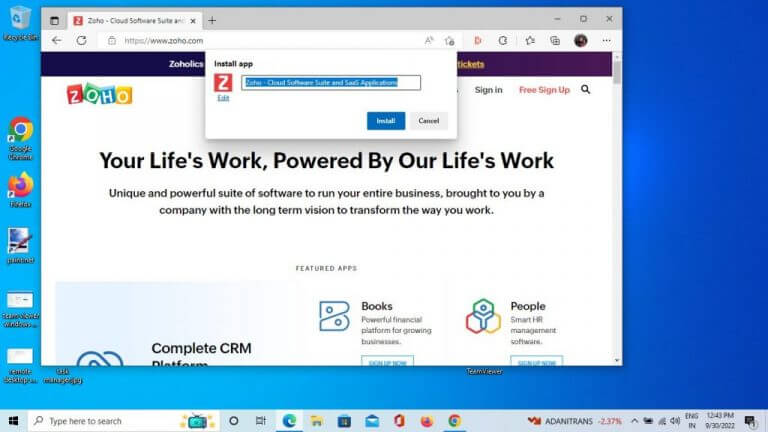
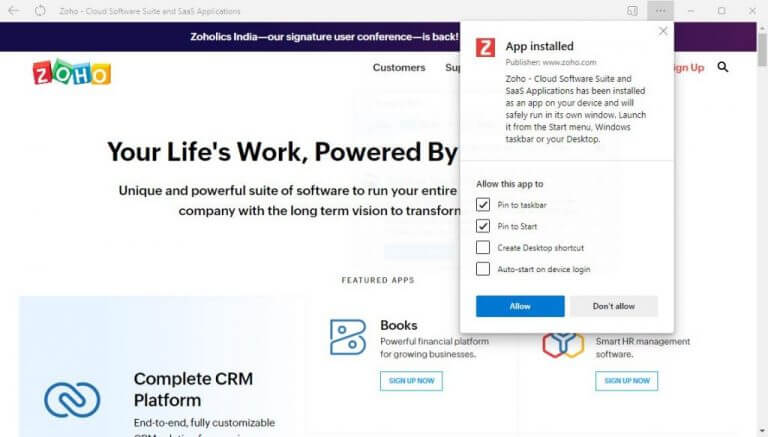
That’s it; your new Progressive Web App (PWA) will now have an icon on the taskbar. You can follow a similar method for other browsers.
Pinning shortcuts to the taskbar on Windows
These are all the different ways to add new shortcuts to your taskbar on Windows. Microsoft has made tons of improvements in the taskbar over the years, so you can expect them to follow a similar trend and keep improving the taskbar settings. Meanwhile, you can make sure you’re managing your taskbar settings like a pro.

Read our disclosure page to find out how can you help Windows Report sustain the editorial team. Read more



Improve this guide


User forum
0 messages