
How to Download Blender for Windows 11 & 10 (Step-by-Step)


 2 min. read
  Published on
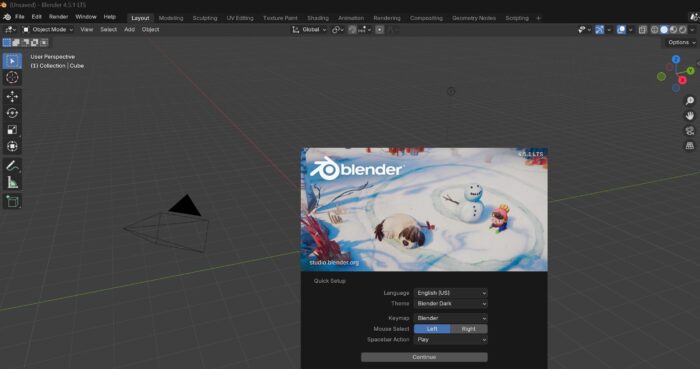
Want to create 3D animations or edit videos on Windows? Blender is one of the best free tools out there. Here’s how to download and install Blender on Windows 11 or 10 safely and fast.
Table of contents
What Is Blender?
Blender is a free, open-source 3D creation suite used for:
- Modeling
- Animation
- VFX
- Video editing
- Game development
It works on Windows, macOS, and Linux—and it’s completely free to use.
How to Download Blender on Windows 11 & 10
- Go to Blender’s Official Website
1. Visit blender.org from your browser
2. The homepage will automatically detect your OS (Windows)
3. You can also download from the Microsoft Store if you want to - Click the “Download Blender” Button
1. You’ll see a large blue button (e.g., Download Blender 4.1 LTS)
2. Click it to start the download (.msi or .exe format) - Choose Installer or Portable Version (Optional)
1. The default is the installer, but you can choose:
-> Installer – Adds Blender to Start Menu
–> Portable ZIP – No installation required - Run the Installer
1. Double-click the
.msifile
2. Approve the security prompt (User Account Control)
3. Choose “Next,” accept terms, and install
- Launch Blender
1. After installation, open it from Start Menu or Desktop shortcut
2. First launch may take a few seconds to load
System Requirements for Blender
Minimum:
- OS: Windows 10 or 11 (64-bit)
- RAM: 8 GB
- GPU: OpenGL 4.3 compatible
- Disk: 500MB+ for installation
Recommended:
- RAM: 16 GB+
- Dedicated GPU (NVIDIA/AMD)
- SSD for faster performance
FAQs
Is Blender free for commercial use?
Yes, Blender is free under GNU GPL license—even for commercial projects.
Which version of Blender works best on Windows 11?
The latest LTS version (e.g., Blender 4.x) is always recommended for stability.
Can I run Blender on a low-end PC?
Yes, but expect slower performance in rendering or heavy 3D scenes.
Final Tip
Always download Blender directly from the official site to avoid malware or outdated builds. Once installed, you can start experimenting with 3D models, VFX, or even edit full videos.
Let your creativity begin with one of the most powerful free tools in digital content creation!

Read our disclosure page to find out how can you help Windows Report sustain the editorial team. Read more



Improve this guide

User forum
0 messages