
Microsoft Adds USB Streaming to Mixed Reality Link for Meta Quest 3 and 3S


 2 min. read
 Published on
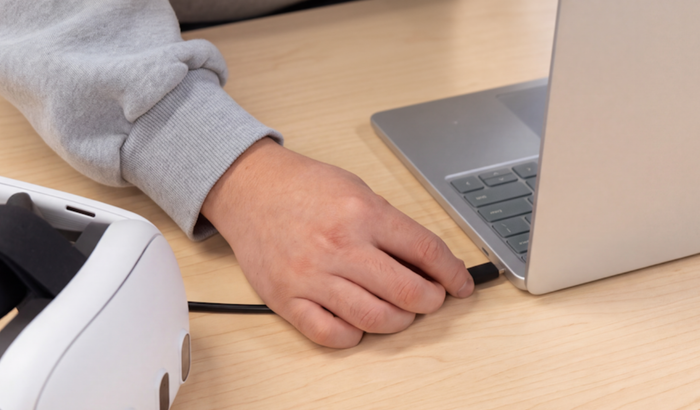
Microsoft just made working with a Windows 11 PC inside a Meta Quest headset hassle-free. Mixed Reality Link now supports USB connectivity, giving Quest 3 and Quest 3S owners a wired alternative to wireless desktop streaming. This is especially handy when Wi-Fi is unreliable, congested, or unavailable.
Mixed Reality Link finally gets USB streaming support
Until now, Mixed Reality Link primarily relied on Wi-Fi to stream a Windows desktop into a compatible Meta headset. That works well when both devices have a reliable network connection. However, crowded networks and public Wi-Fi can make the experience less dependable.
The new USB option addresses that limitation. Users can connect their Quest 3 or Quest 3S directly to a Windows 11 PC using a USB data cable. Once configured, they can access their PC desktop in mixed reality without requiring an internet connection.
In addition, Microsoft has also simplified the initial pairing process. Users no longer need to scan a QR code or enter a PIN when connecting their headset for the first time. This adds another useful feature to Microsoft’s existing mixed reality experience. The company previously expanded Mixed Reality Link with Quest camera and microphone support, allowing Windows applications to access the headset’s built-in hardware.
How to connect Meta Quest 3 to a Windows 11 PC
Getting started requires a Windows 11 PC running Mixed Reality Link version 26.10120.9280.1 or newer. You will also need a Meta Quest 3 or Quest 3S headset and a USB cable supporting data transfer.
- First, download or update Mixed Reality Link on your PC.
- Next, open your Quest settings, navigate to Link, and enable USB connection for apps.
- Connect the headset to your PC using the USB cable. Then open Virtual Display on the headset and follow the prompts to pair or reconnect.
Meta is rolling out USB support over the next week, so the option might not appear immediately. For anyone interested in using Meta Quest as a Windows PC workspace, this is a welcome addition.

Read our disclosure page to find out how can you help Windows Report sustain the editorial team. Read more


Improve this guide



User forum
0 messages