
Efficiency Mode Greyed Out in Task Manager? Here's What to Do


 4 min. read
 Published on
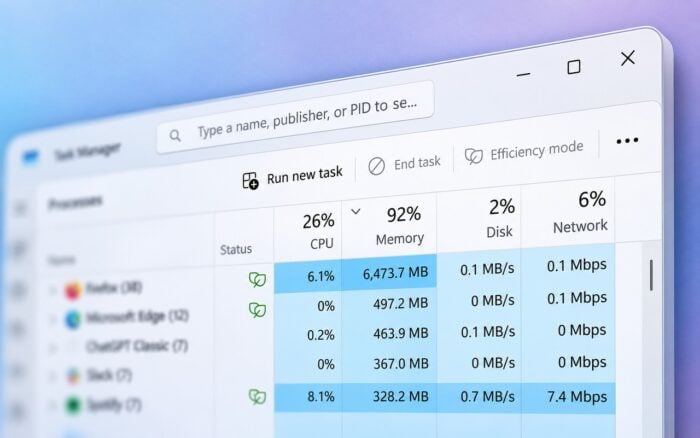
If Task Manager Efficiency Mode is greyed out, Windows may be restricting the selected process or preventing changes to a process group. You can usually fix this by selecting an individual process instead of the entire application.
What can I do if Efficiency Mode is greyed out in Task Manager?
1. Expand the process group
Task Manager doesn’t allow you to change Efficiency Mode for most process groups. Try selecting an individual process instead.
- Press Ctrl + Shift + Esc to open Task Manager.
- Select the Processes tab.
- Find the application with the greyed-out Efficiency Mode option.
- Click the arrow next to the application to expand its processes.
- Right-click an individual process.
- Select Efficiency mode to enable or disable it.
- Repeat the steps for other processes if necessary.
You can also learn how to disable Efficiency Mode in Windows 11 if you want to prevent Windows from limiting an application’s performance.
2. Change Efficiency Mode from the Details tab
If the option remains unavailable in the Processes tab, try accessing the individual executable from the Details tab.
- Open Task Manager.
- Select the Details tab.
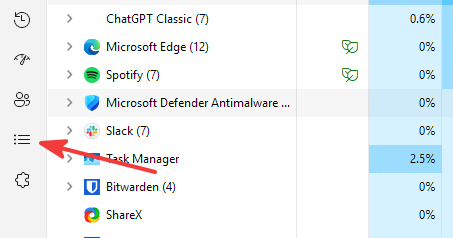
- Locate the application’s executable file.
- Right-click the process.
- Select Efficiency mode if the option is available.
- Enable or disable the feature as needed.
If Windows also greys out the option here, the process may not support manual changes.
3. Run Task Manager as administrator
Some processes run with elevated permissions. Try opening Task Manager with administrator privileges to check whether permissions prevent changes.
- Close Task Manager.
- Open the Start menu.
- Search for Task Manager.
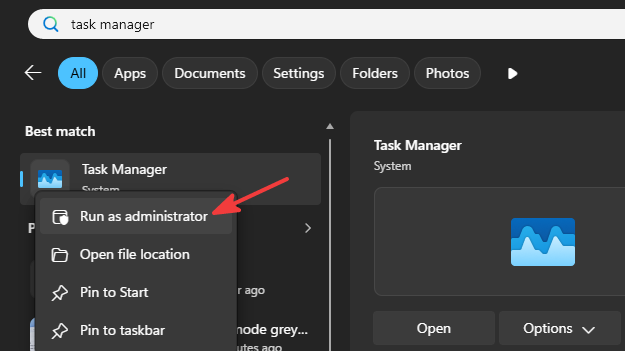
- Right-click the result and select Run as administrator.
- Open the Processes tab.
- Expand the affected application and select an individual process.
- Check whether Efficiency mode is available.
Running Task Manager as administrator won’t override Windows protections for critical system processes.
If Task Manager is slow to open or becomes unresponsive, troubleshoot those issues before trying to change process settings.
4. Restart the affected application
An application may automatically apply power-saving settings to its processes. Restarting it can reset temporary process states.
- Save your work in the affected application.
- Open Task Manager.
- Select the application under Processes.
- Click End task.

- Restart the application.
- Check whether you can now change Efficiency Mode.
Some applications, including Chrome and Microsoft Edge, can automatically use Windows power-efficiency features. Restarting them may not prevent those features from returning.
5. Check whether Windows protects the process
Windows intentionally prevents users from modifying Efficiency Mode for certain system processes. This protects system stability.
- Open Task Manager.
- Select a regular third-party application.
- Expand its process group.
- Check whether Efficiency mode is available for an individual process.
- Compare the result with the process you originally wanted to modify.
If the option works for regular applications but remains unavailable for a Windows system process, Windows may intentionally restrict it.
Avoid changing system process priorities or using registry modifications to bypass these protections.
If you also notice incorrect performance statistics, check how to fix Task Manager showing wrong CPU usage in Windows 11.
If Task Manager Efficiency Mode is greyed out, expand the affected application and change the setting for an individual process. If the option remains unavailable, Windows may intentionally restrict the process, and you may not be able to change it through Task Manager.
Frequently asked questions
Why is Efficiency Mode greyed out in Task Manager?
Windows greys out Efficiency Mode when you select an unsupported process group, a protected system process, or a process that doesn’t allow manual efficiency changes.
How do I force Efficiency Mode off in Windows 11?
Expand the application in Task Manager and disable Efficiency Mode for its individual processes. Windows doesn’t provide a supported way to force the setting off for every protected process.
Why does Chrome keep entering Efficiency Mode?
Chrome can automatically apply Windows power-efficiency features to certain processes. These processes may display the Efficiency Mode indicator even when you haven’t manually enabled it.
Does disabling Efficiency Mode improve performance?
Disabling Efficiency Mode may improve responsiveness for CPU-intensive background tasks, but it can also increase CPU usage, power consumption, and heat.

Read our disclosure page to find out how can you help Windows Report sustain the editorial team. Read more


Improve this guide




User forum
0 messages