
Can't Install Docker Desktop on Windows 11? 7 Ways to Fix It


 5 min. read
 Published on
If you can’t install Docker Desktop on Windows 11 or Windows 10, the problem usually involves disabled virtualization, missing WSL 2 components, outdated Windows versions, or installation conflicts. Follow these fixes to get Docker Desktop installed and running.
What can I do if I can’t install Docker Desktop on Windows 11?
1. Enable virtualization in BIOS
Docker Desktop needs hardware virtualization to run Linux containers through WSL 2.
- Press Ctrl + Shift + Esc to open Task Manager.
- Select Performance > CPU.

- Check whether Virtualization shows Enabled.
- If it shows Disabled, restart your computer and enter BIOS/UEFI using the appropriate key, usually F2, Delete, or Esc.
- Find Intel Virtualization Technology (VT-x) or AMD SVM Mode under the CPU or Advanced settings.
- Enable the feature, save your changes, and restart Windows.
Try installing Docker Desktop again.
2. Install or update WSL 2
Docker Desktop relies on Windows Subsystem for Linux (WSL 2) for its default Linux container backend.
- Right-click Start and select Terminal (Admin).

- Check your installed WSL version using
wsl --version - If WSL is missing, install it without an additional Linux distribution using
wsl --install --no-distribution - Update WSL to the latest available version using
wsl --update - Set WSL 2 as the default version using
wsl --set-default-version 2 - Restart your computer and try installing Docker Desktop.
3. Enable the required Windows features
Missing virtualization components can prevent Docker Desktop from installing or starting.
- Press Windows + R, type optionalfeatures, and press Enter.

- Locate and enable Virtual Machine Platform.
- Enable Windows Subsystem for Linux.
- Click OK and allow Windows to install the components.
- Restart your computer.
If you plan to use the Hyper-V backend, enable Hyper-V as well. This option requires a supported Windows edition and an all-users Docker Desktop installation.
4. Check Docker Desktop system requirements
An unsupported Windows version or insufficient hardware resources can block installation.
- Press Windows + R, type winver, and press Enter.
- Check that you’re running a supported 64-bit version of Windows.
- Verify that your computer has at least 8GB of RAM.
- Confirm that your processor supports hardware virtualization and Second Level Address Translation (SLAT).
- Install pending Windows updates through Settings > Windows Update.
Windows Home can run Linux containers through WSL 2, but it doesn’t support Docker Desktop’s Windows container mode.
5. Enable the Windows hypervisor
If Docker Desktop reports that virtualization isn’t supported or that a required Hyper-V component is missing, Windows might not be launching its hypervisor.
- Open Command Prompt as administrator.
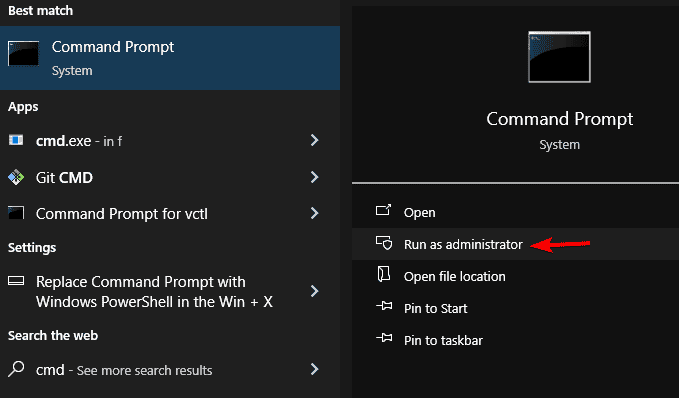
- Enable automatic hypervisor startup using
bcdedit /set hypervisorlaunchtype auto - Restart your computer.
- Run the Docker Desktop installer again.
This fix can also address WSL errors involving HCS_E_HYPERV_NOT_INSTALLED, provided your hardware supports virtualization and you’ve enabled the required Windows components.
6. Reinstall Docker Desktop using the correct installation mode
An incomplete installer download or an unsuitable installation mode can prevent setup from finishing.
- Download the latest installer from the official Docker Desktop website.
- Open the downloaded Docker Desktop Installer.exe file.
- Select Per-user installation for a standard WSL 2 setup without installation-level administrator privileges.
- Alternatively, select All-users installation if you need Hyper-V or Windows containers, and approve the administrator prompt.
- Select WSL 2 as the backend if you’re installing Docker Desktop for Linux containers.
- Complete the installation and launch Docker Desktop.
If Windows lacks the required WSL components, an administrator must enable them even when you use per-user installation.
7. Remove a failed Docker Desktop installation
If an earlier installation failed, its remaining components might interfere with a new installation.
- Close Docker Desktop and any running Docker-related processes.
- Open Settings > Apps > Installed apps.

- Locate Docker Desktop and select Uninstall.
- Follow the removal instructions and restart Windows.
- Download a fresh installer from Docker’s official website.
- Install Docker Desktop again.
Important: Uninstalling Docker Desktop can remove local containers, images, volumes, and other Docker data. Back up anything important before proceeding.
If you can’t install Docker Desktop, start by enabling virtualization, updating WSL 2, and checking Windows compatibility. If you encounter further problems, learn how to fix the Docker Desktop unexpected WSL error. You can also troubleshoot Docker Desktop starting forever or resolve the Docker CLR error 8000405 if either issue prevents the application from running properly.
FAQs
Why can’t I install Docker Desktop on Windows 11?
Docker Desktop installation can fail because virtualization is disabled, WSL 2 is missing or outdated, Windows lacks required components, or your system doesn’t meet Docker’s minimum requirements. Enable virtualization, update WSL, and retry the installation.
Can I install Docker Desktop without Hyper-V?
Yes. Docker Desktop supports the WSL 2 backend, so you don’t need to enable the full Hyper-V Windows feature. However, WSL 2 still requires hardware virtualization and Windows virtualization components.
How do I fix the Docker Desktop WSL 2 installation error?
Update WSL, enable Virtual Machine Platform, and check that virtualization is active in BIOS. If the error persists, open an elevated terminal and restart WSL using wsl –shutdown.
Does Docker Desktop require administrator privileges to install?
Not for its per-user installation mode, provided Windows already has the required components. However, all-users installation, Hyper-V support, and initial WSL configuration require administrator privileges.

Read our disclosure page to find out how can you help Windows Report sustain the editorial team. Read more


Improve this guide


User forum
0 messages