
Autoruns Sysinternals Explained: Speed Up Windows Boot Time


 3 min. read
  Published on

Autoruns Sysinternals helps you control every program, task, and component that starts automatically in Windows. It offers full visibility into autostart locations so you can fix slow boot times and remove unwanted entries.
Table of contents
What Autoruns Sysinternals Does?
Autoruns lets you inspect every autostart point in the system, including drivers, scheduled tasks, browser add ons, and services. For a full ecosystem overview, you can read the guide on how Sysinternals works on Windows 10.
How to Download Autoruns
1. Get the Tool From Microsoft
Follow these steps to download and extract the program.
- Visit the Microsoft Sysinternals download page.
- Select Download Autoruns and Autorunsc.

- Extract the ZIP archive to any folder.
- Run Autoruns.exe or Autoruns64.exe.
2. Verify You Have the Right Version
Confirm you are running the correct build for your system.
- Use Autoruns64.exe if you have 64 bit Windows.
- Use Autoruns.exe if you have 32 bit Windows.
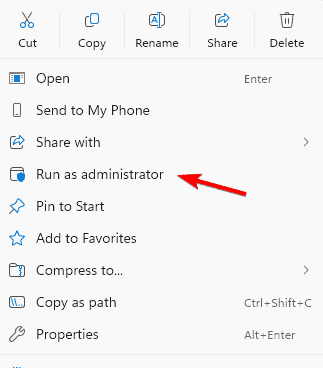
- Run the app as an administrator if you want full system visibility.
How to Use Autoruns Sysinternals to Clean Startup
1. Identify High Impact Entries
Review the Logon tab to find apps slowing down boot time.
- Launch Autoruns and select Logon.

- Look for programs you do not need at startup.
- Uncheck the entry to disable it.
- Right click and select Delete if you want to remove it permanently.
2. Remove Leftover Software Entries
Check the Everything tab to clean up old or abandoned components.
- Open the Everything tab.

- Look through Drivers, Services, and Scheduled Tasks.
- Delete entries left behind from uninstalled software.
- Restart Windows to apply your changes.
For deeper system tracking, the guide on using Sysmon for activity monitoring can help you investigate suspicious behavior.
3. Check Entries Flagged as Suspicious
Turn on reputation checks to identify risky startup items.
- Open Options and enable Verify code signatures.
- Enable Check VirusTotal.com.
- Refresh the list to view reputation scores.
- Disable or delete entries with unknown or low reputation.
If you want to inspect running processes, the tool explained in the Process Explorer Windows 11 guide offers detailed visibility.
Why Autoruns Helps Improve Windows
Autoruns improves boot performance and helps you troubleshoot errors by exposing more autostart locations than any built in Windows utility. It removes guesswork when diagnosing slowdowns or unusual background activity.
FAQs
It shows every program, component, and task that loads automatically when Windows starts.
It is safe as long as you avoid disabling essential Windows services or drivers.
It does not remove malware but it helps you detect persistent malicious entries.
Autoruns shows all autostart locations while Task Manager displays only a limited portion of startup items.
Autoruns Sysinternals gives you complete visibility over startup activity and helps you keep your Windows system fast and clean. Use it alongside other Sysinternals tools when you need deeper diagnostics or want to track suspicious behavior more closely.

Read our disclosure page to find out how can you help Windows Report sustain the editorial team. Read more



Improve this guide



User forum
0 messages