
How to Back Up and Restore Printer Drivers in Windows 11


 3 min. read
 Published on
Key notes
- Export printer drivers and queues to a .printerExport file before moving PCs.
- Check tool availability and driver compatibility on the destination.
- Verify the import with a Windows test page and a document from your usual app.
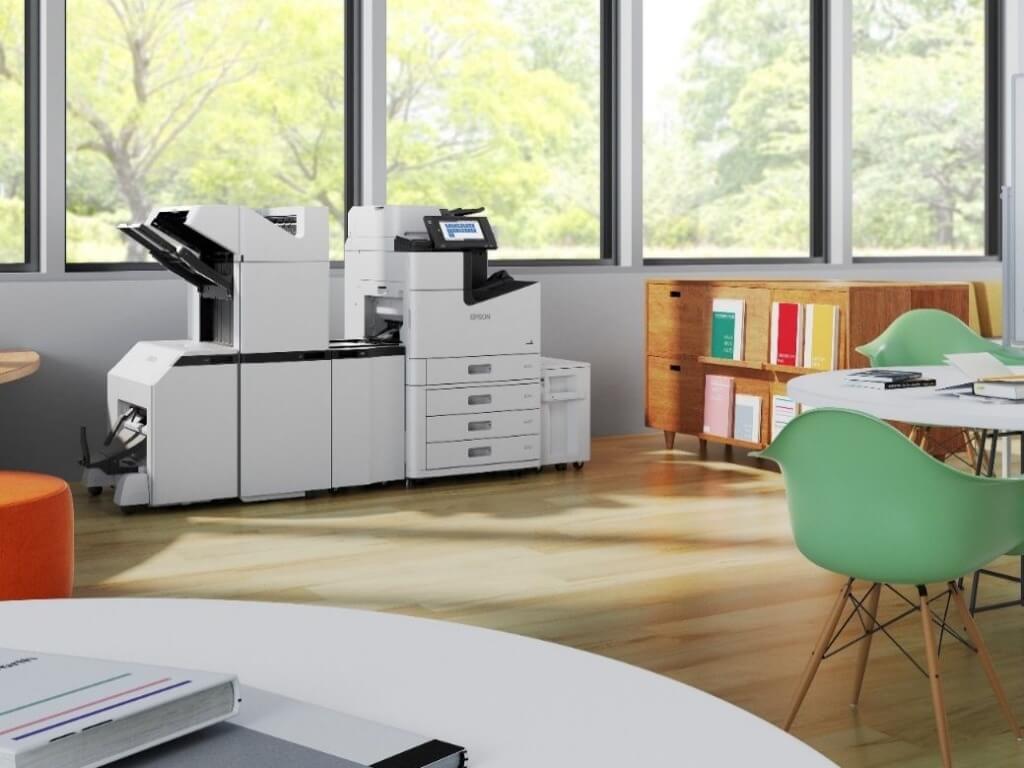
To back up printer drivers and queues, use Windows’ Printer Migration tool to create a .printerExport file, then import that file on the destination PC. Check that the tool is available on both PCs before you begin. A printer backup does not make an incompatible driver work on a different system.
Before you move your printers
Keep the original PC and printer setup intact until the destination prints successfully. Note each printer’s model, connection type and network address, and keep a copy of its current installer from the manufacturer. Store the export somewhere you can reach after reinstalling Windows, such as an external drive.
Press Windows + R, enter printbrmui.exe and press Enter. If Windows cannot find it, do not download a standalone executable from an unofficial site. Use the manual setup route below instead. Tool availability varies by Windows edition and installation.
Export printer drivers and queues
In the migration wizard, choose the export option, select the source computer, review the listed printers and drivers, then save the export file. Check the completion report for errors before relying on the backup. Microsoft documents this workflow in its printer backup and restore guide.
Alternatively, open Command Prompt as administrator. Create a folder named C:\PrinterBackup in File Explorer, then run:
"%WINDIR%\System32\spool\tools\PrintBrm.exe" -b -f "C:\PrinterBackup\printers.printerExport"Use a fresh filename for each backup. After the export finishes, copy the file to your external drive. PrintBRM collects printer configuration and driver files; it is not a full backup of Windows or the manufacturer’s companion apps.
Restore the backup on the destination PC
Copy the export into C:\PrinterBackup on the destination. Open the migration wizard, choose import, select your file and confirm the destination before proceeding. If that PC already has printers configured, back up its existing setup first.
For the command-line route, run this in an administrator Command Prompt on the destination:
"%WINDIR%\System32\spool\tools\PrintBrm.exe" -r -f "C:\PrinterBackup\printers.printerExport"The -b switch backs up; -r restores; -f supplies the file path. Avoid adding -o force just to clear an error: it forces existing objects to be overwritten. See Microsoft’s PrintBRM command reference for the full parameter list.
Check the restored printers before retiring the old PC
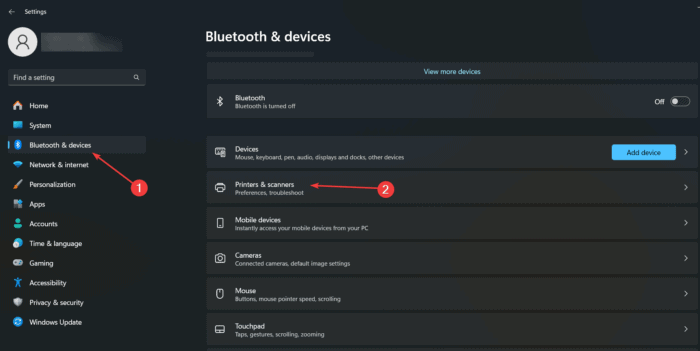
Open Settings > Bluetooth & devices > Printers & scanners, select the printer, open Printer properties and choose Print Test Page on the General tab. Microsoft recommends this test to check communication with the printer.

Also print from the app you normally use. Check paper size, duplex printing and the selected printer there. If the test page works but one app fails, investigate that app’s settings rather than repeating the import.
If printers are missing or an import reports errors, inspect Event Viewer for PrintBRM entries. Confirm that the destination has a compatible driver and that each network port points to the correct address. Microsoft’s PrintBRM overview explains why driver architecture matters during migration.
What if Printer Migration is unavailable?
For one or two printers, reinstalling them manually may be simpler. On the destination, use Settings > Bluetooth & devices > Printers & scanners > Add device, then obtain any required model-specific driver or scanning app from the manufacturer. Reapply your recorded preferences and print a test page. Keep the old setup available until all required functions work.

Read our disclosure page to find out how can you help Windows Report sustain the editorial team. Read more


Improve this guide
User forum
0 messages