
How to find out which Edge browser version you have on Windows 11 right now


 2 min. read
  Updated on

If you use a different Microsoft Edge browser version, there are ways to keep Edge up-to-date on Windows 10, Apple, and Android. But do you know which version you are running right now on Windows 11? You can check your Edge version by clicking on the Options icon (three dots) in the top-right corner of your browser. From there, select About Microsoft Edge to see the version information.
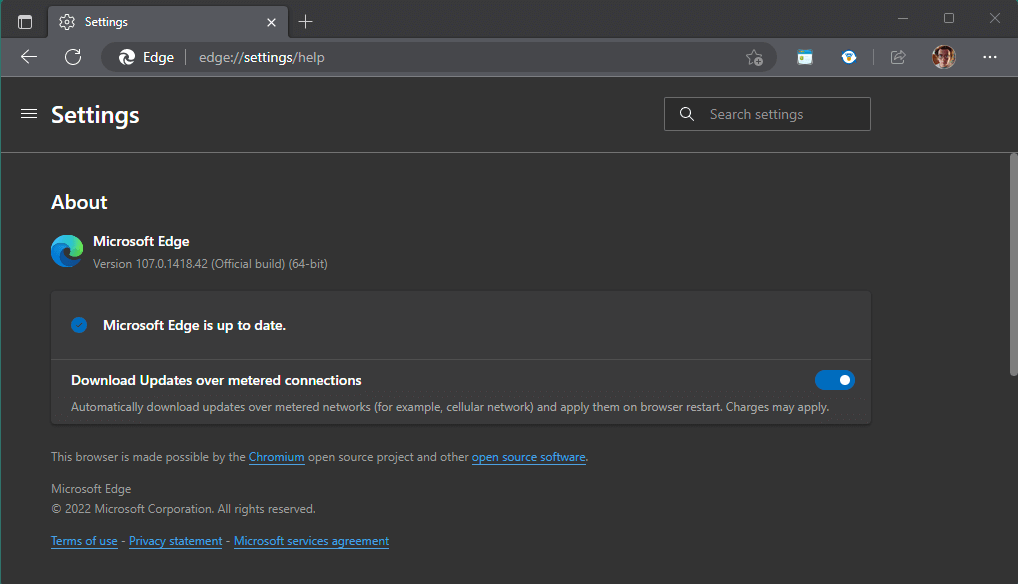
But did you know that there is an even faster way to check? Moreover, you don’t even need to use Edge settings! Follow this guide to learn what to do.
Find Edge browser version
- Type (or copy and paste)
edge://versioninto the Edge browser address bar and press Enter.

- The Microsoft Edge version will appear at the top of the page.

Next to the Edge version number, you can use the Copy button to copy the version number information to your clipboard.
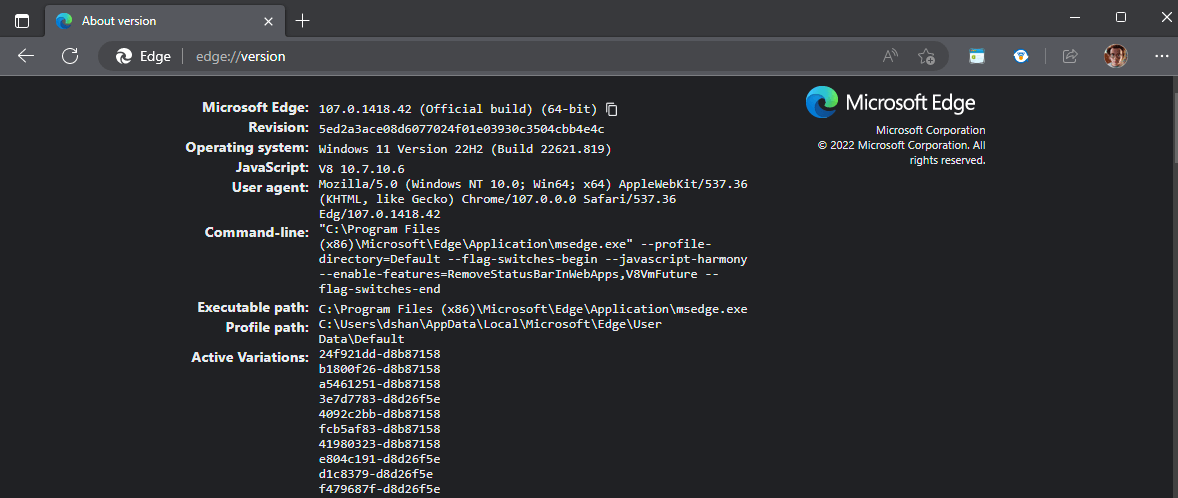 Other pertinent Edge browser version number information includes the executable path to Edge, the operating system you are running, active variations (tabs or pages open) in Edge you are running, and more. You can use a variation of this command to check the version information in other Chromium-based browsers, including Chrome and Brave too.
Get other browsers’ information
Instead of trying to search and find this information buried somewhere in settings, you can access the browser version information using the address bar. Replace edge with the name of your browser. In this case, use the command brave://version to find the version information.
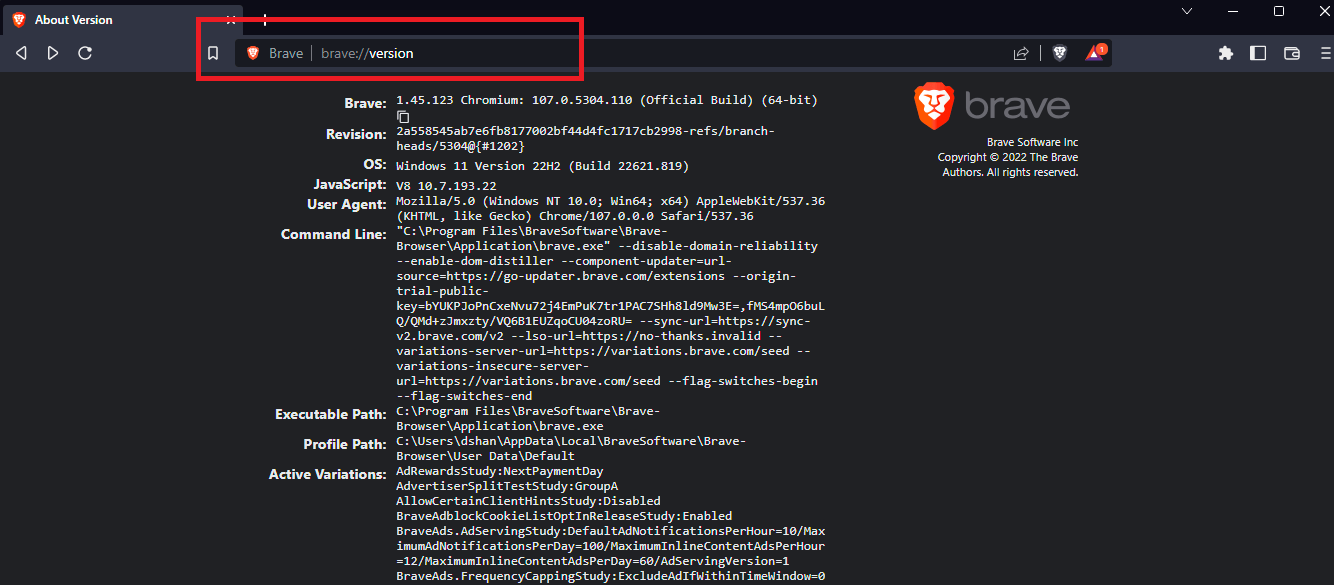
This method also works with others, including Chrome, Vivaldi, and FireFox browsers. Do you use Microsoft Edge or do ou use a different browser? Let us know in the comments!


Read our disclosure page to find out how can you help Windows Report sustain the editorial team. Read more



Improve this guide

User forum
0 messages