
Nespresso App Not Working? 12 Fixes for Loading, Login & Machine Pairing Issues


 7 min. read
  Updated on
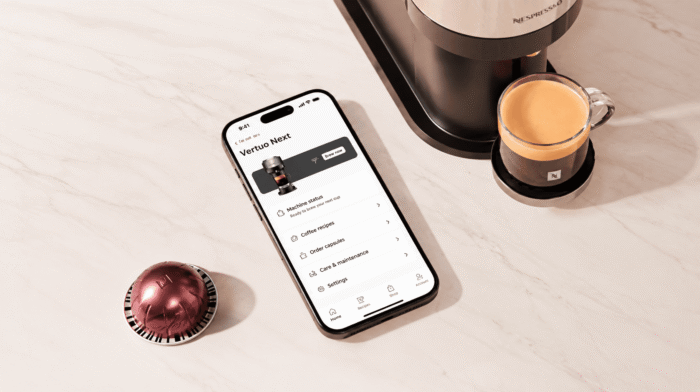
When the Nespresso app is not working, first identify whether the problem affects the entire app, account login, ordering or the connection to your coffee machine.
For loading and temporary-error messages, turn off any VPN, switch internet connections, close the app and install the newest update. For machine-pairing problems, enable Bluetooth, Wi-Fi and location permissions, keep the phone beside the machine and use a 2.4 GHz Wi-Fi network.
Quick diagnosis
| Problem | Most likely cause |
|---|---|
| App remains on the loading screen | VPN, network or app-data problem |
| “Temporary error” appears | Service connection or VPN interference |
| Login is rejected | Wrong password, country or account region |
| Products or prices look wrong | Incorrect country setting |
| Checkout fails | App version, account or payment problem |
| Machine is not found | Bluetooth, permission or pairing issue |
| Machine finds Bluetooth but not Wi-Fi | 5 GHz network or router configuration |
| Machine repeatedly disconnects | Weak signal, sleep mode or duplicate registration |
How to fix Nespresso app when it’s not working
1. Force-close and reopen the app
Close the Nespresso app completely from the recent-apps or app-switcher screen.
Reopen it and remain on the home screen long enough for account content to load. Rapidly moving between pages can make an already slow session appear frozen.
When the app immediately returns to the same error, continue with the network and VPN checks.
2. Turn off your VPN
A VPN is a particularly important check for a Nespresso app that remains on the loading screen and eventually displays a temporary error.
Disconnect the VPN from the phone’s settings or from the VPN provider’s app. Then force-close and reopen Nespresso.
Nespresso’s own troubleshooting information identifies an active VPN as a possible cause of prolonged loading and temporary-error messages. It recommends reinstalling the app when disabling the VPN does not help.
3. Switch between Wi-Fi and mobile data
Turn Wi-Fi off and test the app over cellular data. Then reconnect to a trusted Wi-Fi network and test again.
When only one connection fails, the cause may be the router, a network filter or a temporary route to Nespresso’s service.
Avoid public Wi-Fi that requires a browser sign-in page, particularly during checkout or account changes.
4. Update the Nespresso app and phone
Install the newest version from the official App Store or Google Play listing.
Then check for an iOS or Android update. An old app can fail after account, checkout or connected-machine services are changed.
Nespresso advises using the latest app version for machine connectivity and ordering problems.
5. Clear cache or reinstall the app
On Android, clear the Nespresso app cache first:
Settings → Apps → Nespresso → Storage → Clear cache
Avoid clearing storage unless you know your account password and are prepared to sign in again.
On iPhone, reinstalling is the more practical way to replace damaged app data. Delete the app, restart the phone and reinstall the official version.
6. Verify the selected country and language
Nespresso accounts and shopping catalogs are region-specific. The app may display the wrong products, reject a login or prevent checkout when it is configured for another country.
Open the account settings and check Country & Language or the equivalent regional menu.
Nespresso notes that the app’s initial region can be influenced by the country configured in the phone’s app store and provides an in-app country-selection option.
When you have permanently moved countries, you may need a locally supported Nespresso account rather than attempting to use a VPN.
7. Reset the Nespresso password
Select the password-reset option and enter the email address normally used for Nespresso orders.
Check spam and filtered folders. Do not request many reset messages in rapid succession because newer links can invalidate earlier ones.
If the email belongs to an account registered in another country, first return the app to that account’s region.
8. Enable Bluetooth, Wi-Fi and location permissions
For a connected coffee machine, enable:
- Bluetooth
- Wi-Fi
- Location Services
- Nearby-device permission on Android
- Local-network access on iPhone when requested
Keep the phone unlocked and the Nespresso app open during pairing.
Nespresso’s connectivity guidance tells users to enable Bluetooth, Wi-Fi and Location Services before attempting to pair a compatible machine.
9. Unpair the machine from old phones
A compatible Nespresso machine may fail to pair when it is still connected or registered to another phone.
Turn off Bluetooth on previous phones and tablets. In the current phone’s Bluetooth settings, remove any failed or incomplete Nespresso pairing. Then restart the phone and initiate a fresh connection from inside the Nespresso app.
Do not complete pairing only through the ordinary Bluetooth menu; use the app’s machine-connection flow.
10. Keep the phone and machine extremely close
Place the phone next to or directly above the machine during initial pairing.
Keep the machine awake. Some connected models power down after a short period of inactivity, which interrupts discovery before pairing is finished.
Nespresso recommends keeping the device very close and notes that certain machines can power off after approximately two minutes without activity.
11. Use 2.4 GHz Wi-Fi
Many connected Nespresso machines require or strongly prefer a 2.4 GHz Wi-Fi network rather than 5 GHz.
When the router uses one name for both bands, temporarily separate the network names or disable band steering during setup. Use WPA or WPA2 compatibility where required.
Nespresso also warns that very long Wi-Fi names or certain special characters can prevent pairing on some models. Its published guidance specifies a name of no more than 32 characters for affected machines.
12. Reduce wireless interference
Move the machine away from:
- A running microwave
- Powered USB hubs
- Crowded Bluetooth accessories
- Thick walls
- Metal cabinets
- The far edge of the router’s coverage
Temporarily disconnect headphones, speakers and other Bluetooth devices from the phone.
Nespresso identifies microwaves, powered USB equipment and competing Bluetooth connections as possible sources of pairing interference.
Refresh the machine’s Wi-Fi connection
For models with a Connectivity section:
- Turn the machine on.
- Open the Nespresso app.
- Select the machine icon.
- Open Connectivity.
- Refresh the network list.
- Select the 2.4 GHz network.
- Enter the Wi-Fi password carefully.
- Keep the machine awake until “Connected” appears.
These steps match Nespresso’s published connection flow for compatible Vertuo models.
Factory-reset the machine only as a final step
A machine reset can clear failed wireless configuration, but the correct procedure differs by model.
Do not use a Vertuo Next sequence on an Expert, Prodigio, Pop or another machine. Find the exact model name and follow its specific manual or support instructions.
Nespresso recommends a power cycle and, when ordinary pairing steps fail, a model-appropriate factory reset. It also suggests unplugging the machine for approximately one minute before retrying.
When duplicate machine registration is the problem
A machine can remain registered more than once or attached to an old account. The app may then fail during setup even though Bluetooth and Wi-Fi are correct.
Contact Nespresso and provide the machine model, serial number, account email, phone model and screenshot of the pairing error. Support may need to remove a duplicate registration.
FAQs related to Nespresso app issues
1. Why is the Nespresso app stuck loading?
An active VPN, unstable connection, outdated app or damaged app data can cause the loading screen to remain indefinitely. Disable the VPN and reinstall the app when necessary.
2. Why can’t the Nespresso app find my machine?
Check that the machine supports app connectivity, enable Bluetooth and location permissions, keep the machine awake and place the phone directly beside it.
3. Does Nespresso work on 5 GHz Wi-Fi?
Many connected Nespresso machines require or recommend 2.4 GHz during setup. Connect the phone and machine through the 2.4 GHz band.
4. Why can’t I order through the app?
Update the app, verify the selected country, confirm account and payment information, and try the Nespresso website to determine whether the problem is app-specific.
5. Can I connect the machine using a VPN?
A VPN may interfere with app loading, region detection and machine setup. Disconnect it rather than trying to use it to access a different regional service.
6. Will reinstalling the app erase my Nespresso account?
No, but it signs you out and removes local settings. Sign back in with the correct regional account after reinstalling.

Read our disclosure page to find out how can you help Windows Report sustain the editorial team. Read more



Improve this guide

User forum
0 messages