
How to Fix Fortnite Error ESP-DIST-001 on PC, PS5, Xbox & Nintendo Switch 2


 7 min. read
 Published on
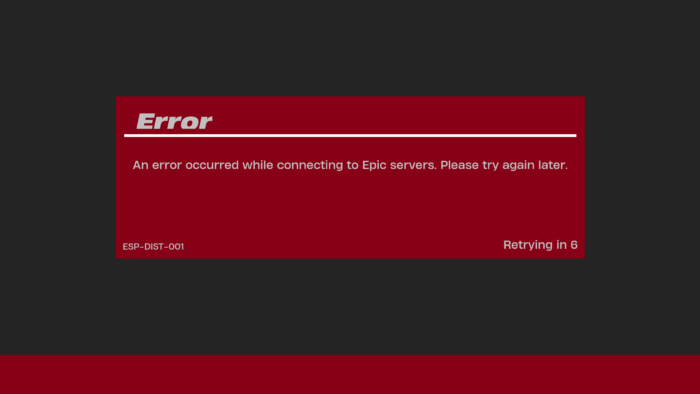
If you have been encountering Fortnite error ESP-DIST-001, we understand that it is quite frustrating. Players who encounter this specific Fortnite error might find it troubling getting into the game altogether. If you’re seeing this error while launching Fortnite or trying to connect, there’s how to troubleshoot it without wasting time on unnecessary downloads.
How to fix Fortnite error ESP-DIST-001
The ESP-DIST-001 error usually appears with the following message:
An error occurred while connecting to Epic servers. Please try again later.
According to Epic Games, ESP errors are generally connection-related. This means Fortnite cannot establish a reliable connection with Epic’s services. The problem could involve an outage, your internet connection, security software, or corrupted local cache files.
1. Check whether Fortnite servers are down
First off, check whether Epic Games is experiencing an outage. Server-side issues can trigger ESP-DIST-001 even when your internet connection works perfectly.
- Visit the Epic Games Public Status page.
- Expand the Fortnite section.
- Check Login, Game Services, and Matchmaking.
- If any service reports an outage, wait for Epic to resolve it.
- Restart Fortnite after services return to normal.
If everything is operational, move to the next troubleshooting methods.
2. Restart your router and internet connection
A temporary network issue can prevent Fortnite from connecting to Epic’s servers.
- Completely close Fortnite.
- Turn off your computer or console.
- Disconnect your router and modem from power.
- Wait approximately 30 seconds.
- Reconnect your networking equipment.
- Wait for your internet connection to return.
- Launch Fortnite again.
If possible, connect your PC or console through Ethernet instead of Wi-Fi. You can also try a mobile hotspot to check whether your regular network is causing the issue. Epic also recommends temporarily disabling VPNs and proxies. Nearby Bluetooth devices can interfere with wireless signals, so try turning them off during testing.
3. Clear the Epic Games Launcher cache on PC
Corrupted temporary launcher data can interfere with Epic Games services. Therefore, clearing the launcher cache is worth trying before reinstalling Fortnite.
- Completely exit the Epic Games Launcher.
- Open Task Manager and make sure Epic Games Launcher is closed.
- Press Windows + R.
- Type %localappdata% and press Enter.
- Open the EpicGamesLauncher folder.
- Open the Saved folder.
- Delete folders named webcache, webcache_4147, or webcache_4430, if present.
- Restart your PC and open Epic Games Launcher.
The launcher will recreate its temporary cache when it starts again.
4. Run Epic Games Launcher as administrator
Windows permissions can sometimes interfere with the launcher and its connection processes.
- Close Epic Games Launcher.
- Right-click its desktop shortcut.
- Select Run as administrator.
- Allow the application to open.
- Launch Fortnite and check whether the error persists.
5. Check your firewall and antivirus settings
Your security software could be blocking Fortnite or its anti-cheat components from communicating with Epic’s servers.
- First, check whether Windows Defender Firewall or your third-party antivirus has blocked Fortnite.
- Allow the Epic Games Launcher and Fortnite through the firewall.
- On Windows, open Windows Security > Firewall & network protection > Allow an app through firewall. Check that the relevant Epic Games and Fortnite entries are allowed on your active network.
Using Bitdefender? Check this first.
Bitdefender has specifically acknowledged an ESP-DIST-001 issue affecting Fortnite. Its support team says version 27.0.60.341 includes a patch that removes the need for manual firewall exceptions.
Update Bitdefender before changing its firewall rules. If your installation has not received the patch, follow Bitdefender’s official ESP-DIST-001 troubleshooting guide.
6. Flush DNS on Windows
If your network is struggling to resolve Epic Games services, flushing the DNS cache is another useful troubleshooting step.
- Open the Start menu.
- Search for Command Prompt.
- Select Run as administrator.
- Enter the following command:
ipconfig /flushdns- Press Enter.
- Restart your PC and launch Fortnite again.
Windows should confirm that the DNS Resolver Cache was successfully flushed.
7. Verify Fortnite game files
If the connection error continues, check whether Fortnite has corrupted or missing installation files.
- Open Epic Games Launcher.
- Select Library.
- Find Fortnite.
- Click the three-dot menu.
- Select Manage.
- Click Verify.
- Wait for the verification process to finish.
- Launch Fortnite again.
Epic Games also recommends having at least 10GB of free space on the drive containing Fortnite.
8. Delete the FortniteGame local folder
Epic recommends removing the local FortniteGame folder if the previous troubleshooting steps fail. This can help resolve problems involving corrupted local data.
- Close Fortnite and Epic Games Launcher.
- Press Windows + R.
- Enter %localappdata%.
- Find the FortniteGame folder.
- Delete the folder.
- Restart your computer.
- Open Epic Games Launcher as administrator.
- Navigate to Library and select Fortnite.
- Open Manage and click Verify.
Fortnite will recreate the required local files when it launches. Back up any custom local configuration files before deleting the folder.
9. Clear your console cache
Epic specifically recommends clearing the console cache for ESP-DIST and ESP-DIST-001 errors.
On PlayStation 5 and PlayStation 4:
- Completely close Fortnite.
- Turn off your PlayStation.
- Wait until the console has fully powered down.
- Enter Safe Mode by holding the power button until you hear the second beep.
- Connect your controller using a USB cable.
- Select Clear Cache and Rebuild Database.
- Choose Clear System Software Cache.
- Restart your console and launch Fortnite.
On Xbox Series X|S:
- Turn off your Xbox completely.
- Disconnect its power cable.
- Wait approximately two minutes.
- Reconnect the power cable.
- Turn on your Xbox.
- Launch Fortnite again.
On Nintendo Switch and Switch 2:
- Open System Settings.
- Select System.
- On the original Switch, open Formatting Options.
- Select Reset Cache.
- Choose your user profile and confirm.
- On Switch 2, select Data-Clear Options > Clear Cache instead.
- Restart your console and open Fortnite.
Clearing the cache does not delete your downloaded games or saved game progress.
10. Change MTU settings on Nintendo Switch
Epic also recommends changing the MTU value to 1500 if the error continues on Nintendo Switch.
- Open System Settings.
- Select Internet > Internet Settings.
- Choose your connected network.
- Select Change Settings.
- Find the MTU option.
- Change its value to 1500.
- Save the settings and launch Fortnite again.
11. Reinstall Epic Games Launcher or Fortnite
Consider reinstalling only after exhausting the earlier solutions. On PC, Epic recommends reinstalling the launcher if its connection problems persist. It also suggests installing Fortnite on the same drive as the launcher when ESP errors continue.
On consoles, uninstall Fortnite through the platform’s game management settings and download it again. Make sure your console has enough free storage before starting.
That’s all we have in this guide to fix Fortnite error ESP-DIST-001. We hope the aforementioned methods helped you launch Fornite and plsy seamlessly. We also have a separate guide for Fortnite error ESP-INIT-001 and for times when you encounter error code 6, 86, and more.
FAQs related to Fortnite error ESP-DIST-001
1. What does Fortnite error ESP-DIST-001 mean?
It is generally a connection-related error. Fortnite cannot establish a reliable connection with Epic Games services.
2. Is ESP-DIST-001 a Fortnite server issue?
It can be. However, local network problems, firewall restrictions, and corrupted cache data can also trigger it.
3. Can a VPN cause ESP-DIST-001?
Yes. Epic recommends disabling VPNs and proxies when troubleshooting ESP connection errors.
4. Does ESP-DIST-001 mean my Fortnite account is banned?
No. The error does not indicate an account ban. It generally points to a connection problem.
5. Why does Fortnite ESP-DIST-001 appear on PS5 and Xbox?
Epic recommends clearing the console cache first. If that doesn’t help, perform a full power cycle.
6. Can Bitdefender cause Fortnite ESP-DIST-001?
Yes. Bitdefender confirmed a firewall-related issue and released a fix in version 27.0.60.341.
7. Will reinstalling Fortnite fix ESP-DIST-001?
It might help if corrupted installation files are responsible. However, check server status and your network before downloading the entire game again.

Read our disclosure page to find out how can you help Windows Report sustain the editorial team. Read more


Improve this guide




User forum
0 messages