
How to filter comments in Word for the web


 2 min. read
 Published on
Key notes
- Filter by mentions, active threads, or resolved conversations.
- Choose Reset All to restore the full comment list.
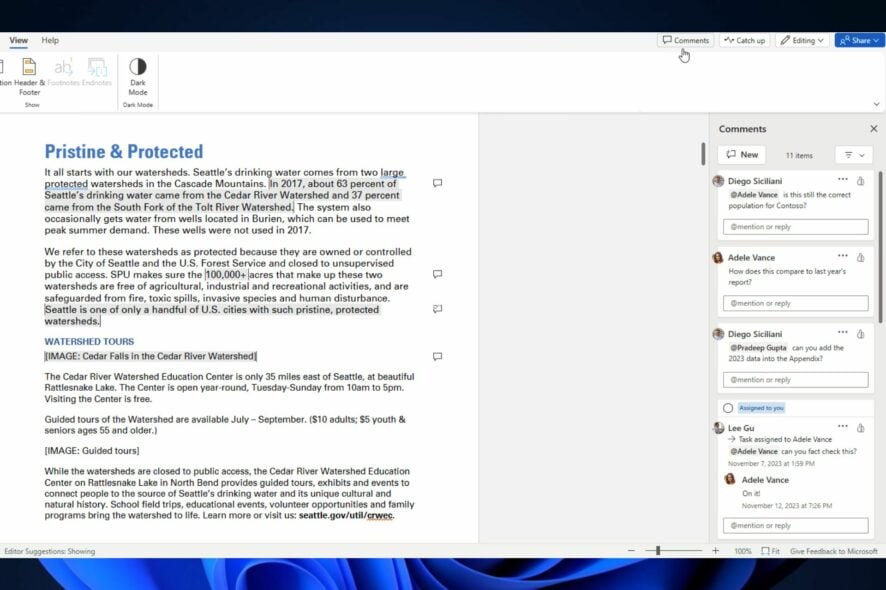
Open the Comments pane in Word for the web to find feedback addressed to you or revisit a thread someone has resolved. The filter changes which conversations you see. Your collaborators can keep working with their own views.
Find the comments you need
- Open a document that contains comments in Word for the web. Select Comments near the upper-right corner to open the full list.
- Select the Filter menu at the top of the pane, beside the comment count. Choose @mentions me for threads where someone tagged you, Active only for open threads, or Resolved only for conversations already marked as addressed.
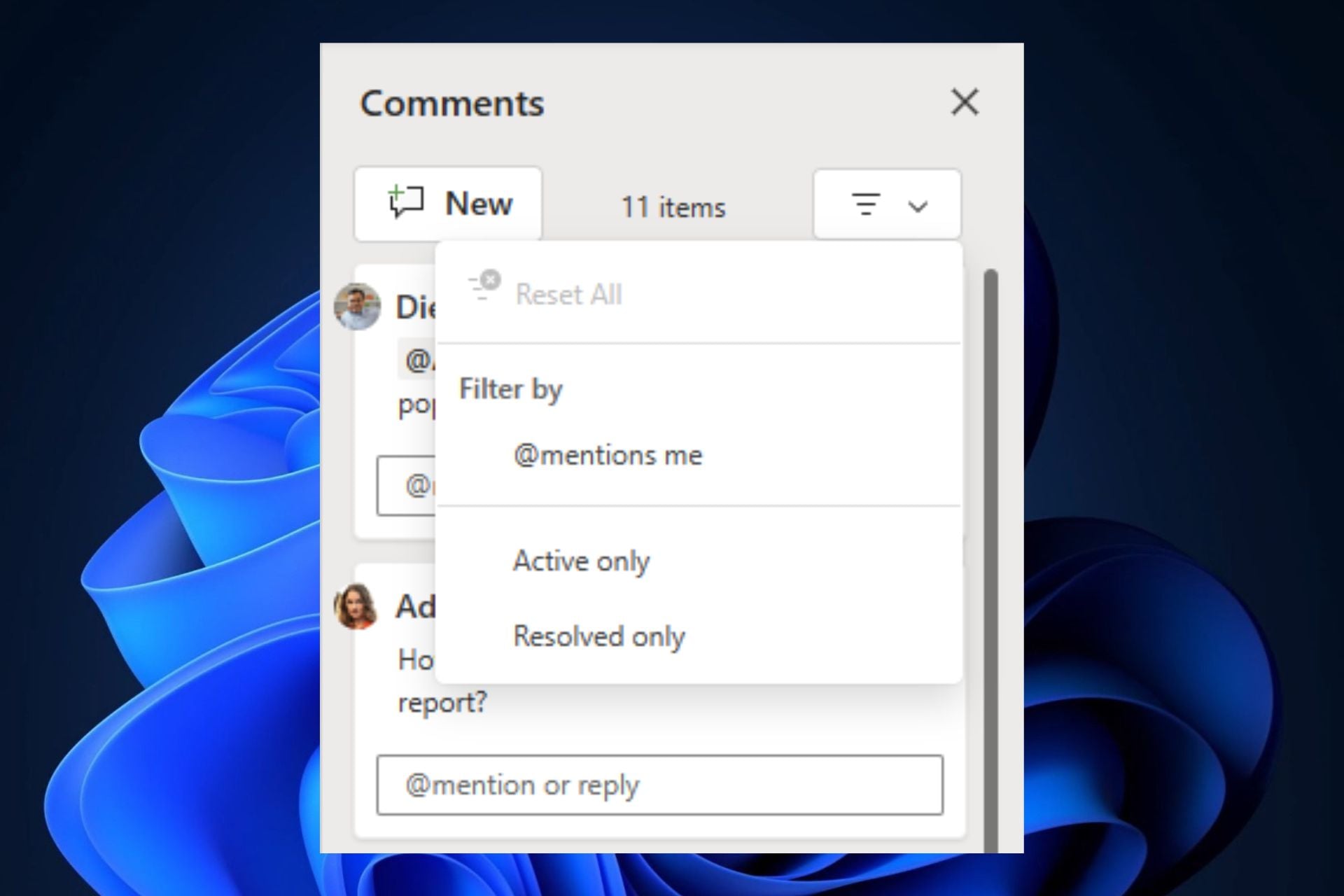
For example, if a colleague asks you to check a figure and the thread later disappears from your active list, switch to Resolved only. You can still read the conversation there. Reopen the thread if it needs another correction.
Show all comments again
Open Filter and select Reset All. To remove just one filter, select that option again. If you were waiting for a colleague’s new comment while viewing resolved threads, resetting the filters brings the new conversation back into view.
Microsoft’s illustrated guide to comment filters shows the available combinations. Microsoft Support explains how to resolve and reopen threads.


Read our disclosure page to find out how can you help Windows Report sustain the editorial team. Read more


Improve this guide
User forum
0 messages