
How to Install APKs on Windows 11


 5 min. read
  Updated on

If you’re wondering how to install APKs on Windows 11, the good news is that Microsoft now allows Android app support natively. You can install APK files directly or through third-party APK installers, opening the door to thousands of apps beyond the Microsoft Store.
Below are all the reliable methods to perform APK installation in Windows 11.
How can I install APK files on Windows 11?
Table of contents
1. Enable the Windows Subsystem & download the Amazon Appstore
1. 1. Download and install Windows Subsystem for Android
- Press the Windows + I keys to open the Start Menu.
- Select Microsoft Store to launch.

- Type Windows Subsystem for Android on the Microsoft Store search window and press Enter.

- Click Open Microsoft Store to be redirected to the Microsoft Store.

- Hit the Get button to start installation.

- Once installed, you can now download and open APKs.
1. 2. Download and install the Amazon Appstore
- Press the Windows + I key to open the Start Menu and click on All apps.

- Locate the Amazon Appstore and click on it to launch.

- Find the application of your choice and click on the Get button.

The Windows Subsystem for Android (WSA) lets you run Android apps natively on your PC. With it, you can install the Amazon Appstore and use it to get APK files.
In terms of compatibility, it’s the best option. However, the app selection is quite limited.
2. Sideload APKs using an APK file
- Open your browser and click to Download SDK Platform-Tools for Windows.

- Click the checkbox I have read and agree with the above terms and conditions to start downloading.

- Open the zip folder to extract all files.
- Open the Start Menu and select All apps.
- Locate Windows Subsystem for Android and launch it.

- Select Developer mode and toggle it on.

- Go back to the extract folder and type cmd on the address bar.

- Type in the following commands and press Enter after each one:
adb.exe connect <IP address>
adb.exe install <file name>.apk
- Once your app is installed successfully, the following message will be displayed:

- Go back to the Start Menu and launch your APK to open.
By sideloading, you will be able to install more apps because you’re not limited to a specific app store. However, this implies some security risks and potential incompatibilities.
Even though you’ll be able to install the app, there’s no guarantee it will work error-free.
3. Get an Android emulator app
- Download and install an Android emulator on your PC. We highly recommend Bluestacks because it gives you direct access to the Google Play Store and is highly optimized for all sorts of mobile apps.
- Open Bluestacks and log into your Google Play account.

- Once logged in, you can browse for and download apps as you would on your phone. You can then locate and access them directly from Bluestack’s interface.

With an Android emulator like Bluestacks, you’ll have the easiest of times.
They offer full access to the Google Play Store and practically work as a virtual Android device. The drawback is that they can be resource-intensive.
How do I open an APK file on my PC?
In order to install APKs on Windows 11, you need to have Hyper-V and Virtual Machine Platform enabled.
To enable the two features:
- Hit the Windows + I keys simultaneously to open the Start Menu then select the Settings app.

- Navigate to Apps and select Optional features.

- Select More Windows Features.

- Locate Hyper-V and click on the checkbox then press OK.

- Also, find Virtual Machine Platform, click on the checkbox and press OK.

- Wait for the installation to complete.
Are there implications of running APKs from third-party sites?
The safety of this approach is often questioned. Are you really installing what you think you are? Probably not from a random site you found on the Web.
But when you have a choice between an app installed from a site you know and one that is not, there are other considerations. It’s worth reviewing those to make sure your risk profile is as low as it can be.
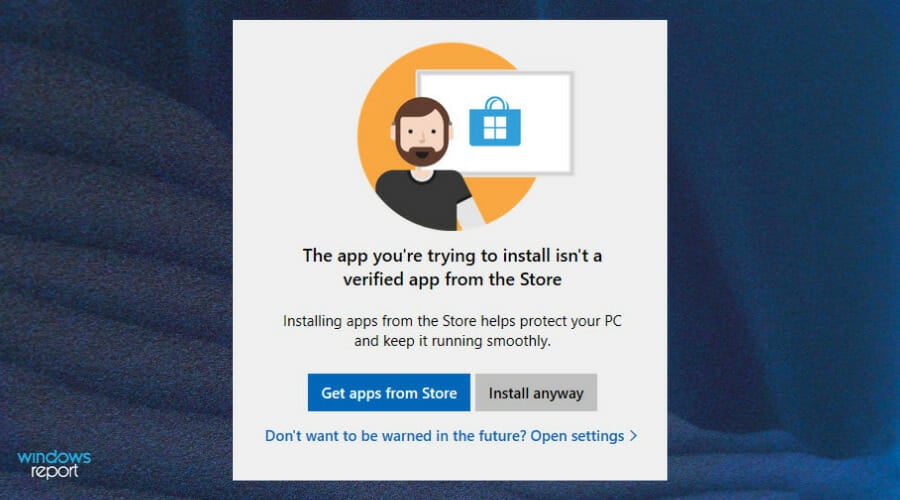
When installing APKs from third-party sites, Windows users need to be aware of the risks. Malware attacks are a growing threat. You need to make sure that your device is completely safe and secure. We have outlined some of the top antiviruses for your PC to keep you safe while browsing.
Are APK files safe?
Not all APKs are safe. Only download APKs from trusted sources. Avoid unverified websites, as APKs can hide malware, spyware, or programs that steal data and control your device. Stick to official app stores or the developer’s official site.
Watch for phishing scams that mimic legitimate sites to steal login or payment details. Always check the URL before entering sensitive information
Also, if you choose to use other Android emulators to run APKs and encounter installation problems, refer to our guide on how to resolve the issue.
Wrapping up
Now that you know how to install APK files on Windows, you should be able to install apps like Pikashow for Windows 11 without any problems.
We hope you found a way to open and install APKs from one or more of the methods we listed above. If you encounter any problems while running APKs, leave us a comment down below.

Read our disclosure page to find out how can you help Windows Report sustain the editorial team. Read more



Improve this guide



User forum
2 messages