
Kerish PC Doctor Review: The Preventative Approach to PC Health


 11 min. read
  Published on
Key notes
- Real-time system and hardware monitoring goes beyond typical “PC clean-up and optimization” tools.
- Maintenance runs in the background without hogging resources.
- Access a comprehensive suite of Windows tools and utilities.
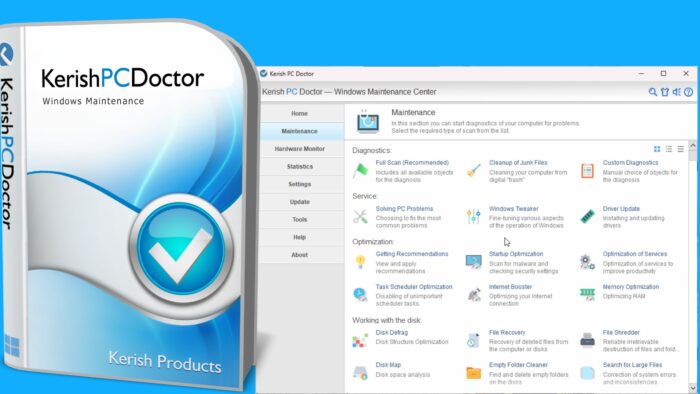
Longtime PC users have all had the experience of crashes and slowdowns, followed by trying to find a tool to diagnose the problem and clean things up. But what if the best approach is to monitor and maintain system health, rather than to fix things after problems arise?
Today we get hands-on with Kerish PC Doctor, a suite of tools that promises to work in the background to do just that. Here’s everything you need to know:
What is Kerish PC Doctor?
Kerish PC Doctor is a long-running Windows maintenance, monitoring, and preventive care suite. For more than 17 years it has been a comprehensive solution for hardware monitoring, disk care, crashing and slowdown prevention, and security and virus protection.
It offers an almost endless collection of tools and utilities. While these can be accessed as and when you need them, its real-time mode automatically detects and fixes system errors and potential vulnerabilities on the fly. It also keeps track of hardware temperatures, load levels, battery wear, and motherboard voltages in real time.
The software comes with a 15-day free trial to test it out before committing to a paid license. As of writing, it has reached more than 75 million downloads worldwide.
Key Features
Kerish PC Doctor packs-in everything from simple Windows utilities to advanced system monitoring. We got to try all its key features to see exactly how it performs:
Real-Time Mode
Real-time mode is made up of 5 key components. You can leave these on autopilot by toggling on real-time mode after installation, but it’s good to have the ability to choose which to use manually. You can also turn-off all automation to run in classic mode, requiring you to manually start all tools yourself.
Apps Live Optimization focuses on the programs currently running on your PC. It works by managing CPU time between active processes, with the aim of helping demanding applications run more smoothly when several programs are competing for system resources. Game acceleration is also integrated into this component, which also comes with the option to reallocate RAM to the game and temporarily suspend non-critical system services.
I like that this does not permanently tweak your PC and is more about responding to what is happening while you are using it.
Disk Optimization handles ongoing disk maintenance. PC Doctor cleans unnecessary files and can perform background defragmentation when the computer is idle, while taking the type of drive into account. Importantly, SSDs are not treated like traditional hard drives, so the software does not simply defragment everything indiscriminately.
Error Repair is the preventative side of the package. It monitors the system for potential errors and known failure conditions, aiming to catch and fix problems before they turn into crashes or noticeable slowdowns. The real-time failure detection system has also been expanded over successive versions of the software, with new problems added to its detection database.
So as not to slow down your experience itself, it does a good job of recognizing when you are idle or the PC is under low load and only does scans during this time.
The more technical minded can configure exactly what should be monitored and scanned, but unless you have a particular objection, it’s probably best to cover everything by default.
PC Protection adds a security layer to the background monitoring. It is designed to defend against viruses and keep an eye on important Windows security settings, while also looking for potential vulnerabilities, unwanted programs, etc. It is best thought of as a useful companion layer to Windows Defender or a full third-party antivirus suite.
PC Control gives you more oversight of the system itself, giving the option for notifications about new apps, startup program changes, system services, tasks, browser extensions, and file restoration.
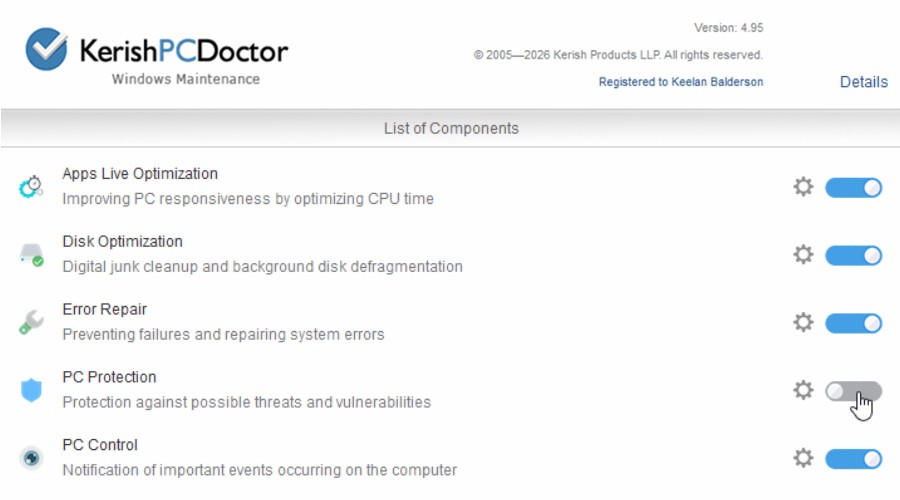
Taken together, these five components work together as a comprehensive background maintenance solution. You can largely leave it alone and let the PC Doctor handle routine upkeep, but the option to selectively enable features is useful if you prefer a little more control over what the software is doing.
Hardware Monitor
Alongside Real-Time Mode, the separate Hardware Monitor also stands out as a top feature for monitoring your computer on the fly. It gives you all the temperatures across the GPU, CPU, disks, and motherboard. You also get the usage percentage, fan speeds, and voltages.
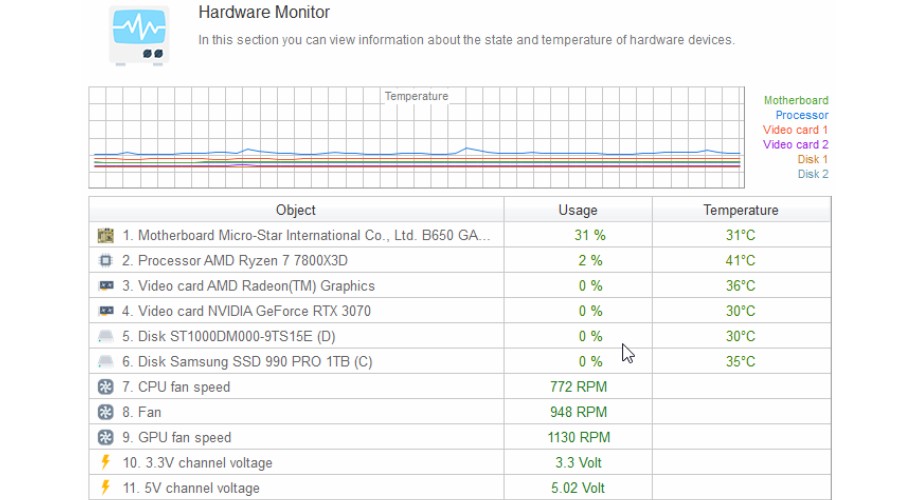
As someone who likes to keep an eye on the temps and fans while gaming, this is a useful way to not have to use separate tools.
Diagnostics
While Real-Time Mode is designed to keep your PC ticking over in the background, the Diagnostics section is where you can take a more ad-hoc approach.
Full Scan is the best starting point if you want a broad overview of your PC’s condition. Rather than relying on a single-purpose cleaner, PC Doctor checks across multiple areas of the system and presents the problems it finds for review. The exact scope can be adjusted before scanning, giving you the option to include or exclude categories depending on what you want to investigate.
This makes it a good middle ground between complete automation and manually opening dozens of separate Windows utilities. You can run a comprehensive health check when something feels off, then drill down into individual areas if the scan identifies a problem.
Cleanup Junk Files is for clearing unnecessary data from the system that may be both taking up space and slowing things down. Kerish looks for digital clutter that can build up over time, including app caches and other temporary and unnecessary files, with its cleaning algorithms designed to improve the efficiency of junk removal.
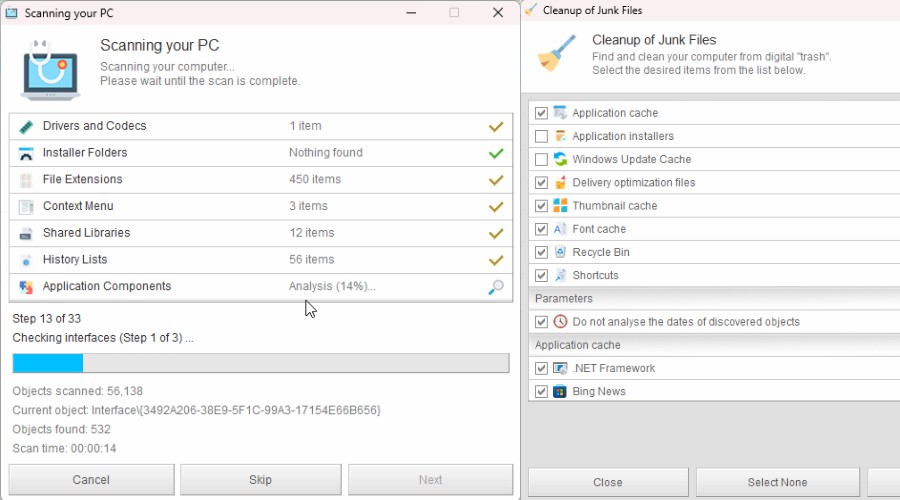
Some users will be happy to let Kerish clean everything it considers safe, while others may prefer to manually select categories and keep tighter control over what gets removed. I especially like that you can hover over any object to scan or clean for a description of what it actually means.
That flexibility and insight make the Diagnostics section feel more useful than a simple one-button cleaner.
Service
Under the Service section, you will find utilities targeted at Solving PC Problems.
I instantly preferred this over Windows’ own built-in troubleshooting tools, which are often hard to locate and rarely offer workable solutions.
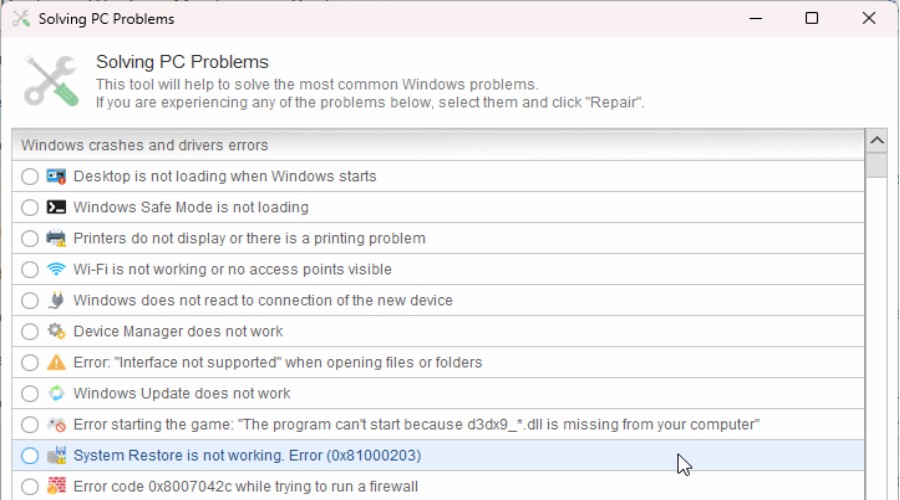
It instantly lists upwards of 50 common Windows problems, which you can narrow down with the search function.
Checking one or more of these directly links to a one-click repair process, not just vague information. No more digging through the Control Panel, Windows settings, and obscure troubleshooting guides.
Windows Tweaker takes the opposite approach. Rather than fixing something that is already broken, it gives you access to Windows settings that are normally hidden or scattered across different parts of the operating system. This is useful if you like to customize how Windows behaves without manually editing the Registry or hunting through confusing menus.
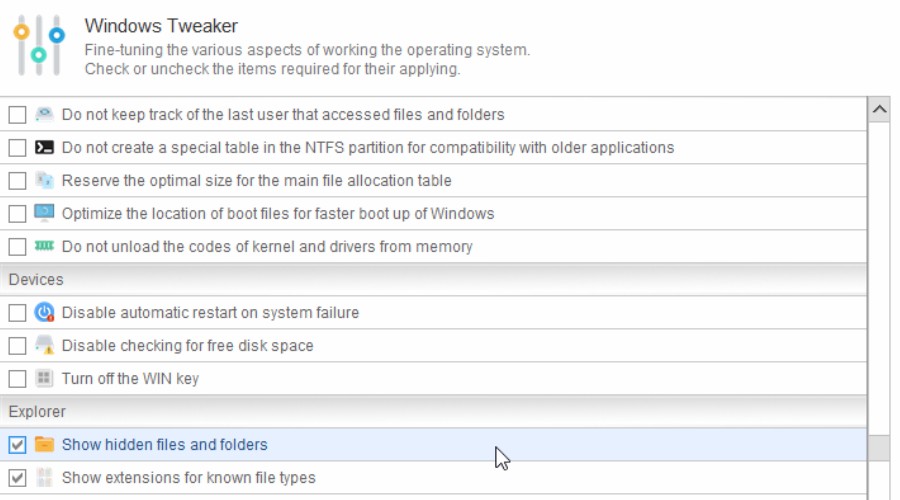
I recently upgraded to Windows 11 and this allowed me to easily show hidden files and folders and file extensions, which I was used to on my old PC but had completely forgotten how to configure.
Driver Update helps keep device drivers current. It covers more than 100,000 known devices and receives monthly database updates.
Optimization
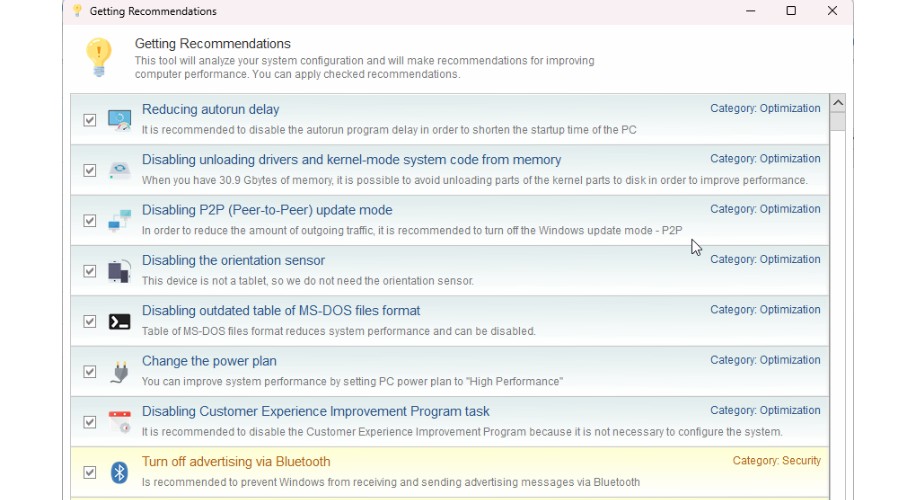
If you want to fine tune Windows and improve performance and security, you can start with personalized Recommendations based on your system and current settings. Some recommendations can be applied with a single click, which is much simpler than hunting through Windows settings or the Registry yourself.
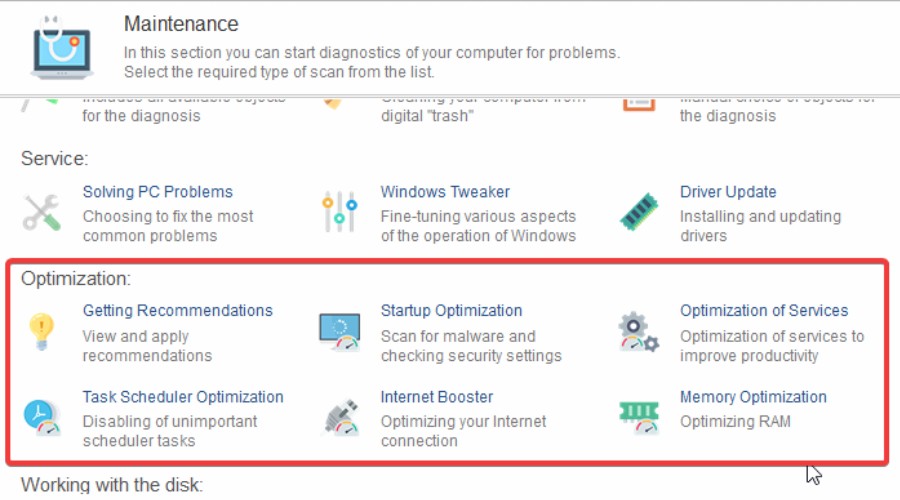
Overall, it offers a convenient hub for several other minor tweaks:
Startup Optimization manages programs that launch with Windows, much like Task Manager’s built-in Startup Apps feature.
Optimization of Services does something similar for Windows services, identifying services that may not need to run constantly. This is more advanced than the default Startup Apps tool, although it is also an area where caution is sensible.
Task Scheduler Optimization provides control over your scheduled Windows tasks, with PC Doctor using its own recommendations and cloud-based data to help identify tasks that may be unnecessary.
Internet Booster analyses and adjusts selected network settings based on your connection speed and hardware.
Memory Optimization can automatically reclaim unused memory from running processes in the background and set an automated schedule for doing this. Its usefulness will naturally be greater on older PCs or systems with limited RAM.
Disk
Here you will find all tools related to hard drive maintenance, with an advanced Disk Defrag to benefit those still using traditional drives (not SSDs).
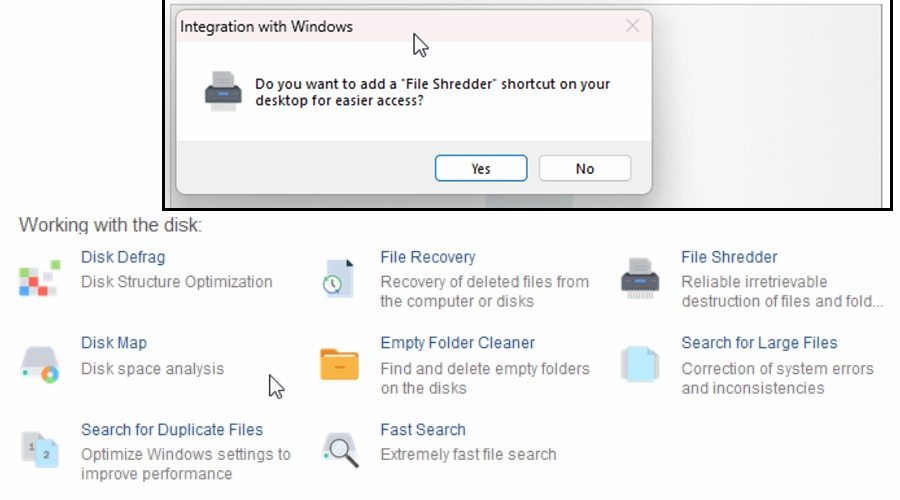
For me the most useful tools are file recovery, for retrieving deleted files that have yet to be overwritten, and file shredder, for ensuring sensitive files are gone for good.
It’s also practical to have organizational features like finding duplicates, empty folders, and large files, all right there alongside the other disk maintenance utilities.
Other Tools
The Tools tab includes direct links to an impressive selection of other tools and some you can access from other areas of the suite. While a lot of these mirror existing Windows utilities, it’s useful having them logically grouped together and some are more thorough.
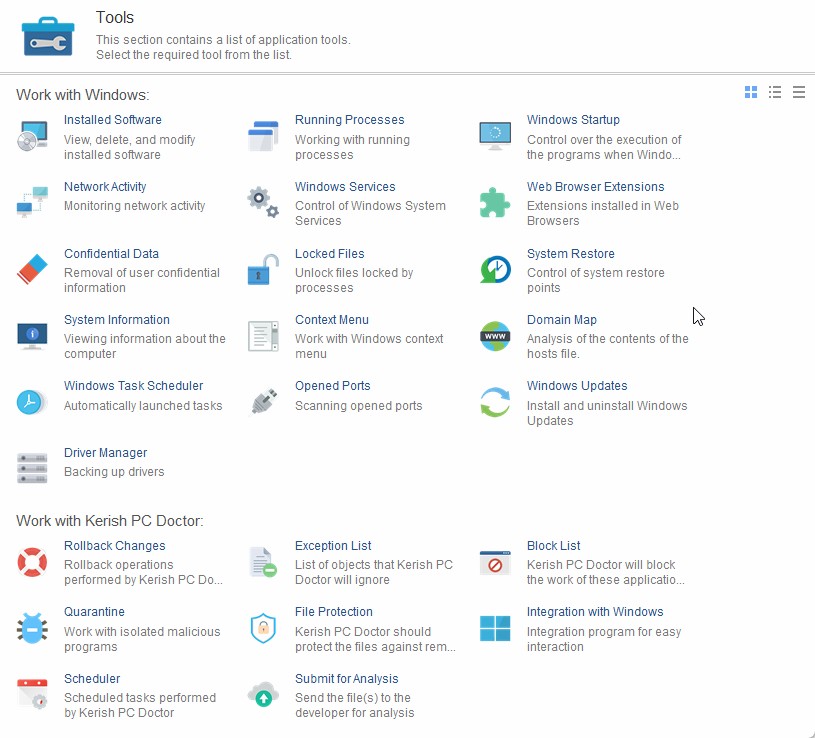
For example, Windows Startup digs deeper to find apps that don’t fully launch but still run background processes on startup. In my case, I disabled Microsoft Edge and Steam, which I never use or want running unless I purposefully open them. I couldn’t do this in Windows Task Manager.
You also get similar tools for Installed Software, Running Processes, and Windows Services.
Even just the basic System Information is arguably clearer and better organized than the native Windows version.
There are also several useful monitoring tools. Network Activity, Opened Ports, and Domain Map provide a closer look at how your PC is communicating with the outside world, while Web Browser Extensions makes it easier to review the add-ons installed across your browsers.
These are the kind of tools many users will rarely need, but they can be extremely useful when something seems suspicious or you are trying to work out what a particular application is doing.
The security-focused utilities are another notable part of this section. Confidential Data helps identify potentially sensitive information stored on the PC, while Locked Files can help identify files that are currently being used by another process. File Protection, Exception List, Block List, Quarantine, and Submit for Analysis also bring several security and file-management functions together under the same roof.
Statistics
The Statistics section is where Kerish PC Doctor keeps a record of what it has actually been doing in the background. Rather than simply trusting the software to handle maintenance automatically, you can look back over its activity and see the events and actions that have taken place.
The Events log provides a detailed record of PC Doctor activity, while Optimization Events focuses specifically on the performance and maintenance tasks the software has carried out. There is also a separate Important Events view, making it easier to find changes or issues that deserve closer attention without working through every routine background action.
I particularly like the inclusion of Weekly Reports. These provide a more digestible summary of the software’s recent activity, rather than requiring you to interpret a long list of individual events. It is a useful way to answer a simple question: what has PC Doctor actually done for my PC this week?
Pricing
Kerish PC Doctor pricing is straightforward, with progressively lower pricing for longer license periods. Each license covers up to 3 PCs.
- 1 Year – $14.95
- 2 Years – $19.95
- 3 Years – $24.95
You can also try the software for free for 15 days.
Kerish PC Doctor Review – Verdict
Kerish PC Doctor overlaps with traditional PC utilities in areas such as junk-file cleanup and startup management, but these functions represent only a small part of the package. Its defining strength is its preventive approach: continuous background maintenance, real-time diagnostics, hardware monitoring, security checks, repair tools, and a broad collection of Windows utilities in one application.
Rather than focusing mainly on one-off cleanups, it is designed to monitor and maintain the PC continuously and help prevent problems before they become noticeable.
Its biggest strengths, in my view, are Real-Time Mode and Hardware Monitor. The former quietly monitors and maintains the PC instead of waiting for problems to appear, while the latter provides genuinely useful live information about temperatures, loads, fan speeds, and voltages.
Overall, Kerish PC Doctor feels more like an ongoing PC health solution than a traditional “cleaner” or “fixer”.
Of course, not every tool will be essential for every user, and the sheer number of options can initially feel overwhelming. Still, that depth is also the software’s biggest advantage.
For the very reasonable price, Kerish PC Doctor offers comprehensiveness. Its combination of automated maintenance, real-time monitoring, and manual troubleshooting tools makes it one of the best solutions for Windows users right now.


Read our disclosure page to find out how can you help Windows Report sustain the editorial team. Read more



Improve this guide



User forum
0 messages