While Windows 10 is free for personal users, enterprise users have to pay a pretty penny. If your business is on the fence about Windows 10 enterprise being worth the money to upgrade, you can try it out for ninety days. Windows 10 Enterprise offers a variety of new features that are geared towards corporations and businesses.
To try it out, or “evaluate” as Microsoft refers to it, business can download it from the TechNet Evaluation Center. A page on “What’s new in Windows 10” at the TechNet site outlines in full detail what business get with the upgrade.
There are multiple download options. Microsoft points enterprises to Volume Licensing Service Center if you’d like to upgrade a large number of devices. There are also ISOs available including for Volume Licensing customers.
Windows 10 Enterprise can be used as part of the Windows Insider Program but it will not work after October 1. Business will have to pay to upgrade if they’d like to use it in the long term. Also, companies running the Insider Program will have to reinstall programs and data. Microsoft states “After October 1, a clean installation of Windows 10, the Windows 10 Enterprise 90-day Evaluation, or your former operating system will be required; and you will need to reinstall all of your programs and data.”
While personal users are enticed to upgrade to Windows 10 by new features, a major draw is that the upgrade is free. That isn’t the case for enterprises which will spend thousands upgrading all of their devices. A ninety day trial gives them a fairly long windows to evaluate if Windows 10 Enterprise is worth the investment.
Mozilla isn’t happy with the changes made to the way users choose their default web browser in Windows 10 and has fired off a very direct blog post criticizing Microsoft of taking away user choice and even intentionally making the process of using another browser, like Mozilla’s Firefox, over Microsoft’s new Edge browser more difficult.
Mozilla CEO, Chris Beard says in the blog post that “It now takes more than twice the number of mouse clicks, scrolling through content and some technical sophistication for people to reassert the choices they had previously made in earlier versions of Windows. It’s confusing, hard to navigate and easy to get lost.”
The company created a special YouTube video which walks users through the process of changing a default web browser in Windows 10 and to be honest, it actually appears to be quite simple and transparent. All a user has to do is open the Firefox browser, click on the option to make it their default browser that immediately pops up and then confirm their selection.
The real issue seems to be that a user’s program preferences are reset during the upgrade to Windows 10 so if Firefox was the chosen default before, the computer would begin using Edge after the change to Windows 10.
“These changes aren’t unsettling to us because we’re the organization that makes Firefox.” Chris Beard claims in his letter. ”They are unsettling because there are millions of users who love Windows and who are having their choices ignored, and because of the increased complexity put into everyone’s way if and when they choose to make a choice different than what Microsoft prefers. We strongly urge you to reconsider your business tactic here and again respect people’s right to choice and control of their online experience by making it easier, more obvious and intuitive for people to maintain the choices they have already made through the upgrade experience. It should be easier for people to assert new choices and preferences, not just for other Microsoft products, through the default settings APIs and user interfaces.”
It’s a complex issue, and one that many will have different opinions about. On one hand the removal of previous preferences can be an annoyance but whenever an upgrade to a new operating system is performed it’s usually expected that at least an hour or so will be needed afterwards for customizing it to get it to look and feel the way one wants. Adjusting program preferences, and indeed other settings, after a major upgrade isn’t that unusual at all.
There’s also the fact that Microsoft’s new Edge browser has been specifically designed for the Windows 10 operating system and features several new features that work with other Windows 10 applications. It makes sense that Microsoft would want to make it easier to access, especially after featuring it so heavily in the Windows 10 marketing campaigns. And it’s not like Microsoft has banned other browsers and deleted previously installed programs from devices. As explained above, all a user has to do is open Firefox once after installing Windows 10 and choose to make it the default again. There’s also the fact that Mozilla hasn’t actually released their Windows 10-optimized version of Firefox yet.
Let us know what you think. Have you upgraded to Windows 10 and found it hard to use Firefox or other browsers like Chrome? Do you think Mozilla is justified in their complaint and Microsoft overstepped? Share your thoughts with us in the comments below.
UPDATED: MIcrosoft has officially announced that Windows 10 has surpassed 14 million installs, 4 million up from what we reported just earlier today! Crazy! Original article follows.
Microsoft is betting big with Windows 10, in just 2-3 years the company expects Windows 10 to be installed on over 1 billion devices. Although Microsoft is yet to make any official announcement regarding the install count of Windows 10, I’m told that after just 2 days of it being available, that number is close to 10 million.
10 million installs is really impressive, especially when you consider Windows 8 accounted for just 4 million upgrades over an entire launch weekend, which was way below Microsoft’s internal projections. If Windows 10 keeps up this pace, we could be onto a record breaker.
Microsoft is pushing Windows 10 hard, real hard, which is probably what is aiding such fast install rates. Existing Windows 7 and Windows 8.x users are able to upgrade to Windows 10 for free directly from their desktops, thanks to the Get Windows 10 app being automatically installed on PCs with Windows Update. Microsoft has never before pushed a version of Windows more aggressively, and those upgrading are taking part in the biggest upgrade experience ever conducted.
Microsoft is off to a great start with Windows 10, and if it can keep up the pace regarding installs, they’re onto a big winner. Perhaps Windows 10 will in fact reach its goal of 1 billion devices in 2-3 years, and if so, Windows 10 will have easily been considered a success by then, as it would be the fastest version of Windows to hit 1 billion.
Hopefully Microsoft will make an official announcement regarding install numbers pretty soon, as it will definitely entice developers and OEMs to jump aboard the Windows 10 bandwagon. With these numbers, I’m pretty excited about what the future holds for Microsoft and the Windows 10 platform, and very interested to see developers jump onboard with the Universal App Platform.
Over the past few months former General Manager of the OSG Data and Fundamentals team, Gabe Aul has surfaced as the funnel of communication between Windows 10 Insiders and the Windows 10 team. Typically, Gabe used his Twitter account to alert Windows 10 Insiders about build releases, bug fixes, security updates and answered users questions when he could. Although Joe Belfiore and Terry Myerson speak to developers and journalist about Windows 10 at conferences and showcases, Gabe Aul has been the source of reliable information for Insiders during the in-between months.
With the overall successful launch of Windows 10 behind the Windows 10 team, a few pats on the back and some celebratory parties are in order. Among the congratulations and celebrations bestowed upon the Windows team, Gabe Aul received a well deserved one.
A Waggener Edstrom PR guy name by the name of Greg Chiemingo took to Twitter to congratulate Gabe on his recent promotion. According to Greg, Gabe had been promoted to CVP. Gabe later confirmed the promotion with an official change to his Twitter bio. Gabe’s new title reads Vice President, WDGE Engineering Systems team. We’re not completely sure what the title means in regards to Windows 10, but for Insiders worried about a Gabe-less experience in the future, for the time being he seems to be still involved with communications. Gabe continues to speak to Insiders and Windows fans through tweets and pictures posted on his Twitter account. As part of his Twitter description, he also urges people to follow him for updates on the #WindowsInsiders program #Windows10.
Congrats to my friend @GabeAul for all his work with the Windows Insider Program, the Windows 10 launch and his promo to CVP
As a Windows Insiders and on behalf of the team here at WinBeta I would like to thank Gabe for his hard work, and congratulations on the promotion. After a long and complicated Windows 10 development cycle and release, Gabe’s promotion is well deserved.
Windows has always had productivity at its core, and Windows 10 is no different. You don’t have to look further than Microsoft’s campaign for its latest operating system to see that that’s true, as it revolves around a single word; Do. Inspiring users to take control, take action, and get things done.
Being able to multitask is a fairly important aspect in one’s quest to get things done, and in Windows 10, Microsoft has included some nifty new features to make it even easier to manage a number of tasks simultaneously.
Snap Assist
Starting with Snap Assist, an evolution of the Snap feature introduced back in 2009 with Windows 7. Now, in Windows 10, when you snap an app to the side of the screen, Windows will display thumbnails of your other open apps to quickly snap on the other side. It’s a small but relatively handy feature as it takes two steps away from organizing your windows.
Task View
Another useful new feature in Windows 10 is Task View, which gives you an overview of all your open apps, as well as the ability to create multiple desktops. This highly anticipated feature is finally available on Windows having been implemented in Mac OSX and Ubuntu for a while now. Simply click the Task View button on the taskbar to launch the interface, or use the Windows + Tab keyboard shortcut. Check out how it can be used in our real-life use scenario here.
Cortana
Personal assistants exist to help you offload tasks and take care of things while you’re busy doing other things, and that’s one of the reasons why Microsoft built Cortana directly into Windows 10. When used to its full potential, Cortana can be a very capable sidekick. You can ask her to send an email, open apps, remind you to do things later, keep track of your packages, and monitor the traffic situation so you aren’t late for your next appointment, all just by using your voice.
Those are some of the features that help you multitask better in Windows 10. Microsoft has done a good job in making them extremely easy to use and intuitive. The company is of course very much open to user feedback, so be sure to send in your suggestions using the Windows Feedback app.
While we’re just getting started with Microsoft’s ambitious upgrade process and a goal of getting a billion users running Windows 10, some users are already wondering why some of their machines are upgrading, or appear ready to upgrade, and others aren’t showing the Windows 10 upgrade icon.
Microsoft has said that the upgrade process will be rolling out over the next “days and weeks”, but hasn’t really said why or how.
On yesterday’s episode of Windows Weekly with Leo LaPorte, Paul Thurrott, and Mary Jo Foley, however, Paul offered an explanation for both how the system works and why some machines are upgrading earlier than others. At about 19:30 into the episode, Thurrott explains:
I spoke with Microsoft… and one of the things they told me was that the way that they’re slipstreaming non-Insider systems into the update process… is they have this matrix of configurations, pc configurations: at one end they have the ones they know are going to work great because it’s just a collection of devices for which they have all proper drivers and everything’s going to go great, and then down at the other end is the black hole where there’s lots of problems, and what they want to do is get as many people who have all the good stuff updated as quickly as possible.
So it’s kind of random… to the user, in the sense that I’ve heard from many people that “I have this one PC, this brand new one, and I’m not getting the icon, but I have this other one that’s a couple of years old, and I did get the icon, you’d think it would be the other way around.
But it doesn’t have to do with the age of the system or what OS it’s running, it has to do with the components and the drivers that are available and so on.
And so the ones that will go first are the ones that happen to be in the known good part of the matrix, and that will improve over time.
Thurrott suggests that the best thing do to may be to wait, and we agree: updating systems without proper driver support may cause you more headaches than it’s worth. Still, if you insist, there are a couple of ways to get your systems to update. You can manually force the update by following the steps in our How To, or you can download and install the ISO. In either case, especially if you don’t show the “Get Windows 10” icon, you may be in for problems with drivers or configurations, don’t say we didn’t warn you.
Windows 10 means new settings and options to learn and get used to. One of those is managing wireless network connections. In Windows 10 you can easily manage your network connections and can share those connections with your contacts using Wi-Fi Sense.
To manage wireless settings, go into the Windows 10 settings menu and select Network and Internet. You can also right click the wireless icon in the action center or type Wi-Fi into Cortana. Once there you can turn Wi-Fi on or off and connect to local networks by clicking them and selecting Connect.
In Advanced Options you can set your device to be discoverable or hidden from other PCs on the same network. You can also turn on and off a metered connection, this is important if you have limited data, for example if you’re using the new Surface 3 with LTE.
There’s also a feature in Windows 10 called Wi-Fi Sense. This allows you to store your passwords on various networks across your devices. It also lets you share your Wi-Fi connection with your Outlook, Skype, and Facebook connections without giving them your network password. If you prefer to not share your connection with your contacts you can easily uncheck the boxes in the Wi-Fi Sense menu. At the moment you cannot select specific individuals to share your network connections with over Wi-Fi Sense. Hopefully that feature is available in the future.
Managing wireless networks is pretty easy in Windows 10 and all of the settings are easy to find and are clearly labeled. Jumping between networks with Wi-Fi Sense is easy and most of the settings are easy to personalize, though there are a few customizations not yet available.
As WinBeta reported earlier this week, predictions were being made that the launch of Windows 10 could break the internet as Dan Rayburn noted with the amount of expected traffic and capacity reserved by third-party CDNs, Windows 10 could cause serious problems.
Dan Deeth of Sandvine decided to follow up on these predictions and see what the preliminary web traffic data says. What Deeth found was that the launch of Windows 10 did not overwhelm networks. In fact the peak of traffic was from Windows Insiders just prior to the official launch day.
Deeth notes. “As for share of traffic… Windows Insiders drove it to account for between 6-8% of traffic during peak. However on Wednesday when it was available to the general public it account for only 3-4% of traffic.”
The reasons for this is because of Microsoft’s decision to release the software in waves rather than all at once to everyone. The phased rollout prevented spikes in internet traffic that could overwhelm networks.
Deeth further adds that unlike Microsoft and Google, Apple does not do controlled releases of new software. He goes on to say that two years ago with Apple’s iOS 7 release:
“That type of release can and does put tremendous amount of pressure on networks which can make the experience frustrating for subscribers and stressful for network operators. Microsoft should really be applauded for their phased Windows 10 roll out. While it may leave some people waiting for an update, the largest digital software release in history has had no significant impact on network experience which is kind of incredible if you think about it.”
Windows 7 and 8 users also have an entire year to consider taking advantage of their upgrade so there is no rush to have it day one.
Keeping track of the numerous paper recipes can often be a time-consuming and impractical task. This is a problem Jane Koh hopes to solve in her group’s Hackathon project, Sous-Chef, a Windows app that collates both recipes written down on physical paper and saved in digital formats to create one convenient location for organizing your favorites.
“The kitchen in general is really stuck in the last century. I don’t think there’s a whole lot of technology geared toward people in the kitchen,” she says in an interview with Microsoft. “Sous-Chef is for anyone who has paper recipes and bookmarked recipes strewn about the Internet that they want to get in digital form to use on a device while cooking, without getting kitchen goo on paper recipes or their devices.”
The team behind the Sous-Chef app are an international group of engineers, developers and technical evangelists from the United States, Germany and England. The app uses a combination of Microsoft’s optical character recognition (OCR) software and Azure’s cloud-based search, analytics and machine learning tools to convert the recipes into a single format and make them searchable, editable and customizable.
Once the recipes have been converted, Sous-Chef can use the date to recommend recipes for special occasions and even has Cortana integration which allows for recipe narration and features that enable the user to directly request information on a recipe through voice. A user can ask Cortana, “How long do you poach an egg?” for example and they’ll be given a verbal response with the information they require.
The innovation doesn’t stop there though. Koh has plans for some much more advanced functionality that will incorporate Microsoft’s new digital assistant. “How awesome would it be if you could say, `Cortana, set a timer for 20 minutes for the rice. Cortana, set a two-hour timer for the turkey,’” she says while discussing her ambitions for Sous-Chef. “Something like that would really be such a time-saver.”
Helping with the speech recognition and Cortana integration is, Daniel De Freitas Adiwardana, a software engineer on the Microsoft Dynamics CRM team. “Voice recognition technology has come a long way and will soon be in every Windows 10 device,” he says in the same interview. “So I hope I can help apply it in a very valid, hands-free scenario, which is cooking!”
There is no official launch window for the Sous-Chef app though we’ll definitely post about it when it launches as it sounds like a fantastic concept that not only takes advantage of the benefits of Windows 10 and Cortana but could quickly become a popular app in many households.
Those interested in the app should be warned of other apps currently on the market with similar names such as “SousChef” and “Sous Chef”. The phrase simply means “kitchen assistant” so these similar apps aren’t necessarily copying each other and are simply using a phrase that’s a perfect fit for an app that assists the user in the kitchen.
Do you currently use any apps in your kitchen? Share your recommendations with us in the comments below.
Microsoft’s 2015 //oneweek Hackathon has just drawn to a close and participating developers have now finished their inspiring, and often ambitious, projects. Among some of the cooler projects explored over the event’s past three days were;
Team Bumblebee’s smartphone app that provides text messages for users with hearing impairment.
Dyslexicon. An app that uses a phone’s camera to convert text into a dyslexic specific typeface.
The OneBike project that provides more detailed information on a cyclist’s ride while simultaneously charging their Windows Phone when the bike is in motion.
Emotion Band. A special device for helping sufferers of PTSD by sending help messages to trusted recipients of the wearer.
Microsoft’s hackathon event is as much about encouraging the creation of new ideas and concepts as it is about celebrating programming as a whole and providing exposure to groups that wouldn’t normally receive as much publicity otherwise. This year’s hackathon was the first time Microsoft had organized such an event and is apparently part of CEO Satya Nadella’s strategy to reinvent the way Microsoft does business by moving away from its typical September annual employee meeting and providing a venue for employees to create and be inspired.
Microsoft’s corporate vice president of Communications, Frank X. Shaw explains the company’s reasoning in an interview on the official Microsoft blog, “When you’re trying to drive a cultural change like this, you always want to look for moments in time where you can make it real for people,” said Shaw. “But, if you don’t find the moment for people to actually take action, then it doesn’t provide the kind of change you want. The hackathon gives us the opportunity to build that muscle and say, ‘I learned something. I swam in data. I did something that I hadn’t been doing as part of my day job.’”
What do you think about Microsoft’s 2015 hackathon and which project was your favorite? Do you think they should do another one next year? Let us know in the comments below.
The whole upgrading to Windows 10 from a non-genuine Windows is so confusing. First, Microsoft announces that it plans to give Windows 10 as a free upgrade regardless of whether users don’t have a genuine copy of Windows 8.1 or 7. Then shortly afterwards, Microsoft backtracked what it said and told everyone that pirates will not get Windows 10 for free.
Quite a few people have reported on Reddit have reported that they have successfully upgraded their pirated copies of Windows (check out this thread and this one), both 8.1 and 7, to Windows 10. Surprisingly, many of these people got their Windows 10 activated, despite their previous Windows installation not activated.
Many users are claiming that all they had to do was run the Get Windows 10 app and then the magic began. They didn’t even need to run any hacks or exploits.
However, some users have also reported that their Windows 10 upgrade did not activate from a non-genuine copy of Windows. So users who don’t have a genuine copy of Windows who try to Windows 10 shouldn’t be surprised if their Windows 10 machine didn’t activate. If you run across this problem, then it’s probably best you purchase a copy of Windows 10 if you can afford it. Or enroll in the Insider Preview, where Microsoft keeps a close eye on what you do, and how you use the OS, for product improvement purposes, of course.
Now that the upgrade is over and you are running Windows 10, you might want install new Universal Apps or download libraries of files you archived before the upgrade. But if you are finding you don’t have enough storage space to do that, this guide will help you clear out some room for all the great new things you do with Windows 10.
First, start typing “Disk Cleanup” into the Search box for Cortana in the bottom left corner of your screen, next to the Start button. As soon as you start typing into the Search box, Cortana will start suggesting apps and files that are related to what you’ve entered. Click Disk Cleanup at the top of the list.
This will open up the Disk Cleanup app for your C: drive where you can clear out temporary files, your recycle bin, old logs and caches, and also previous Windows Installations. Click Clean up system files to begin immediately clearing up disk space, and see if that alone meets your needs, or proceed to the next step below to remove previous Windows Installations.
If you need to free up the most space possible, and are completely comfortable removing previously installed versions of Windows, then scroll through the list of Files to Delete and select all of the temporary installation files and previous versions of Windows. But take note, after removing previous versions of Windows you will be unable to rollback from Windows 10 to a previous version with just a couple of clicks. Without the previous version of Windows still installed on your machine, the rollback option is removed and you would have to reinstall a previous version of Windows from a disk or other backup methods.
While this will remove the safety net of being able to easily rollback to a previous version of Window, it will free up a significant amount of room on your hard drive, certainly enough room for a couple of apps and some more files. This may be especially important with the loss of OneDrive placeholders in Windows 10, which used to help users maximize their storage on more mobile devices like 2-in-1’s and ultrabooks with small to mid-sized SSDs.
As you get Windows 10 up and running on your device be sure to check back with WinBeta for more helpful guides on how to get the most out of Microsoft’s latest operating system.
Right on schedule Windows 10 started rolling out around the world. Being in the Pacific Time zone I was able to start the process a couple of hours before July 29th, since the Windows 10 upgrades became available in the US at midnight Eastern Standard Time. At 9:07 PM PDT my Dell XPS 13 notified me it was finally time.
After clicking “Start the upgrade now,” the update began virtually the exact same process any Windows Insider would be familiar with.
In all it took about 30 minutes to upgrade the operating system. And Window 10 booted up with no problems.
All of my Dell drivers worked perfectly right from the beginning, something that never happened for me on any of the Windows Insider builds. I was quickly able to setup Cortana and activate her “Hey Cortana” feature, although Windows 10 did notify me that there may be problems because my laptop’s microphone wasn’t designed for Hey Cortana. But after testing a few commands, even from across the room, she didn’t miss a beat.
I then spent a little time reorganizing the start menu and making sure I had all my apps downloaded, especially the my free copy of Minecraft Windows 10 Edition beta, Groove Music, and Twitter’s new universal app. All of my older Windows programs were there and started up just fine, and Groove Music carried over my Xbox Music collection without a problem.
The only complaint in setting it up was looking for settings could result in more work than necessary because they could either be divided into the old Control Panel or the new Settings menu, but it isn’t really a problem because you can always find whatever setting you need by simply typing into the Search Box.
All in all, from the time I clicked “Start the upgrade now” to the time I had finished customizing the Start Menu, Cortana, and Edge, took me a little over an hour. With a rollout this big, and one that is supposed to break records for internet traffic, I’m sure it won’t be flawless and unfortunately hiccups are bound to happen. What has been your upgrade experience? Let us known in the comments section below.
Windows 10 is rolling out today in several countries across the globe in a phased roll out. If you’re one of those users who reserved it on Windows 7 or Windows 8/8.1, and don’t see the update notification, there’s a good news for you. You can manually start the download by following a few simple steps (via Windows Central). As a disclaimer, this trigger should start the update but may not.,
Before you kick off, make sure you’re ready to install the Windows 10 upgrade. You can check out our guide on how to prepare your system for Windows 10. Head over to C:\Windows\SoftwareDistribution\Download and delete the contents of the folder. Next, make sure your system can automatically download and install Windows Update. After you’ve enabled automatic Windows Update, open Command Prompt as an administrator and type “wuauclt.exe /updatenow“. This should start the Windows 10 download on your system. If it doesn’t start right away, head over to Windows Update to see if the update is available for you.
Do note you may experience slow download as millions of users across the globe are downloading the new operating system at the moment. But, it should get you to the other side.
Today is the big day, Microsoft is set to roll out Windows 10 to millions of PCs across the globe. It’s going to be a tough job for Microsoft to make sure every PC is running the latest operating system, and it may have its side effects. One CDN analyst believes Microsoft will break internet traffic records as soon as it starts the Windows 10 distribution process.
Dan Rayburn said, “I’ve never used the term “break the Internet” because most of the time people say that, they are simply overhyping an event on the web. But with the volume of downloads that Microsoft is expecting for the launch of Windows 10 and the capacity they have already reserved from third-party CDNs to deliver the software, the Internet is in for some real performance problems this week.”
Citing his sources, Rayburn said Microsoft has reserved up to 40Tb/s capacity from third-party content delivery networks combined, including Akamai, EdgeCast, Level 3 and Limelight Networks for Windows 10’s distribution. Akamai has the largest share of network followed by Limelight Networks. The software giant’s own CDN will also handle some of the downloads, but it’s not as big as the one assigned over to other third-party CDN providers.
Users planning to upgrade to Windows 10 on launch day may experience slow downloads that could take days so don’t panic if it’s downloading slow.
Unless Windows 10 is a complete flop and people don’t upgrade as quickly as Microsoft expects, Windows 10 is going to create some serious havoc with regards to the user experience. Expect to see some download times in the days, not hours, especially if any other content owners happen to have larger than expected traffic at the same time. Quality of service for downloads could deteriorate really quickly and remain poor for days, if not longer.
Rayburn further said that traffic went over 10Tb/s by 1pm ET, Tuesday, which is still massive compared to other launch events and software delivery methods used by other companies. For instance, some of Apple’s recent largest live events on the web have peaked at 8Tb/s so you can imagine how big this is going to be.
Windows 10 is already downloaded for many users who have reserved it, and should start downloading soon for other users as well. Let us know if you’ve started downloading Windows 10 on your PC or tablet.
Tomorrow is the big day, as it is the day when Windows 10 becomes publicly available to everyone as a free upgrade for users of Windows 7 or 8.1, or for purchase for everyone else. While many users will likely upgrade their system and replace their current version of Windows, other users will feel more comfortable and safer dual-booting their operating systems. In this post, we’ll show users how to install Windows 10 onto a USB stick to install on a UEFI-based PC.
If you’ve got no idea what UEFI is, it’s the new replacement of BIOS, which is the firmware that starts the computer and loads the operating system. Almost all of the newer Windows 8 PCs come with it.
If you’d like to create a recovery media from your currently installed Windows 10, be sure to follow the guide on this post right here. Otherwise, you can just download a Windows 10 ISO image.
The first thing you need is to download the Rufus USB image writer. It is a standalone utility, so there’s so there’s no installing this program. Instead, use the software right as soon as you open it.
Once you’ve opened Rufus up, select the USB drive you want to create your recovery drive from. Select GPT partition scheme for UEFI, but leave the cluster size to default. Be sure you have Create a bootable disk using ISO Image selected from the drop down menu.
Finally, add the Windows 10 ISO file you want written to the USB, and then click Start to finish.
That’s it! Now all you have to do is boot from the USB stick with the Windows 10 installation and then follow the onscreen instructions to either replace your current operating system or install alongside it.
Hopefully, Windows 10 will be stable enough so that you don’t feel you have to dual-boot two versions of Windows onto one computer. But it never hurts to be safe, just in case of things do end up going poorly for unforeseen reasons.
For parts of the world, Windows 10 Day has already arrived, but for others, there are still have a few hours to squeeze some more anticipation out of Microsoft’s launch. On the eve of Windows 10, Microsoft has released what could be the last video in the “10 reasons to upgrade to Windows 10” promo series. Today Microsoft is concentrating on another Windows 10 feature: Windows Store.
Microsoft’s recent video highlights the fact that the Windows 10 “One Store” contains everything including apps, games, movies & TV and music all in the one place. The newly minted ‘Groove’ music app is shown working seamlessly across phones, tablet and PC. Finally, the video concludes by telling viewers that the Windows Store has hundreds of thousands of free apps and games all certified by Microsoft. Check out the video yourself even if it’s only to get your daily dose of that catchy background song.
Previous videos in the series have concentrated on big Windows 10 features such as Multi-Tasking and Continuum. At last, the day when the public can officially get their hands on everything Windows 10 has to offer is just around the corner. After such a long build up let’s hope there are no more hitches with the roll out.
India and China appear as two of the largest growth centers for companies looking to expand their presence in the future. When the reference, “next billion” is trotted out onto stages, used during press conferences or littered in marketing pieces, the phrase is an acknowledgment of Asia’s influence on the future.
Over the last few years, China has risen to become the world largest smartphone market while India is steadily becoming the fast-growing mobile market. Combined, the two countries account for over half of the world’s population, hence the desire to seize their respective markets by most consumer-driven companies. Beyond consumerizing the area, tech companies, in particular, are also looking to harvest technological innovations that are coming out of the region.
To help foster innovations from Asia, Microsoft has started a new initiative called Hack4Asia during its company-sponsored, three-day event, 2015 Hackathon. The concept of Hack4Asia lay in the aptly named title of the event. Microsoft employees are invited to develop products and new technologies that help empower Asian customers. According to Microsoft, “More than a thousand teams from mainland China, India, Israel, Hong Kong and Taiwan are participating in the Hackathon, highlighting Microsoft’s innovative strength in Asia.” With offices and employees in the various regions, teams were able to use insight from local, cultural and economic values to help shape their hacks. While the Hack4Asia is specific to its locale, the resulting hacks could translate well to helping all people be productive, in and out of Asia.
Of note, Project TalkEasy was a Microsoft highlight from the Hack4Asia event. Sponsored by executive vice president of Microsoft’s Technology and Research Group, Harry Shum, TalkEasy transcribes speech into real-time text. Another useful hack produce during that time, was specific to India and integrates Microsoft’s Cortana assistant with street navigation in the area. The hack includes emergency support, and real-time bus data to help people get around, specifically the visually impaired.
It’s Windows 10 Eve, and for those of you who have your Windows 7 or 8.x device all set up and ready to be upgraded to the latest Microsoft OS, there’s not much to do but wait. Well, wait, and check to see if Windows 10 is pre-loading on your machine, ready to upgrade at the first opportunity.
Microsoft has begun pre-loading machines already, to take some of the pressure off their servers as seemingly millions will be ready to upgrade on Day One. To check to see if your machine is getting ready for Windows 10, head over to File Explorer, first making sure that “show hidden files” is enabled (you can hide the files again after you checked if you don’t want a bunch of extra stuff in your File Explorer). On Windows 7, it’s File Explorer > Organize > Folder Options > View > Show hidden files, folders, and drives:
In Windows 8.x, it’s File Explorer > View > check Hidden items.
Then, just navigate to C: in File Explorer and you should see a new folder, \$Windows.~BT. That’s where the new OS is being temporarily stored, once it’s downloaded. You can right click on the folder, choose Properties, and see how big the folder is (my Surface 3 has some 5.94GB in the folder, your machine may be slightly different). And no you can’t start the installation early – (update: well, where there’s a will there’s a way).
That’s it, now you can rest assured that you’re all set and ready for Windows 10!
Microsoft released the last and final version of Windows Home Server in 2011. Since then homes with multiple devices have had to find their own work-arounds in the absence of a consolidated way to connect up to 10 computers for all-in one centralized backups, health monitoring, files sharing, printer sharing, remote access gateway, media streaming, and more.
But now Terry Walsh, eight time Microsoft Most Valuable Professional awardee and founder of the helpful website We Got Served, is attempting to carry on the tradition of Windows Home Server with a new book titled Building a Windows 10 Home Server.
The 890 page book provides detailed step by step guides for building and configuring your own home server from the ground up with Windows 10.
The book is described as including,
“Detailed walkthroughs include a full guide to building a home server PC, configuring network settings for local and remote access, managing storage pools and Windows RAID arrays, protecting family user accounts and integrating Microsoft’s latest cloud services.”
It also provides in depth coverage of how to keep your data secure as well as your family safe. The Chapter List for the book includes:
Part 1: Building Your Windows 10 Home Server
Planning Your Windows 10 Home Server
Introducing Windows 10
Selecting Windows 10 Home Server Hardware
Assembling Your Windows 10 Home Server
Configuring Your Motherboard BIOS
Installing and Upgrading to Windows 10
Optimizing Windows 10 Power Settings
Configuring Network Settings for Your Home Server
Part 2: Configuring Windows 10 as a Home Server
Discovering the Windows 10 Start Menu and Desktop
Managing Home Server Storage and Storage Spaces
Pooling Storage With Stablebit DrivePool
Creating Windows RAID Storage Arrays
Securing User Accounts with Microsoft Family
Sharing Windows 10 Files and Folders
Protecting Data on Windows 10 and Other Devices
Securing Data With BitLocker Drive Encryption
Accessing Your Home Server Remotely
Integrating Microsoft Cloud Services – OneDrive
Installing an FTP Server on Windows 10
Building a Windows 10 Home Server is currently available today as an eBook for £9.99. After today, it will be available for its full price of £12.99. You can pick up your copy over at We Got Served.
Are you planning to build your own Windows Home Server with Windows 10? Let us know in the comments section what you think Windows 10 could do for providing a Windows Home Server like solution.
Microsoft has started pushing Windows 10 out to PCs in preparation of its July 29th launch tomorrow. Those who reserved their free upgrade will begin to pre-download the bits today, and many in the United States and other areas have already started receiving the pre-download.
Some eagle eye’d users have found that the GWX folder is now filling up with Windows 10 bits, and many already have the .ESD which contains the entire Windows 10 operating system for installation starting July 29th. It was revealed a couple of months ago that Windows 10 would automatically be pre-downloaded before the launch date to avoid day one server struggles.
The pre-download appears to be happening automatically with no prior warning, so don’t worry if you’ve not noticed anything different yet.
Microsoft recently finalized a day one patch for Windows 10 which will be applied during the upgrade from Windows 7 and Windows 8.1. The day one patch features over 1GB of improvements and fixes, making the operating system more stable. What are your thoughts on Windows 10? Leave them in the comments below.
Back in September 2014, Microsoft confirmed with the Wall Street Journal that they were building their “first flagship store” at 677 Fifth Avenue in New York City, after numerous rumors back in August 2014. Although over 100 stores were opened in the US and Canada, this store seems to be special. According to David Porter, the corporate vice president for Microsoft’s retail stores,
“As our first flagship store, it will serve as the centerpiece of our Microsoft Stores experience. This is a goal we’ve had since day one—we were only waiting for the right location. And now we have it.”
But now Microsoft is being more specific in the timeframe of the launch of its new store. The construction site now has a label saying “Microsoft Store Coming Fall 2015.” There’s also a really neat Microsoft logo on the construction site, whereas previously it was just solid green.
The new Microsoft store will be several stories high, with one floor being an “experimental space” for customers to come see. The store isn’t far from the Apple “glass cube”, and is located on the same street. We’ll let you know when we know more when we have more information. Be sure to bookmark WinBeta so you have easy access to the latest news on Microsoft and Windows.
While Windows 8 was arguably criticized on the desktop side for not having a more traditionally functioning Start Menu the lack of a Start menu received far less criticism on the tablet side. Many Windows users argue that Windows was and still is a great way to interact with content via touch. In fact, Windows Insiders suggested a feature that would make Windows 10 behave more like Windows 8 in tablet mode.
With Continuum, Windows 10 now can adapt to the hardware that it’s installed on. Demonstrated on a hybrid device in the video: when the screen is attached to a keyboard, it shows a Start Menu and acts like a Windows 7-like desktop. When detached from the keyboard, the device will display a Start Screen and act more akin to the Windows 8 Start Screen. Of course no matter the difference in hardware, be it a tablet or laptop use, it is still possible to customize between “tablet mode” and “desktop mode”. In offering these options, Microsoft has given Windows 10 users the best of both worlds.
As July 29 is the release of Windows 10. According to Microsoft, Windows 10 Mobile is scheduled for release later this fall. However, this video doesn’t include a demonstration of Continuum for phones. The Continuum for phone feature was first demonstrated at Build 2015 and allows Windows 10 phones to behave like a full blown laptop when connected to a monitor display, mouse, and keyboard. The Start Screen of the phone transforms into a Start Menu on the monitor and Universal Windows Apps such as the Microsoft Office suite look and behave just as they would on a laptop.
Of all the features in Windows 10, Continuum is quite possibly it’s most important. Continuum is a feature Microsoft needs Windows 10 users to know about, understand and hopefully use. The more Windows 10 users understand and use Continuum, the greater chances of Microsoft’s mobile ambition staying alive as well helping PC manufacturers sell new hybrid devices in the future.
Microsoft’s plan to require Windows 10 users to keep their systems up to date is already off to a shaky start, and over the weekend problems with an NVIDIA driver upgrade caused problems for some. With Windows 10, unless you’re on Professional or one of the Enterprise versions, you’re automatically set up to receive updates, not only for security fixes, but for feature upgrades and new driver versions. We’re already seeing some of the possible downsides of “Windows as a service”, however, as the video drivers wreaked havoc on some users’ systems.
Microsoft appears to have been ready for such an occurrence, and already has an optional troubleshooting package available to allow users to hide updates. The package, KB3073930, has been available since at least July 7th, when the KB article was published, and simply allows users to show or hide updates. The KB explains:
In Windows 10 Insider Preview, your device is always kept up to date with the latest features and fixes. Updates are installed automatically, with no need to select which updates are needed or not needed. In rare cases, a specific driver or update might temporarily cause issues with your device, and in this case you will need a way to prevent the problematic driver or update from reinstalling automatically the next time Windows Updates are installed.
Downloading the troubleshooting package to your system provides a dialog box that allows you to choose which updates to hide:
The package is marked as being for the Windows Insider Preview, but it works with build 10240, the “RTM” build, and should presumably work for consumer installations as well.
For Windows 10 Pro users, there is already an ability do “defer updates”, although this setting defers all non-security updates without the ability to pick and choose individual problem updates.
Microsoft started off the week with the introduction of a new video series, touting “familiar things” with the best of Windows 7 and the best of Windows 8, creating an all new awesome experience that is Windows 10. Microsoft also showcased several new TV advertisements for Windows 10, featuring babies!
The advertisements have a great polished look with cute kids and are able to talk about multiple features of Windows 10 in plain English, without even mentioning the names of the features like Windows Hello, Cortana and Microsoft Edge. Instead, it is a very much more human and personal way to tell the story of how Windows 10 can simply be “a more human way to do.” You can watch the videos below, in case you missed them.
This past week, Microsoft revealed that Cortana would be made available in the United States, United Kingdom, China, France, Italy, Germany, and Spain on July 29th, alongside Windows 10’s official release. Following this, over the next few months, Windows Insiders in Japan and Australia will receive the service, and in English to users in Canada and India. Later in the year, the service will be expanded to Brazil and Mexico, and eventually to French speakers in Canada. Microsoft also rolled out a promo video hyping Cortana as a big reason to upgrade to Windows 10. You can watch that video below.
Microsoft has launched a new promotional tool to hype the launch of Windows 10. Gabe Aul, the General Manager for Microsoft’s OSG Data and Fundamentals team, posted on Twitter his new profile picture with his “Do Windows 10” badge and link for you to create your own. Microsoft also released new wallpapers as a small token of appreciation — and these wallpapers feature ninjacat!
For those wondering, many new features and some old favorites arrive with Windows 10 but there are some things that are being removed. Two such features are the ability to sync Start Screen layouts and installed apps across devices.
Throughout the week, Microsoft continued its countdown to the release of Windows 10 with yet another video in its “10 Reasons to Upgrade to Windows 10” series. This particular momentum building video is featuring the all new browser in Windows 10, Microsoft Edge. You can watch that video below.
We learned this past week that Minecraft Windows 10 Edition will launch through the Windows Store on the 29th of July, alongside the release of Windows 10, as well as with Achievements. What Achievements will be made available is not yet possible to tell, however it is likely that they will involve the soon-to-be-introduced main quest, along with kill counts and resource collection among other things.
Microsoft rolled out yet another video showcasing how one can do “multiple things” at once in Windows 10. You can watch this video below.
Windows Insiders, if for some reason you are not running the latest Windows 10 build (10240), Microsoft will be imposing limitations on you. In an announcement, Microsoft revealed that access to the Windows Store will be revoked from anyone running an older Insider Preview of Windows 10. This is done to ensure that users take advantage of all the latest bug fixes and performance improvements, offering a more reliable user experience. More on that here.
Microsoft released yet another video to showcase the security benefits of Windows 10. As Windows Insiders will already know, Windows 10 brings with it several improved security features, including Windows Hello, SmartScreen, Windows Defender, Family features, and more. You can watch the video below.
One particular feature in Windows 10 is called Windows Hello, which allows consumers to seamlessly and securely log into their PCs. Windows Hello supports three types of biometric entry, which includes fingerprint recognition, iris, and facial recognition. In a new video, Microsoft is touting Windows Hello as a feature that adds a more personal experience to Windows 10 — in fact, with Windows Hello, you are the password! Watch the video below.
Gaming was another topic Microsoft touched on in regards to Windows 10. “Find out why gaming is at its best on Windows 10 with Xbox. From streaming Xbox One games to a PC or tablet, to the biggest franchises and the largest online gaming community, you’ll find many reasons to game with Windows 10.”
Microsoft also rolled out several security updates this past week, as well as a new graphics driver for those of you running Windows 10 on a Surface 3 or Surface Pro 3. Speaking of performance, both Microsoft and Intel are working together to kill some battery life bugs before the launch of Windows 10.
“Ever since news broke of Windows 10 reaching the RTM (Release to Manufacturing) milestone of development, my inbox has been full of people claiming that I’m wrong about build 10240 (the build released to Insiders) being the official Windows 10 RTM. Build 10240 is the RTM, but not in the traditional sense.” Read more about this story here.
Stay tuned for yet another exciting week of Windows 10 news. Windows 10 is set for release in just a few days!
Here at WinBeta, we have a vibrant community mixed with both technology experts who have been around the block a few times and new users who are getting their feet wet when it comes to Microsoft’s Windows operating system. This type of tutorial is more focused towards the new Windows user, who might be using Windows 10 for the first time. With that being said, let’s dive right into how you can easily make shortcuts to specific settings on your Windows 10 desktop.
With Windows 10, there are still two areas to configure settings — the old school Control Panel and the new Settings app. For those of you who wish to access the old school Control Panel app, simply right click on the Start button and select Control Panel. Otherwise, let’s focus on the new Settings app.
Each setting in the Settings app has a unique identifier called a URI. If we extract this URI, we can easily use it in a run command or as a desktop shortcut. All you have to do is pick one of the URIs listed below, right click on your desktop, select New, then select Shortcut, and paste the URI into the location field (the URI starts with “ms-settings”). You can also choose an icon for your new shortcut by right-clicking on the shortcut, and selecting properties. Then click the “Change Icon” button.
Here are a list of URIs (courtesy of WinAero) you can use to create desktop shortcuts to your commonly used settings:
If you’ve ever felt like taking a year off and traveling around the world, then take inspiration from mother and daughter duo Marla and Kasha Slavner. Kasha, aged 16, convinced her mother to travel with her from Toronto, Canada to Asia. However, this was no ordinary trip as they went with the intention of filming stories of courage, hope and resilience shown by people who have risen above the difficulties in their lives. They named the project “The Global Sunrise Project” and ended up with more than 130 hours of footage and over 20,000 photographs.
Throughout their time in Asia, the two used Skype extensively to connect with loved ones back home, get in touch with organizations they wished to visit meet contacts in advance and co-ordinate travel plans. Even when the mother and daughter returned home, they used Skype for video interviews, production meetings, and keeping in touch with people they met on their travels.
Now with the aid of Skype, Marla and Kasha are creating a video series called the “Sunrise Chat for Social Good Series”. In this series, the mother and daughter team will discuss with different people about how to create change to improve lives. Each episode will have a different theme and introduce people to support the theme of the conversation.
In the first part of the series, which can be seen below, Kasha and her mom talk about putting purpose behind your passion to Lola Akinmade Åkerström, a National Geographic Creative Photographer/Writer, and Dylan Lowe, Social Entrepreneur & Founder of The Ripple Movement.
In the second part of the series, the two will be attending Chris Guillebeau’s World Domination Summit. There, Kasha will show off her photography exhibition “Travels into the Heartland” which she took on the trip to Asia.
Part of Microsoft’s new initiative with Windows 10 is to unify Windows users experiences across multiple devices. During Microsoft’s developer conference //Build/ 2015, Microsoft sold its vision of a unified buying experience that would occur in a combined Windows, Windows Mobile, and Xbox Store, eventually. More than directing Windows users to a single purchase point, the combined Store is intended to help developers make money.
As Windows 10 nears its July 29th launch date, curious Windows developers are finally getting answers regarding Microsoft’s progress on its //Build/ 2015 unified vision. According to Microsoft, the changes to the Store are finally coming. The new Store changes affect lists, search algorithms, a new web experience, and updates to ratings and reviews.
Aside from the most obvious “app gap” compliant, the Windows Store on both PC and Mobile were criticized for their lack of discoverability. Many Windows app developers complained about their app’s lack of surfacing among the sea of copy-cat apps or misdirected tutorial pages that used copyrighted material. With today’s announcement, the Windows team is addressing that specific concern with its new listing and search algorithms.
Search algorithms optimized for apps, games, movies, and music rather than the general web search used earlier. These algorithms take a more holistic approach when evaluating an app’s relevancy to the search terms, factoring in attributes such as click-through rates in the Store listings, ratings and reviews, keywords, and total downloads.
Apps that customers have previously acquired are not currently filtered out of searches or app lists. As a result, customers may see apps they already own in the Store lists and recommendations. We are planning to remove previously-owned apps from the recommendations in a future update.
Lists will not include ‘top grossing.’ The lists available today include ‘top free,’ ‘top paid,’ ‘best rated,’ and ‘new and rising.’ The ‘top grossing’ app list, which is currently available in the Store on Windows 8, will be temporarily unavailable, with plans to bring back this capability in a future update.
Store lists always show Apps first, then Games, then Music, then Movies. When users search for items, the order of the results might not be the ideal, and that is also a focus area for future improvement.
Microsoft offers a note of caution regarding the new algorithm. Due to the changes being applied to current Windows 8 and Windows Phone data, developers may experience some ranking changes in both Store lists and search results. Microsoft is encouraging developers to evaluate their app’s descriptions and keywords to ensure they are best optimized for the list and search results they would like to be displayed as.
Alongside the new Store found on Windows devices, Microsoft is also putting its Store on the web for easier accessibility. Windows 8 had a version of the Store that could be accessed via the browser, but Microsoft’s new web-based Store now includes listings for media content such as music, movies, and TV shows. The inclusion of Windows Media content now offers a more full-featured Store experience to Windows users on any device.
Windows Phone screenshot auto-rotation orientation no longer available. Windows Phone Dev Center enabled developers to submit vertical screenshots, and Dev Center would rotate them. The new Dev Center does not have this ‘auto rotate’ filter. So you might see some Windows Phone screenshots appear vertical instead of horizontal in the Store. The fix is easy: re-submit the screenshots rotated with any image editor, and then upload to Dev Center.
New web Store and URL redirects: The previous Store URLs windows.microsoft.com and www.windowsphone.com now redirect customers to the new web Store apps.microsoft.com. Existing URLs and links continue to work and automatically redirect customers to the new Store.
Installing apps from web Store not available. Installing apps to a Windows Phone when using the Store in a PC browser is not supported. Apps must be installed from the device itself.
Logged out customers may see both Windows and Windows Phone apps. If a customer is not logged in to their Microsoft account on Windows 8.x or Windows 7, the web Store will show both the Windows and Windows Phone apps. This means the customer may see duplicate apps (for non-linked apps).
URL to show all apps from one publisher no longer available. The URLs that pointed to all apps from a single publisher in Windows Phone (e.g. https://www.windowsphone.com/en-US/store/publishers?publisherId=xxx) are no longer supported. Customers can select a publisher’s name in an app’s product description page to view a list of the publisher’s apps.
Once again, Microsoft is issuing some suggestion to help guide developers through this change, which include, adjusting their app descriptions as a heads up about app versions. According to Microsoft, “The app description pages do not include which devices the app works on, nor does it show the app version and last update date. We are working to bring these popular features back in a future update.” To get around this, Microsoft recommends putting the app version in with the app description when apps are updated.
Lastly, Microsoft is addressing the Ratings and Reviews portion of the Store. Now users will be able to read the combined reviews for both Windows and Windows Phone apps together.
New Ratings and Reviews Algorithm. The Windows 10 Store uses new review sorting logic to improve the customer experience in a variety of ways:
The most recent reviews with most ‘helpful’ votes are bubbled to the top of the list, ensuring comments on are relevant and useful for customers looking at your app.
The profanity detection algorithm has been updated and improved. As customers change the way they use profanity in reviews, the algorithm will adapt and further refine the way it detects inappropriate language.
New spam detection will detect and remove more spam before customers see it.
We reported on the unified Dev Center dashboard before, but it looks like Microsoft is offering a bit more detail in this recent announcement.
Unified Ratings and Reviews for Linked Apps. The unified Dev Center dashboard treats linked Windows and Windows Phone apps as a single app with multiple packages. Ratings and reviews for any package in the linked app are applied to the app, regardless of whether the rating was provided on a Windows Phone app or a Windows 8.x app. In Windows 10, customers will see combined reviews and ratings for both apps in the new Store as well a unified star rating. Customers accessing the Store on earlier OS versions (e.g., Windows Phone 8.1) will not see the new combined rating. A device-specific filter is planned for a future update, enabling customers to see just reviews for their device type.
Ratings and reviews submitted in Windows 10 previous to July 15 were deleted. Ratings and reviews submitted by customers using the preview versions of Windows 10 were removed from the Store on July 15, 2015. This action was taken to ensure an app’s rating and reviews are not based on customer experiences with preview versions of Windows 10. Instead, apps will only show Windows 10 ratings and reviews generated after July 15. Depending on the ratings your app received in the Store Preview, you may see your average star rating change.
Similar to many of the Windows teams most recent offerings, the Store is a “from the ground up” process that is going to take a little bit of time to work out. Hopefully, developers stay on board long enough to see their efforts as well as Microsoft’s pay off.
Windows Insiders, if for some reason you are not running the latest Windows 10 build (10240), Microsoft will be imposing limitations on you starting today.
In an announcement, Microsoft revealed that access to the Windows Store will be revoked from anyone running an older Insider Preview of Windows 10. This is done to ensure that users take advantage of all the latest bug fixes and performance improvements, offering a more reliable user experience.
Users will also need to be running the latest version of the Windows Store, which is current version 2015.7.22.2. Older versions will display a message and a button to upgrade to the latest version.
Now that Windows is offered as a service, it will be interesting to see how Microsoft will respond to users who are not running the absolute latest version of Windows put out, and what other limitations the company might impose. Let us know your thoughts on the matter in the comments section below.
Earlier this week, we reported that the Microsoft Surface 3 4G LTE version, following its earlier release in Europe, would be making its way to AT&T. Well now that date has arrived, and the 4G LTE version of Redmond’s svelte tablet/PC hybrid is now available for purchase on contract.
Two versions to offer the SIM capabilities are available, the first having 64GB in internal storage space, the second 128GB. AT&T is not the only option however. LTE enabled Surface 3 models can also be bought through Microsoft Stores, where T-Mobile and AT&T SIM cards are available, and also through T-Mobile, through its @Work channel, as revealed by Microsoft in a blog post.
The Surface 3 is the latest hybrid computing device to emerge from Microsoft. Smaller and less powerful than the Surface Pro 3, it is also a sight less expensive, being a little more tablet than laptop in its design, as opposed to its bigger brother.
Will you be picking up a Surface 3 4G LTE from AT&T? Let us know in the comments below.
College life could be difficult for students with all those classes, exams, assignments, and other important everyday obligations, but people from iStudiez Team want make their life a little bit easier by presenting one of the best student’s assistants on the market, iStudiez Pro.
This app is one of the most popular class planners in Apple’s App Store, and now, it finally made its way to Windows users.
How to use iStudiez Pro
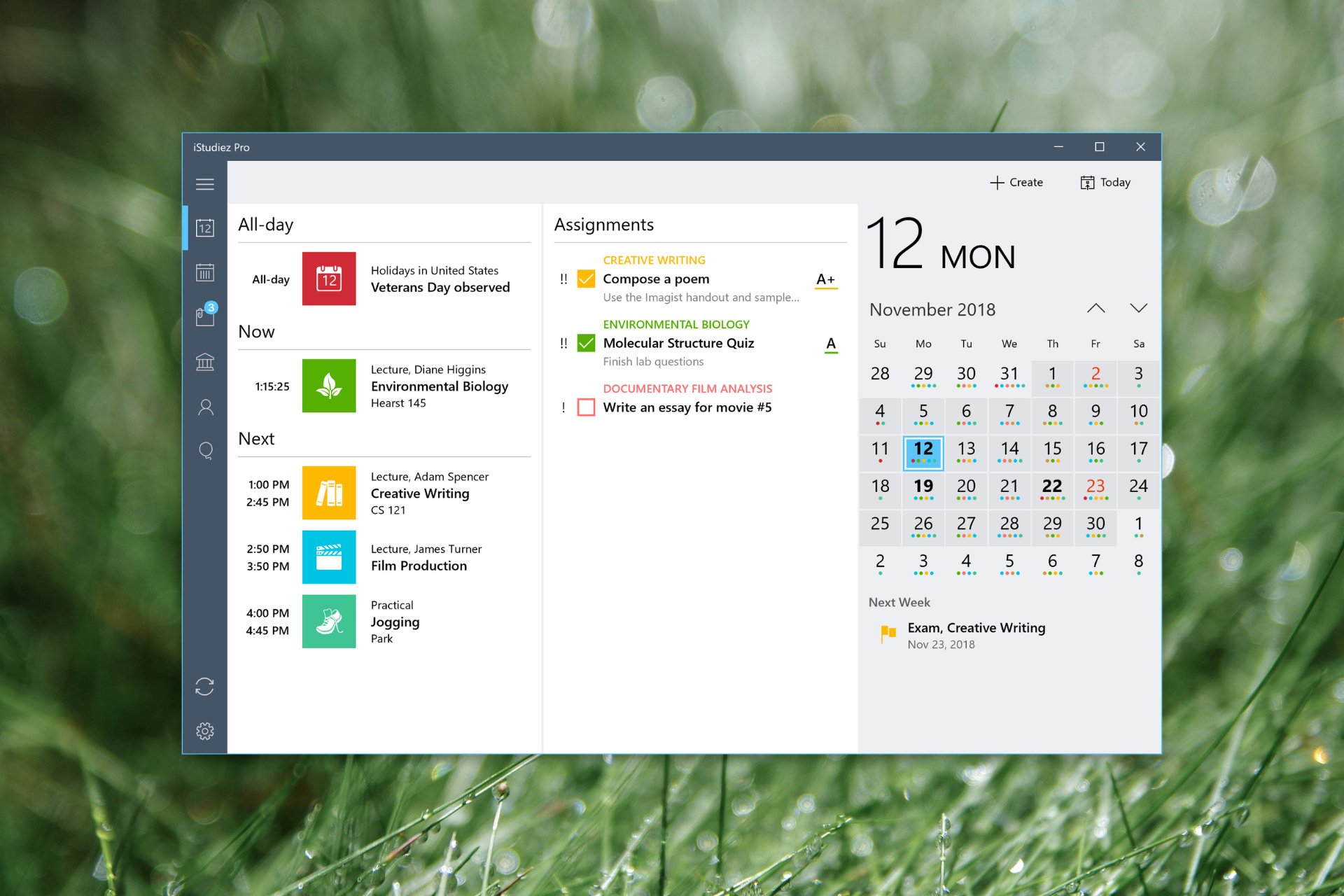
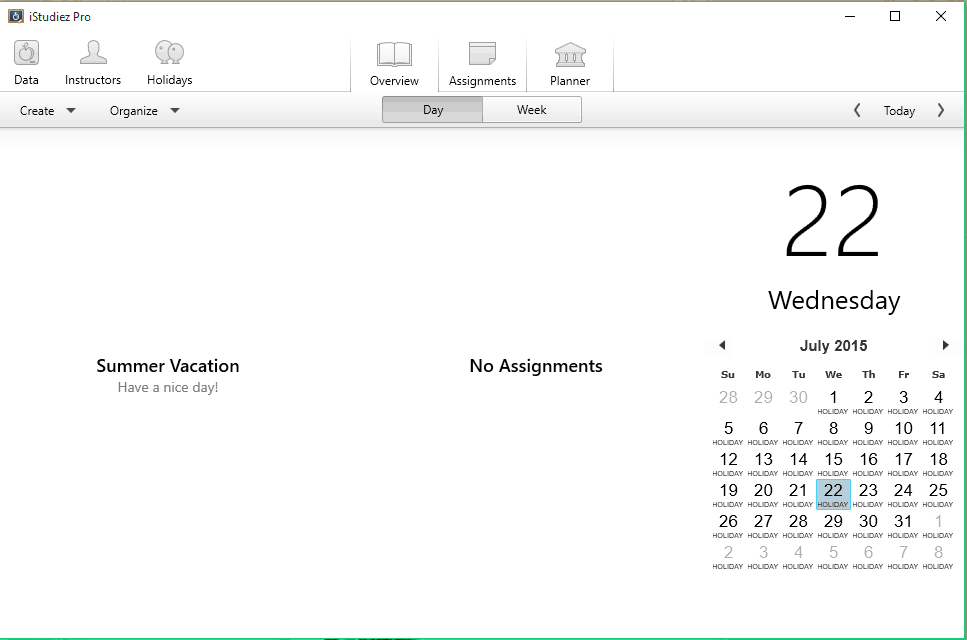
When you open iStudiez Pro you’ll get to the Overview window. Here you can track all your courses, classes, or assignments from the calendar on the right side. You click on the date in the calendar, and you’ll see all classes or assignments you need to attend on this date.
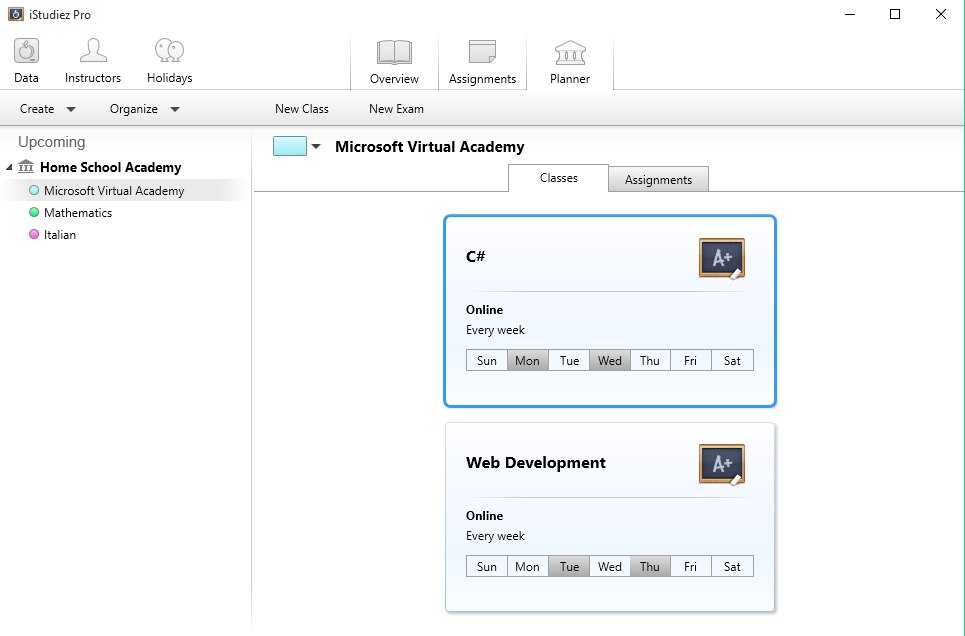
Beside Overview, you also have Assignments and Planner tabs, where you can add your semesters, courses, classes, exams, and other assignments. Let’s start with Planner tab. This is probably the most important section of the app.
The first thing you need to do is to add your current semester, and then you can add courses within that semester, and classes within courses.
To and your first semester, go to Create > New Semester, and give your semester a name, and set for how long it will last. Once you created a new semester, you should add courses to it. You can do that by clicking on Create > New Course.
Add the name of your course and choose its color for better management. Now you can add classes to your course, by clicking on the New Class button. It will give you the option to set the name, date, schedule and type of your class. You can also add assignments and exams to your classes and courses.
Besides Overview and Planner, Assignments tab is also one of the main tabs of this program. All assignments form all your courses will be placed there, so you can easily manage them. When you create an assignment, it will show up in Overview tab, with the notification on Assignments tab, and it will be visible until you complete that assignment.
Besides pending tasks, Assignment tab is also going to give you a list of all your completed tasks. You can easily manage all assignments by due date, course or priority.
And finally, on the upper left side of the window, you can find Data, Instructors and Holidays tabs. Data managing is very useful feature because it gives you an option to back up all your data in case you delete the app. With Load Data Backup… you can later load all your data back.
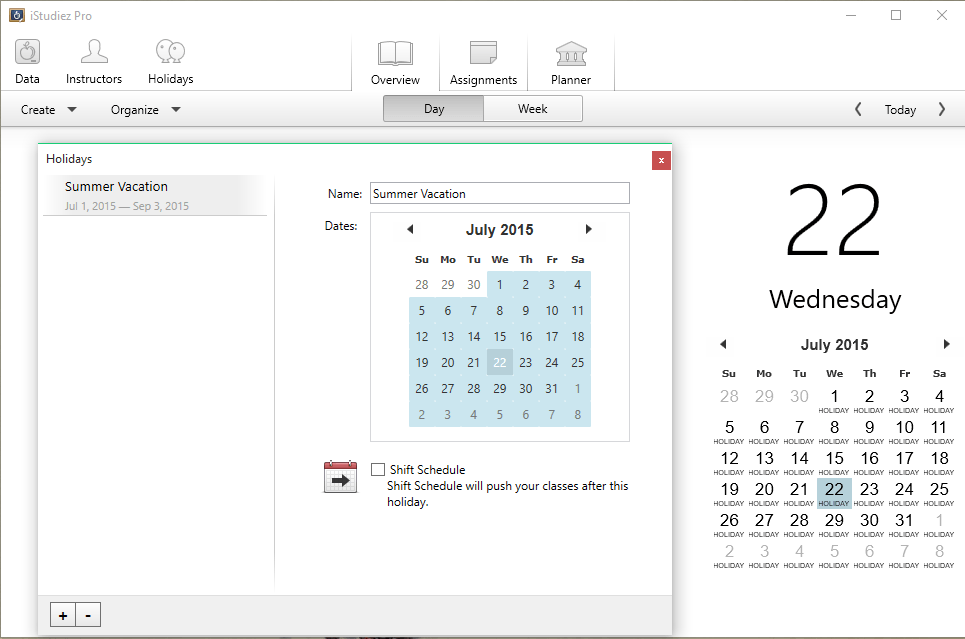
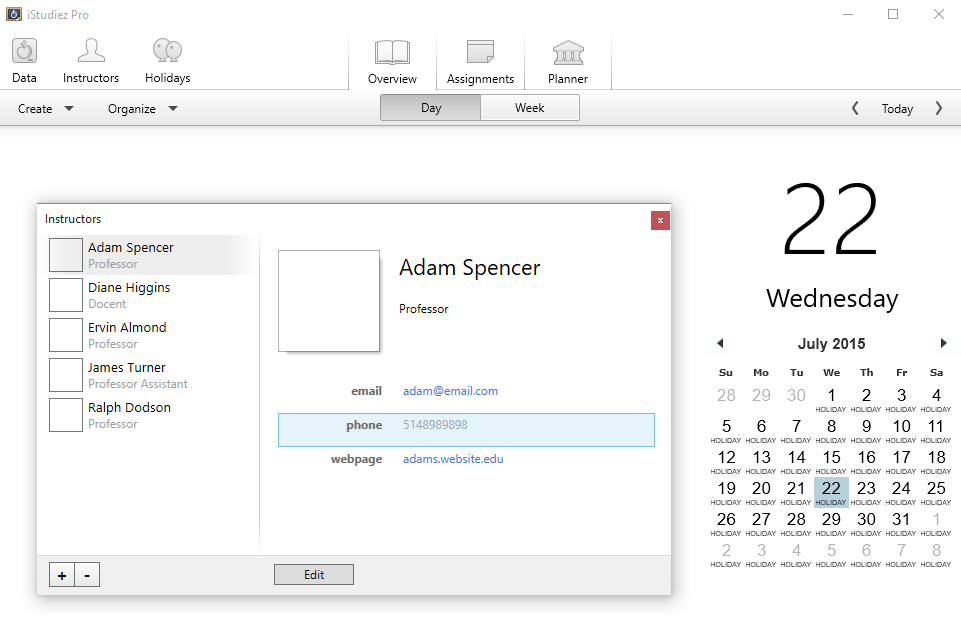
The instructors tab allows you to add info about all your professors or instructors, you can also assign them latter to the appropriate classes. And Holiday determines when your vacation starts. You can choose days of your vacation, simply by selecting them on a calendar.
Design
Although features are pretty much same, design of Windows version of iStudiez Pro is quite different from iPad version.
The iPad version has a book-like layout, which gives you feeling that you’re indeed using workbook for managing your obligations, while Windows version is some mixture of Mac OS and Windows interfaces.
This mix makes iStudiez Pro for Windows very elegant. The app is very well-designed, yet simple and easy to use. So, we have to say that stuff from iStudiez Team did a great job when designing this app.
Photo Gallery
Bottom line
Introducing iStudiez Pro to Windows users is a great move. Because Microsoft offers great laptops, tablets, and PCs for students, the availability of this great planner could bring even more benefits.
It is very easy to use, and gives you a lot of options, in one word, it gives you all you need to plan your whole semester successfully. So students who want to have complete control over their college obligations should use this handy app.
You can download iStudiez pro from its official Web Store for the price of $9.99.
Nothing screams “internet” more than an image or video of a cat and while the overuse of the feline species in product marketing and merchandise has begun to wear a bit thin, it can still be fun to see cats used in self-aware media creations such as in the new Xbox One game, Trials Fusion The Awesome Max Edition and Just Dance 2015’s bizarre “Holding Out for a Hero” level.
Microsoft’s ninjacat is another example of a fun use of the ol’ internet cat cliché. Inspired by the popular image created by Jason Heuser featuring the holy trinity of internet memes; cats, unicorns and rainbows, Microsoft’s version first appeared on Microsoft’s campus in the form of stickers distributed to attendees. Once the internet became aware of this, its popularity grew to the point where Microsoft has now released their own ninjacat wallpapers and raw images for Windows 10 fans to customize and distribute. It’s a way to share in the fun nerdery of the niche craze but is also an obvious attempt at an almost-organic viral marketing campaign for the new operating system which is just a week away.
In addition to the original “Ninjacat Riding a Unicorn” design, two new designs featuring the cat riding a T-Rex and a narwhal (which is also skewering two slices of bacon, another recent internet meme) can be downloaded in a variety of sizes for PCs and tablets, smartphones, and the Microsoft Band.
The ninjacat may be a relatively niche marketing attempt by Microsoft but it does target the more internet-savvy consumer who may not relate to, or may be even been turned off by, the recent mainstream Windows 10 commercials featuring babies (who are essentially the “internet cat” of modern TV). These new ads are obviously promoting the longevity of the Windows 10 platform through the use of babies but they are also leaving some people confused due to the ambiguous nature of their presentation. Sometimes people just want information over hype.
The baby commercials may not be the most groundbreakingly original marketing Microsoft has ever done but it’s getting a much more positive reaction than their recent attempt at internet meme creation which many have nicknamed, “the anti-diversity tweets”. Unlike the ninjacat, which experienced an organic growth in popularity, this attempt at viral image marketing by Microsoft was a completely forced creation that not only misinterpreted online humor but totally underestimated the images’ potential to offend.
These images, which were tweeted out by official Microsoft Twitter accounts, attempted to use self-deprecating humor to poke fun at developers, programmers and marketers but resulted in perpetuating negative stereotypes that many in those fields fight on a daily basis. The mobile worker was shown as an unhygienic and lazy man who leaves rotting food on his desk while the chief financial officer was portrayed as wearing a toupee and having an odd sense of humor. There was also the fact that all of the jobs were filled by men except for the marketer who was shown to be the stereotypical high heel-wearing, small dog-carrying business woman who suffers from a mood disorder. Yeah, that.
These tweets were quickly deleted but the images had already gone viral and not in the way Microsoft had intended. People were outraged.
Microsoft has often been criticized for an apparent inability to read their audience and promote their products with their initial presentation of the Xbox One being one such example of a major misfire and the less than successful launch of Windows 8 being another.
While not high on technical product details, these ads did do a great job of presenting the unique physical design of the Surface line while also managing to introduce the use of a stylus to traditional Windows PC users. “The Vibe” and “Movement” also exuded a sense of fun and energy that had been sorely lacking in Microsoft marketing up until then, and many could argue, hasn’t been seen since.
Of course, Microsoft also produces some marketing campaigns specifically targeted at the Japanese market with some being more successful than others. The most obvious example of a Japan-specific marketing campaign is the creation of a Japanese schoolgirl anime-style mascot for each new operating system it launches. These characters are designed more to sell products to the niche hardcore demographics than the general population and have been successful with their target audience in the past though with Japan suffering more and more from mascot fatigue due to companies relying on them to advertise almost everything it will be interesting to see how popular Windows 10’s schoolgirl will be. With Windows 10 being Microsoft’s last OS though, the days of Microsoft OS Japanese mascots may thankfully be over.
While some of Microsoft’s marketing campaigns have been more successful than others over the years, it’s hard not to respect the company for at least trying something new with their advertising each time a product or service is released. It stands in sharp contrast to other companies such as Apple who simply release new iterations of what is essentially the same commercial over and over again.
Which Microsoft commercial or marketing strategy do you like (or loathe!) the most? Are you all aboard the ninjacat train or do you find that so 2012? What do you think about the new Windows 10 baby commercials? Epic win or massive fail? Share your thoughts with us in the comments below and let us know what you think Microsoft should do to better market themselves to consumers in the future.
The release of Windows 10 build 10240 to Windows Insiders was the last preview build before “Release To Manufacture” (RTM). However, that doesn’t mean the Windows team is done working on it. Microsoft has been releasing fit and finish updates since the build was released. Today, Microsoft has released another “hotfix” update, announced by Gabe Aul on Twitter:
Another hotfix rollup (KB3074674) now available for #WindowsInsiders running build 10240 on Windows Update.
There’s no documentation or blog post yet to indicate what the “hotfix rollup” does, but it will install automatically via Windows update in the next day or so. Alternatively, Windows 10 Insiders can install the update immediately via “Check for updates”.
The updates for Windows 10 Insider build 10240 are arriving quickly as Microsoft patches things up for an RTM release due date of July 29. After RTM Windows Insiders will continue to receive new builds and updates for the next Windows version while regular Windows 10 users will have a choice of how fast they want the updates to arrive with Slow and Fast rings.
With just a little more than a week left until the RTM of Windows 10, Microsoft is pulling out more promotional tools to support the launch of their latest operating system.
Now Microsoft is giving its fans a way to show their enthusiasm for the new operating system with Windows 10 profile picture badges for both Facebook and Twitter.
Gabe Aul, the General Manager for Microsoft’s OSG Data and Fundamentals team, posted on twitter his new profile picture with his “Do Windows 10” badge and link for you to create your own.
To upgrade click this link, which will direct you to a page asking if you want to update either your Facebook or Twitter profile pictures. You can either apply the badge to your existing profile picture or choose a different one either from your Facebook photos, or by uploading an all together new one.
Are you going to sport the new badge across your social media? Let us know what you think of it in the comment section below.
Microsoft is ramping up their advertising campaign and one of the latest editions is an ad for the Surface 3. It’s directed towards students and heavily features OneNote, Microsoft Office’s note taking program. With back to school in only a few weeks, many students will be buying a device for their upcoming studies. With that influx of shoppers, Microsoft is pushing their newest addition to the Surface line.
The ad shows off how the Surface 3 and OneNote can help students in the classroom. OneNote allows you to record lectures and also type while recording. When you play back the audio it can highlight what you were typing at that moment in the recording. It also displays taking hand written notes and converting them to text.
In addition to OneNote on the Surface 3, the ad shows off the StaffPad app for Surface that converts hand written music into sheet music and other features.
The Surface 3 is being sold to many types of customers but an obvious customer base is students. The Surface 3 has a relatively low price point, especially for what it offers, integrates well with OneNote with its stylus, and is also a solid media consumption device. If you’re interested in the Surface 3 for yourself or someone you know, you can check out our full review.
Microsoft announced today that General Electric is the latest company moving to Office 365, which will bring the productivity platform to GE’s more than 300,000 employees across 170 countries.
Office 365, Microsoft’s cloud-based and Software as a Service modeled version of its popular productivity suite, has been a popular choice for many companies of all sizes. As WinBeta previously reported, Office 365 usage has been “skyrocketing” to surpass Google Apps and nearly catch Salesforce.com in terms of future enterprise deployment plans. Now with GE signing up for Office 365, its user base will grow by an additional 300,000.
In Microsoft’s Business Matters blog, GE’s Chief Technology Officer Larry Biagini describes why they chose Office 365. Biagini says that the previous idea of upgrading every few years was not sustainable for a company of GE’s size, and that “we wanted to get out of an environment where upgrades were a point-in-time decision, and that cadence of being able to take advantage of new functionality is something that we believe we’re going to get huge advantage from.”
Biagini also notes that Microsoft’s open approach to supporting solutions from other providers was key to their decision. He says:
“A one-size-fits-all solution is unrealistic for a company of our size, so the interoperability and flexibility of the platform, the ability to integrate with other tools was an extremely important piece. Some of our solutions may not come from Microsoft, but the ability to integrate has to come from Microsoft.”
To learn more about today’s announcement you can read on at Microsoft’s Business Matters blog, which details more about why GE chose Office 365 as the productivity platform for its worldwide operations.




 While we’re just getting started with Microsoft’s ambitious upgrade process and a goal of getting a billion users running Windows 10, some users are already wondering why some of their machines are upgrading, or appear ready to upgrade, and others aren’t showing the Windows 10 upgrade icon.


 The whole upgrading to Windows 10 from a non-genuine Windows is so confusing. First, Microsoft announces that it plans to give Windows 10 as a free upgrade regardless of whether users don’t have a genuine copy of Windows 8.1 or 7. Then shortly afterwards, Microsoft backtracked what it said and told everyone that pirates will not get Windows 10 for free.