
How to Log In to Spotify Web Player & Desktop/Mobile App


 5 min. read
  Published on
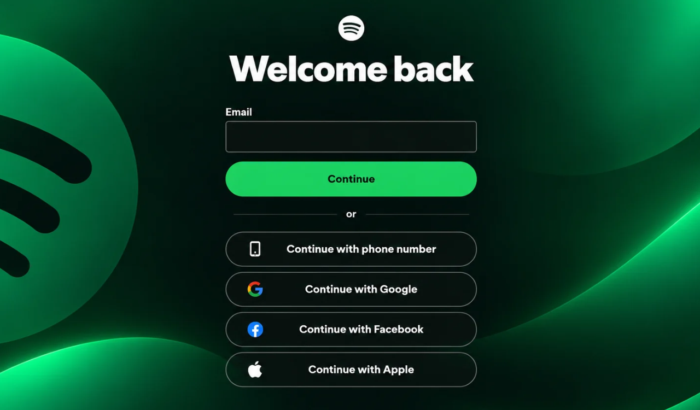
Whether you want to stream music on your phone or playing music directly from your web browser, logging into Spotify takes just a few seconds. In this guide, we’ll walk you through step-by-step login process for both the Spotify mobile or desktop app and the web player so you can get back to your playlists without any hassle.
How to log in to Spotify on the website
If you don’t have access to Spotify mobile app, the official web player is the quickest way to listen your favorite tracks. Here’s how to sign into Spotify web player in seconds.
- Open the official Spotify Web Player in your browser.
- Click Log in if prompted. You can directly jump to the Spotify login page for quick access.
- Enter the email address linked to your Spotify account.
- Select Continue and follow the available sign-in prompts.
- Enter your password if requested, or choose the login method linked to your account.
- Once signed in, open Your Library to access your saved music and playlists.
Spotify supports browsers such as Chrome, Edge, Firefox, Opera, and Safari. If the Web Player does not load, update your browser or try a private browsing window.
How to log in to Spotify on the desktop app
If you prefer listening through the Windows or Mac app, you can sign in without opening a browser each time.
- Download and install Spotify desktop app from the official Spotify website.
- Open the Spotify desktop app.
- Select Log in on the welcome screen.
- Enter your account email address and password, or choose a supported sign-in option.
- Follow any verification prompts to finish signing in.
How to log in to Spotify on Android and iPhone via the official app
The Spotify mobile app supports several login methods, including phone-number verification for eligible accounts.
- Install Spotify from the Google Play Store or Apple App Store.
- Open the app and tap Log in.
- Choose your existing login method.
- Enter your email and password, or continue with Google, Apple, Facebook, or phone number if available.
- If Spotify sends a verification code, enter it to confirm your identity.
- After signing in, tap Your Library to find your playlists, albums, and saved podcasts.
Use the same account you originally registered with. Choosing a different login method can sometimes open a separate account instead of your existing one.
Spotify login using phone number, Google account, Facebook, and Apple account
Spotify provides multiple sign-in options, making it easy to access your account without relying on a single method. You can continue with your email address, phone number, Google, Facebook, or Apple, depending on how your account was created. Choose the method linked to your existing account to avoid signing in with the wrong profile. If you cannot remember your login details, use Spotify’s account recovery options to regain access.
What to do if you forgot your Spotify login password
You can reset your password through Spotify’s official recovery page. You will need access to the email address registered to your account.
- Open Spotify Password Reset.
- Enter the email address associated with your account.
- Submit the form and check your inbox for Spotify’s reset email.
- Check your spam or junk folder if the message does not arrive.
- Open the reset link and follow the instructions to create a new password.
- Return to Spotify and sign in with your email address and new password.
If Spotify can’t find your account, try other email addresses you may have used to register. You can also try your original Google, Apple, Facebook, or phone-number login method.
How to fix Spotify login issues
If Spotify refuses to sign you in, check your login details and connection before reinstalling the app. The following fixes can help with common website and app sign-in issues.
- Check your login method: Use the same email address or social account you used when creating your Spotify account.
- Try another browser: Open the Web Player in an updated browser or private window.
- Request a new verification code: If you use phone-number login, confirm your country code and request another code if needed.
- Update Spotify: Install the latest version of the mobile or desktop app.
- Check Spotify’s service status: Visit Spotify Status to check for reported service issues.
- Reset your password: If your credentials keep failing, use Spotify’s official password reset page.
FAQs related to Spotify login
1. Can I log in to Spotify without the app?
Yes. Open Spotify Web Player in a supported browser and sign in to your account.
2. Can I log in to Spotify with my phone number?
Yes, if your account uses phone-number login. However, Spotify does not support phone-number login in its desktop app.
3. Why does Spotify say my password is incorrect?
You may be using the wrong password or email address. Reset your password and confirm that you selected the correct login method.
4. How do I find which email address I used for Spotify?
Try your usual email addresses on Spotify’s password reset page. Spotify sends a reset email only when the address is registered to an account.
5. Can I use the same Spotify account on my phone and computer?
Yes. Sign in with the same account on both devices to access your playlists, saved music, and subscription.
6. Why does Spotify open a new account when I log in?
You may have selected a different login method from the one linked to your original account. Try your original email, Google, Apple, Facebook, or phone-number method.

Read our disclosure page to find out how can you help Windows Report sustain the editorial team. Read more



Improve this guide



User forum
0 messages