
Chrome Finally Lets You Ditch the Bookmarks Bar on the New Tab Page, But There’s a Catch
Chrome Canary introduces "Always Hide" for the bookmarks bar behind a flag


 3 min. read
  Published on
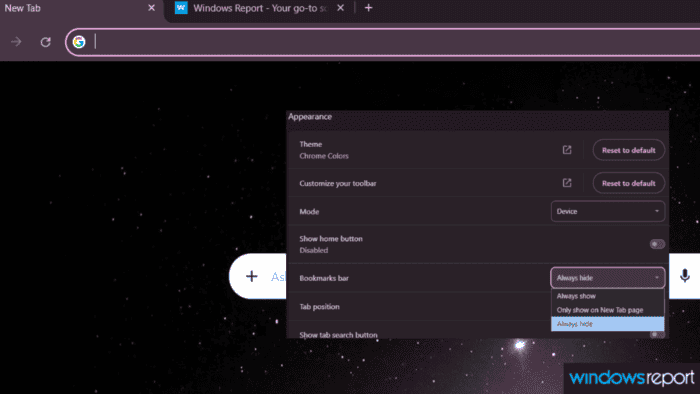
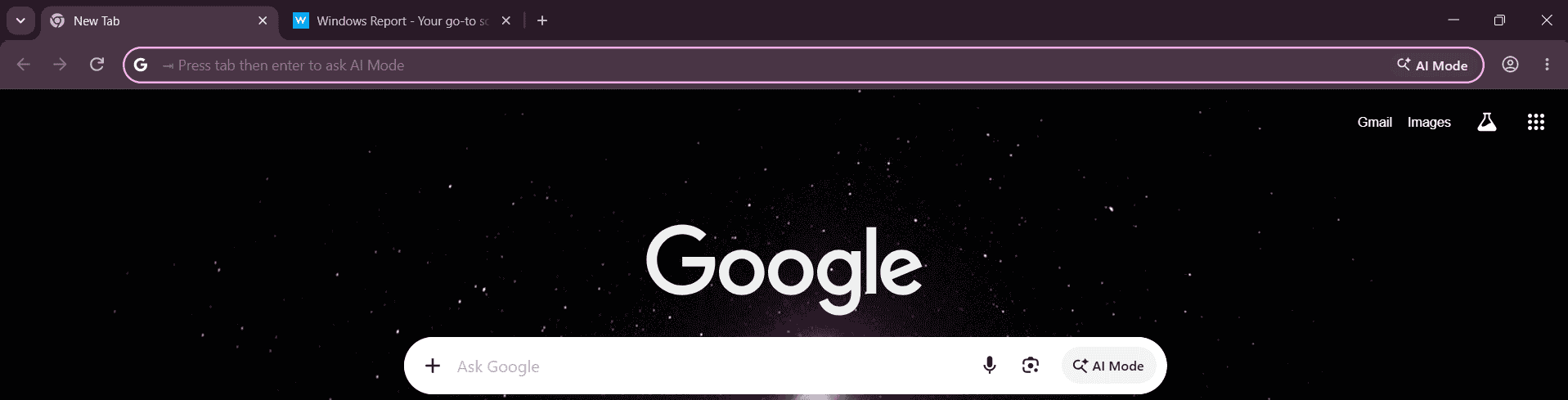
Google is testing a new Chrome setting that lets users hide the bookmarks bar on the New Tab Page, finally fixing a long-standing annoyance where it stayed visible even after being turned off in Appearance settings. The catch: it’s still limited to Chrome Canary and needs a flag to work.
The Bookmarks Bar Problem Chrome Never Fixed
For a long time, Chrome’s bookmarks bar behavior on the New Tab Page frustrated users who wanted a cleaner browsing experience. Even when users turned it off in Appearance settings, Chrome would still show it on new tabs. Other browsers handle this more consistently, letting the bar stay hidden everywhere when users choose to hide it.
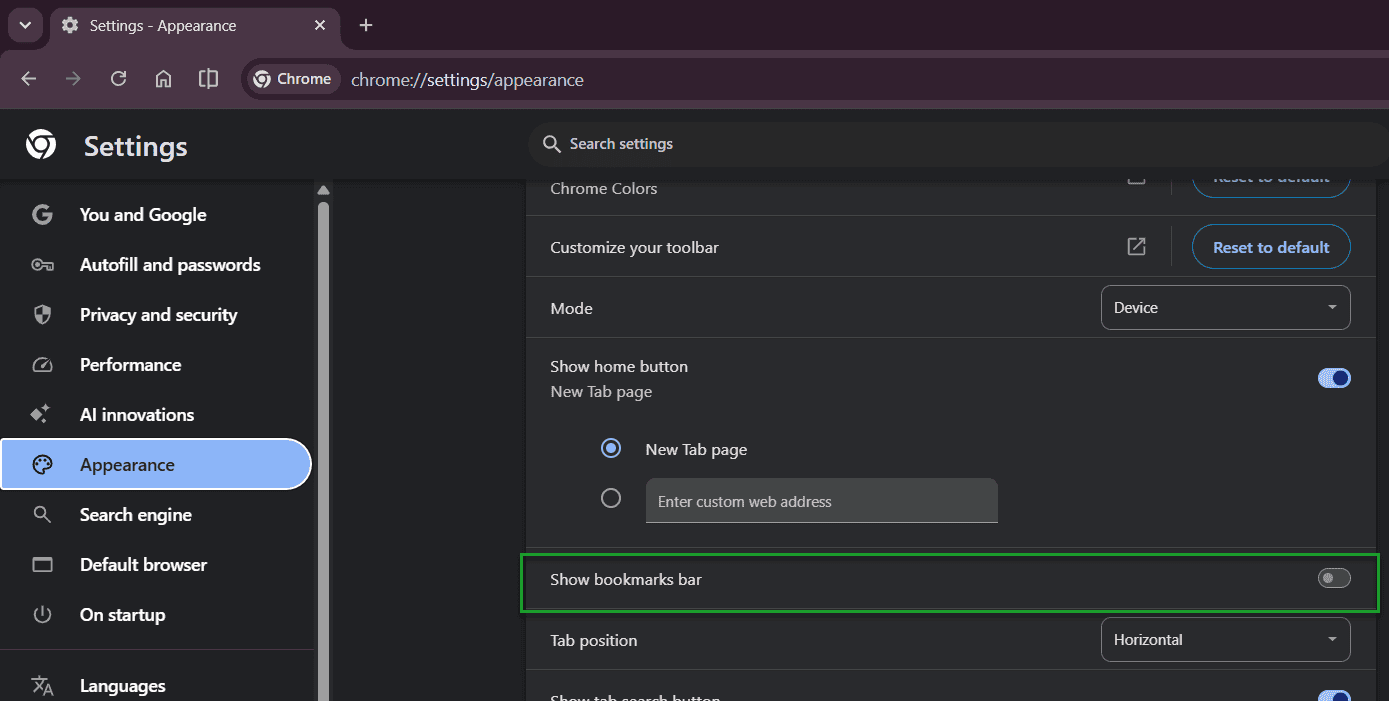
In Chrome, the bookmarks bar is designed to always appear on the New Tab page, even if you hide it on regular websites to save space. You can toggle its visibility across all pages, but until now, there was no way to keep it hidden on the New Tab page specifically.
That left users with no real escape. In Chrome Stable, the only option is a simple Show bookmarks bar toggle, on or off. There was no way to hide it everywhere, including on the NTP.
What’s Changed
As we reported earlier, Google introduced a new flag called NTP Simplification Bookmark Bar through a Chromium code review. It is described as auto-removing the bookmark bar on the New Tab Page and updating bookmark-bar visibility settings across the browser.
The flag is now working in Chrome Canary on Windows, Mac, Linux, and ChromeOS. Once enabled via chrome://flags, Chrome replaces the simple Show bookmarks bar toggle in Appearance settings with a proper three-option dropdown: Always show, which keeps the bar visible everywhere; Only show on New Tab page, which limits it to new tabs only; and Always hide, which removes it across all pages, including the New Tab Page.
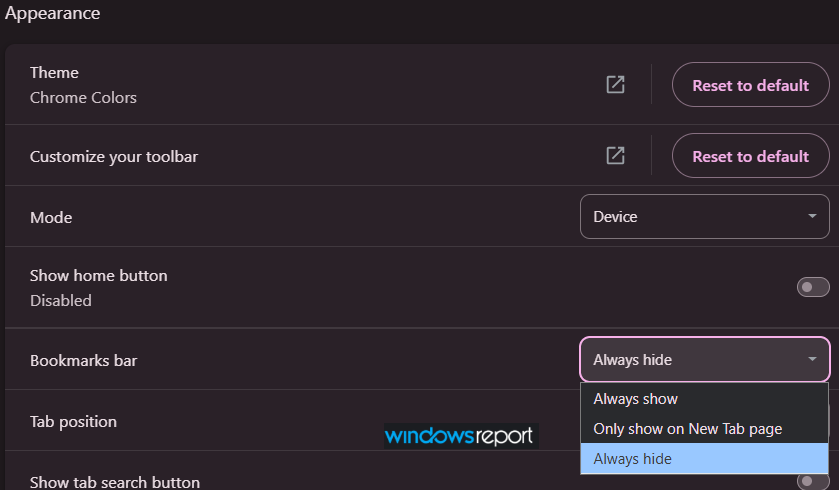
The bookmarks bar Appearance settings change first spotted by Windows Report also works with Chrome’s enterprise policy, meaning IT administrators can enforce the setting across managed devices. Google has also built in a safety net, so if anything goes wrong, it can roll the change back without pushing an update.
How to Enable It
If you’re on Chrome Canary and want to try it:
- Open chrome://flags in the address bar.
- Search for #ntp-simplification-bookmark-bar.
- Set it to Enabled.
- Relaunch Chrome.
- Go to Settings > Appearance > Bookmarks bar and select Always hide.

What’s Next
There’s no timeline yet for this reaching Chrome Stable. It will need to move through Chrome’s Canary, Dev, Beta, and Stable pipeline, and Google could still change or drop it. Since it’s already working in Chrome’s Appearance settings, it looks likely to make its way to a wider release. That should be welcome news for anyone who wants a cleaner New Tab Page.
One thing worth noting: with the flag enabled, Ctrl+Shift+B, the keyboard shortcut that previously toggled the bookmarks bar, no longer works. Hopefully, that gets fixed before it reaches Stable.
Chrome is also exploring sending searches to AI Mode, using AI to choose a credit card for you while shopping, and testing a floating AI Mode search bar on desktop for Windows.


Read our disclosure page to find out how can you help Windows Report sustain the editorial team. Read more



Improve this guide



User forum
0 messages