
Stellar Migrator for Outlook Review: Import PST to Office 365 Easily


 7 min. read
  Published on
Moving years of Outlook data (OST/PST) to Microsoft 365 is rarely as simple as it sounds. PST files pile up over time and mailboxes reach huge, often unmanageable file sizes.
When it comes to actually migrating that data to the cloud, Microsoft’s native tools (Import/Export wizard) quickly show their limits. There’s no support for OST/PST files, a 50GB file cap, and a process that demands far more manual effort than most IT teams can spare.
Stellar Migrator for Outlook promises to solve exactly that. In this hands-on review, I put it through its paces as a dedicated PST to Office 365 migration tool. I test everything from single mailbox imports to multi-user migrations with filtering and mailbox mapping.
What is Stellar Migrator for Outlook?
Stellar Migrator for Outlook is a utility that helps businesses and IT administrators migrate Outlook PST and OST mailbox data to Microsoft 365, Live Exchange Server, or PST files.
It offers a wide range of features to make migration go smoothly, including loading mailboxes using CSV files, both auto and manual target mailbox mapping, and concurrency settings to make the most of your system resources. Moreover, you get the freedom to filter the mailbox items to be migrated and select the target folder structure.
You can also run incremental migration, so only new mailbox data is transferred each time.
A migration job summary and completion reports let you know exactly how the job is to run and whether it was successful.
The versatile tool is suitable for both small migrations and larger organizational deployments, and you can sign up for a free demo before committing to a premium license.
Migrate PST/OST to Office 365
The software’s primary function is mailbox migration. You can select multiple source mailboxes, and it will migrate the entire mailbox data while preserving folder structures and organization. Emails, attachments, contacts, calendars, and other mailbox items transfer directly into Microsoft 365 accounts.
To get a better understanding of how Stellar Migrator for Outlook works in practice, I set up a small migration project to import PST to Office 365.
Step 1: Create a New Migration Job
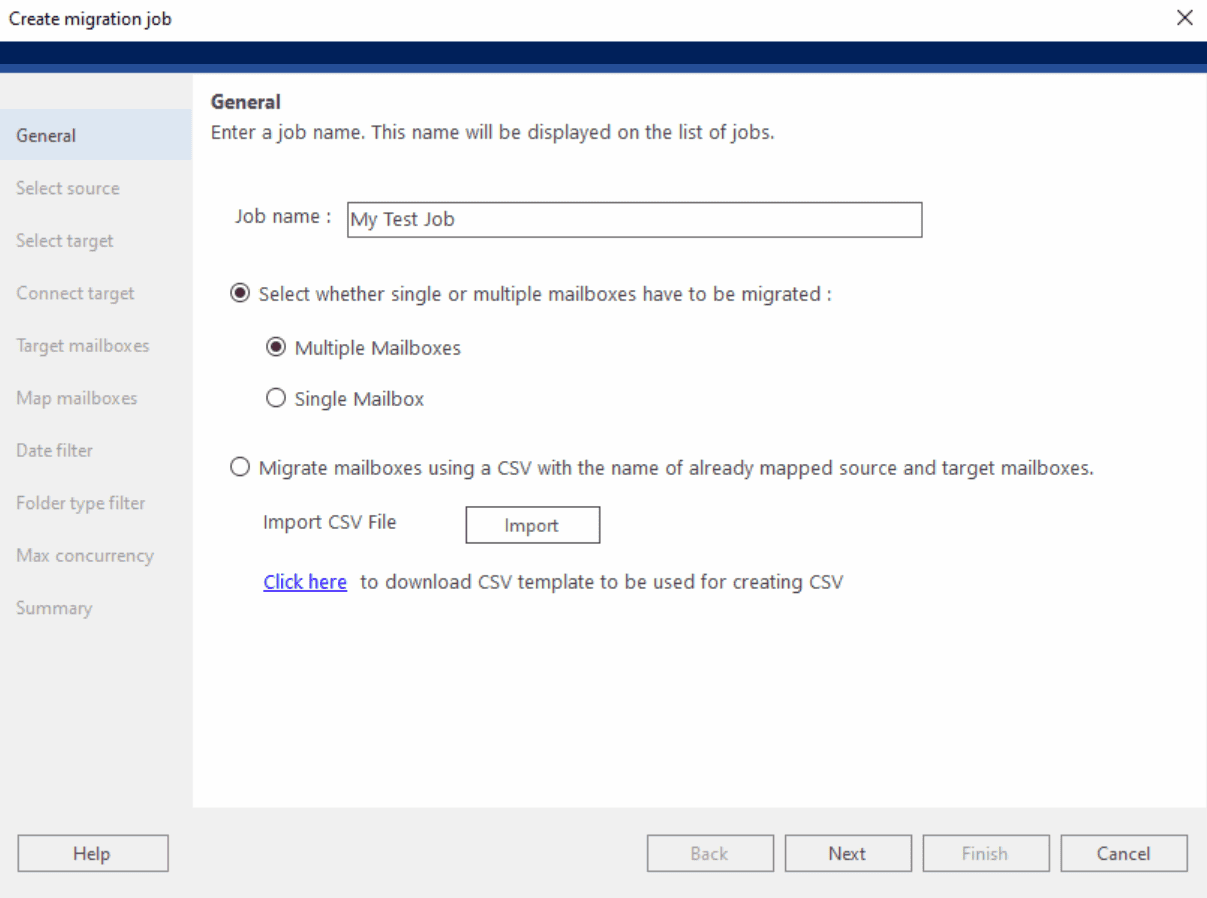
After launching the software, I started by creating a new migration job. Here you give the job a name and choose whether you’re handling one or more mailboxes and if a CSV will be used.
CSV is useful when migrating dozens or hundreds of mailboxes, as it allows IT teams to build migration lists in advance and maintain a clear record of which users are included in each migration batch.
On the other hand, I like that CSV is an option but not mandatory like Microsoft 365’s Import Service.
Right from the start the wizard-based setup keeps things straightforward, guiding you through each stage of the migration rather than presenting dozens of settings at once.
Step 2: Add Source PST or OST Files
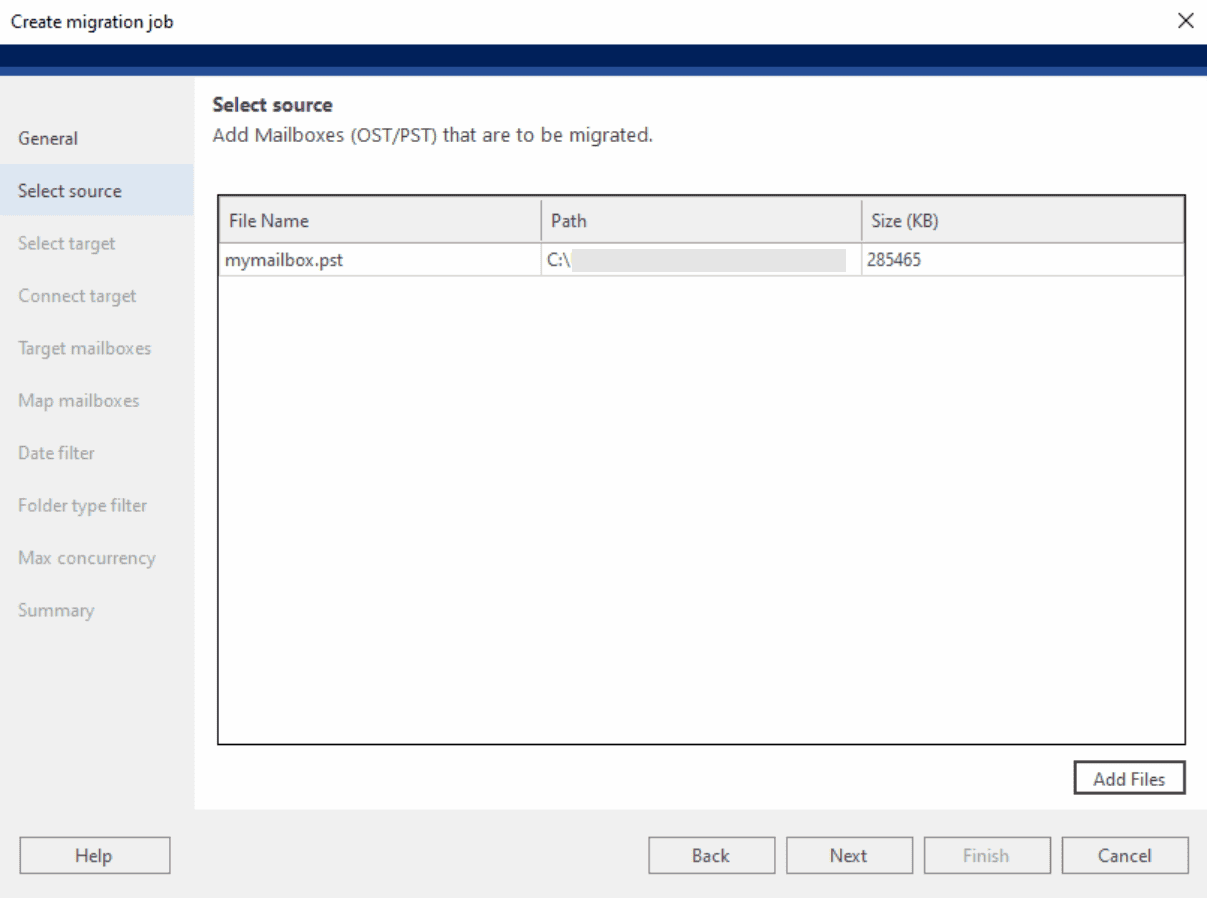
I added the PST files to be migrated (also supports OST). It shows the filename, path, and size, so you know they’re the right ones before proceeding.
Stellar Migrator for Outlook can handle large files up to 45GB before they are auto-split, more than double the Microsoft 365 Import Service’s 20GB limit.
Step 3: Select Target
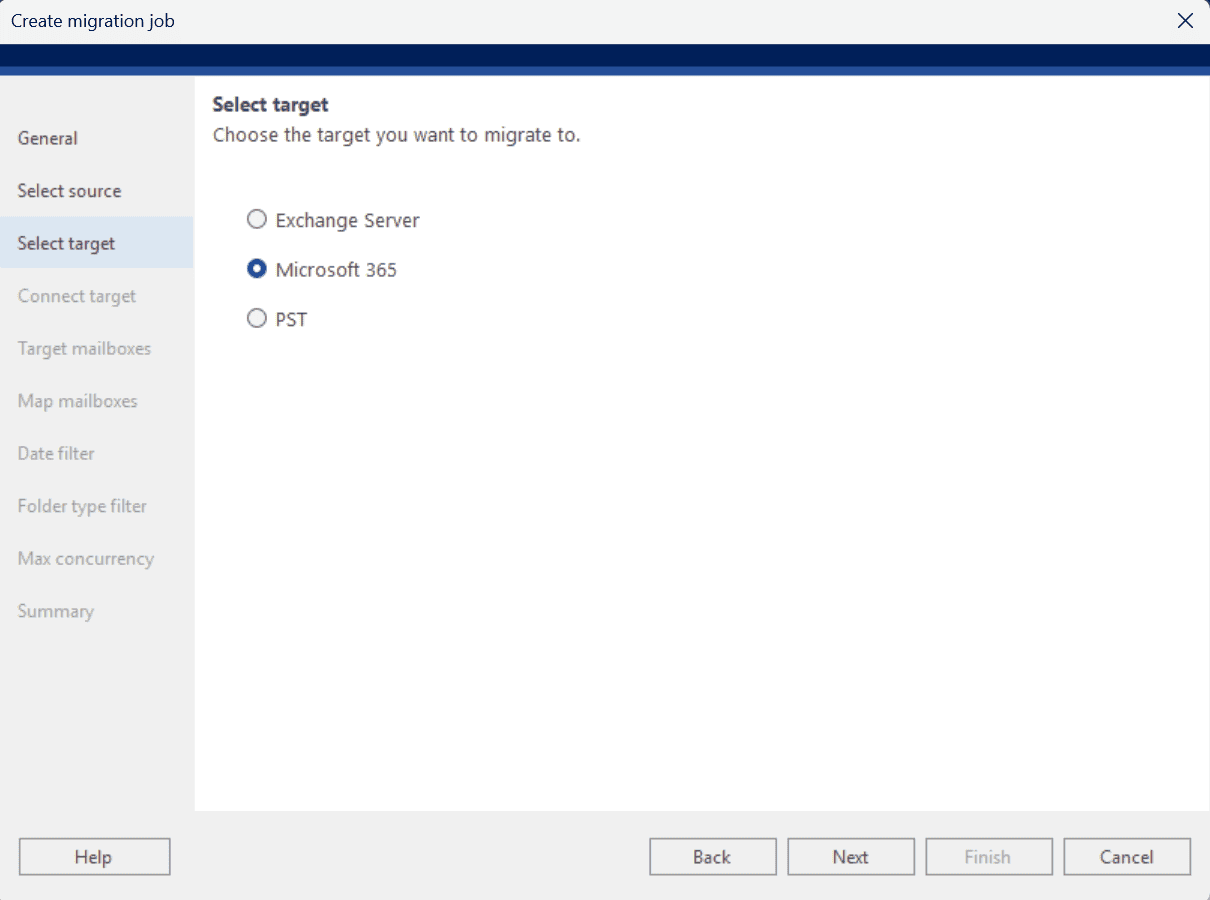
In this case, I chose Microsoft 365 as the target, but Exchange Server is also available, or PST for archiving data.
Step 4: Connect the Target
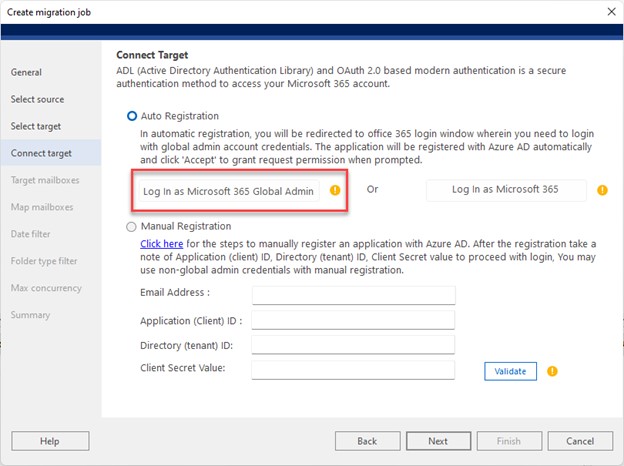
Next, I connected the target Microsoft 365 environment using administrator credentials. The software supports both automatic and manual registration.
Auto Registration is obviously the quicker option, automatically discovering the Microsoft 365 environment after authenticating with a browser prompt.
Manual Registration is also available when tighter control is required. Instead of allowing the software to create the Entra ID application automatically, administrators can create and manage the app registration themselves, entering the Application ID, Tenant ID, and Client Secret into the required fields.
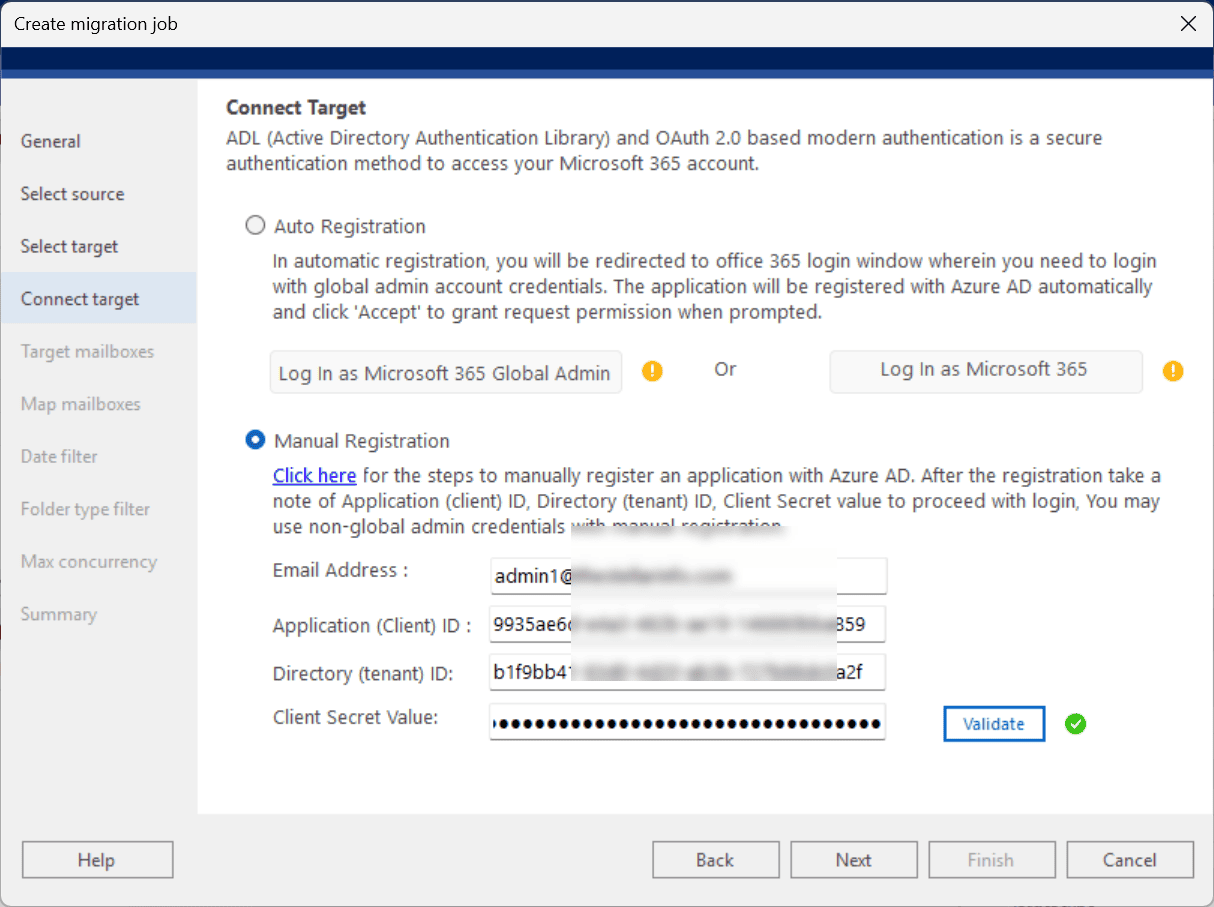
Unfortunately, the tool doesn’t currently save connection details, so every new job requires fresh authentication even on the same server.
Step 4: Mailbox Mapping
This is where Stellar can save time when you’re migrating a lot of mailboxes. Mine were automatically mapped to their Microsoft 365 counterparts by matching email addresses. Successfully matched accounts are clearly displayed, while any unmatched mailboxes can be assigned manually.
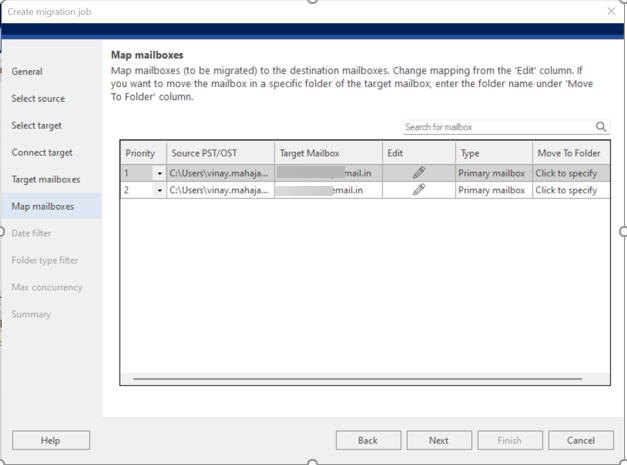
You can also define the type of mailbox, including the default primary, archive, or even public folders. However, you cannot create new mailboxes from scratch based on the source; they have to be mapped to existing ones at the target.
Step 6: Configure Filters and Migration Options
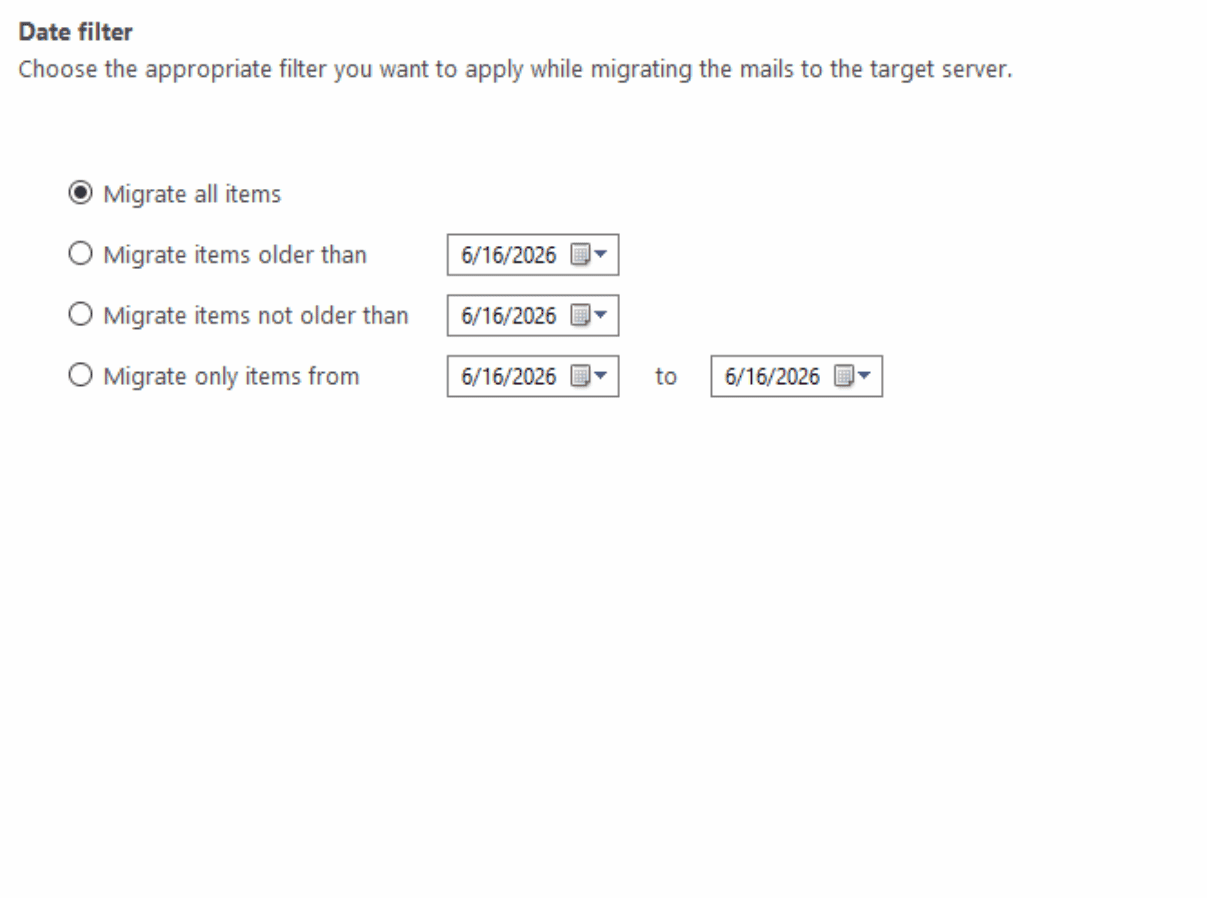
Before starting the migration, I experimented with several filtering options. The date filter allowed me to migrate only recent mailbox data rather than importing years of historical emails.
This feature also provides flexibility during phased migration projects where historical data may be imported separately from active mailbox content.
Another useful filter is “folder types”. Here you can choose the precise data/folders to be included. I.e., email, contact, calendar, tasks, notes, and journals. In my case, past calendar data is not important and only takes up space. Likewise, I ensured Junk E-Mail, Deleted, and Drafts remained unchecked.
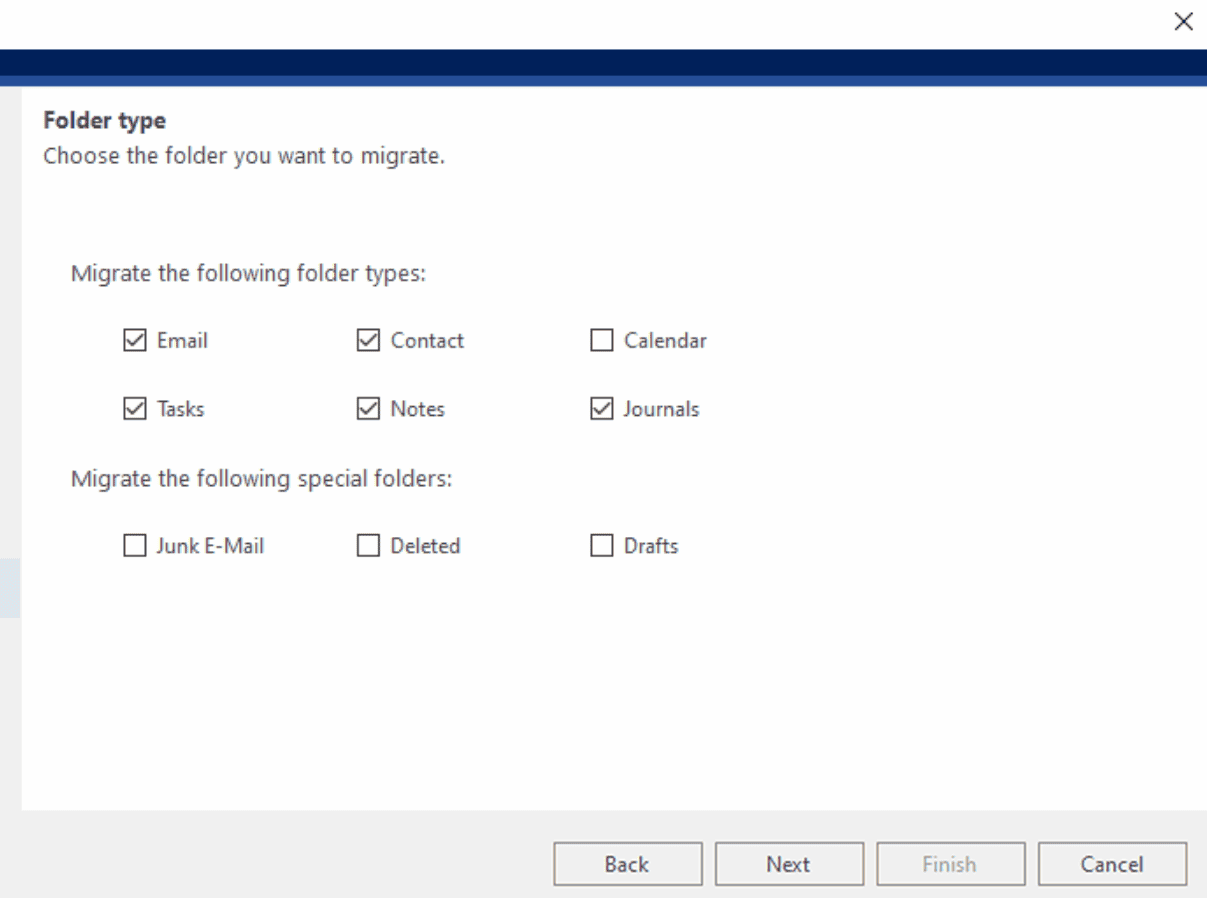
In future it would also be nice to see the option to exclude file attachments.
Step 7: Complete Migration
Once everything was configured, I checked the summary and started the migration job. Progress was displayed in real time, showing mailbox status, completed items, and any warnings encountered during the process.
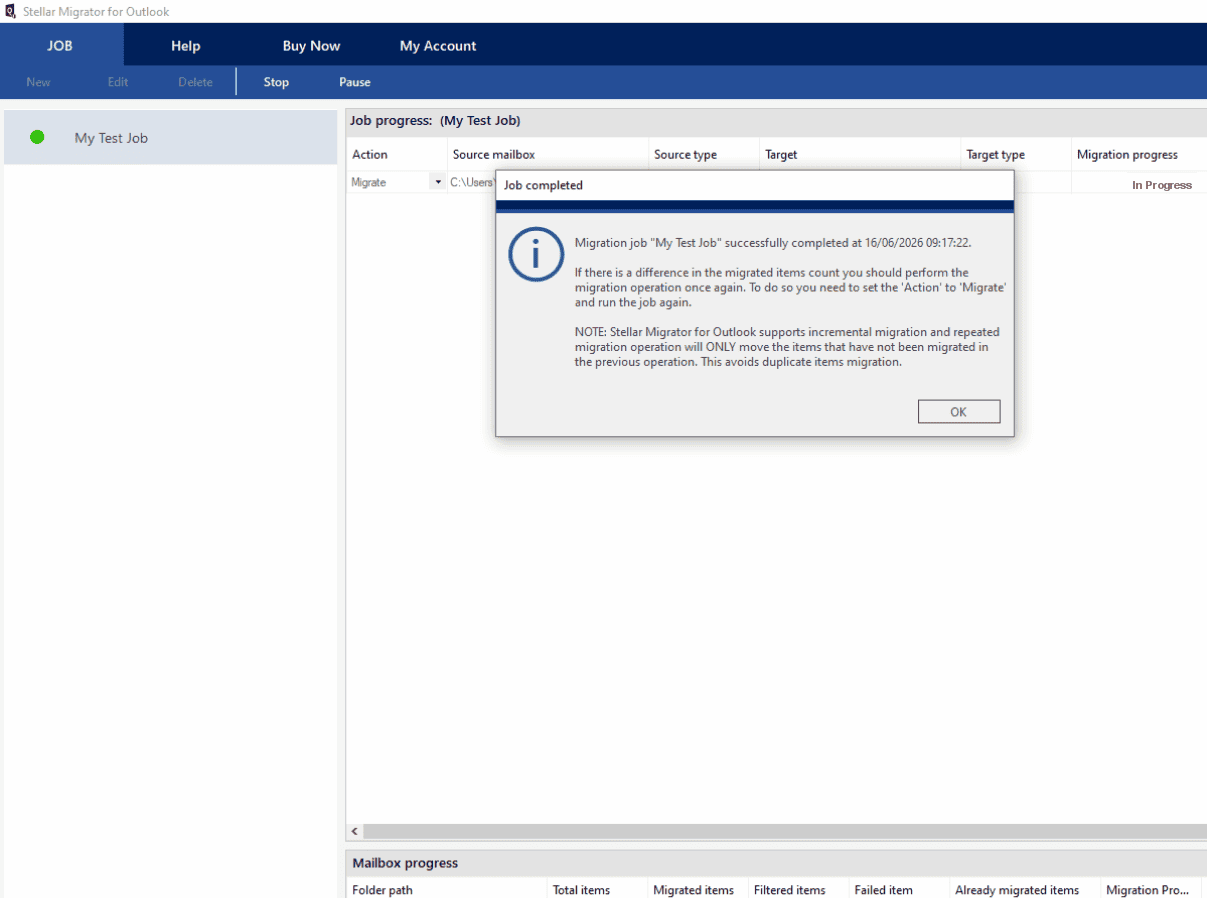
The migration completed without issue, and mailbox content appeared correctly within Microsoft 365. What stood out most was how little manual intervention was required once the job had been configured.
Other Useful Features
Depending on what you need from migration, these other features may come in handy:
Move to Folder Option
The Move Folder feature provides additional flexibility when importing mailbox data.
Rather than simply transferring data into the default mailbox structure, users can choose a specific folder within the destination mailbox where the imported data should be stored. The destination folder name can also be customized during the migration process.
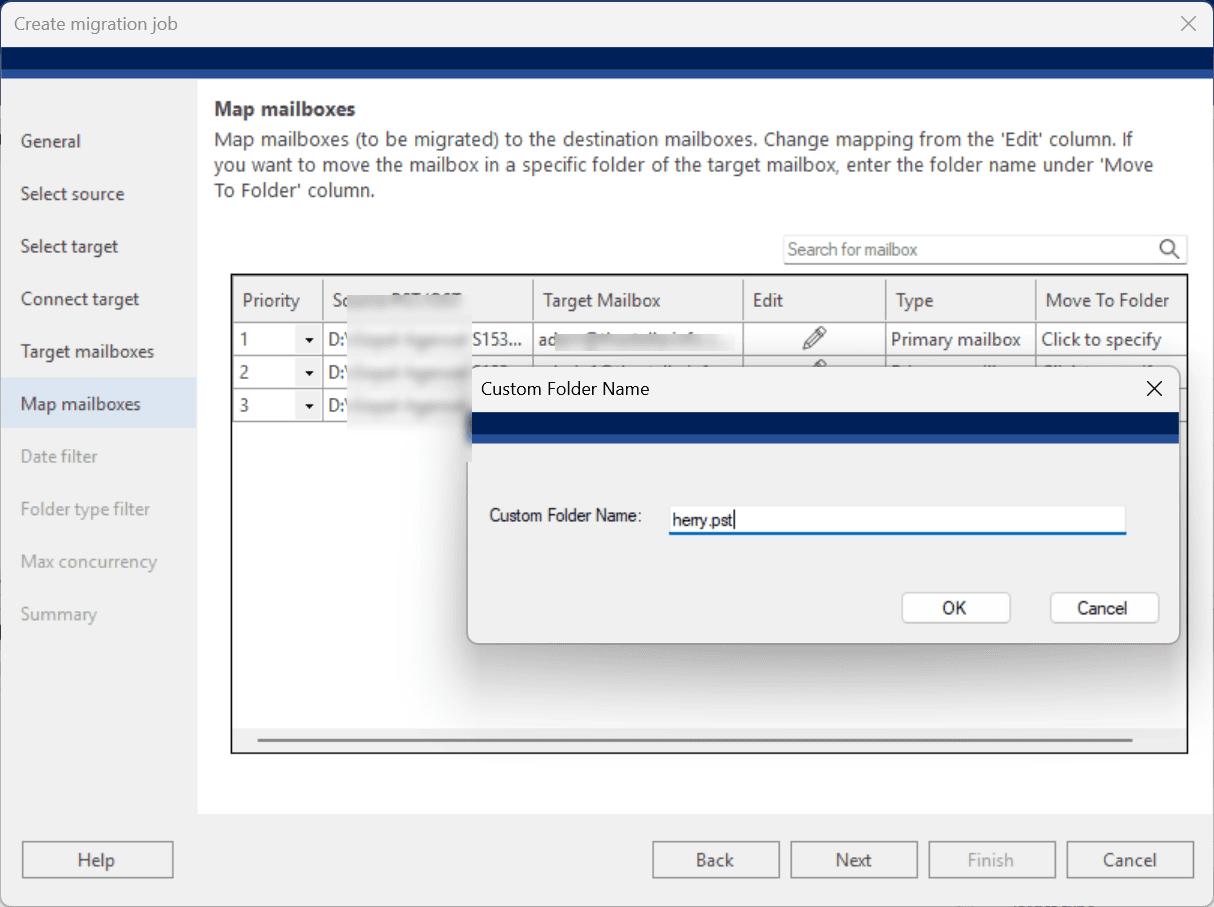
This is particularly useful when importing historical archives, department mailboxes, or legacy PST files that need to remain separated from active mailbox content.
Set the Priority
If you need certain mailboxes migrated before others, Stellar offers a mailbox prioritization feature.
You can assign priority levels to individual mailboxes, determining the order in which migrations are processed. For example, assign a mailbox a priority value of “1” and it will be migrated first. The remaining mailboxes are assigned subsequent priorities automatically.
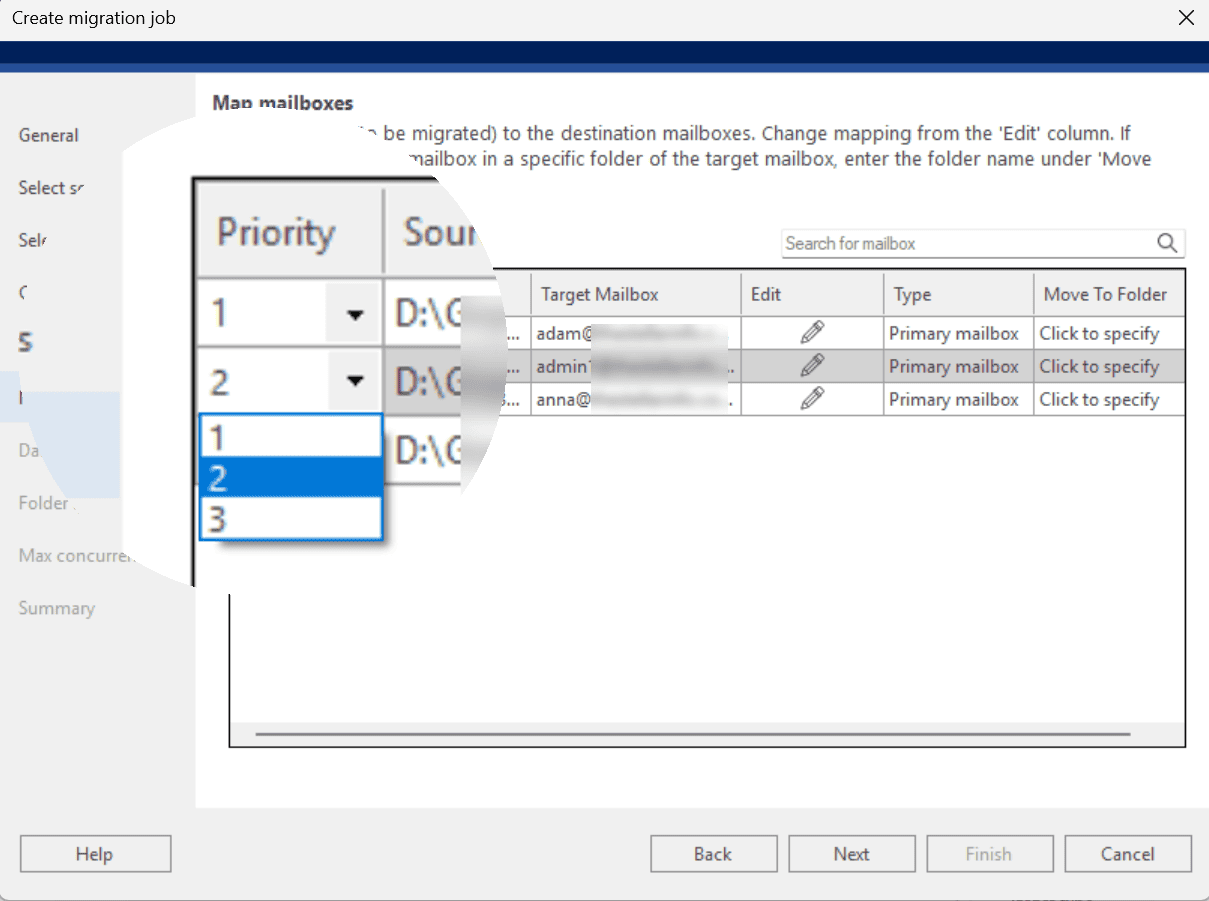
This ensures key personnel, executives, or business-critical departments get access to migrated data before the rest of the organization.
Set Concurrent Mailbox Migration Limit
For larger migrations, performance and resource management can be important.
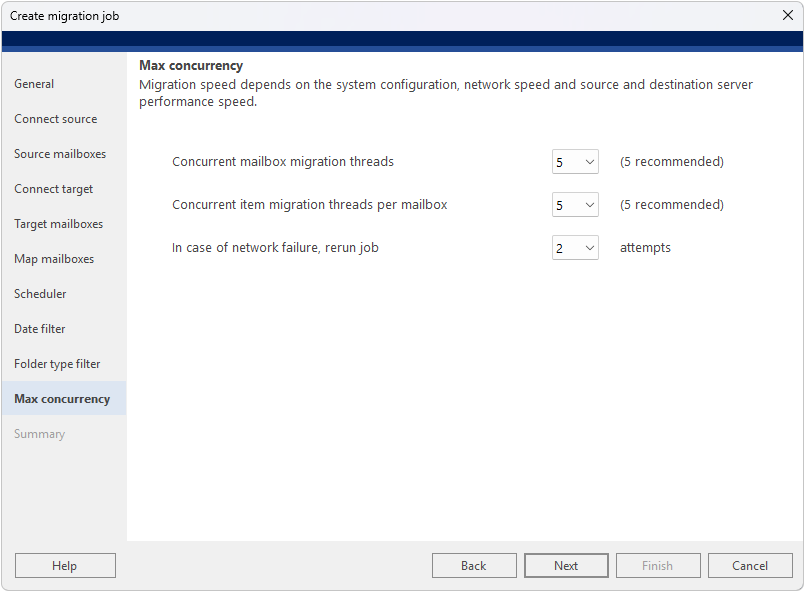
The software includes concurrency settings, allowing administrators to determine how many mailboxes should be migrated simultaneously. This helps balance migration speed against available network bandwidth, server resources, and Microsoft 365 throttling limitations.
Smaller organizations may choose to migrate only a handful of mailboxes at once, while larger IT departments can increase concurrency to accelerate migration projects.
Pricing
Stellar Migrator for Outlook lets you sign up for a free demo to test whether the interface is right for you.
Pricing is based on the number of mailboxes that need migrating, starting at 5 and reaching more than 500. The more mailboxes, the cheaper the price per mailbox. For example:
· 5 Mailboxes for $79.99 ($15.99 per mailbox).
· 500 Mailboxes for $995 ($1.99 per mailbox).
Stellar Migrator for Outlook Review – Verdict
Stellar Migrator for Outlook succeeds in making what is often a complicated process much more straightforward. Its clean step-by-step interface, auto mailbox mapping, and useful filters provide an accessible solution for small and large migration jobs alike.
Moreover, the ability to use incremental migration is extremely valuable for enterprise IT teams carrying out large-scale jobs.
While reauthenticating the connection to 365 can be annoying and it lacks a simple way to exclude email attachments, the pros definitely outweigh any minor cons.
Ultimately, it gives you more control over the precise data to transfer than Microsoft’s native solutions and handles large multi-mailbox projects much more efficiently.
If your organization needs to migrate multiple mailboxes and archive data while remaining in data compliance, this powerful local tool is well worth considering.


Read our disclosure page to find out how can you help Windows Report sustain the editorial team. Read more



Improve this guide



User forum
0 messages