
Chrome is testing a Save to Memory feature for web snippets alongside AI-suggested Todos
Select text, save it, and manage all your web clippings in one place.


 2 min. read
  Published on
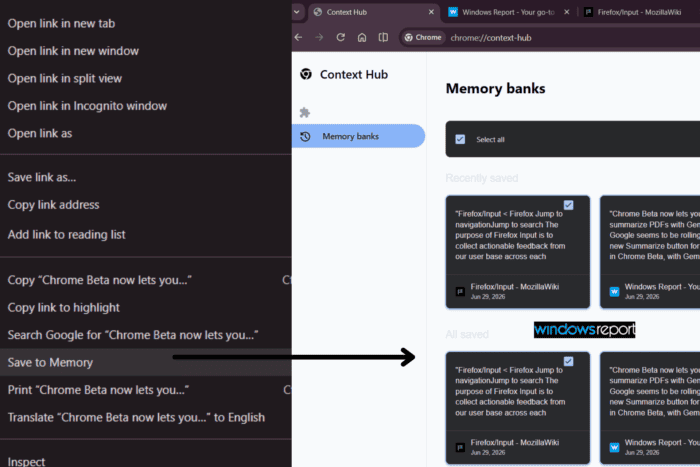
Google is testing a “Save to Memory” feature in Chrome Canary that lets you capture selected web snippets and retrieve them later.
The workflow is simple. When you select text on any webpage and right-click, you’ll see a new “Save to Memory” option. Upon selecting it, Chrome saves it instantly and adds it to a new Memory Banks interface accessible through “chrome://context-hub”.
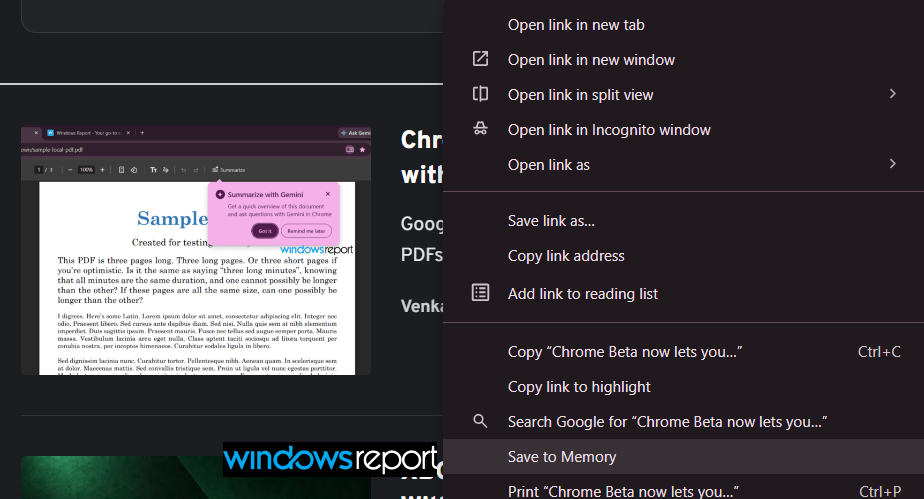
How it works
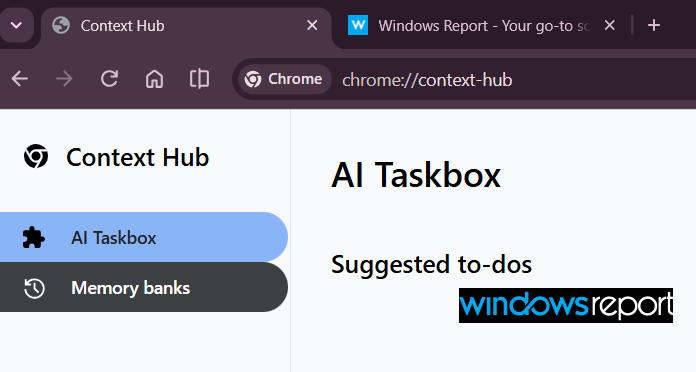
When you navigate to chrome://context-hub, you’ll see two tabs: “AI Taskbox” and “Memory Banks”. AI Taskbox shows suggested todos, though that feature isn’t fully implemented yet. Memory Banks is where your saved passages live.
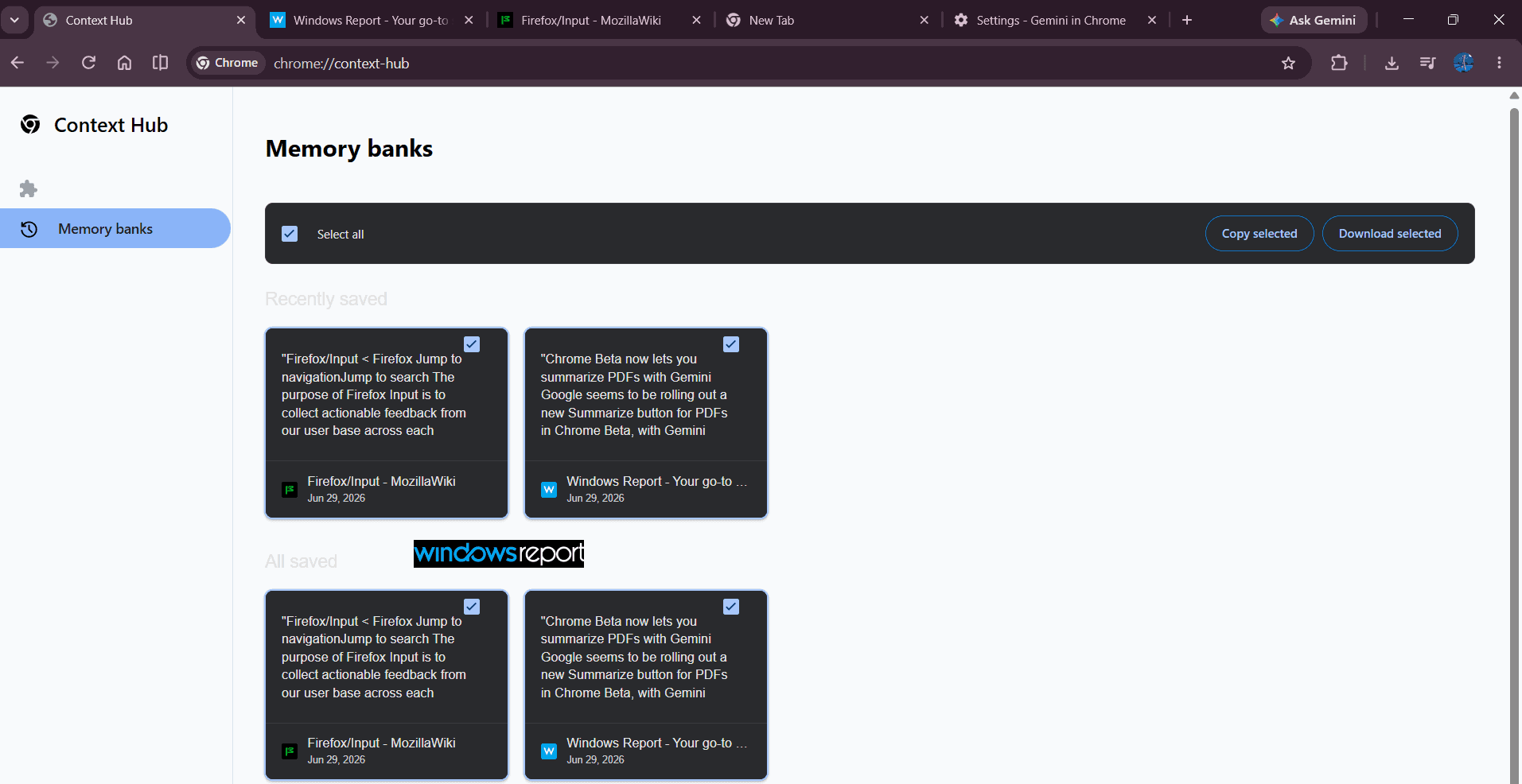
The interface organizes your saved text into “Recently saved” and “All saved” sections. Each item shows the exact text you captured, the page title, the URL, and the precise timestamp of when you saved it. Individual checkboxes let you select specific items or select all at once.
Managing your saved content
Once you’ve saved passages, you can do two things: copy or download them.
Choosing “Copy selected” puts your selected items into the clipboard in a structured format. The text appears with all metadata intact, ready to paste into notes, documents, or other apps.
Choosing “Download selected” saves everything as a text file called “memory_bank_entries”. If a file with that name already exists, Chrome auto-increments it to memory_bank_entries (1). The downloaded file preserves all the structured data: excerpts, page titles, URLs, and save timestamps.
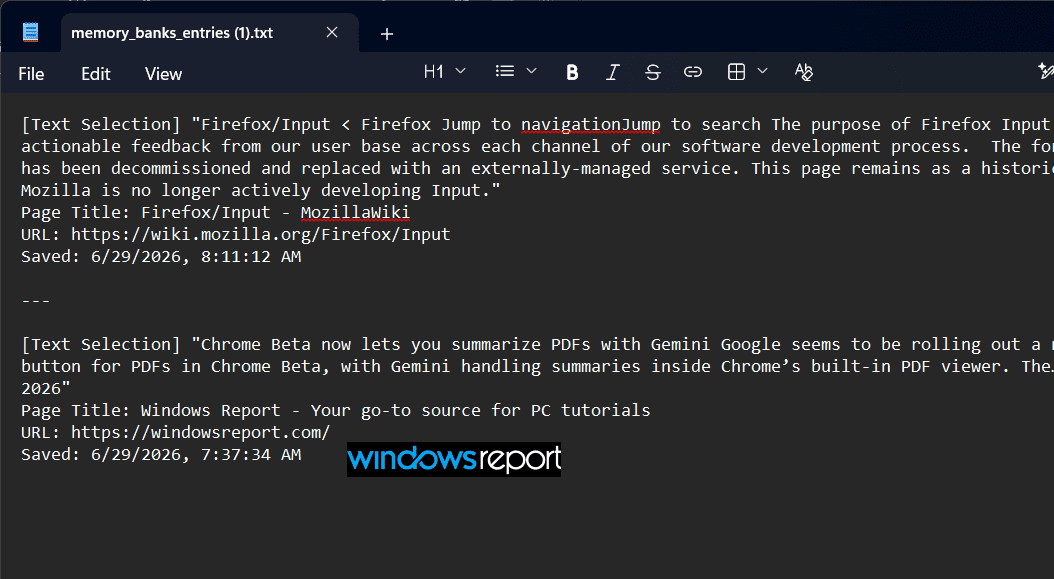
The format is clean and portable. Downloaded files show recently saved items first, making it easy to find what you just captured.
Still in development
This is clearly early work. The Memory Banks interface is functional and reliable, but some pieces aren’t finished. The AI Taskbox tab exists but “Suggested todos” doesn’t populate. That feature may still be in development or gated behind a flag.
Code commits found by Windows Report confirm Google is working on this infrastructure. Recent changes show the Memory Banks interface, the Save to Memory context menu option, and the Context Hub UI all landing in Chrome’s codebase. Like all Canary experiments, there’s no guarantee it ships in stable Chrome.


Read our disclosure page to find out how can you help Windows Report sustain the editorial team. Read more



Improve this guide


User forum
0 messages