
Microsoft Edge's new AI Search takes on Chrome AI Mode with tabs, files, and images
Microsoft is testing a richer AI Search experience in Edge Canary that lets users attach browser context, files, and images before submitting AI prompts.


 2 min. read
  Published on
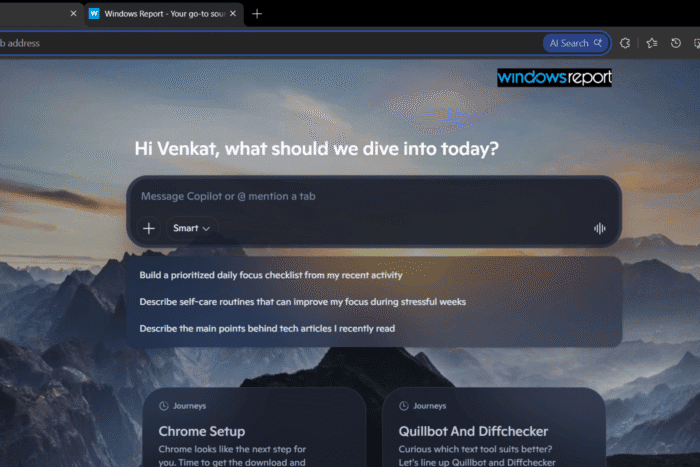
Microsoft has started testing a new AI Search experience in Edge Canary. “AI Search” button now appears inside the address bar whenever the omnibox is focused. Clicking the + button expands it into a prompt composer with support for recent tabs, images, files, AI tools, and model selection.
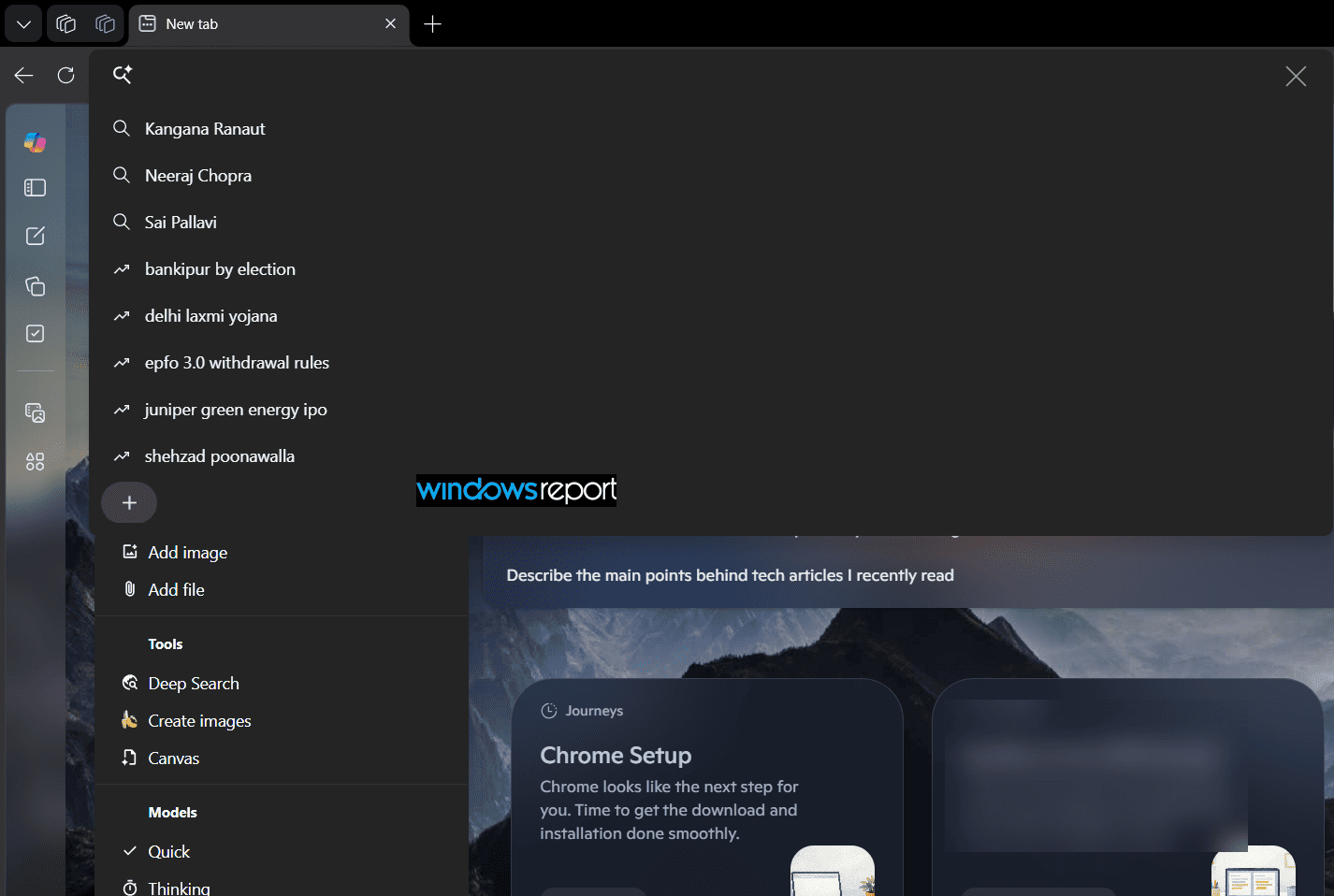
Hovering over the AI Search button displays the tooltip “Ask AI Search in Bing Search,” confirming that the new omnibox experience is tied to Bing Search. Unlike other AI features in Edge that use Copilot branding, Microsoft labels this experience simply as AI Search.
The expanded AI Search composer currently includes options to:
- Add recent tabs
- Add images
- Add files
- Use Deep Search
- Create images
- Open Canvas
- Choose between Quick and Thinking models

The new interface resembles a chat-style AI composer rather than a traditional search box, allowing users to build prompts with additional context before submitting them.
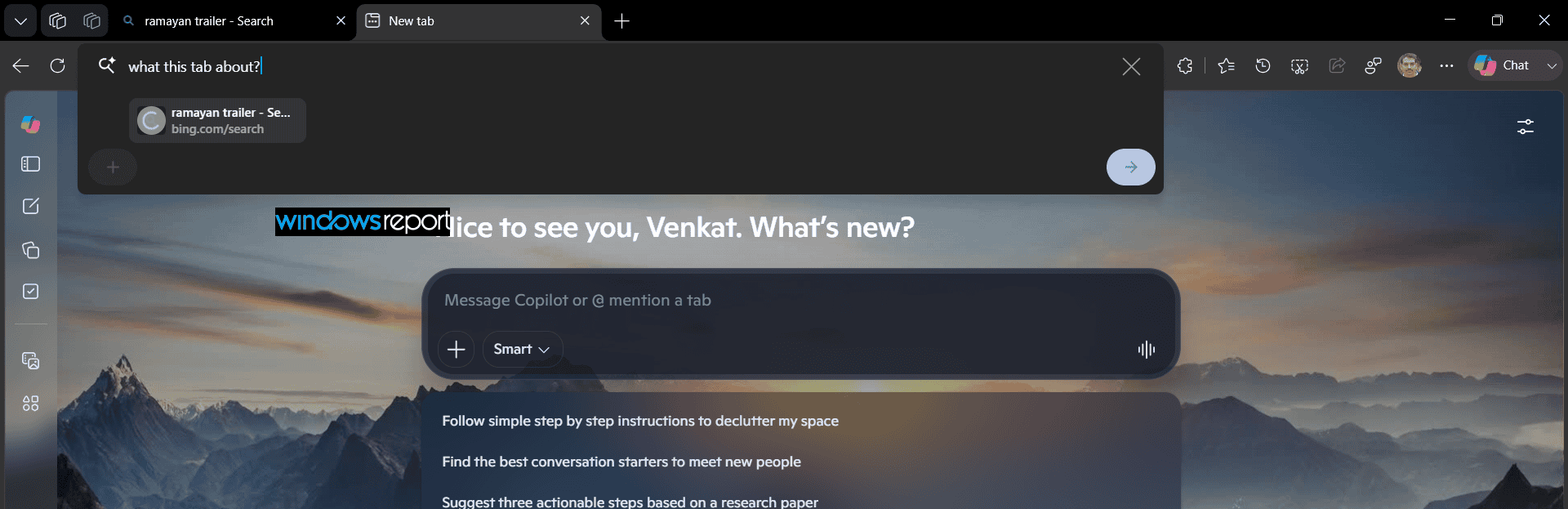
One of the more useful additions is support for recent tabs. After attaching a tab, AI Search kept the selected tab attached to the prompt when we asked, “What is this tab about?” This shows the feature can use browsing context as part of the request.
The Create images option switches AI Search into image-generation mode, while Canvas appears as another built-in AI tool alongside Deep Search. Microsoft has not yet documented how every option works, and some parts of the interface are still incomplete in the current Canary build.
Although the interface is already available in Edge Canary, parts of the feature are still unfinished. During our testing, attachments such as recent tabs, images, and files took time to load, while some options did not work consistently.
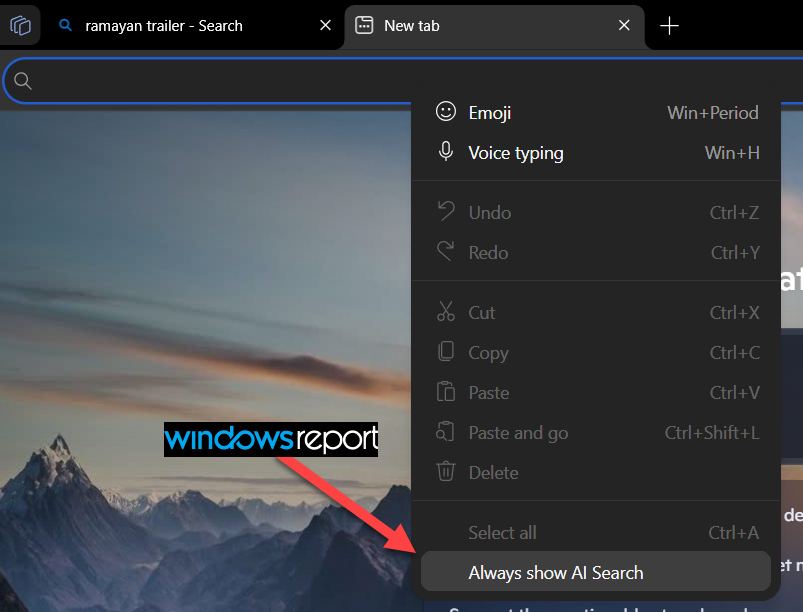
Microsoft has also added an “Always show AI Search” option to the address bar’s context menu. The setting lets users keep AI Search visible whenever the omnibox is focused or hide it until needed.
The new interface shares a workflow similar to Chrome’s AI Mode. Both let users build AI prompts by attaching browser context, images, and files before submitting a request instead of relying only on typed text. Although Edge AI Search is still under development, the latest Canary build offers an early look at Microsoft’s multimodal AI search experience.


Read our disclosure page to find out how can you help Windows Report sustain the editorial team. Read more



Improve this guide




User forum
0 messages