
How to Log In to Asana on Desktop and Mobile


 4 min. read
  Published on

Asana gives you access to your projects, tasks, teams, and workspaces from a browser or mobile device. You can sign in with your email address, Google account, Microsoft account, or your company’s SSO system, and in this guide we’ll show you how to log in to Asana.
How do I log in to Asana?
1. Log in with your email address
Follow these steps to sign in with the email linked to your account:
- Open the Asana login page.
- Enter the email address associated with your Asana account.
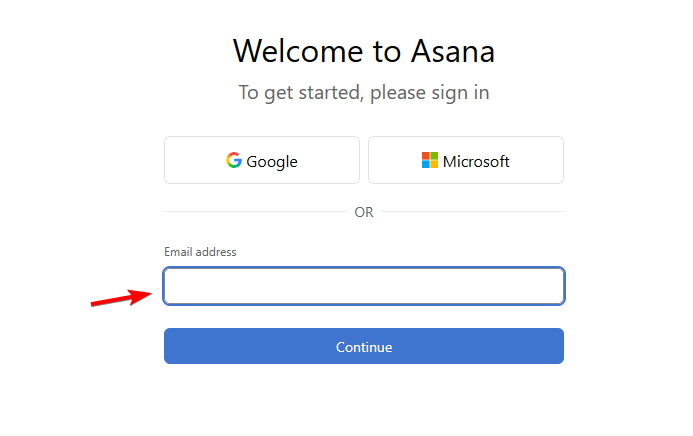
- Click Continue.
- Enter your password if Asana asks for it.
- Complete any authentication prompts that appear.
- Wait for Asana to open your workspace.
- Alternatively, use your Gmail or Microsoft account to sign in.
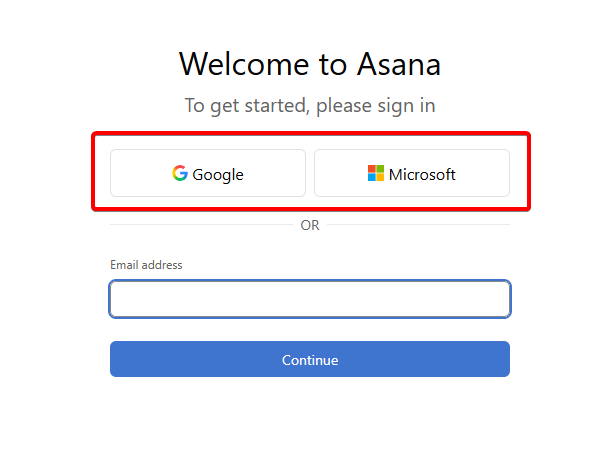
Asana also supports passwordless login options in some situations. Depending on your account, you may receive a sign-in link by email.
Organizations can also require Microsoft SSO for members on supported paid plans.
2. Log in to Asana with SSO
Your employer may configure Single Sign-On instead of using a standard Asana password.
To access Asana through SSO:
- Visit Asana.com or the Asana login page.
- Enter your work email address.
- Click Continue.
- Follow your organization’s authentication prompt.
- Sign in using your company credentials.
- Complete multi-factor authentication if required.
Asana supports SAML authentication for Enterprise, Enterprise+, and eligible legacy Enterprise organizations.
3. Log in to Asana on mobile
You can access the same Asana account through the Android or iOS app.
- Open the Asana app on your phone or tablet.
- Select the option to log in to an existing account.
- Enter your email address or choose your Google login.
- Enter your credentials when requested.
- Complete any security verification.
- Select your workspace to start using Asana.
Changes you make in the mobile app sync with the web version of Asana.
What to do if Asana login isn’t working
Login problems usually involve incorrect credentials, an authentication method mismatch, browser problems, or company SSO settings.
- Reset your Asana password – Request a new password if you can’t remember your current one.
- Check your email address – Make sure you’re using the email linked to the correct Asana account or workspace.
- Try another browser – Use a private window or another browser to rule out cookies, cache, or extension problems.
- Check your company’s SSO requirements – Your organization may require Google, Microsoft, or SAML authentication instead of a password.
How to switch between Asana accounts
You may have access to several organizations or workspaces through one account.
Asana lets one account belong to multiple spaces, including organizations and workspaces. You can switch between them without creating another login. However, organizations with different mandatory SSO configurations may require separate accounts and separate sign-ins.
The Asana login process only takes a few steps whether you use email, Google, Microsoft, or company SSO. For more help, see how to fix Asana in Chrome, connect Asana with Slack, or fix the Asana Outlook add-in.
FAQs
Where is the official Asana login page?
The official login page is available at app.asana.com/-/login. You can also visit Asana.com and select the login option.
Can I log in to Asana with Google?
Yes. Select Google on the Asana login page and use the Google account connected to your Asana account.
Can I sign in to Asana with Microsoft?
Yes. Asana supports Microsoft account sign-in. Organizations can also configure Microsoft SSO for their members.
Why can’t I log in to my Asana account?
Check your email address, password, Google or Microsoft account, and your organization’s SSO requirements. You can also try a private browser window or reset your password.
Can I use one Asana login for multiple workspaces?
Yes. A single Asana account can belong to multiple workspaces and organizations, although some organizations with mandatory SSO policies may require separate accounts.

Read our disclosure page to find out how can you help Windows Report sustain the editorial team. Read more



Improve this guide


User forum
0 messages