
How To Set Up the 3CX Windows Softphone and Use it As Your Everyday Business Phone


 7 min. read
  Published on
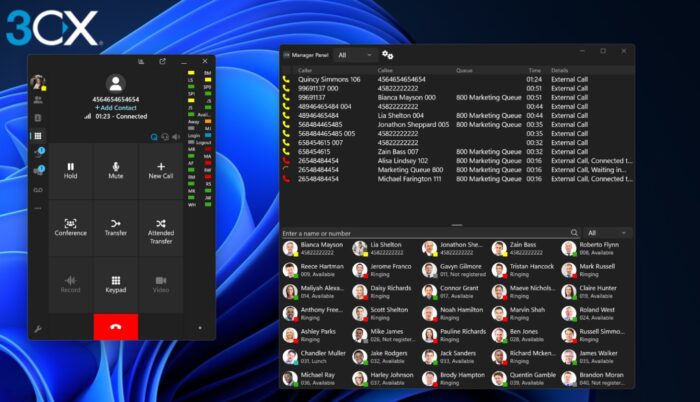
In this guide, we’ll explore how to set up the 3CX Windows Softphone and walk through the key features you’ll need to use it as your everyday business phone.
What is the 3CX Windows Softphone?
The latest 3CX Windows Softphone native app is available on the Microsoft Store and essentially turned my PC into a business phone. It let me make and receive calls over the internet without needing a traditional desk phone.
The app is part of the broader 3CX Phone System (PBX), which connects your Windows system to your organisation’s business communications setup.
Once configured, I could access company contacts, transfer calls, start conferences and change my availability status directly from the Windows app.
What I particularly like about this approach is that it doesn’t tie your business extension to your desk. I could use 3CX with a headset wherever I was working, while still making calls through the company phone system rather than exposing a personal number. For hybrid and remote working, it feels much more flexible than relying on dedicated phone hardware.
Getting Started
It’s easy to get started. Simply download 3CX Windows Softphone from the Microsoft Store.
Then, after launching, enter the 3CX URL provided in the “Your 3CX Account Details” email.
Sign in using your email address or extension number and password, after which the app will automatically provision your account. If two-factor authentication (2FA) is enabled, you’ll also need to enter your security PIN.
3CX also supports signing in with Google or Microsoft 365, which opens a browser for authentication before returning you to the app.
Making and Managing Calls
Making calls with the 3CX Windows Softphone felt much like using a regular phone, just with everything accessible from my desktop. I could enter a number using the dial pad or search for a colleague or contact by name.
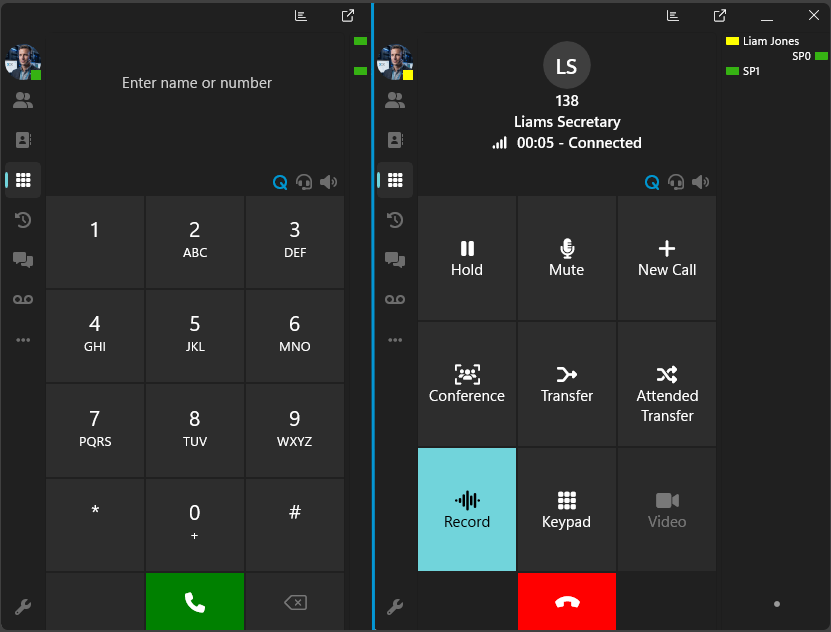
To start a call, simply click the phone icon.
Once connected, the Softphone provides visual controls for everyday tasks such as muting, placing the caller on hold, recording the conversation or starting another call. I could also turn an existing call into an ad-hoc conference by selecting Conference and adding another participant.
Call transfers are equally straightforward. Blind Transfer sends the caller directly to another extension without speaking to the recipient first.
Alternatively, Attended Transfer let me contact the recipient beforehand, explain why I was transferring the call, and then connect the two parties. This is particularly useful in a business environment where you don’t always want to send customers through without giving your colleague some context.
Set Your Status and Work Remotely
3CX makes it easy to show colleagues whether you’re available. I could click my profile picture in the top-left corner of the Softphone and select an appropriate status.
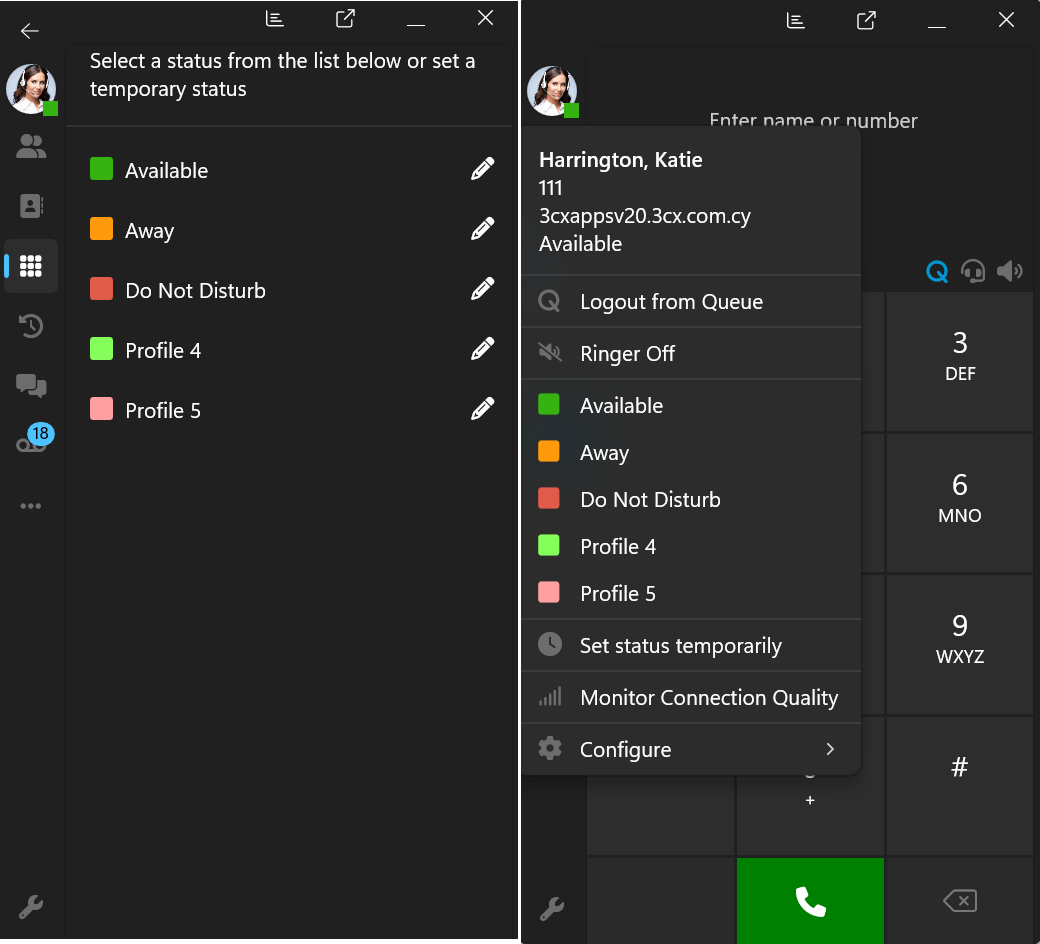
These statuses can also have different call-handling rules, so incoming calls can be redirected to a colleague or voicemail when unavailable. More detailed forwarding rules can be configured through the Web Client.
The wider 3CX system is also well suited to remote and hybrid working. Alongside the Windows Softphone, 3CX provides iOS, Android and Web apps, allowing you to take your business extension with you when you leave your PC. This means you can continue making and receiving calls using your office number without revealing your personal number. This is a particularly useful feature when working from home or on the move.
Hotkeys & System Tray Minimization
I also found it useful to set up hotkeys for common actions. Go to Settings > Hotkeys.
From here, choose the action you want to control and enter your preferred keyboard shortcut. 3CX supports hotkeys for opening the dialler, answering or declining calls, putting calls on hold, sending callers to voicemail, and performing blind or attended transfers.
The biggest advantage is that these shortcuts continue working when 3CX is minimized, so you don’t have to bring the app back into view whenever a call arrives.
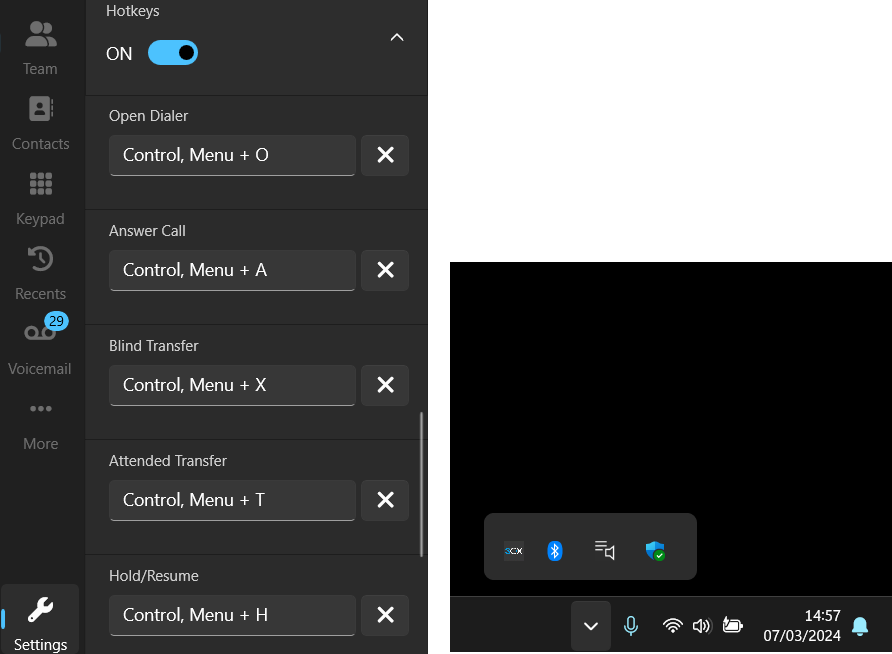
I also recommend leaving system tray minimization enabled. Closing the main window then keeps 3CX running in the background, where it can continue notifying you about incoming calls and messages.
Using the 3CX Admin Console
While the Softphone app handles everyday communication, administrators get much more control through the 3CX Admin Console. In 3CX V20, administration is built into the Web Client, so users with the appropriate permissions can access it without opening a separate management application.
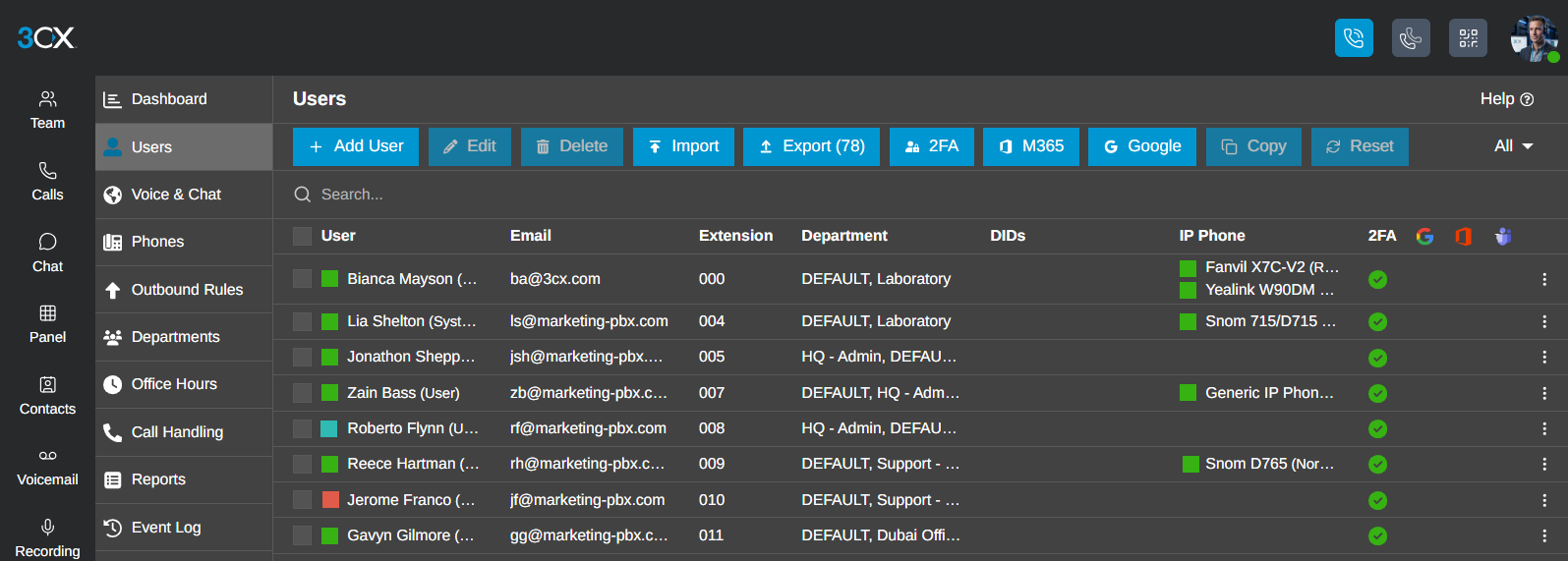
I found the interface fairly straightforward to navigate. You can add users and extensions, configure phones and forwarding rules, organise users into departments, and manage how incoming calls are handled.
For example, Call Handling lets administrators create ring groups and queues, while Office Hours determines where calls should go when the business is open, closed or on a break.
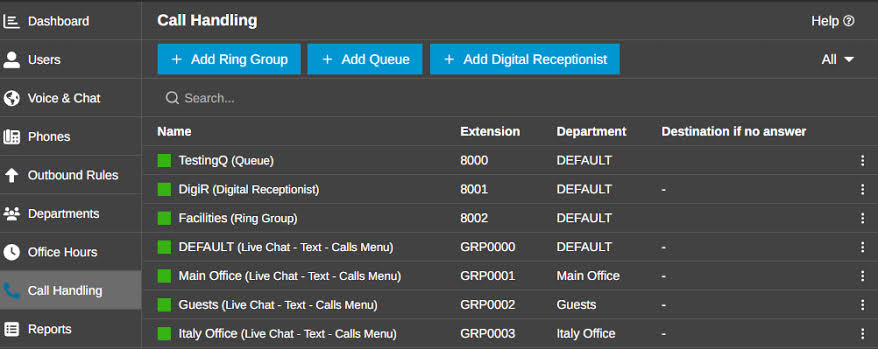
Access is role-based, so regular Softphone users don’t automatically get control over company-wide settings. Roles such as Department Administrator, Manager, System Administrator and System Owner provide progressively different administrative permissions.
Monitor Colleagues with the BLF Panel
For teams handling lots of incoming calls, the BLF (Busy Lamp Field) panel provides a quick overview of other extensions. I could use it to see whether colleagues were available, already on a call or otherwise busy without having to contact them first.
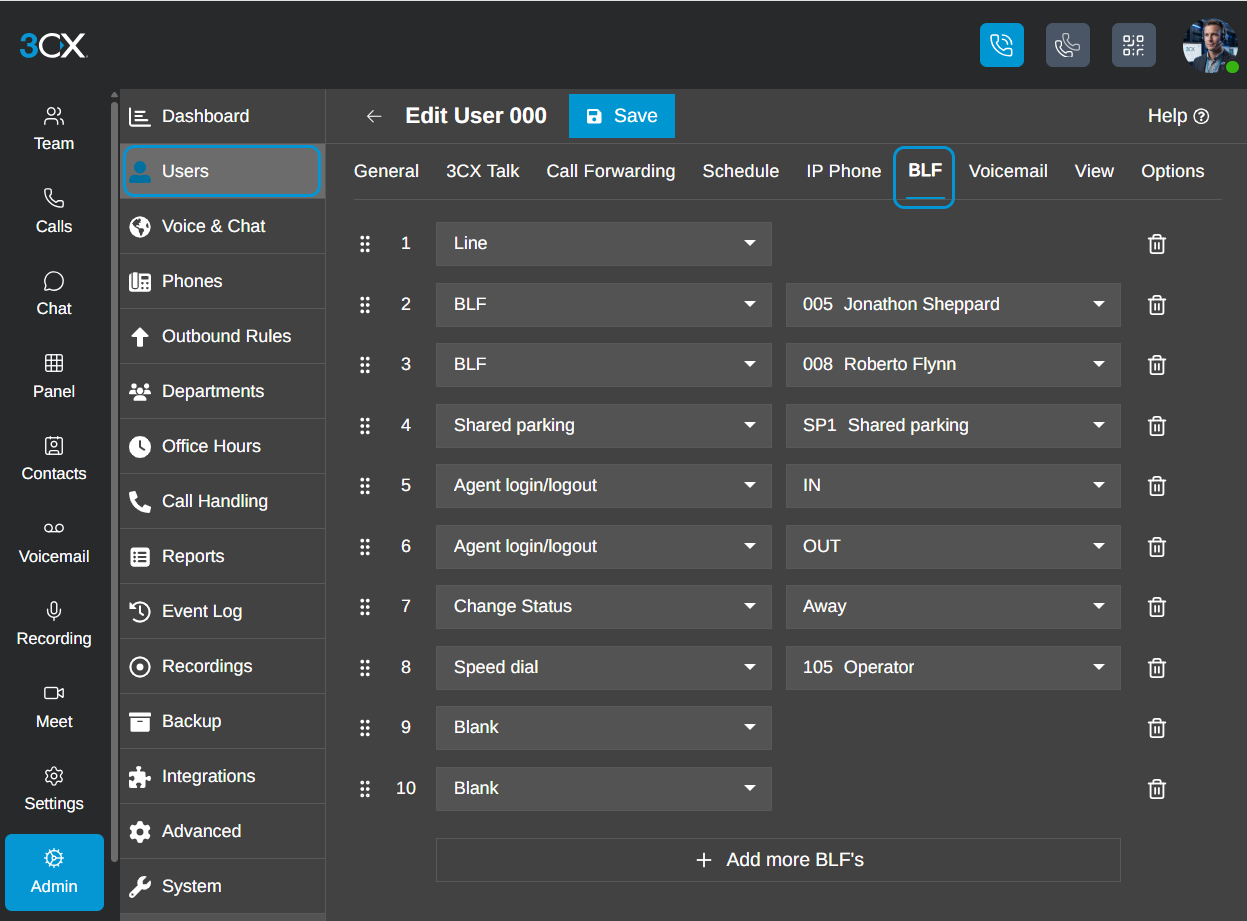
BLF also makes transferring calls quicker. Rather than searching for an extension each time, you can use the panel to monitor frequently contacted colleagues and transfer calls directly to them.
Administrators can configure BLF keys for users, making the feature particularly useful for receptionists, assistants and customer-facing teams that regularly route calls around the business.
Connect 3CX to Business Software
Another useful aspect of the 3CX Windows Softphone is its ability to work alongside other business software. The app supports access to CRM contacts, while 3CX offers integrations for a range of CRM, ERP and accounting platforms.
One example I looked at was the DATEV Connector, which integrates the Windows app with the DATEV software commonly used by accounting and tax professionals.
Once configured, incoming numbers can automatically be matched with DATEV contacts, displaying the caller’s information before you answer. I could also see how this would save time when dealing with clients, as call notes and history can be associated with the appropriate DATEV record rather than managed separately.
It also works in the opposite direction, with click-to-dial letting users start calls from DATEV. Setting it up requires the 3CX Windows App V5.5 or later, the 3CX TAPI Driver, DATEV Pro and DATEV Telephony Basis.
3CX Plans and Pricing
3CX takes a different approach to pricing than many business phone systems. Instead of charging a monthly fee for every user, its paid plans are priced per system, per year, according to the number of simultaneous calls your business needs.
There are Basic, Pro and AI editions. For example:
A system requiring 16 simultaneous calls, supporting up to 80 users, is listed at $600/yr for Basic, $750/yr for Pro, and $1,095/yr for AI.
That makes the number of employees less important than how many are likely to be on calls at the same time. Hosting can also be added if you want 3CX to manage the PBX infrastructure rather than self-hosting it. Prices exclude applicable taxes and can change, so I’d recommend checking the current 3CX pricing page before choosing a plan.
Using the AI Edition
The AI Edition also adds features that complement the Windows Softphone. Recorded calls and voicemails can be transcribed and summarised, allowing you to review conversations without listening to the entire recording. 3CX can also analyse call sentiment, while its AI Agents can screen incoming calls and show who is calling and why before you answer.
Conclusion
The 3CX Windows Softphone does much more than replace a traditional desk phone. While making and receiving calls remains its core purpose, features such as easy SSO, remote access, call transfers, conferencing and deskphone control make it a flexible everyday business tool. Add its wider business integrations and administration options, and 3CX provides plenty of room to expand as your communication needs grow.


Read our disclosure page to find out how can you help Windows Report sustain the editorial team. Read more



Improve this guide




User forum
0 messages