
Top Photo Editing Software: 6 Best Raw Editors with AI capabilities


 9 min. read
 Published on

Photo editing software has come a long way in recent years, with AI-powered tools making complex edits faster and more accessible. From enhancing RAW images and processing entire batches of photos to removing unwanted objects and creating layered compositions, today’s editors offer more flexibility than ever. But with so many options available, choosing the right one can be challenging. In this guide, we’ll review the top photo editing software, focussing on RAW editing and modern AI features. Then you can find the right fit for your workflow and skill level.
1. Zoner Studio – Best Overall
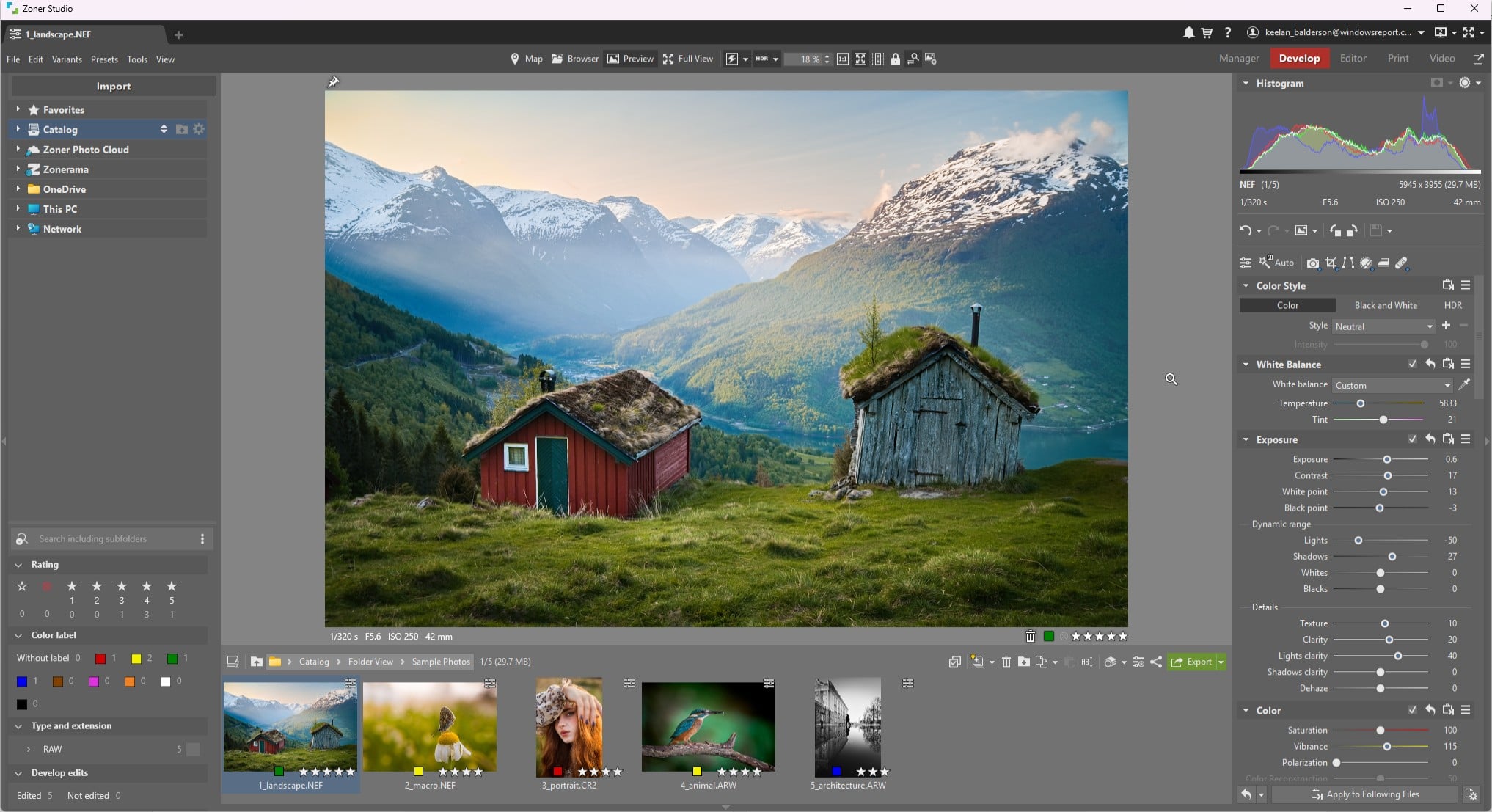
Zoner Studio earns the top spot for combining powerful photo editing tools with a workflow that works for both individual images and large batches.
Its Develop module is the key area for photographers who want to improve their photos without permanently altering the original files. This non-destructive approach is particularly useful when working with RAW images. I.e., You can experiment with adjustments and fine-tune the results while keeping the source image intact.
The Develop module covers the essentials and beyond, including exposure, white balance, color, cropping, and positioning. You can also use presets to achieve a certain look quickly, while local adjustments let you tweak the results.
One-click AI-powered enhancements provide another quick starting point when you want to improve a photo without starting from scratch. Meanwhile, camera and lens profiles, retouching tools, and brushes give you more control when an image needs extra attention.
Batch editing is another major advantage. Rather than repeating the same adjustments across dozens of images, you can select multiple photos and apply changes to them together. This is helpful when editing a series taken in similar lighting conditions or when you want to replicate a look. You can always review the results individually and make any necessary corrections before exporting the finished images. And, if you just can’t decide, just create a variant of the photo.
The Editor module takes Zoner Studio beyond RAW development into layered pixel editing. It lets you work with multiple layers, masks and blending modes to combine images, add text, remove unwanted elements, and make more advanced changes. This makes it useful for complex projects, such as composites and creative photo manipulation, where simple adjustments aren’t enough.
Its AI tools also extend to subject, background, sky and object selection, or masks, making local adjustments easier without manually masking every area. AI-powered background removal, image upscaling and close-up previews add further convenience, particularly for photographers handling large collections.
While these features can significantly speed up repetitive tasks, Zoner Studio still gives photographers control over the final result rather than relying entirely on automated edits.
Overall, Zoner Studio offers a well-rounded photography workflow, with the Develop module at its heart. For photographers, this is where the real work happens: refining RAW images, AI mask layers, adjusting exposure and colour, and fine-tuning details while keeping original files intact. Before editing begins, the Manager module also helps you import, cull and organise your shots, making it easier to sort through a shoot and find the strongest images. This, along with the Editor module for composites, makes for a complete workflow that is often not possible with other editors.
2. Adobe Lightroom Classic – Best for Adobe Users
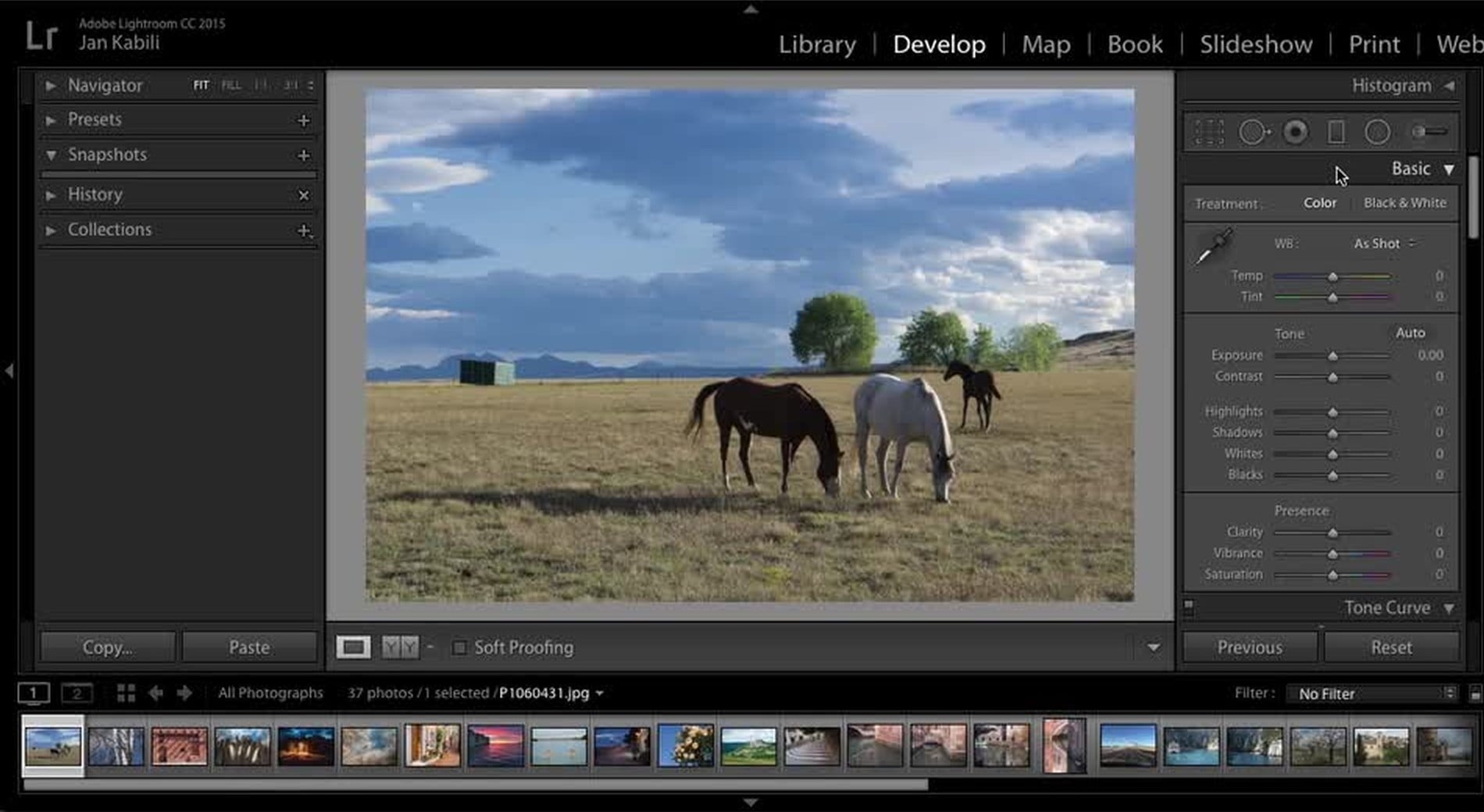
As a long-running favorite, Adobe Lightroom Classic combines powerful photo organisational and RAW development tools. It’s particularly well suited to photographers who regularly process large shoots and want precise control over their editing workflow. It also works seamlessly alongside other Adobe applications, particularly Photoshop, making it a natural choice for users already invested in the Creative Cloud ecosystem.
The Library module handles importing, sorting and cataloguing images. You can organise photos into collections, assign star ratings and color labels, add keywords, and filter by metadata such as camera settings and capture dates. These tools make it easier to cull large batches of images and retrieve specific shots from an extensive archive.
The Develop module is where Lightroom Classic really shines. Its extensive adjustment controls cover exposure, white balance, colour grading, sharpening, noise reduction and lens corrections. AI-powered masking can select subjects, skies and backgrounds for targeted adjustments, while presets and synchronised edits help maintain a consistent look across multiple images. Its non-destructive workflow also lets you revisit adjustments without altering the original photograph.
When an image needs more advanced retouching, detailed layer work or complex compositing, you can open it in Photoshop and then bring the edited result back into your Lightroom workflow. However, Lightroom Classic requires a subscription, and its extensive interface may take time to master.
3. Luminar – Best for AI Edits
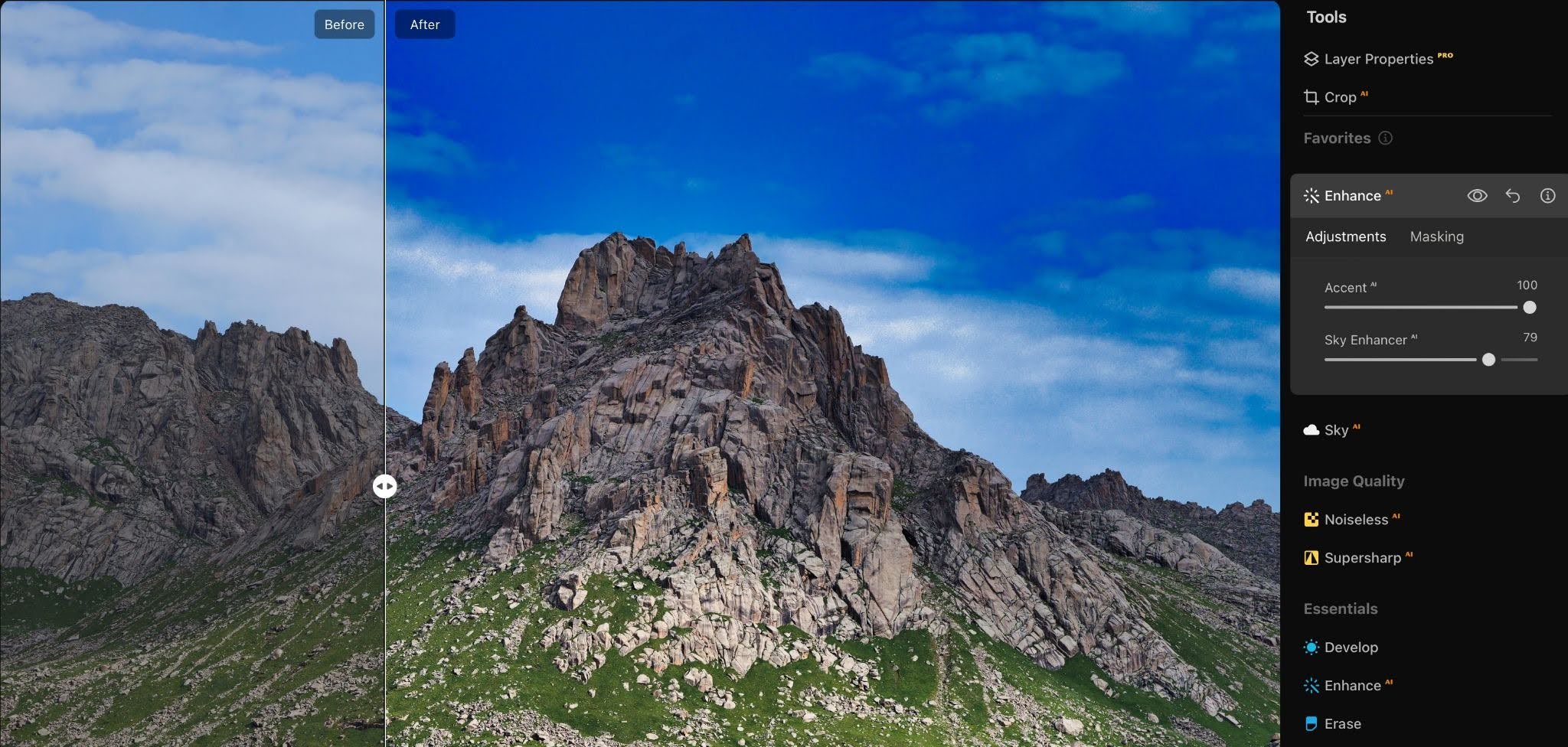
Luminar is an AI-powered photo editor designed to make image enhancement and creative adjustments more accessible. Its tools can automate time-consuming tasks, helping photographers improve images, retouch portraits and transform landscapes without having to make every adjustment manually.
One of its standout features is Enhance AI, which analyses an image and automatically adjusts elements such as exposure, contrast, shadows and colour. Sky AI can enhance or replace skies, while portrait tools simplify skin retouching and facial enhancements. For more involved edits, generative AI features can remove unwanted objects, replace elements or expand an image beyond its original borders.
Despite its emphasis on automation, Luminar still provides plenty of manual control. You can work with RAW files, fine-tune individual adjustments, use masking to target specific areas and combine images using layers. Its non-destructive workflow also allows you to revisit and refine edits without permanently changing the original file.
The software supports batch processing, making it easier to apply consistent adjustments across multiple images. However, its photo organisation features are relatively basic, so photographers managing extensive libraries may need a separate asset manager. For users who want to speed up routine enhancements and experiment with creative AI tools, Luminar is a compelling option.
4. ON1 Photo RAW – AI-Assisted Photo Culling
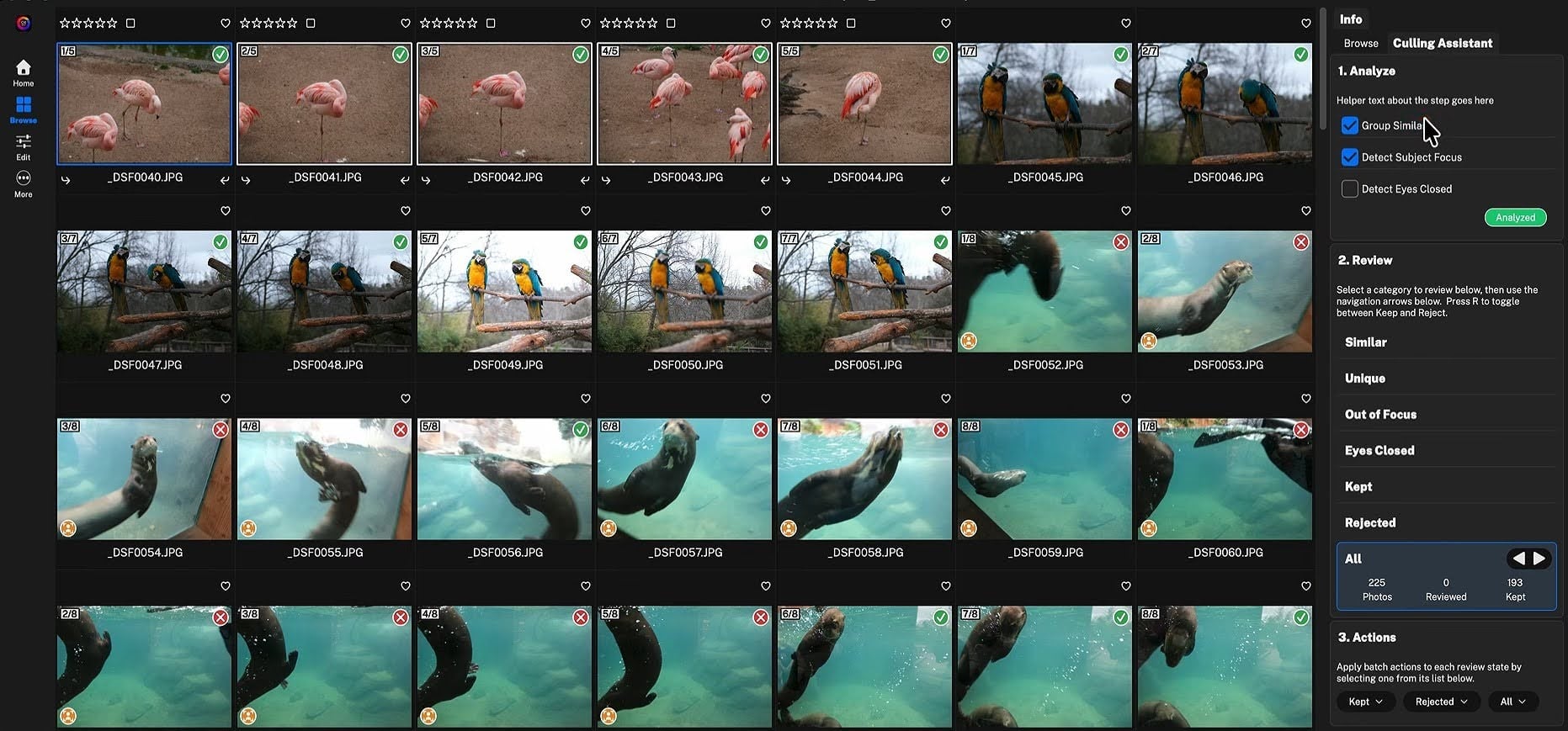
ON1 Photo RAW combines photo organisation, RAW development, and advanced image editing in a single application. It’s a versatile option for photographers who want to manage their workflow without switching between multiple programs.
Its Browse tools let you work directly with folders, rate and tag images, and search your library without importing every file into a catalogue.
The Develop tools provide detailed control over exposure, colour, contrast and sharpening, while layers, effects and masking support more creative edits. AI features also help speed up everyday tasks.
Brilliance AI intelligently adjusts colour and tone, while Super Select AI helps target specific objects for local adjustments. Resize AI is integrated into the application, offering AI-powered enlargement and detail recovery without needing a separate tool.
The latest release adds several useful refinements, including improved NoNoise AI, a more streamlined masking experience, and an upgraded RAW processing engine.
The MAX edition also introduces a Culling Assistant that can group similar shots and flag blurry images or closed eyes, helping photographers review large shoots more efficiently.
With both subscription and perpetual-licence options, ON1 Photo RAW is worth considering for photographers seeking an adaptable editing environment with modern AI tools. Some advanced features depend on the edition you choose.
5. Capture One Pro – Best for Studio Photography
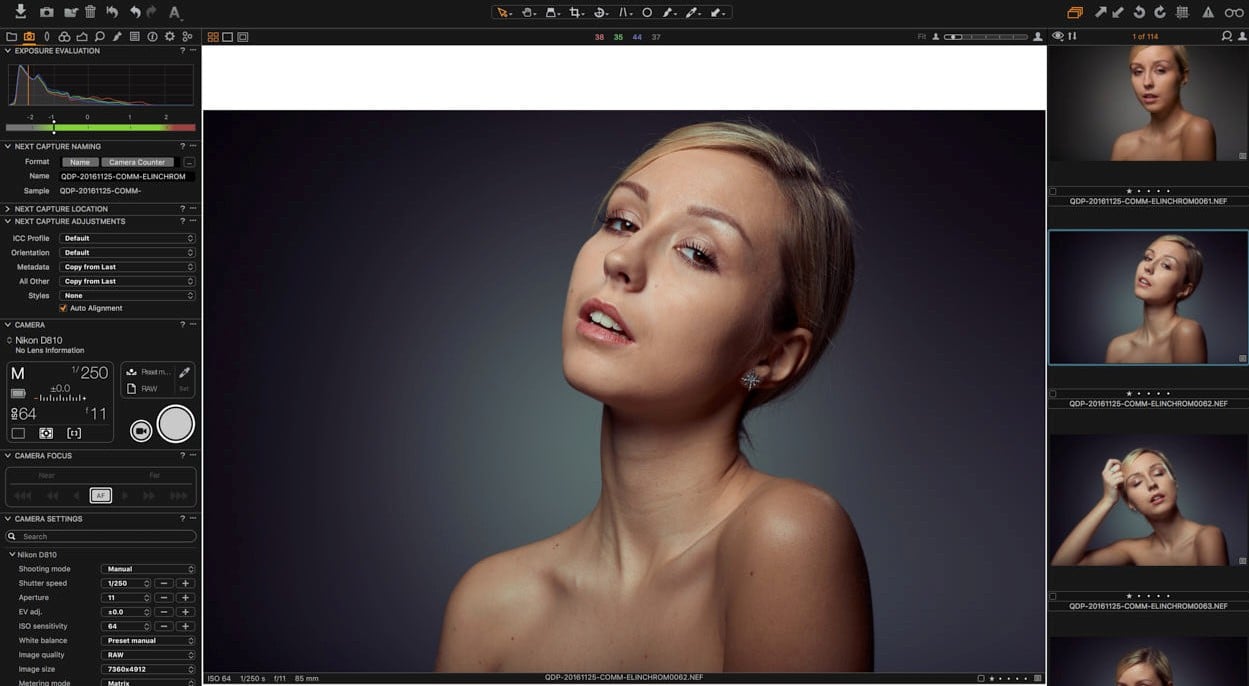
Capture One Pro is a professional photo editor built around high-quality RAW processing, precise colour control and efficient studio workflows. It’s particularly popular with commercial, fashion and portrait photographers who need consistent results and close control over every image.
Its RAW processing tools offer detailed adjustments for exposure, highlights, shadows, white balance and colour, while custom camera profiles help produce natural-looking results. Layers and masks allow photographers to apply local adjustments, refine skin tones and control individual areas of an image. You can also customise the workspace and shortcuts to suit your preferred editing process.
One of Capture One Pro’s biggest strengths is tethered shooting. With a compatible camera connected, images appear on your computer as you shoot, letting you check focus, adjust settings and review results immediately. This is especially useful in studios, where clients and creative teams may need to approve images during a session.
Recent updates have introduced AI-powered tools, including Enhanced Denoise for reducing noise in high-ISO images and Assisted Review (Beta), which flags issues such as closed eyes and missed focus to speed up culling.
Capture One Pro offers subscription and perpetual-licence options, although the one-time licence doesn’t include every future update. Its professional tools make it a strong choice for photographers who prioritise colour accuracy and a streamlined studio workflow.
6. Affinity – Best for Layer-Based Editing
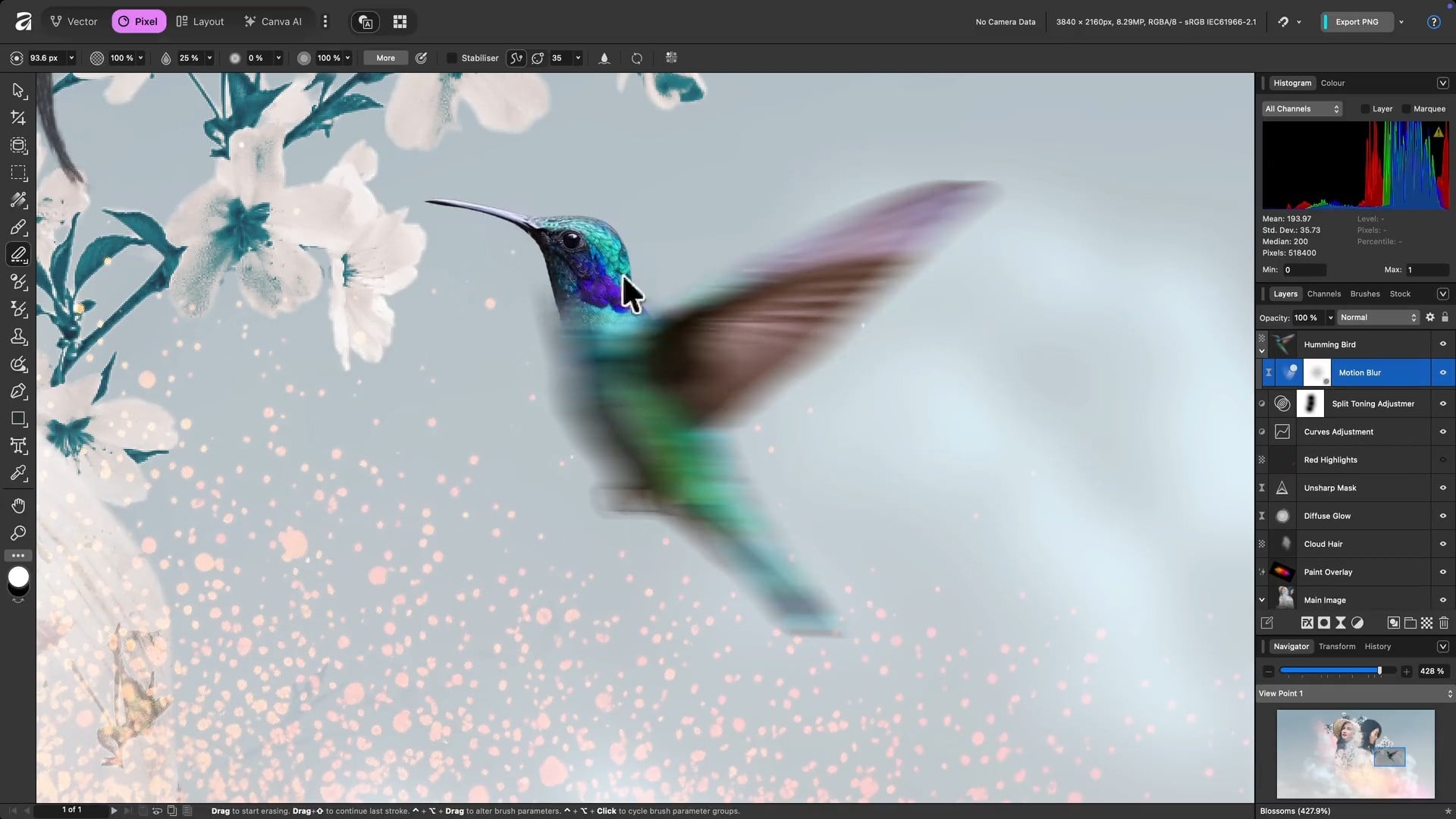
Affinity by Canva is a versatile creative application that combines professional photo editing, vector design, and page layout tools in one package. For photographers, its main strength lies in detailed pixel editing, making it well suited to retouching, composites and creative image manipulation.
Its photo tools support RAW development, exposure and colour adjustments, sharpening, noise reduction and lens corrections. Layers, masks and blend modes provide precise control over individual elements, while tools such as inpainting, cloning and healing help remove unwanted objects or imperfections. It also supports HDR merging, panorama stitching and focus stacking, giving photographers plenty of scope for more advanced projects.
Recent updates have strengthened its photography workflow with deeper RAW controls, nine additional colour, sharpening and detail adjustments, and reusable presets that can be applied across an entire shoot. New AI-assisted features include Mixed Light Correction, Motion Blur Reduction, Generative Upscale and Scene Decomposition, which can help recover detail, correct difficult lighting and make flattened images more editable.
Affinity is now available as a free application, with core photo editing tools included. However, it isn’t a dedicated photo asset manager, so photographers who need extensive cataloguing and library organisation may prefer to pair it with another tool. For those who value creative control and advanced image manipulation, it’s a compelling option.
Final Verdict on the Best Photo Editing Software
While each of these photo editors has its own strengths, Zoner Studio remains our best overall pick. Its combination of advanced photo management, RAW development, and a further Editor module, provides a complete workflow in one application. It implements AI well without overdoing it, and despite so many features, it remains accessible to beginners.


Read our disclosure page to find out how can you help Windows Report sustain the editorial team. Read more


Improve this guide



User forum
0 messages