
Widex MOMENT App Not Working? Here's Why & How to Fix It


 5 min. read
 Published on
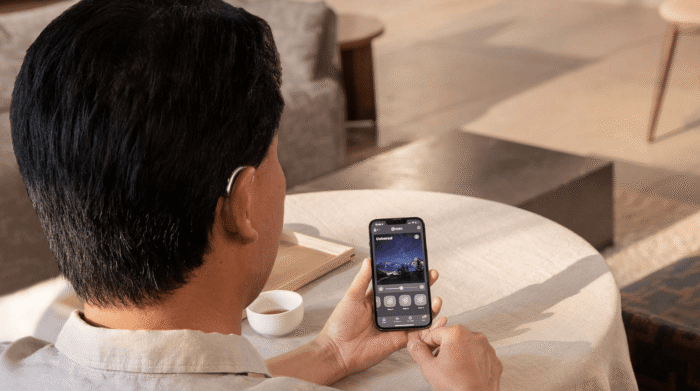
The use of the Widex MOMENT hearing aid app can become annoying when it stops connecting, fails to detect your hearing aids, or refuses to adjust their settings. Fortunately, you can try several fixes before contacting your hearing care professional. Start with Bluetooth and battery checks, then move to pairing and app troubleshooting. But before that let’s understand why the issue is occurring in the first place.
Why is the Widex MOMENT app not working?
The Widex MOMENT app has been affected by a cybersecurity incident involving its parent company, WS Audiology. The company confirmed unauthorized access to parts of its IT environment and temporarily took selected internal and customer-facing systems offline to contain the incident. This disrupted app services, leaving some users unable to access their usual hearing aid controls. WS Audiology said the hearing aids themselves were not affected, although app functionality was disrupted. The company has not confirmed whether customer data was stolen. While there isn’t much you can do during a service disruption, you can still try the fixes below if Widex MOMENT’s services are back online, but the app still isn’t working for you.
How to fix the Widex MOMENT hearing aid app
1. Restart your phone and hearing aids
A restart can clear temporary glitches and refresh the Bluetooth connection. It is worth trying first, although it may not help if Widex services remain unavailable.
- Turn off your phone and wait around 30 seconds.
- Turn it back on and restart your hearing aids.
- Open the Widex MOMENT app and check whether it connects.
2. Check your Bluetooth connection
The app relies on Bluetooth to communicate with compatible hearing aids. Make sure the connection is enabled before attempting to pair your devices again.
- Open your phone’s Bluetooth settings.
- Make sure Bluetooth is enabled.
- Keep your hearing aids close to your phone.
- Reopen the app and check the connection.
3. Check Widex MOMENT hearing aid app permissions
Missing Bluetooth permissions can prevent the app from detecting your hearing aids. Confirm that the required permissions are enabled.
- Open your phone’s Settings.
- Find Widex MOMENT under Apps or application settings.
- On iPhone, check Bluetooth access. On Android, check Nearby devices permission.
- Reopen the app and test it again.
4. Avoid reinstalling the app immediately
Reinstalling may not help if the underlying service is unavailable. Widex also warns that deleting the app can remove saved favorite programs.
- Check the official Widex support page.
- Follow any service restoration announcements.
- Contact your hearing care professional if you need help adjusting your hearing aids.
Note: If the app displays an “Unable to proceed” message despite these steps, the cybersecurity-related service disruption may be responsible. In that case, waiting for service restoration is more useful than repeatedly reinstalling the app.
4. Forget and reconnect your hearing aids
If your hearing aids still won’t connect, removing the existing Bluetooth pairing and setting it up again may help. Follow the steps for your phone to reconnect the devices.
- On iPhone: Go to Settings > Accessibility > Hearing Devices, select your hearing aids, and tap Forget This Device.
- On Android: Open Settings > Bluetooth, select your hearing aids, and choose Unpair or Forget.
- Restart your hearing aids and open the Widex MOMENT app.
- Follow the app’s pairing instructions and keep both hearing aids close to your phone.
5. Update the app and check device compatibility
An outdated app or incompatible phone may cause connection problems. Check for updates before attempting more involved fixes.
- Open the Apple App Store or Google Play Store.
- Search for Widex MOMENT and install any available update (Android | iOS).
- Check your phone for available software updates.
- Visit the official Widex compatibility page to confirm that your phone and hearing aids are supported.
6. Reinstall the Widex MOMENT app
If the previous methods fail, reinstalling the app may resolve a local software issue. However, it may not help if Widex services are still affected by the reported cybersecurity incident.
- Check whether the app’s services are available.
- Uninstall Widex MOMENT from your phone.
- Reinstall it from the official app store.
- Grant the requested permissions and follow the pairing instructions.
Note: Widex warns that deleting the app can remove favorite programs saved within it. Try the other methods first.
FAQs related to Widex MOMENT app not working
1. Why is the Widex MOMENT app not working?
The cause may be a Bluetooth issue, missing permissions, and outdated software. If you are reading this on published date, the issues you are facing are mostly likely linked to the cybersecurity incident involving WS Audiology.
2. Is the Widex MOMENT app down because of a cybersecurity incident?
WS Audiology reported unauthorized access to certain IT systems and took selected systems offline. This disrupted some services, but the company said the hearing aids themselves were unaffected.
3. How do I reconnect Widex MOMENT to my hearing aids?
Enable Bluetooth, restart your phone and hearing aids, then reopen the app. If necessary, remove the existing pairing and follow the app’s setup instructions.
4. Why does Widex MOMENT say Bluetooth is disconnected?
The app may have lost its connection to your hearing aids. Check Bluetooth permissions, keep the devices close, and restart the app.
5. Will reinstalling Widex MOMENT delete my saved settings?
It may remove favorite programs saved within the app. Try restarting your devices and checking Bluetooth before uninstalling it.
6. What should I do if Widex MOMENT still isn’t working?
Check official Widex support updates and contact your hearing care professional. If the issue is caused by unavailable company services, local troubleshooting may not resolve it.

Read our disclosure page to find out how can you help Windows Report sustain the editorial team. Read more


Improve this guide


User forum
0 messages