
Auto SR Exits Preview, Officially Launches on ROG XBOX Ally X and X20


 2 min. read
 Published on
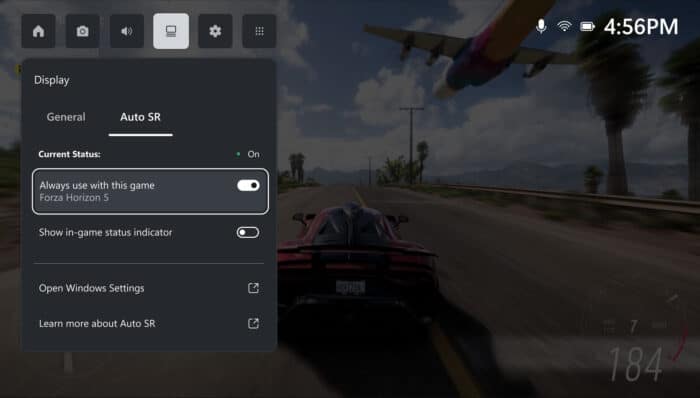
Microsoft has officially taken Automatic Super Resolution (Auto SR) out of preview. The announcement follows Microsoft’s earlier expansion of Auto SR to more PC games and its ROG Xbox Ally preview rollout earlier this year. Now, the technology works without a dock, supports 1080p games, and introduces a Performance Mode targeting 120 FPS.
Auto SR finally works without docking your handheld
Microsoft confirmed that Auto SR is officially available on the ROG Xbox Ally X and ROG Xbox Ally X20. The feature is also expanding to select Windows Copilot+ PCs powered by AMD Ryzen processors.
The biggest change is support for handheld gaming without a dock. When the feature was previewed with Xbox Insider, Auto SR only worked when the ROG Xbox Ally X was connected to an external display.
Well, Microsoft has lifted that limitation. Players can now use AI-powered upscaling directly on the handheld’s built-in screen, even when running on battery.
Microsoft has also removed another annoying restriction. Auto SR now supports games running at 1080p, eliminating the need to lower resolution before enabling the feature. When docked, compatible games can be upscaled to 1440p.
Performance Mode targets up to 120 FPS
The biggest performance upgrade is a new Performance Mode. Previously, Auto SR supported around 60 to 75 FPS. Microsoft now says the new mode can reach up to 120 FPS.
Players can switch between Quality and Performance modes through Xbox Game Bar. This allows them to prioritize sharper visuals or higher frame rates depending on the game.
Interestingly, Auto SR and Auto HDR can now work together. Players no longer need to choose between AI upscaling and richer HDR visuals.
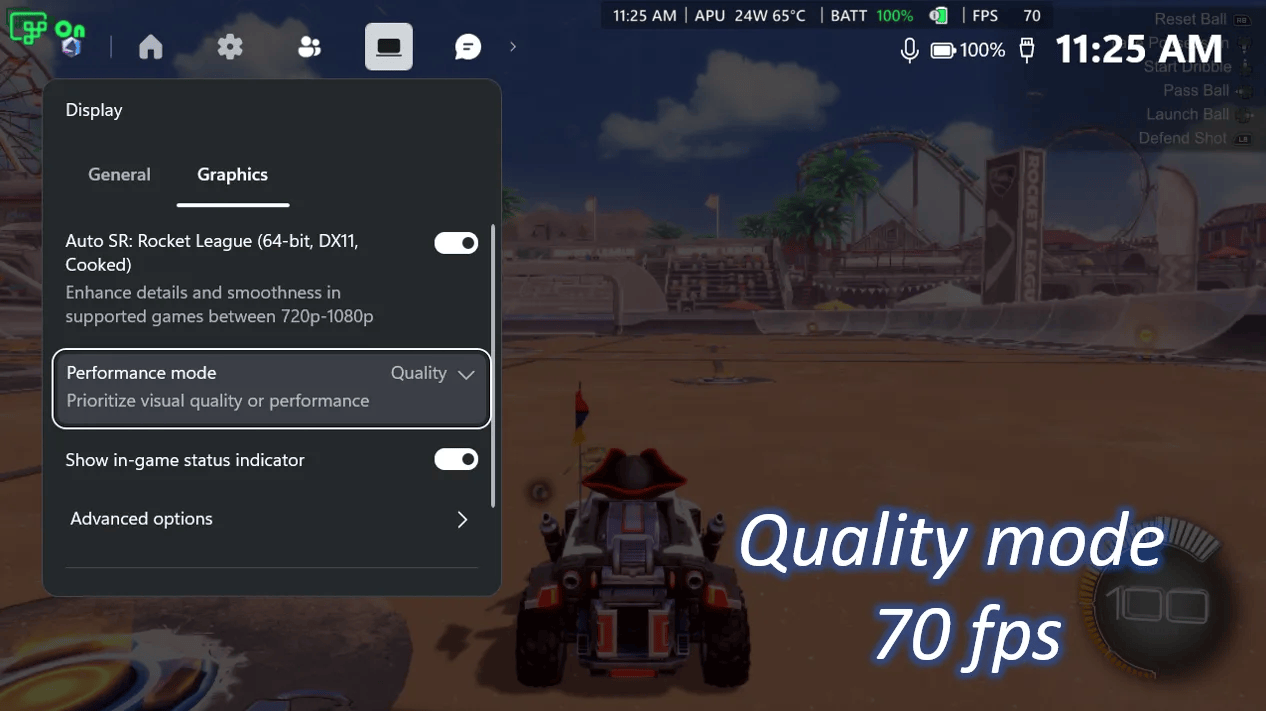
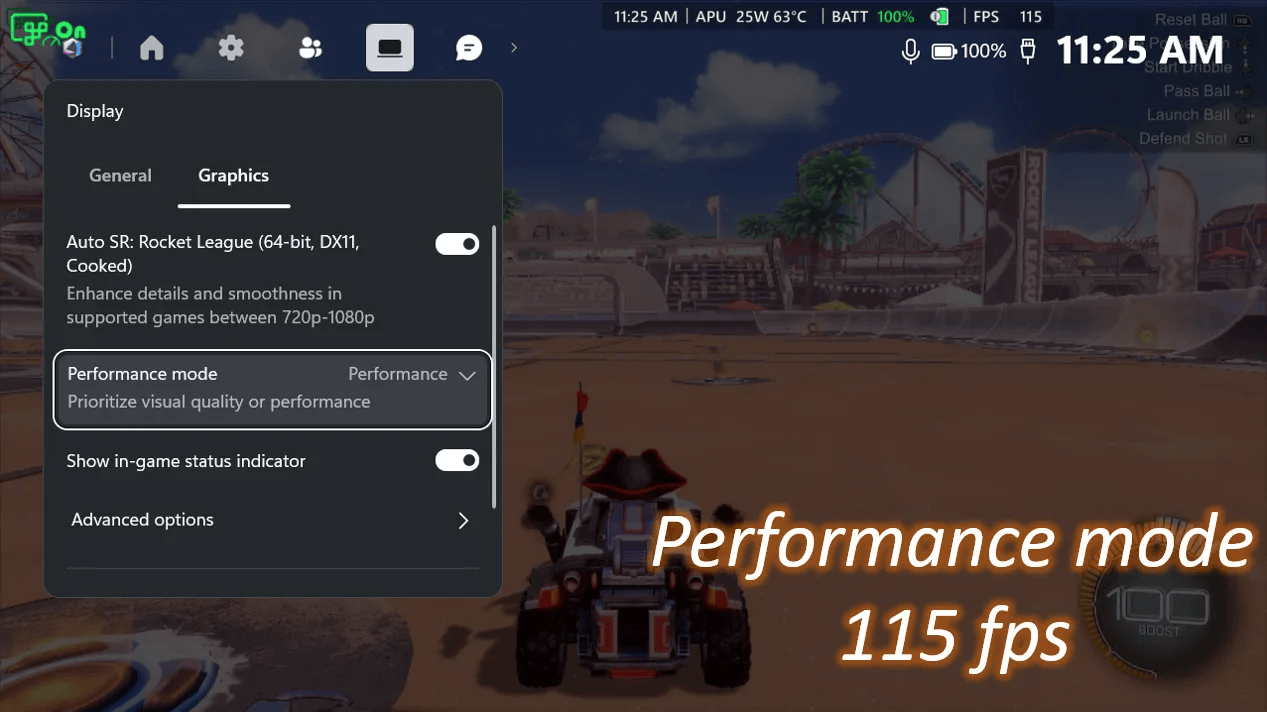
Image credit: Microsoft
Availability and how to enable Auto SR
Handheld support, 1080p compatibility, and AMD Copilot+ PC expansion are available starting November 10. Performance Mode and Auto HDR compatibility will arrive through upcoming Windows updates.
To enable it, update Game Bar, install the latest Windows updates, and download the Auto Super Resolution Package from Microsoft Store. Then open Game Bar, navigate to Widgets, Display, and Graphics, and select your preferred mode.

Read our disclosure page to find out how can you help Windows Report sustain the editorial team. Read more


Improve this guide

User forum
0 messages