
How to Fix There Is No Volume Selected Error in DiskPart


 4 min. read
 Published on
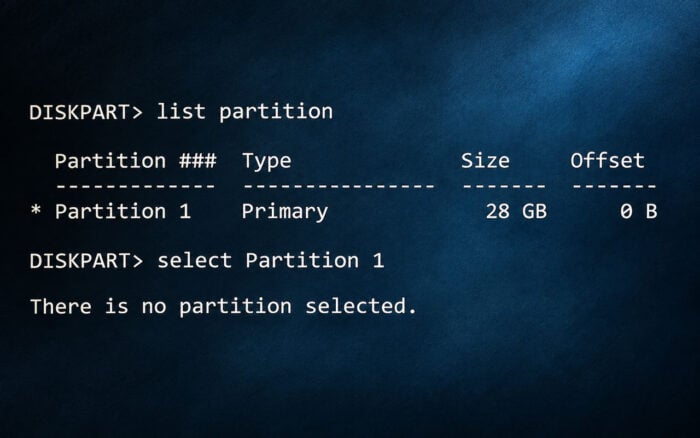
The There is no volume selected error in DiskPart occurs when you run commands such as format, assign, or attributes volume without selecting a valid volume first.
You can fix this by selecting the correct volume, checking the disk partitions, or creating a new volume if the drive is empty.
How can I fix There is no volume selected error in DiskPart on Windows 11?
1. Select the correct volume in DiskPart
DiskPart requires you to select a volume before running commands that modify it. Selecting a disk alone does not necessarily select its volumes.
- Press Windows + X and select Terminal (Admin).

- Launch DiskPart by running the following command:
diskpart
- Display all available volumes:
list volume - Identify the correct volume using its size, file system, and drive letter.
- Replace 2 with your volume number and run:
select volume 2 - Confirm your selection with the following command:
detail volume - Retry the command that previously caused the error.
For example, if you want to assign a drive letter, run assign letter=E Make sure another drive does not use that letter.
2. Check whether the disk contains a valid partition
If DiskPart does not display your volume, check whether Windows recognizes the disk and its partitions.
- Open Terminal (Admin) and run:
diskpart - Display all available disks:
list disk - Replace 1 with the correct disk number and run:
select disk 1 - Display available partitions:
list partition - Replace 1 with the appropriate partition number and run:
select partition 1 - Inspect the selected partition:
detail partition
If DiskPart recognizes the partition but cannot find a corresponding volume, the partition might use an unsupported file system or contain damaged metadata.
Avoid running clean, delete partition, or format commands if the drive contains important files.
3. Create a new volume
If the drive is new or contains unallocated space, you may need to create a volume before running DiskPart commands.
Only follow these steps if the target space contains no important data.
- Press Windows + X and select Disk Management.

- Locate the affected disk.
- Right-click the unallocated space and select New Simple Volume.

- Click Next and specify the volume size.
- Assign an available drive letter.
- Select NTFS as the file system.
- Complete the wizard.
Once Windows creates the volume, reopen DiskPart, run list volume, select the new volume, and retry the original command.
4. Rescan disks using DiskPart
DiskPart may not display a volume if Windows fails to detect the connected storage device correctly.
- Open Terminal (Admin).
- Launch DiskPart using the following command:
diskpart - Scan for connected storage devices:
rescan - Display all available disks:
list disk - Display all available volumes:
list volume - Select the correct volume if it appears.
If Windows still cannot detect the drive, reconnect it, try another USB port or cable, and check Device Manager for storage-related errors.
5. Use Disk Management instead of DiskPart
If DiskPart continues to display the error, try managing the volume through Disk Management.
- Press Windows + R.
- Open Disk Management by running:
diskmgmt.msc
- Locate the affected volume.
- Right-click the healthy data volume and select Change Drive Letter and Paths.

- Click Add if the volume lacks a drive letter.
- Choose an available letter and click OK.
If the volume unexpectedly appears as RAW or Unallocated, avoid formatting it until you recover any important files.
Selecting the correct volume should resolve the DiskPart error in most cases. If you accidentally removed your partitions, check how to undo DiskPart clean and recover lost data.
If you encounter the There are no fixed disks to show error in DiskPart or DiskPart fails to clear disk attributes, check the corresponding troubleshooting guides for additional solutions.
Frequently asked questions
Why does DiskPart say there is no volume selected?
DiskPart displays this error when no valid volume has focus. Common causes include selecting a disk instead of a volume, running a command after deleting a partition, or attempting to modify a disk without a recognized volume.
How do I select a volume in DiskPart?
Launch DiskPart as an administrator, run the list volume command, and identify the desired volume. Run the select volume command followed by the corresponding volume number.
Why is DiskPart not showing my volume?
DiskPart may not display your volume due to damaged partition metadata, an unsupported partition type, unallocated disk space, or storage connectivity issues. Rescan your disks and check Disk Management to identify the cause.
What is the difference between selecting a disk and selecting a volume in DiskPart?
Selecting a disk gives DiskPart focus on an entire physical storage device. Selecting a volume gives DiskPart focus on a specific logical storage area, allowing you to format it, assign a drive letter, or modify its attributes.

Read our disclosure page to find out how can you help Windows Report sustain the editorial team. Read more


Improve this guide

User forum
0 messages