
How to Enable Printer Sharing in Windows Sandbox


 2 min. read
 Published on
Key notes
- Use a .wsb file with PrinterRedirection set to Enable.
- Check the printer-sharing policy if host printers are unavailable.
- Restart Sandbox after changing policy and test host printing first.
To use your host PC’s printers in Windows Sandbox, launch a .wsb file with PrinterRedirection set to Enable. The default Sandbox configuration does not share host printers.
1. Create a printer-enabled Sandbox file
Open Notepad on the host PC and paste:
<Configuration>
  <PrinterRedirection>Enable</PrinterRedirection>
</Configuration>- Select File > Save as, choose All files, and save as
PrinterSandbox.wsb. Check that the filename does not end in.txt. - Save any work you need from an existing Sandbox session before closing it. Closing Sandbox discards its contents.
- Double-click the
.wsbfile to launch the new session.
Use this file whenever you need printing. To turn sharing off in the configuration, replace Enable with Disable.
2. Check the printer-sharing policy

If host printers remain unavailable, check this policy on supported Pro, Enterprise or Education editions. On a work PC, ask your administrator before changing it.
- Press Windows + R, enter
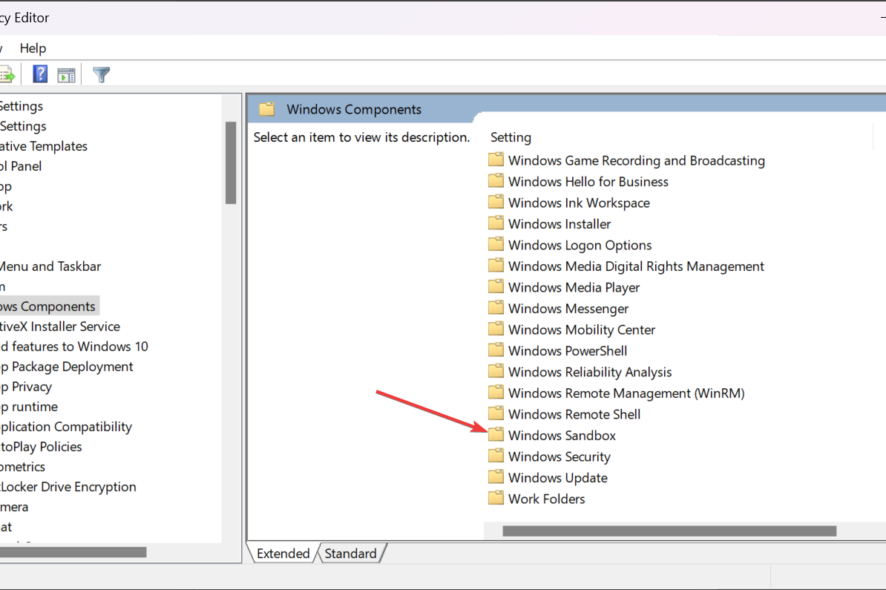
gpedit.msc, and press Enter. - Open Computer Configuration > Administrative Templates > Windows Components > Windows Sandbox.
- Open Allow printer sharing with Windows Sandbox.
- If you administer this PC and sharing is permitted, select Enabled > Apply > OK.
- Restart Sandbox to apply the change.
The Disabled policy prevents Sandbox from viewing host printers. Do not override an organization’s restriction; have its administrator check the effective policy.
3. Test printing
Print a small document from the host PC first. Then open an application inside Sandbox, check its printer picker and try a one-page print. If the host cannot print either, address that problem first.
If Sandbox itself cannot start, check virtualization and its installation under Turn Windows features on or off. Microsoft lists at least 4 GB RAM, 1 GB free space and two CPU cores among the requirements. Printer redirection cannot repair a missing Sandbox installation.
Enable host-printer access only for sessions that need it. Avoid exposing unnecessary host resources when examining suspicious software.
Sources: Microsoft’s configuration reference, Sandbox policies and installation requirements.

Read our disclosure page to find out how can you help Windows Report sustain the editorial team. Read more


Improve this guide


User forum
0 messages