
How to Move the Delivery Optimization Cache in Windows 11


 2 min. read
 Published on
Key notes
- Use Modify Cache Drive to choose where Windows stores its Delivery Optimization cache.
- An absolute GB limit overrides the percentage limit.
- These policies are supported on Windows 11 Pro, Enterprise and Education, not Home.
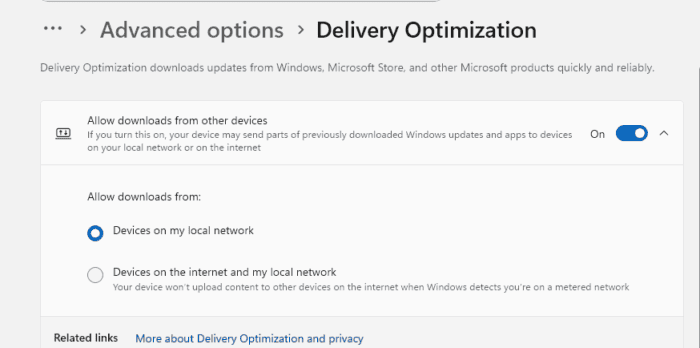
To move the Delivery Optimization cache to another drive in Windows 11, enable Modify Cache Drive in Local Group Policy and enter the destination, such as D:\DOCache. You can also limit its size with Absolute Max Cache Size (in GB).
This changes where Windows manages its update-sharing cache. It is different from moving your Downloads folder or changing where Microsoft Store apps install. The steps below are for Windows 11 Pro, Enterprise and Education; the policy is not supported on Home.
1. Set the new cache location
- Sign in with an administrator account. Choose a local drive with enough free space for update downloads.
- Press Windows + R, enter
gpedit.msc, and press Enter. - Open Computer Configuration > Administrative Templates > Windows Components > Delivery Optimization.
- Open Modify Cache Drive and select Enabled.
- Enter your destination, for example
D:\DOCache, then select Apply > OK. Replace D with the drive you intend to use.
The policy accepts a drive letter, folder path or environment variable. Its default is the system drive. On a work or school PC, ask your administrator first: centrally managed policy may control this setting.
2. Set a cache size limit
In the same Delivery Optimization policy folder, choose one of these limits:
- Absolute Max Cache Size (in GB): enable this policy and enter the maximum number of gigabytes you want the cache to use.
- Max Cache Size (in percentage): enable this policy and enter a value from 1 to 100. This is a percentage of available drive space, not total drive capacity; the default is 20%.
If both limits are configured, the absolute GB limit takes precedence. Windows manages the cache and removes content as needed to remain within its limit. Setting a limit does not reserve that amount of disk space.
What happens to existing cache files?
Do not treat this as a cut-and-paste operation on protected Windows folders. Setting the policy does not, by itself, prove that previously cached files have moved. If your immediate goal is to reclaim space, follow our separate guide to deleting Delivery Optimization files.
To undo your local change, reopen the policies you configured and select Not Configured. If a setting is missing or keeps reverting, check the Windows edition and whether the device is managed before changing anything else.
References: Microsoft Delivery Optimization reference and Delivery Optimization policy support.

Read our disclosure page to find out how can you help Windows Report sustain the editorial team. Read more


Improve this guide

User forum
0 messages