
Action Center in Windows 10: How to Use It


 2 min. read
  Updated on
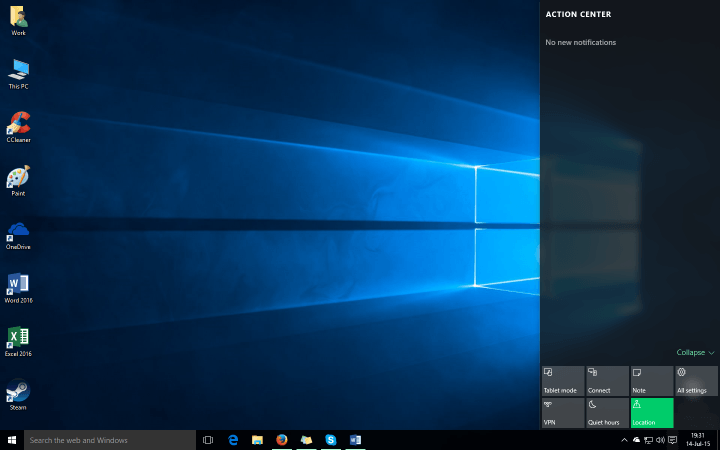
The Action Center in Windows 10 shows your notifications and quick settings in one place. Here’s how to open it, use it, and customize it.
Table of contents
🧭 What Is the Action Center in Windows 10?
The Action Center is a slide-out panel on the right side of your screen. It shows:
- App and system notifications (like email, updates, security alerts)
- Quick settings (Wi-Fi, brightness, Bluetooth, Focus Assist, etc.)
📍 How to Open Action Center in Windows 10
Method 1: From the Taskbar
- Click the speech bubble icon in the bottom-right corner of your screen (next to the clock)
Method 2: Keyboard Shortcut
- Press Windows key + A to open the Action Center instantly
⚙️ What You Can Do in Action Center
1. View Notifications
- See missed emails, app alerts, system messages
- Click a notification to open it
- Right-click to clear or disable future alerts from that app
2. Use Quick Settings
- Toggle Wi-Fi, Bluetooth, Airplane Mode, Night Light, and more
- Adjust brightness or project your screen
- Expand the panel to see all available quick actions
3. Use Focus Assist
- Mute notifications during work, gaming, or presentations
- Set automatic rules for quiet hours
🛠️ How to Customize Action Center
- Go to Settings > System > Notifications & actions
- Click Edit your quick actions to rearrange or remove toggles
- Turn notifications on/off per app
- Enable Focus Assist modes based on your preference
❌ If Action Center Is Missing
Try this:
- Restart Windows Explorer from Task Manager
- Run System File Checker with
sfc /scannowin Command Prompt - Make sure it’s enabled:
Settings > Personalization > Taskbar > Turn system icons on or off
FAQs
Where is Action Center in Windows 10?
Click the chat bubble icon at the bottom right of the screen or press Win + A.
Can I turn off Action Center?
You can hide notifications and quick actions from Settings > Notifications.
Is Action Center available in Windows 11?
Windows 11 replaced it with Notification Center and Quick Settings as separate panels.
Readers help support Windows Report. We may get a commission if you buy through our links.

Read our disclosure page to find out how can you help Windows Report sustain the editorial team. Read more



Improve this guide
User forum
1 messages