
AT&T WiFi Not Working? 6 Easy Ways to Fix It


 4 min. read
 Published on

If your AT&T WiFi is not working, the problem could come from a service outage, gateway connection, or incorrect network settings. Follow these steps to restore your internet connection.
What can I do if AT&T WiFi Not Working?
1. Check for an AT&T outage
Before changing your network settings, check whether AT&T is experiencing an outage in your area.
- Visit the AT&T outage page.
- Sign in to your AT&T account.
- Check for reported internet outages at your address.
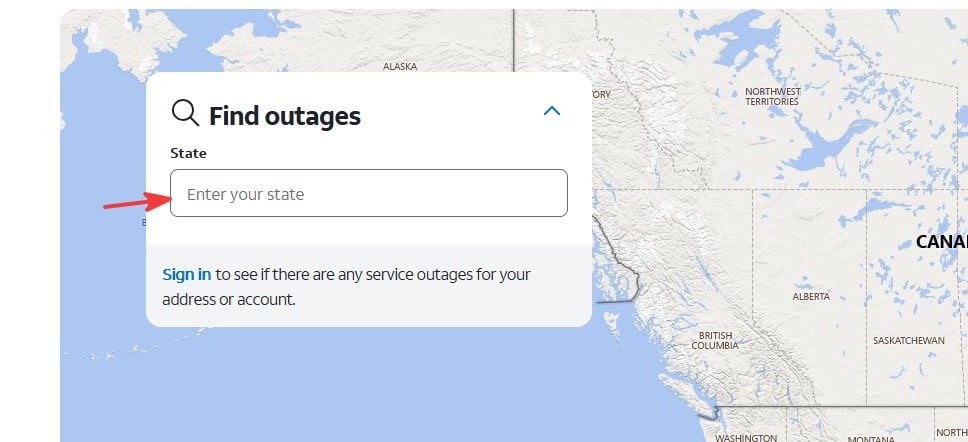
- If AT&T reports an outage, check for restoration updates.
If AT&T reports no outage, continue with the next solution.
2. Restart your AT&T WiFi gateway
Restarting your gateway can resolve temporary connection problems.
- Unplug your AT&T gateway from the power outlet.
- Wait at least 20 seconds.
- Plug the gateway back into the outlet.
- Allow up to 5 minutes for it to restart. Some older gateways may take longer.
- Reconnect your device to WiFi and test the connection.
You can also follow AT&T’s gateway restart instructions.
3. Check your AT&T gateway lights
Your gateway’s indicator lights can help identify connection problems.
- Check the power and internet status lights.
- Look for red, blinking, or unlit indicators that may signal a problem.
- Make sure the power and network cables are securely connected.
- Disconnect and reconnect any loose cables.
- Restart the gateway and check whether the lights return to their normal state.
Light colors and meanings vary by gateway model. Check your model’s instructions if a warning light remains on.
4. Forget and reconnect to your AT&T WiFi network
If your phone or computer connects to WiFi but cannot access the internet, try reconnecting.
On Windows 11, follow these steps:
- Open Settings.
- Select Network & internet > Wi-Fi.
- Click Manage known networks.

- Find your AT&T WiFi network and select Forget.
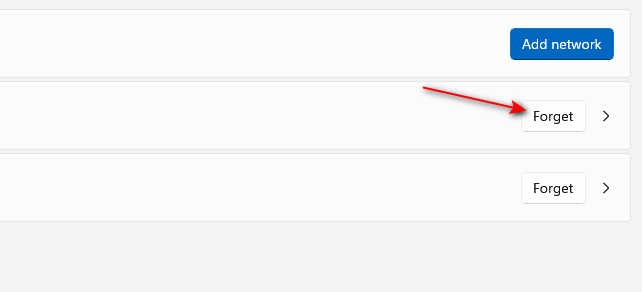
- Reconnect to the network and enter your WiFi password.
On Android or iPhone, open Wi-Fi settings, select your network, and choose Forget This Network or Forget. Then reconnect using your password.
5. Troubleshoot using AT&T Smart Home Manager
AT&T Smart Home Manager can help identify gateway and network problems.
- Open the AT&T Smart Home Manager app.
- Sign in using your AT&T account.
- Check your network’s connection status.
- Run any available troubleshooting or diagnostic tools.
- Follow the recommended steps to resolve the issue.
You can also use AT&T’s internet troubleshooting page to check your equipment and connection.
6. Reset your AT&T WiFi gateway
If your WiFi still does not work, consider a factory reset as a last resort. To reset your gateway:
- Locate the Reset button on the gateway.
- Press and hold it for at least 10 seconds.
- Release the button and allow the gateway to restart.
- Reconnect using the default WiFi information printed on your gateway.
- Check whether your internet connection works.
Important: A factory reset removes custom gateway settings, including any WiFi name and password you configured.
If the problem continues, contact AT&T Support to check for equipment or service issues.
If your AT&T WiFi is still not working after trying these fixes, check your gateway settings and connected devices for additional configuration problems. Our guides on accessing your AT&T router and fixing AT&T Family Map when it is not working can help with related account, network, and device issues.
FAQs
Why is my AT&T WiFi connected but not working?
Your device may connect to the gateway even when the gateway has no internet connection. Check for AT&T outages, restart the gateway, and test another device.
Why is my AT&T WiFi blinking red?
A blinking red light may indicate a connection or service problem, depending on your gateway model. Check your gateway’s light guide and restart the equipment.
How do I fix AT&T WiFi not showing up?
Make sure your gateway is powered on and WiFi is enabled. Move closer to the gateway, restart your device, and scan for available networks again.
What should I do if my AT&T WiFi keeps disconnecting?
Move your gateway away from interference, check for loose cables, and restart it. If the issue affects only one device, update that device’s WiFi drivers or software.

Read our disclosure page to find out how can you help Windows Report sustain the editorial team. Read more


Improve this guide


User forum
0 messages