
Chrome History Could Show What Gemini Did, From Downloads to Password Fills
Chrome is testing Critical Actions in History, which can show Gemini’s key actions alongside the webpages it visits.


 2 min. read
  Published on
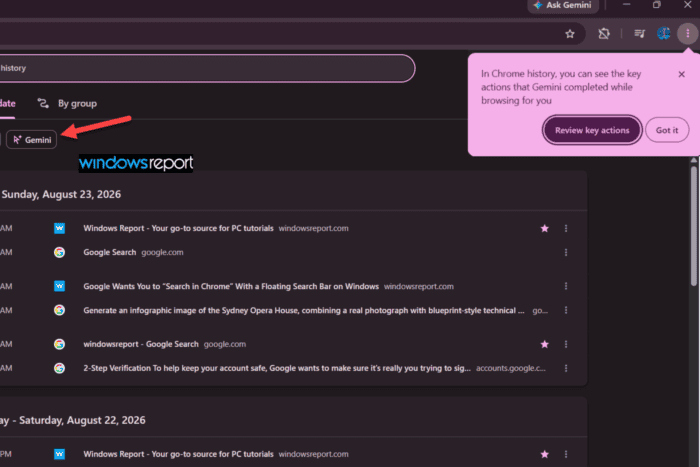
Chrome is testing a new way to show important actions Gemini performs during browser tasks in History. Alongside the webpages Gemini visits, Chrome History may also show actions such as file downloads and password fills.
The feature is part of Chrome’s “Critical Actions in History” experiment and is being tested in Chrome Canary.
Gemini gets a new History filter
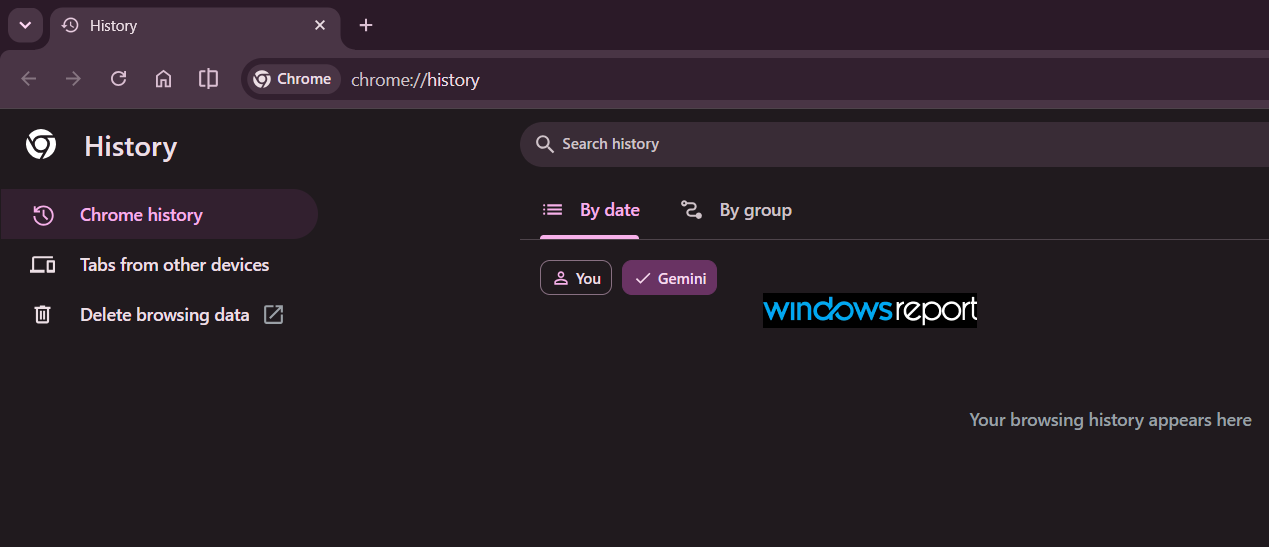
Chrome’s History page now shows a “Gemini “filter next to “You” in the tested build. This replaces the earlier “Auto browse” label.
Selecting Gemini lets users view activity related to Gemini’s browser tasks separately from their regular browsing history.
Chrome also shows a message explaining the new History experience:
“In Chrome history, you can see the key actions that Gemini completed while browsing for you”
The message includes “Review key actions” and “Got it” buttons. Selecting Review key actions takes users to the relevant History view.
What Chrome may show
The Critical Actions in History feature is designed to show more than the websites Gemini visited. It can also record actions performed during those browsing sessions, including File downloads, Password fills
Contact information fills, Site-setting changes, Account sign-ins and Verification-code fills.
Critical action rows can also include information such as phone numbers, email addresses, and payment methods. These actions can appear inside expanded History entries when the feature is enabled.
Review Gemini activity
Chrome is adding a “Review Gemini activity” option to History entries associated with Gemini activity.
The option opens the user’s Gemini Apps Activity page, where they can review related activity. It is available only for relevant Gemini entries when the Critical Actions in History feature is enabled.
Chrome is also moving the Gemini activity icon next to the website favicon in History entries.
The change could give users a clearer view of what Gemini did during a browser task, not just the pages it opened.
For example, if Gemini visits several websites, fills in information, and downloads a file, Chrome could show those important actions alongside the related History entries.
The feature can be enabled through the chrome://flags/#critical-action-history flag and is supported on Windows, macOS, Linux, and ChromeOS.

The Gemini filter and message are already visible in the tested build. The broader feature remains experimental, so the action types, layout, and availability may change before Chrome releases it more widely.


Read our disclosure page to find out how can you help Windows Report sustain the editorial team. Read more



Improve this guide




User forum
0 messages