
Coursera Login Guide: Access Your Account on Desktop and Mobile


 4 min. read
  Published on
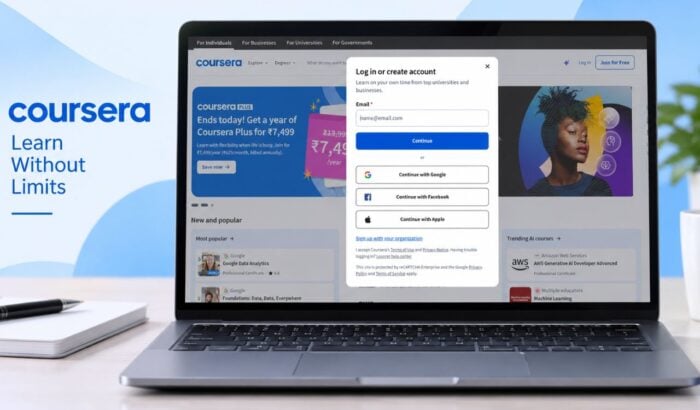
Logging into your Coursera account is easy and gets you back to your courses, certificates, assignments, and learning progress. Whether you’re using a new device or returning to an old course, signing in only takes a few steps. In this guide, you’ll learn everything about logging into your Coursera account.
How to Log into Coursera Account on Desktop
Coursera login via a web browser
- Open the official Coursera website.
- Click on Login t the top right.
- Enter the email address linked to your Coursera account.
- Select Continue.
- Enter your password when prompted.
- Follow any additional verification steps shown on screen.
- Once verified, Coursera should take you to your account.
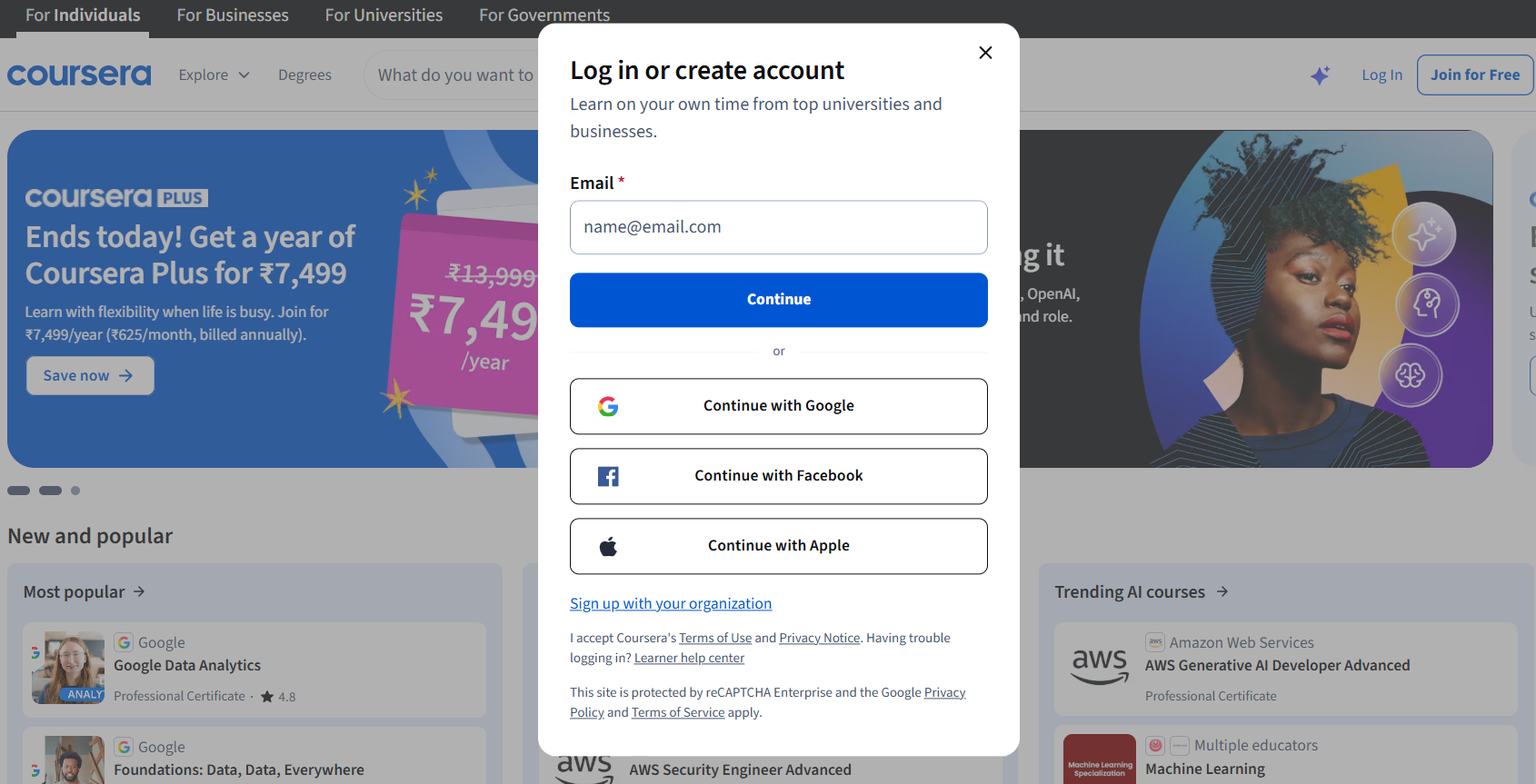
If you originally created your account using Google, Facebook, or Apple, choose the matching option instead. Using the same sign-in method can help you access the correct account.
Security tip: Make sure you’re signing in through the official Coursera website before entering your password.
What to do when you forget your Coursera login password?
- On the login page, select the option for Forgot password? or password recovery.
- Check your email for Coursera’s password reset message.
- Open the link provided in the email.
- Follow the on-screen instructions to create a new password.
- Return to the Coursera login page and sign in with your new password.
Alternatively, you can directly head to Coursera official password reset page and enter details as asked on the screen. If you still can’t log into your account, visit the Coursera Help Center for account troubleshooting.

How to Log into Coursera Account on Mobile
Coursera offers mobile apps for learning on smartphones and tablets. The platform supports mobile access to courses, while Coursera also provides mobile app access for its learning services.
Option 1: Coursera mobile app
- Download the official Coursera app from your device’s app store.
- Open the app.
- Select Log In or the equivalent sign-in option.
- Enter the email address linked to your Coursera account.
- Enter your password.
- Complete any verification requested by Coursera.
- Wait for your courses and account information to load.
If you registered through Google, Apple, or Facebook, use the corresponding sign-in option instead. Coursera’s current login page supports all three methods.
Option 2: Mobile browser
You can also access Coursera without installing the app.
- Open Chrome, Safari, or another browser on your phone.
- Visit the official Coursera website.
- Select Log In.
- Enter your account email address.
- Select Continue.
- Enter your password.
- Complete any verification steps.
- Open your course from your account dashboard.
This option can be useful when you’re using another phone or don’t want to install the app.
Coursera Login for Organizations
Coursera also provides organization-based access. The current login page includes a Sign up with your organization option. If your university or employer provides Coursera access, follow the instructions supplied by your organization. Your institution may use its own sign-in process or single sign-on system.
What to Do When Coursera Login Doesn’t Work
Login problems can happen for several reasons, including incorrect credentials or using the wrong sign-in method.
- Wrong password: Use the password recovery option and follow the reset instructions.
- Wrong sign-in method: Try Google, Apple, or Facebook if you originally registered through one of them.
- Wrong email: Check which email address you used when creating your Coursera account.
- Browser issue: Try another browser or clear your browser cache before signing in again.
- Organization account: Contact your university or employer if their sign-in system is not working.
- Still cannot log in: Visit the Coursera Learner Help Center for troubleshooting and account support.
Coursera login is usually straightforward, whether you’re accessing your account on desktop or mobile. If you use other platforms for work or learning, you may also find our guides for LinkedIn login, Salesforce login, and Canvas login useful.
Coursera Login FAQs
1. Can I log in to Coursera from my phone?
Yes. You can use the Coursera mobile app or access the platform through a mobile browser.
2. Can I log in without a password?
Yes, if you originally created or linked your account using Google, Facebook, or Apple. Select the corresponding sign-in option on the Coursera login page.
3. Why can’t I find my Coursera courses after logging in?
You may have entered a different email address or used another sign-in method. Try logging out and signing in with the account method you originally used.
4. Can I use Coursera on multiple devices?
Yes. Your Coursera account can be accessed across supported devices. Your courses and learning progress are tied to your account rather than a single device.
5. What should I do if Coursera login keeps failing?
First, check your email and password. Then try another browser or sign-in method. If the issue continues, Coursera recommends using its Learner Help Center for account and login support.

Read our disclosure page to find out how can you help Windows Report sustain the editorial team. Read more



Improve this guide



User forum
0 messages