
How to Fix RESOURCE_REQUIREMENTS_CHANGED Error
Updating drivers and adjusting conflicting settings


 2 min. read
  Published on

If you’re encountering a message saying ERROR_RESOURCE_REQUIREMENTS_CHANGED, it’s probably because a device on your system has updated its hardware resource needs.
This can happen after you add a new device, when a driver is missing, there’s been a hardware change, or when there’s a conflict in how your system allocates resources to devices.
Here’s how you fix it:
How to fix ERROR_RESOURCE_REQUIREMENTS_CHANGED
Try restarting your PC and see if that solves the problem. Sometimes, a simple reset like this is enough. But if it isn’t, follow the more advanced steps below:
1. Update drivers
- Go to Device Manager.
- Open the sections for Disk drives, Network adapters, and Display adapters.

- Take each device, right-click on it, and select Update.
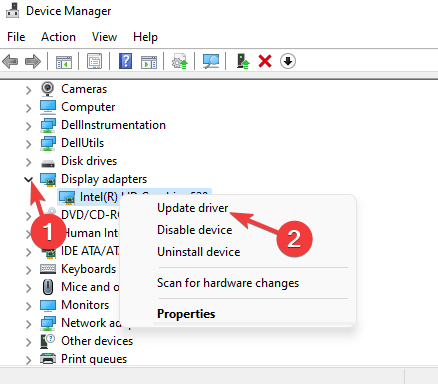
- Select Search automatically for drivers.
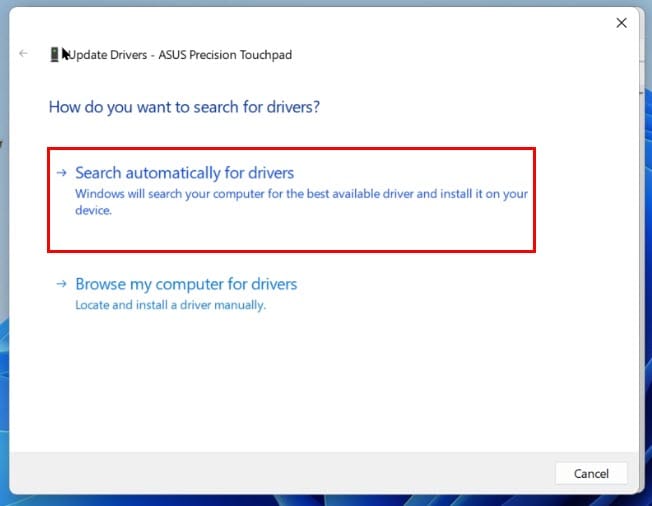
- Repeat until you update all devices.
- Restart your PC and check if the Resource requirements changed error persists.
The error might stem from driver errors, especially device driver, so make sure to keep them up to date.
You can also use an automated driver updater or manually install the drivers from your PC’s manufacturer’s website.
2. Check for updates
- Open Windows Settings.

- Go to Update & Security and click on Check for updates.

- If any updates are available, install them.
- Restart your PC and see if you still get the ERROR_RESOURCE_REQUIREMENTS_CHANGED message.
3. Check power settings
- Go to Control Panel.
- Select Power Options > Edit Plan Settings.

- Click Change advanced power settings.
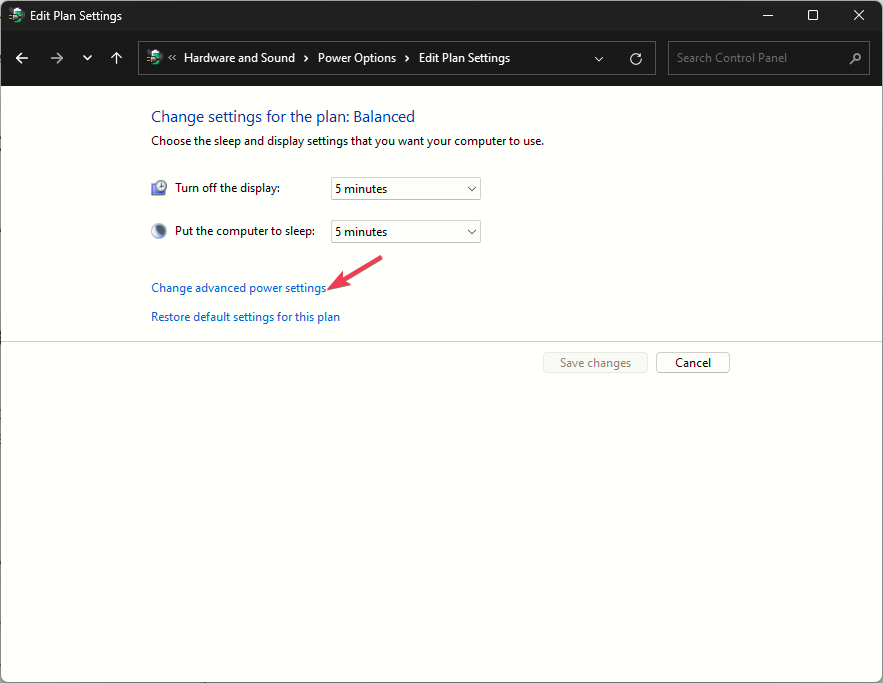
- Expand PCI Express > Link State Power Management, and set it to Off.

Some power settings can cause devices to incorrectly report their source requirements, leading to errors.
4. Revert to a restore point
- Open Control Panel and search for Recovery.

- Select Open System Restore.

- Pick a saved restore point and hit next.

- Confirm you want to revert and hit Ok.
- Wait for the process to complete.
If the error started after recent software or hardware changes, restoring your system to an earlier state can undo these changes and resolve the issue.
As you can teel, you can fix the ERROR_RESOURCE_REQUIREMENTS_CHANGED problem and get your device working normally in just a few steps.
Each solution targets a specific possible cause of the error, from temporary glitches to driver corruption or resource conflicts.
Keep your system up to date and a security software always running to prevent this and similar errors like Error 0x8096002A or RunTime Error 62.


Read our disclosure page to find out how can you help Windows Report sustain the editorial team. Read more



Improve this guide

User forum
0 messages