
PS5 Sound Not Working on TV? 9 Quick Fixes to Try


 7 min. read
 Published on
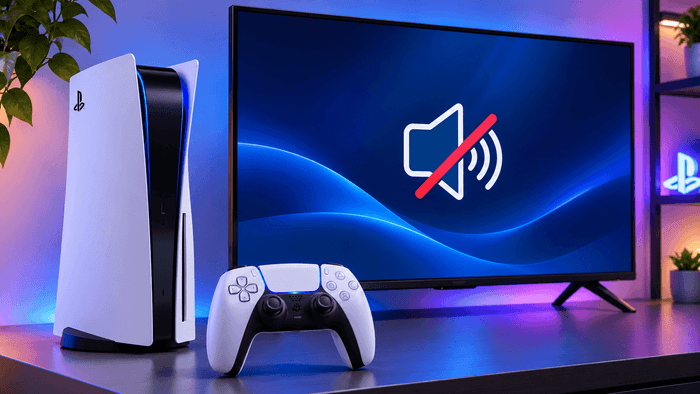
PS5 sound not working on TV can be pretty annoying, especially when games display normally but produce no audio. The issue can involve incorrect audio output settings, HDMI connection problems, muted TV speakers, or temporary software glitches. Remember that you do not need to reset your console immediately. In this guide, we’ll walk you through bunch of fixes to restore sound without losing your games or saved data.
How to fix PS5 sound when it’s not working on your TV
1. Check your TV and PS5 volume settings
Start with the basic volume controls before changing console settings. Your TV might be muted, or the PS5 controller’s mute button may have disabled speaker output.
- Press the volume-up button on your TV remote.
- Make sure the TV is not muted.
- Press the MUTE button on your DualSense controller to check its status.
- Open a game or video and check whether sound returns.
Also, check the game’s audio settings. Some titles have separate controls for music, sound effects, dialogue, and master volume.
2. Set your PS5 audio output to your TV
Your PS5 may be sending audio to a headset or another connected device instead of your television. Sony provides an option to select the preferred audio output manually.
- Open Settings on your PS5.
- Select Sound.
- Open Audio Output.
- Select Output Device.
- Choose HDMI Device (TV) or the corresponding TV option.
You can also press the PS button, open Sound in the Control Center, and change the output device there.
3. Change the PS5 audio format to Linear PCM
An incompatible audio format can prevent some televisions or connected audio devices from playing sound correctly. Switching to Linear PCM is a useful diagnostic step when the other settings look correct.
- Open Settings on your PS5.
- Go to Sound > Audio Output.
- Scroll down to Audio Format (Priority).
- Select Linear PCM.
- Restart your game and check the audio.
If sound returns, your previous audio format may not have worked correctly with your TV or audio equipment. You can experiment with other supported formats later.
4. Check the HDMI cable and TV input
The HDMI cable carries both picture and audio from your PS5 to the television. A loose connection, damaged cable, or incorrect TV input can interrupt the signal.
- Turn off your PS5 and television.
- Disconnect the HDMI cable from both devices.
- Reconnect it securely at both ends.
- Confirm that your TV is using the correct HDMI input.
- If possible, try another HDMI port or a different cable.
Sony recommends using the HDMI cable supplied with the PS5. You can also test another compatible cable to rule out a faulty connection.
5. Connect your PS5 directly to the TV
An HDMI switch, capture card, receiver, or soundbar can sometimes interfere with audio transmission. Connecting the console directly to the television helps identify whether another device is causing the problem.
- Disconnect the PS5 from any HDMI switch or receiver.
- Connect the console directly to an available TV HDMI port.
- Select that HDMI input on your television.
- Start a game and check whether sound works.
If audio returns, reconnect your other devices individually. This should help identify the device or connection causing the issue.
6. Set the HDMI device type correctly
Your PS5 allows you to specify which type of device receives audio through HDMI. Selecting an AV amplifier when using ordinary TV speakers can result in unsuitable channel settings.
- Open Settings > Sound > Audio Output.
- Find HDMI Device Type.
- Select TV if your console connects directly to television speakers.
- If you use an AV receiver, select AV Amplifier instead.
- Test the audio again.
The available channel and speaker-position options depend on the selected device type.
7. Restart your PS5 and television
Temporary software or HDMI communication problems can sometimes interrupt audio output. A complete restart can help refresh the connection between both devices.
- Turn off your PS5 completely instead of using Rest Mode.
- Turn off your television.
- Unplug both devices from their power outlets.
- Wait approximately one minute.
- Reconnect the power cables and turn on your TV first.
- Start the PS5 and check whether sound returns.
If the issue persists, continue with the next fix.
8. Update your PS5 system software and TV firmware
Outdated system software can sometimes contribute to audio compatibility problems. Sony recommends updating the console and checking that the connected display or audio device has current firmware.
- Open Settings > System > System Software on your PS5.
- Select System Software Update and Settings.
- Choose Update System Software if an update is available.
- Follow your television manufacturer’s instructions to check for firmware updates.
- Restart both devices after updating.
Avoid interrupting an update once it starts.
9. Check your soundbar or home theater settings
If your PS5 connects through a soundbar or home theater system, the audio connection may be responsible. This is particularly important when using HDMI ARC or eARC.
- Make sure the soundbar is connected to the TV’s HDMI ARC/eARC port.
- Check that the TV’s audio output is set to the connected sound system.
- Select the correct input on your soundbar.
- Check whether HDMI-CEC or Control for HDMI is enabled on both devices.
- Disconnect and reconnect the HDMI cable.
You can temporarily switch to the TV’s built-in speakers to determine whether the soundbar is causing the problem.
What if your PS5 still has no sound on TV?
If none of the aforementioned fixes works, test your PS5 with another television or monitor. Also, connect another HDMI device to your original TV to check whether its speakers and HDMI ports work. If the PS5 produces no audio across multiple displays, the console may have a hardware or software problem. In that case, contact PlayStation Support for further assistance.
Summing Up
If your PS5 still has no sound on your TV, start by checking its audio output settings, HDMI connection, and TV speakers. If the problem is accompanied by network errors, our guides on fixing the Cannot Communicate Using SSL error on PS4 and PS5 and the DNS server cannot be used error on PS4 and PS5 may help. Meanwhile, if you use your DualSense controller on a PC, check out our guide on fixing PS5 controller detection problems in Windows 11.
FAQs related to PS5 sound not working on TV
1. Why does my PS5 have a picture but no sound on TV?
Incorrect audio output settings, HDMI connection problems, or muted speakers can cause this issue. Check your PS5 audio output and HDMI cable first.
2. How do I get sound from my PS5 through my TV?
Open Settings > Sound > Audio Output and select your television as the HDMI output device. Also, make sure your TV speakers are enabled.
3. Why does my PS5 sound work with headphones but not TV?
Your console may be routing audio to your headset instead of the television. Change the output device to your TV under Audio Output settings.
4. Does an HDMI cable affect PS5 audio?
Yes. A damaged or poorly connected HDMI cable can interrupt audio transmission. Try another HDMI cable and port to check whether the connection is responsible.
5. Should I reset my PS5 to fix sound problems?
No. A factory reset should not be your first troubleshooting step. Check audio settings, cables, connected devices, and software updates first.
6. Why does my PS5 have no sound in games but work on the home screen?
The game may have muted audio or incorrect volume settings. Check its master volume, dialogue, and sound effect controls.

Read our disclosure page to find out how can you help Windows Report sustain the editorial team. Read more


Improve this guide

User forum
0 messages