
How to Fix Windows 11 Sound Fading In & Out After Playback Starts


 6 min. read
 Published on
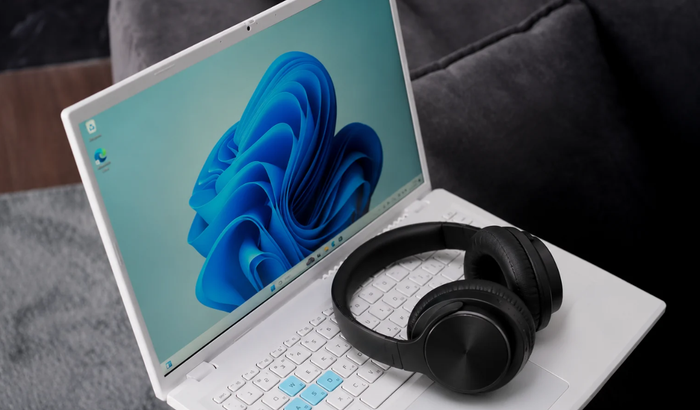
Sound fades in and out on Windows 11 when audio volume suddenly drops, slowly increases, or disappears briefly during playback. The problem can affect speakers, headphones, Bluetooth devices, and even individual apps. In the past, many Windows 11 users have reported similar behavior. While the issue had been a concern for many a few years back, some of you might still experience that Windows 11 audio takes a second or two to reach its normal volume after playback starts. Also, there are chances that you may experience sound fading after their PC remains silent for several seconds. The issue can be related to audio enhancements, communication settings, Realtek drivers, and device-specific power management. If you are facing a similar sound issue on Windows 11, make sure to try the following fixes.
Here’s how you can fix Windows 11 sound when it fades in and out
1. Run the Windows 11 audio troubleshooter
Windows 11 includes a built-in audio troubleshooter that can detect problems with sound output, audio services, and connected devices. Run it before changing drivers or advanced sound settings.
- Press Windows + I to open Settings.
- Go to System > Troubleshoot > Other troubleshooters.
- Find Audio in the list.
- Click Run next to it.
- Follow the instructions in the Get Help window.
- Apply any recommended fixes and restart your PC if prompted.
- Play music or a video to check whether the sound still fades in and out.
Alternatively, right-click the speaker icon in the taskbar and select Troubleshoot sound problems, if that option is available on your Windows 11 version. For additional troubleshooting, check Microsoft’s official Windows audio troubleshooting guide.
2. Turn off audio enhancements
Windows 11 audio enhancements can sometimes interfere with playback. Features such as volume equalization and manufacturer-provided sound effects may cause unexpected volume changes. Microsoft also recommends disabling enhancements when troubleshooting low or distorted audio. Here’s how to test this setting.
- Press Windows + I to open Settings.
- Go to System > Sound.
- Under Output, select your speakers or headphones.
- Find Audio enhancements under the audio device settings.
- Set the option to Off.
- Play music or a video and check whether the volume remains consistent.
If the fading continues, keep going. You can restore enhancements later if they aren’t responsible.
3. Disable automatic volume adjustment for communications
Windows can automatically reduce other sounds when it detects communication activity. This feature may interfere with music, videos, or other playback.
Disabling it can help determine whether Windows is lowering your volume automatically.
- Press Windows + R.
- Type mmsys.cpl and press Enter.
- Open the Communications tab.
- Select Do nothing.
- Click Apply, then OK.
- Restart your audio playback and test again.
This setting is particularly worth checking if the sound changes when you open a voice or video calling application.
4. Check the Volume mixer
Windows 11 allows individual applications to use separate volume levels. An app can also use a different output device from your system default.
If the fading happens only in Chrome, Spotify, or a game, check its individual settings.
- Open Settings > System > Sound.
- Select Volume mixer.
- Find the affected application under Apps.
- Make sure its volume slider isn’t changing unexpectedly.
- Check that it uses your preferred output device.
- Close and reopen the affected application.
If every application experiences the same problem, continue with the next fix.
5. Change your default audio format
An incompatible audio format can cause playback problems on certain devices. Changing the default format is a useful test when audio fades, crackles, or sounds inconsistent.
- Open Settings > System > Sound.
- Select your active output device.
- Expand Advanced.
- Find Default format.
- Select another available format.
- Test your audio again.
Try the available options one at a time. Keep the format that produces stable playback.
6. Restart Windows audio services
Windows relies on background services to manage audio playback. Temporary service problems can interrupt sound or cause applications to behave unexpectedly. Restarting these services may restore normal playback without changing your audio configuration.
- Press Windows + R.
- Type services.msc and press Enter.
- Find Windows Audio.
- Right-click it and select Restart.
- Repeat the process for Windows Audio Endpoint Builder.
- Restart your PC and test the sound.
7. Update or reinstall your audio driver
An outdated or incompatible audio driver can cause unusual playback behavior. This is particularly relevant if the problem started after a Windows update or driver installation.
- Right-click Start and open Device Manager.
- Expand Sound, video and game controllers.
- Right-click your audio device.
- Select Update driver.
- Choose Search automatically for drivers.
- Restart your PC after installation.
If Windows doesn’t find a suitable driver, visit your laptop or motherboard manufacturer’s support website. Download the audio driver for your exact model. If updating doesn’t help, reinstall the manufacturer-provided driver. You can also check the Driver tab under device Properties. Select Roll Back Driver if the problem started after a driver update and that option is available.
8. Check Realtek audio power management
Some reports point to Realtek audio power management as a possible cause of sound fading after periods of silence. This appears in discussions involving HP Omen computers and other systems. In the past some users have found it useful to fix Realtek audio fading issue by changing driver power settings. However, this involves Registry Editor, and the results may vary between devices. Before attempting registry changes, create a restore point and back up the relevant registry key. Avoid copying registry values from another computer. Make sure to start with the safer driver and enhancement fixes above.
9. Test another audio device
Testing another output helps determine whether the problem comes from Windows or your current hardware.
- Connect a different pair of wired headphones.
- Test the same audio through your monitor speakers, if available.
- Try another USB or Bluetooth audio device.
- Play the same video or song on each device.
If only your built-in speakers experience fading, the issue may involve their driver or hardware. If every output behaves the same way, investigate Windows settings and audio software further.
Summing Up
Sound fading in Windows 11 can be frustrating, especially when it interrupts music, videos, or gaming. Start with audio enhancements, communication settings, and driver checks before attempting advanced changes. If you’re experiencing other sound problems, our guides on fixing audio latency in Windows and resolving the Audio Service is not running error may also help.
FAQs related to sound fading in and out in Windows 11
1. Why does my Windows 11 sound fade in when I start playing music?
Audio enhancements, driver behavior, or power management may delay playback. Try disabling enhancements and testing another output device.
2. Why does my sound fade out randomly?
Incorrect audio settings, application-specific volume controls, and incompatible drivers can cause inconsistent playback. Check the Volume mixer first.
3. Does Realtek cause sound fading in Windows 11?
Some users have reported fading with Realtek audio drivers. However, this does not mean every fading issue comes from Realtek.
4. Can a Windows update cause audio problems?
Yes. An incompatible or partially installed audio driver can cause playback problems after an update. Rolling back the driver may help.
5. Should I disable audio enhancements permanently?
Not necessarily. Disable them temporarily to test whether they cause the problem. You can turn them back on if playback remains stable.

Read our disclosure page to find out how can you help Windows Report sustain the editorial team. Read more


Improve this guide


User forum
0 messages